
Working a task: steps, prerequisites, time, discussion and history
Creating the task is half the job; the other half happens in its panel. A saved task opens on four tabs: “Details” for what you know about it, “Work” for what you do in it, “Discussion” for what is said about it, and “Repeat” to make it come back. This lesson covers the day-to-day work: splitting it into checklist steps with a progress bar, linking it to tasks that must be done first, recording the time you actually spent, commenting and choosing who gets notified, then closing it and reading its history. The example comes from “En-Nadjah Academy”: Nour El Houda, a photography trainer, shoots the promo video for the “Video color grading” course inside the launch plan Amine Belkacem runs. The method is the same for a marketing coach preparing a campaign or a teacher preparing exam revision.
- About 6 minutes to read
- 5 steps
Who can do it: “Tasks” is enough to work on a task you own or that is assigned to you: checklist, status, time and comments. Adding or removing prerequisites and archiving belong to whoever manages the task: its owner, or for a shared task, someone with “Assign tasks and manage plan members” or who manages its plan. Seeing other people’s time needs “View organization reports”.
In 5 steps
- 1Steps: in “Work”, split the task into a “Checklist” with a progress bar, and follow its “Subtasks” inside plans.
- 2Prerequisites: link it to tasks that must be done first; it can’t be completed before them, and dates never move by themselves.
- 3Time: type in the minutes you actually worked, with a date and a note; no timer, no automatic tracking.
- 4Discussion: comment in the task, and choose per task whether to follow its updates or mute them.
Before you start
- A saved task: the tabs don’t appear in the “New task” form, only when you reopen the task after “Create task”.
- The “Tasks” permission in your role; the teacher, assistant and admin templates have it.
- For subtasks: a work plan that holds the task, since the “Subtask” button exists only inside plans.
- To work as a team: a “Shared” task or one inside a plan, so colleagues see it and comment on it.
- Step 1 of 5
Checklist steps and subtasks
Open the task and pick the “Work” tab; it carries a figure like “1/4”: checked steps out of the total. In “Checklist”, type each step in “Add a step” then “Add” (up to 500 characters), and tick it when it’s done: the bar moves forward and turns green once complete. Nour El Houda’s steps for “Shoot the promo video”: “Write the shot list”, “Set up lights and camera”, “Shoot the clips”, “Hand the files to Sara”. The assignee, the owner and whoever manages the task can tick steps. When the task sits in a work plan, a “Subtasks” part appears: the “Subtask” button opens a new linked task, each subtask shows with its status and a count of those done, and the subtask’s panel carries a “Part of:” line back to the parent.
On screenWorkChecklistAdd a stepAddSubtasksSubtaskPart of:TipA step is what gets done inside the task itself; a subtask is what needs its own assignee or date. “Set up the lights” is a step; “Design the cover image” is a subtask with its own deadline.
Heads-upA step can’t be renamed, removed or reordered once added, so write it in its final form. Subtasks all show when you open the parent from its plan’s page.
- Step 2 of 5
Prerequisites: what must be done first
Also in “Work”, the “Prerequisites” part: “Choose tasks that must be completed before this one.” Press “Add prerequisite”, search by title in “Find a task to add as a prerequisite” and pick the task. The prerequisite shows with its status (“In progress”, “Completed”…) and a link to open it. While one prerequisite is unfinished, a warning tells you how many remain, and “Completed” is disabled; pressing the circle in the list gives “Complete the prerequisites first. Open task details to review them.” Example: Nour can’t close “Shoot the promo video” until Sara Makhloufi finishes “Write the ad script”. For a teacher: “Prepare the revision sheet” after “Grade the class test”. To undo the link, press ✕ “Remove” on the prerequisite’s line.
On screenPrerequisitesAdd prerequisiteFind a task to add as a prerequisiteCompletedRemoveTip“Dates never shift automatically”: if the prerequisite runs late, your task’s deadline doesn’t move with it. Review it yourself and explain why in the discussion.
Heads-upAdding and removing prerequisites belongs to whoever manages the task, and only on an active task. No cancelled or archived task, and no link that makes a loop (A before B and B before A). Reopening a prerequisite after you completed your task doesn’t undo that completion.
- Step 3 of 5
Recorded time: what you actually spent
At the bottom of “Work”, open “Recorded time”: “Record time you actually spent. Device usage is not tracked automatically.” Pick the “Calendar date” (today or earlier), type the “Actual minutes” (1 to 1,440 per entry) and a note in “What did you work on?”, then “Record time”. The entry shows with your name and its date, and the total updates at the top of the part. Example: Nour records 45 minutes on 6 October for the lighting, then 90 minutes on 7 October for the shoot: total “2 h 15 min”. You fix your entries with the pencil or remove them with the bin: “Remove this time entry? It will be removed from the recorded-time total.”
On screenRecorded timeCalendar dateActual minutesWhat did you work on?Record timeTipRecord at the end of each work session, not at the end of the week. Compare the total with “Estimated time” under “More details”: the gap teaches you to estimate the next task.
Heads-upAnyone who sees the task can record their time on it, but sees only their own entries and total, except with “View organization reports”, which shows everyone’s time. No timer runs while you work: you type the minutes yourself.
- Step 4 of 5
Discussion: comments and who is notified
The “Discussion” tab shows the comment count. At the top, “Follow updates”: “Automatic based on my role” (the owner and the assignee are notified), “Follow updates” to follow it without being either, or “Mute this item’s updates”. Below, the “Comments”, oldest to newest: type in “Write a comment” (up to 5,000 characters) then “Send”. “New task comment” goes to the owner, the assignee and followers, except the author and anyone who muted the task. When the status, deadline or assignee changes, they get “Task updated”. Example: Amine writes “Add a close-up of the color palette”, Nour is notified and replies in the same thread. Anyone who can see the task can comment.
On screenDiscussionFollow updatesAutomatic based on my roleMute this item’s updatesCommentsWrite a commentSendTipKeep the discussion in the task rather than in scattered messages: whoever picks up the work after you reads the decision where it belongs, with its date and author.
Heads-upA comment can’t be edited or deleted once sent; no mentions, no attachments. Muting stops comments and changes for this task only; assignment notifications and reminders follow “Organization settings”.
- Step 5 of 5
Closing a task and reading its history
When you’re done, choose “Completed” under “Status” then “Save details”, or press the circle in front of the task in the list. The task leaves “Open”, “Today” and “Overdue” and stays in “All”; the same circle reopens it. When you’re waiting on someone else, set “Waiting”. For what you no longer want in your lists, press “Archive” under the form (for whoever manages the task); “Restore” brings it back from “Archived”. To see what happened, open “Activity history” at the bottom of “Discussion”: each line says who did what and when, such as “Created the item”, “Updated the item”, “Recorded work time”. Example: “Amine Belkacem — Created the item — Oct 5”, “Nour El Houda — Recorded work time — Oct 7”, “Nour El Houda — Updated the item — Oct 9” when she completed it.
On screenStatusCompletedSave detailsWaitingArchiveRestoreActivity historyCreated the itemUpdated the itemRecorded work timeTipWhen you set “Waiting”, write in the discussion what you’re waiting for (a student’s reply, a colleague’s file): whoever opens the task knows why it stopped.
Heads-upThe history says “Updated the item” without naming what changed, and it records neither checklist steps nor comments. Tasks can’t be deleted: archiving is the only way to put one away.
Once the task is done
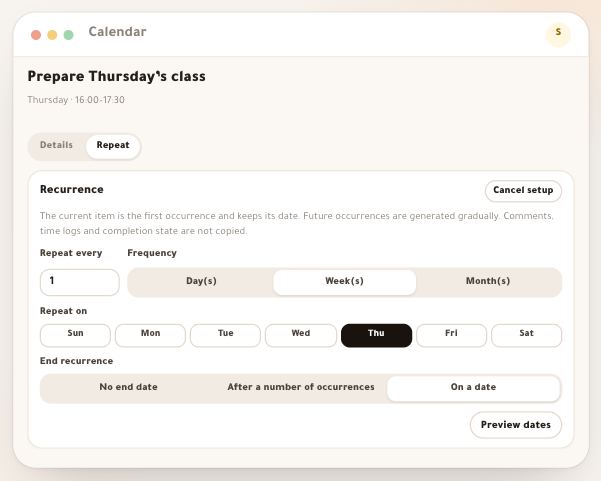
- Make it come backA task every week? The “Repeat” tab creates the next occurrences by itself.
- Group it in a plan“Work plans” bring tasks, milestones and the team together around one goal.
- Read the workload“Reports” and “Team & workload” use recorded time and estimated time.
- Tune your notifications“Organization settings” → “Organization notifications”: what reaches you and quiet hours.
Questions
Why can’t I see the “Work” tab on a new task?
The tabs come after saving. Type the title and details, press “Create task”, then reopen the task from the list: you’ll find “Details”, “Work”, “Discussion” and “Repeat”.
Why is “Completed” disabled?
The task has an unfinished prerequisite. Open “Work” → “Prerequisites”: finish it, or remove the link if you manage the task.
Does a timer track my time?
No. “Recorded time” is manual: you type the date and the minutes. No device tracking, no timer in the background.
Can my colleagues see the time I recorded?
Each person sees only their own entries and total on the task. With “View organization reports” you see everyone’s entries and the figures in “Reports”.
Who is notified when I comment?
The owner, the assignee and anyone who chose “Follow updates”, except those who muted the task and yourself. The notification shows in the platform’s notification center.
Can I edit or delete a comment?
No. A comment stays as sent. If you made a mistake, write a comment that corrects it.
How do I delete a task?
Tasks can’t be deleted. “Archive” takes it out of every list and keeps it under “Archived”; “Restore” brings it back as it was.
If a prerequisite runs late, does my deadline move?
No. “Dates never shift automatically”. The prerequisite only prevents completing the task; its dates stay as you set them.