
Sell sessions from a showcase, at a time the buyer picks
A fitness coach sells an assessment, a designer a brand-identity review, a language tutor an hour of conversation: the visitor sees your next free time on the page, taps it, and the service’s booking page opens with that time chosen, held for them until they pay. The booking lands in your “Bookings” calendar like any other.
- About 5 minutes
- 6 steps
Who can do it: The service needs “Own bookings” or “All teachers' bookings”, the offer “Manage offers and prices”, the section “Edit showcases”.
In 6 steps
- 1Create the service in “Bookings” → “Services”, then pick it in an offer, under “Sessions” in “What you sell”.
- 2Add “Session times”: your next free times from “Your hours”, six layouts, and “Working hours” when there is no time.
- 3The visitor taps a time: the service’s booking page opens with that time, then “Time”, “Your details”, “Payment”.
- 4The time is held while they pay: 30 minutes by card, 3 hours to upload a receipt and then until you decide, set in “Payment holds”.
Before you start
- A service in “Bookings” → “Services”, “Bookable”, with its length, price and who gives it.
- “Your hours” set for whoever gives the service: the showcase’s times come from them, nothing is typed by hand.
- An offer in “Offers” that includes this service, and a showcase selling it.
- Payment methods turned on (the “Payment” tab of “Booking settings”): the hold depends on them.
- Step 1 of 6
Put your service in an offer
The showcase sells a “Bookings” service: you create it there, then pick it in the offer under “Sessions”.
- A service with a picked time“One-to-one”, “Intro call” and a one-seat “In-person session”: their free times show on the showcase.
- Packs tooA pack from “Packs and subscriptions” is picked under “Sessions” as well, and “Number of sessions” sets the quantity.
- What isn’t listed“Fixed weekly slot” and “Work review” aren’t under “Sessions”: they are booked from the booking page.
TipThe showcase has no times setting: what it shows comes from “Your hours” and the service’s rules. For other times, change them there.
All the details
Create the service in “Bookings” → “Services” with its length, price and who gives it, and make it “Bookable”. Every service has an offer with the same name and price: that is what showcases see. Then open “Showcases” → “Offers” → “New offer”; on the “What you sell” page, the “Sessions” group lists your services and packs: pick the 1:1 calligraphy session, say, and “Number of sessions” to sell more than one. A “Group session” is listed too, but its times don’t show in the section, since you publish its sessions on set dates. “Fixed weekly slot” and “Work review” aren’t under “Sessions”: they are booked from the booking page.
On screenBookingsServicesBookableOffersNew offerWhat you sellSessionsNumber of sessions - Step 2 of 6
The “Session times” section
Your service’s next free time on the page, worked out from the hours of whoever gives it; a tap starts the booking.
- Where do times come from?From “Your hours” and the service’s rules over two weeks, in Algiers time, minus every busy time.
- What you setThe layout, 3 or 6 times shown, “Show the cancellation rule”, and up to 4 “Working hours” rows.
- How many times?A new service shows its single next free time; offers carried over from the old system keep their setting.
The 6 layouts
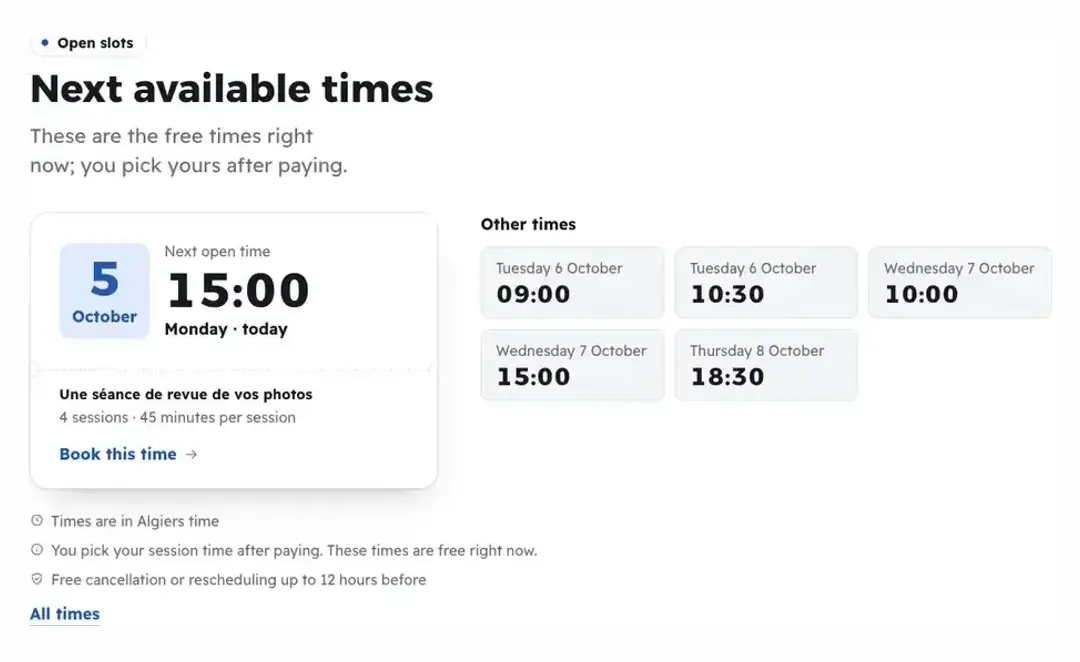
NextThe nearest time as a ticket, the rest as chips. TipWith a single time, “Next” and “Bar” read better than “Days”, “Week” and “Day cards”. With no free time, the section says “No free times in the next two weeks”, with “Ask for a time” on WhatsApp if your number is in the site settings.
All the details
In the editor, add “Session times” (“Your next free 1:1 times; tapping a time starts the booking.”). Times are worked out as on the booking page: from “Your hours” of whoever gives the service and its rules (booking notice, breaks between sessions), over two weeks, minus every busy time: booked sessions, what you closed with “Block time”, your connected outside calendar, your live classes, your “Organization” appointments and times other showcase orders are holding. What reaches the section: the single next free time for a new service; offers carried over from the old system keep their old setting (up to 6 times, or none). Six layouts: “Next”, “Bar”, “Days”, “Week”, “Hours” and “Day cards”. Settings: “Times shown” (3 or 6 times) and “Show the cancellation rule”; content: up to 4 “Working hours” rows (“Saturday – Thursday” · “9:00 – 18:00”). Under the times, “Times are in Algiers time”, and the “All times” link opens the booking page with all your hours.
On screenSession timesNextBarDaysWeekHoursDay cardsTimes shownShow the cancellation ruleAll timesHeads-upThe “Show the cancellation rule” line is fixed: “Free cancellation or rescheduling up to 12 hours before”, and doesn’t read your service’s policy (by default: free cancellation up to 24 hours before). Turn it off if it differs from your policy. The section hides itself in two cases, and the editor says why: “No 1:1 sessions in this offer.”, or “Times are hidden in the product setting: write your working hours to show it.” (a service with no time to pick, such as a group session, and no “Working hours”).
- Step 3 of 6
The visitor picks a time
The visitor taps a time: the service’s booking page opens with that time chosen, then “Your details” and “Payment”.
- What they see“Next open time” and “Book this time”, and “All times” for the full booking page.
- On the booking pageThe time is chosen under “Time” if still free, with “Continue · …”. If it was taken, they pick another.
- At what price?At the service’s price on the booking page. The offer’s price applies to the showcase’s buy button.
TipThe showcase’s general buy button (the price section, say) sells the offer at its price: the buyer pays, then books a time from “My sessions” with their credit.
All the details
The visitor sees “Next open time” and “Book this time” (and, in some layouts, “Choose my time”). They tap a time: the service’s booking page opens on your academy’s site, with that time chosen at the first step “Time” if it is still free, and the “Continue · …” button; then “Your details” and “Payment” (“Nothing to pay before the last step”). They pay the service’s price shown there, and can book as a guest without an account. The booking counts as coming from a “Landing page” in “Reports”. That is the case when the service is “Bookable” and its visibility isn’t “Hidden”. A “Hidden” service keeps the time in the showcase itself: the order sheet opens with the “Your session” card (“This time is free” once checked), and “No time yet” removes it so the time is picked after paying.
On screenNext open timeBook this timeChoose my timeTimeContinue · …Your detailsPaymentYour sessionNo time yet - Step 4 of 6
How long the time is held
The time stays held for the buyer while they pay, following the “Payment holds” of “Booking settings”.
- By card30 minutes to finish paying, by default.
- By receipt3 hours to upload the receipt; once uploaded, the time stays theirs until you decide.
- Where to change it?“Booking settings” → “Policies” → “Payment holds”, or a policy of the service’s own.
TipReview receipts promptly in “Requests” → “Receipts”: a time waiting on your decision stays the buyer’s, nobody else takes it.
All the details
Under the section’s times, the line “The time is held with your order.”. On the booking page, the “Payment holds” of “Booking settings” → “Policies” apply: “Card payment” “We hold the time 30 minutes for you to pay”, “Waiting for a receipt” “We hold the time 3 hours for you to send the receipt”; once the receipt is uploaded, “The time is held for you until the payment is checked.”. These are the defaults, and you change them there for all your services. On the order-sheet path (a “Hidden” service), the offer engine’s hold stays: “Paying by card holds this time for you for 20 minutes while you pay.”, “Paying with a receipt holds this time for you until the seller checks your payment.”, and the order itself waits 48 hours for the receipt.
On screenThe time is held with your order.Booking settingsPoliciesPayment holdsCard paymentWaiting for a receiptThe time is held for you until the payment is checked. - Step 5 of 6
After payment
After payment the time becomes a confirmed booking in your calendar, and the learner sees it in “My sessions”.
- A confirmed booking“Booking confirmed” for the buyer, and the booking in “Bookings” → “Calendar” for you.
- The cancellation ruleThe service’s policy: free cancellation up to 24 hours before by default, returned as credit.
- Through the order sheet?The buyer gets the offer’s credit, and the held time becomes a confirmed session paid from it.
TipIn “Reports” → “Where bookings come from”, showcase bookings count under “Landing page”, so you see what it brings you.
All the details
After a card payment the booking is confirmed and its page says “Booking confirmed” and “We emailed you the details.”. With a receipt it says “We got your payment proof” until you accept it in “Requests” → “Receipts”. The booking shows in “Bookings” → “Calendar” like any other, and for the learner in their portal sessions. The cancellation rule is the service’s policy (“General policy” or “This service’s own policy”); by default: free cancellation up to 24 hours before, half between 24 and 6 hours, returned as credit, and two time changes up to 6 hours before. On the order-sheet path, the paid order gives the buyer the offer’s credit once, and the held time becomes a confirmed session paid from that credit; the order page shows “Your session”: “Held for you until your payment is checked.”, then “Held for you; it is confirmed when you open your purchase.”, then “Your session is booked.”. For sessions with no time, “Book my sessions” opens “My sessions” to book with the credit.
On screenBooking confirmedWe got your payment proofRequestsReceiptsCalendarCancellation policyYour sessionYour session is booked.Book my sessions - Step 6 of 6
The time someone else took
Taken before payment, the buyer picks another; lost after a paid order sheet, they keep their credit.
- On the booking page“Someone just took this time. Pick another.” Nothing is paid.
- No double bookingA time a showcase order holds is busy on the booking page too.
- After a paid order sheetTheir session credit is kept, with “Pick a time” on the order page.
TipKept credit shows to the learner in “My sessions” and to you in “Learners”: nothing is lost.
All the details
On the booking page: if someone takes the time before the buyer confirms, they read “Someone just took this time. Pick another.”, and nothing is paid. A time held by an order-sheet order counts as busy on the booking page while it is held: nobody takes it from there. On the order-sheet path: before the order, “This time is no longer free. Pick another one on the page, or go on without a time and pick it after paying.”; after payment, if it is no longer free, the order page says “This time was no longer free when the payment was confirmed. Your session credit is kept: pick another time.” with “Pick a time”, which opens “My sessions”; and an order that expired unpaid: “This time was released when the order expired.”.
On screenSomeone just took this time. Pick another.This time is no longer free. Pick another one on the page, or go on without a time and pick it after paying.This time was no longer free when the payment was confirmed. Your session credit is kept: pick another time.Pick a timeThis time was released when the order expired.
After your first session sale
- Set your hoursThe showcase’s free times come from “Your hours” in “Bookings”.
- Review receipts“Requests” → “Receipts”: the time waits on your decision while the payment is by receipt.
- See the buyer’s sideTheir bookings and credit in “My sessions”.
- Read the booking pageThe page a showcase time opens, step by step.
Questions
Where do I choose “Nearest only” or “Exact times” now?
That choice no longer exists in “Bookings”. A new service shows its single next free time on the showcase, and the “All times” link opens the booking page with all your hours. Offers carried over from the old system keep their old setting.
Does the buyer pay the offer’s price or the service’s?
The section’s time opens the booking page, so they pay the service’s price shown there. The showcase’s general buy button sells the offer at its price and windows; the buyer then books a time with their credit.
What if two people go for the same time?
The first holds it while they pay. The second reads “Someone just took this time. Pick another.” and picks another, paying nothing.
How long is the time held with a receipt?
3 hours to upload the receipt, then until you decide in “Requests” → “Receipts”. You change the 3 hours in “Booking settings” → “Policies” → “Payment holds”.
Where do I see the booking after payment?
In “Bookings” → “Calendar”, like any other; a tap opens its drawer. The learner sees it in “My sessions”, and “Reports” counts it under “Landing page”.
Which cancellation rule applies?
The service’s policy in “Bookings”, not the section’s line. By default: free cancellation up to 24 hours before, half between 24 and 6 hours, returned as credit. So turn off “Show the cancellation rule” if its line differs from your policy.
Can I type times myself in the section?
No, they come from “Your hours”. You only write the “Working hours”, shown by the “Hours” layout and always when there is no time to pick.