
On air: the stage, questions and polls, and ending on time
On air, the stage is in the middle with large controls under it, and one side panel in four parts: chat, questions, hands, people. The only red on screen is “Live” with its clock. Here Salim Bouzid is live with 38 students: he puts Youcef’s question on screen, Manel checks Sara’s voice and brings her on stage, he launches a quiz and shows the result, pins the exercise booklet, extends by 15 minutes and ends. The same controls serve an English tutor bringing a student up to speak, or a marketing coach answering her workshop’s questions. The Dirassa+ room isn’t open yet: until it is, every live runs on a Google Meet or Zoom link, with no studio; this lesson describes going live in the Dirassa+ room as it works once the room opens.
- Throughout the live
- 8 steps
Who can do it: The host and co-host have every control; the moderator runs chat, questions, hands, pins and polls.
In 8 steps
- 1The controls on air: mic, camera, share screen, scenes, hands, stage, poll, end; “Mark this moment” and “Pin” above them.
- 2“Questions”: most voted first; “On screen” shows it under the slide, “Answered” takes it off the list.
- 3“Hands”: “Check voice” away from everyone, then “Bring on stage”; up to 4 guests, each with “Mute”, “Spotlight”, “Back to watching”.
- 4“Poll” in two taps: ready, quick or written; students don’t see the result until “Show the result on screen”.
Show all
- 5“Pin for everyone”: a link, a file, a course or a product with a buy button; one at a time.
- 6Chat moderation: “Manage” on each message, links waiting for “Approve”, “Mute 10 min” or “Remove from the room”.
- 7The network: the picture lowered by itself if your upload weakens, reconnecting, and a 5-minute grace if you drop.
- 8The end: a warning 5 minutes before with “Extend 15 minutes”, then “End for everyone” and the end screen.
Before you start
- You are in the studio and have gone live (the “Studio before air” lesson).
- If you have a moderator, agree beforehand: chat and hands for them, the teaching for you.
- Polls ready if you like: they show under “Ready for this live”.
- On a Meet or Zoom link (every live today), the stage, chat and raised hands are in your meeting; from the live’s page you end it with “Mark as ended”.
- Step 1 of 8
The screen on air and the controls
Large round controls with their names, one side panel; red is for being live only.
- Under the stageMic, camera, screen, scenes, hands, stage, poll, end.
- Above them“Mark this moment” and “Pin”, and the current slide.
- At the topLive with its clock, who’s watching, the network, recording.
TipOn a phone: “Sound”, “Flip”, “Chat”, “More” and “End”; under “More”, scenes, camera, poll, pin, mark and settings.
All the details
At the top, the live’s title and “Live 41:12” in red, how many are watching, the network (“Network excellent”, weak, or lost) and “Recording”. Under the stage: Settings, Mic and Camera, Share screen, Scenes, Hands (with the count of raised hands), Stage (opens the “People” tab), Poll, and End in grey, not red. Above them, a strip with the current slide, Mark this moment (“Chapter name”, say “The cart exercise”, then “Mark”: a chapter in the replay) and Pin, or what’s pinned now. Scenes and slides make their own markers; yours gives the chapter its name. On the side, one panel in four parts — “Chat”, “Questions”, “Hands”, “People” — one visible at a time.
On screenSettingsMicCameraShare screenScenesHandsStagePollEndMark this momentChapter nameMarkPinChatQuestionsPeople - Step 2 of 8
“Questions”: votes rank, you choose
Students vote and the question that matters to most of them rises; you read from the top.
- By votesMost voted first, with the questions written ahead.
- On screenThe question as a band under the slide, with its author’s name.
- AnsweredIt leaves the list, and students jump to it in the replay.
TipPutting a question on screen makes a marker with its name, so a chapter in the replay: whoever missed the live jumps straight to “Why is the speed squared?”.
All the details
Questions shows “Most voted first” and how many are answered. Each question has its votes and author (or anonymous if you allow it), with the team’s buttons: On screen puts it as a band under the stage with the student’s name, read by all and kept in the recording; Answered takes it off the list and keeps the moment of the answer, which students jump to in the replay; Pin keeps it at the top; Hide for what doesn’t belong in the live (“Restore” brings it back). At the bottom, the “Taking questions” switch turns them off when you want to move on. The moderator can also turn a chat message into a question.
On screenMost voted firstOn screenAnsweredPinHideRestoreTaking questions - Step 3 of 8
“Hands” and “Stage”: from a raised hand to the picture
Check the student’s voice away from everyone, then bring them up; up to 4 guests together.
- Check voiceBackstage: only the teacher and moderators hear them.
- Bring on stageEveryone sees and hears them, camera or sound only.
- On stage“Mute”, “Spotlight”, “Back to watching”.
TipIn the English Q&A hour, Karim brings students up one by one: Wafa checks their voice, he talks with whoever is on stage.
All the details
In Hands, raised hands “In the order hands went up”, with how long ago. Check voice sends an invitation; if the student accepts, they go backstage: their voice and picture reach only you and your team; you see their picture (or camera off, sound only) and a meter with “Voice is clear” or “Can't hear them yet”. Then Bring on stage: everyone sees and hears them; or Not now, and their hand stays up. The stage holds 4 guests at most (or fewer per “Stage guests”); when full, the button is disabled. In People, each guest has Mute (they can unmute), Spotlight (they go large) and Back to watching. The “Learners can raise a hand” switch sits at the bottom of Hands.
On screenHandsIn the order hands went upCheck voiceVoice is clearCan't hear them yetBring on stageNot nowMuteSpotlightBack to watchingLearners can raise a handHeads-upRaised hands and the stage work on air only: before “Go live” there is no voice check.
- Step 4 of 8
“Poll”: a question or a quiz in two taps
You launch, students answer, you alone see the result, then show it when you like.
- Ready or quick“Ready for this live”, or Yes / No, A B C D, 1 to 5.
- Written2 to 6 options; a “Right answer” makes it a quiz.
- The resultYours alone until you show it on screen.
TipSalim asks “The speed doubles: kinetic energy…”, three options, the right one ×4. 31 of 38 answered, 74% right; he shows the result, then explains the 19% who said “doubles”.
All the details
Poll opens “Tap 1 of 2”: under “Ready for this live”, what you prepared, with “Launch”; “Or a new question:” offers three quick ones (“Yes / No”, “A B C D”, “1 to 5”) that you read aloud; or “Write a question”: the text (optional), 2 to 6 options, the “Right answer” or “No right answer (poll)”, then “Save and launch”. You then see how many answered, the bars and the right answer marked, with “Learners see it when you show it”. Show the result on screen puts it where the slide was, with a button back to the slide; Close stops the voting. “Earlier” shows the last three polls. Each poll launched becomes a chapter in the replay.
On screenPollTap 1 of 2Ready for this liveLaunchOr a new question:Yes / NoA B C D1 to 5Write a questionRight answerNo right answer (poll)Save and launchLearners see it when you show itShow the result on screenCloseEarlierHeads-up“Hide the result” closes the poll too: nobody can answer after that.
- Step 5 of 8
“Pin for everyone”: a link, a file, a course or a product
What you pin shows under the picture; one item at a time.
- LinkA title and an address starting with https://.
- File“This live's slides” in one tap, or a Drive or Dropbox link.
- Course or productFrom your courses and store, with its price and a buy button.
TipAt the end of her workshop Nesrine pins her “30-day content plan” book from her store: whoever wants it presses “Buy” without leaving the explanation.
All the details
Pin opens “Pin for everyone” in three parts: Link (a title, say this week’s exercise set, and an https:// address), File (“This live's slides” in one tap, or a Drive or Dropbox link), Course or product (your published courses and store products with their prices). A preview shows how learners see it under the picture, then Pin now. For students, under the stage: “Open” for a link, “Download” for a file, “Buy” for a product, which opens its page in your academy’s store. One item at a time: a new pin replaces the old one, and “Unpin” removes it.
On screenPin for everyoneLinkFileCourse or productThis live's slidesHow learners see it under the picturePin nowUnpin - Step 6 of 8
The chat on your rules, and moderation
Rules that work on their own (slow mode, links, words), and moderation buttons on each message.
- On each message“Manage”: make it a question, delete, mute 5 minutes or until the end.
- LinksA message with a link waits for “Approve” before everyone sees it.
- In “People”“Mute 10 min” and “Remove from the room”.
TipIn a paid workshop with 64 attendees, Manel turns on slow mode when messages pile up and moves every real question to “Questions”, so Nesrine answers them in order.
All the details
In Chat, the header says who moderates if the live has a moderator. Each message has Manage: “Make it a question” (it moves to “Questions”), “Delete”, “Mute 5 minutes”, “Mute until the end”. A student’s message with a link reaches the team only, with Approve; the team’s messages are never held. Words blocked in the settings are refused on their own. In People, under “More”, each viewer has Mute 10 min and Remove from the room (they can’t come back to this live). In Settings › “The room”, switches that apply to everyone at once: “Chat on”, “Slow mode (one message every 10 seconds)”, “Links from learners wait for approval”, questions and raised hands.
On screenManageMake it a questionDeleteMute 5 minutesMute until the endApproveMute 10 minRemove from the roomThe roomChat onSlow mode (one message every 10 seconds)Links from learners wait for approvalHeads-up“Remove from the room” acts at once, with no second confirmation, and the student can’t come back to this live. Keep it for abuse.
- Step 7 of 8
A weak network and a dropped connection
If your upload weakens we lower your picture and keep your voice; if you drop, students stay where they are.
- Weak networkPicture lowered by itself, sound first, and “Turn the camera off” if you like.
- DroppedReconnecting by itself; students read you’ll be back; recording goes on.
- 5 minutesIf you don’t return, the live closes and the recording is kept.
TipOn weak 4G, PDF slides weigh far less than screen sharing: students draw them from the file, and your upload goes to your voice.
All the details
If your upload weakens for a few seconds, a notice shows above the stage (picture lowered to 360p, sound first) with Turn the camera off if it’s on; it clears by itself when the network recovers. If your connection drops, the stage shows “Reconnecting…” with a counter: students read that the teacher stepped out and will be back, and the recording continues in your browser. If you don’t return within the grace, the live closes and what was recorded is kept. If the browser blocks sound, “Turn sound on” appears. The grace is set in “Live settings” (2, 5, 10 or 15 minutes; 5 by default).
On screenTurn the camera offReconnecting…Turn sound on - Step 8 of 8
Ending on time, and the end screen
A warning 5 minutes before, 15 more minutes if you need them, then “End for everyone” and the live’s numbers.
- 5 minutes leftAnd “Extend 15 minutes” in a tap, up to 8 hours in all.
- Hard stopIf you forget, it closes itself 15 minutes after the planned end.
- The end screenLength, peak, attendance, questions answered, replay status.
TipSalim extended once to finish the cart exercise, then ended at 21:44: 1 h 44 min, a peak of 41 together, 11 questions of 14.
All the details
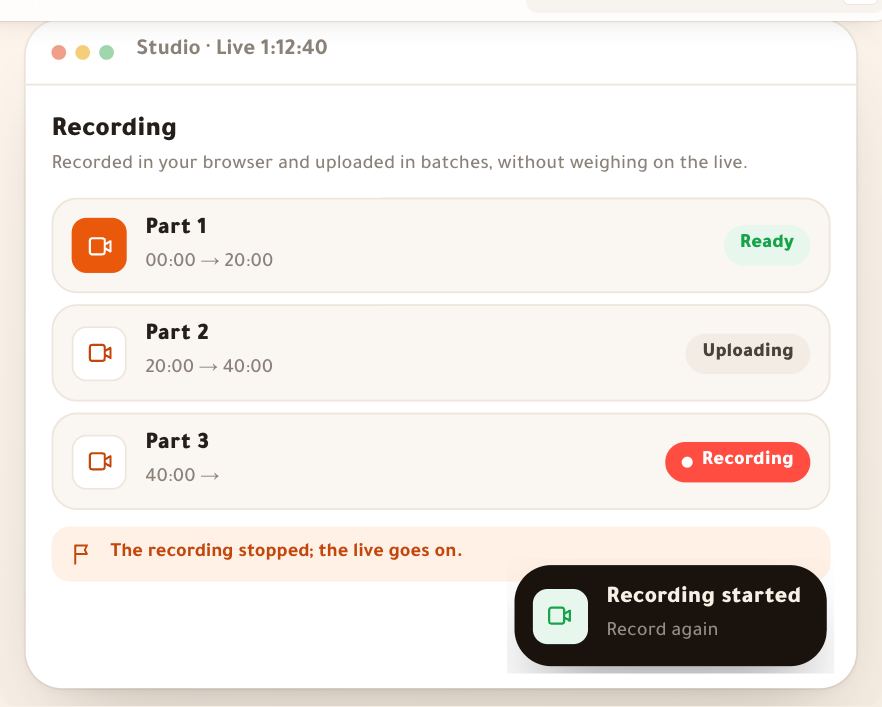
Today, on a Meet or Zoom link, the end is handled from the live’s page: the “Happening now on Google Meet” card reads “It ends at 21:30; the join link stays open to your students until 22:00.”, with “Extend by 15 min” up to 4 times (“Extended 4 times: that's the most it can be.”) and “Mark as ended”. In the Dirassa+ room, once it opens: 5 minutes before the planned end: a notice with the end time, Extend 15 minutes and OK; extending pushes the end back 15 minutes, again and again as long as the whole live stays within 8 hours. If you don’t end it, it closes itself 15 minutes after the planned end. End asks “End the live for everyone?” with how many are watching, the Keep the recording switch (on; turning it off discards the recording), and End for everyone or Keep going. Then the screen “The live is over. Here's what happened.”: “Length”, “Peak”, “Attendance”, “Questions answered”, and the replay card (uploading with a percentage and time left — keep the page open — then uploaded), who sees it, and “Replay settings”; Review and send opens the live’s page on the summary and homework. The moderator doesn’t end: they have Leave, and the live carries on with the teacher.
On screenMark as endedExtend by 15 minExtend 15 minutesOKEndEnd the live for everyone?Keep the recordingEnd for everyoneKeep goingThe live is over. Here's what happened.LengthPeakAttendanceQuestions answeredReplay settingsReview and sendLeaveHeads-upDon’t close the page while the recording is uploading: the remaining parts go from your browser. If you do, reopen the studio on the same device to resume the upload.
After the end
Questions
How many students can be on stage together?
Up to 4 guests with you (or fewer per “Stage guests”). Once the stage is full, the bring-up button is disabled until you send someone back to watching.
Does everyone hear the student during the voice check?
No. During the check only the teacher and moderators hear them, and the student reads that on their screen. Everyone hears them only once they’re on stage.
Do students see a poll’s result while voting?
No. You alone see it until you press “Show the result on screen”.
What if my internet drops?
Students read that the teacher will be back, the studio reconnects by itself and the recording continues. If you don’t return within the grace (5 minutes by default), the live closes and the recording is kept.
Can the co-host end the live?
Yes, like the host. Only the moderator can’t end it: they have “Leave”, and the live goes on.
Can I extend more than once?
Yes, 15 minutes each time while the live is on air, as long as the whole live stays within 8 hours.