
Answering your students’ questions from “Support”
Everything people write to your school lands in one list in your dashboard: students’ questions from “Support” in their portal, questions asked from inside a lesson with the moment in the video, and messages from your site’s visitors. Every new one reaches the phone and the “Inbox” of everyone at your school who answers support. The list starts with what **needs your reply**, and when you open a question the student is one click away: their name opens their card, with their courses, progress and last order. You answer with text, a photo or a saved reply, or ask Noqta for a draft you read before sending. One full example throughout: Sara Makhloufi, video-editing trainer at “En-Nadjah Academy”, and her assistant Karim Haddad answer Yacine Bouzid, whose lesson 3 video in “Video editing from scratch” keeps stopping. The same page works for a marketing coach answering clients or a school teacher answering pupils about homework.
- About 8 minutes of reading
- 6 steps
Who can do it: Needs “Answer support”. All four default roles hold it: Owner, Admin, Teacher and Assistant. Without it, “Support” sends you to the “Dirassa+ team” page. In a “School”, scope rules decide which conversations each member sees. Handing a conversation to a colleague needs “Assign student questions” (Owner and Admin).
 Let Noqta show you
In 6 steps
- 1Where: “Grow & reach” → “Support”; one list for students, lessons and site visitors, with “Dirassa+ team” as a button at the top of the page.
- 2List: “Needs your reply” first, then “All”, “From lessons”, “Site visitors” and “Mine”; the orange dot is what you haven’t opened.
- 3Conversation: the student’s name opens their card; every message carries its author’s name and Algiers time, with its photos under it.
- 4Reply: “Saved replies”, “Photo”, “Internal note” and “Draft with Noqta”, then “Send” or “Send and close”.
Before you start
- Your role holds “Answer support”; every default role does, and it can be taken off a role in “Roles”.
- Turn on notifications from “My account” → “Phone app” on your phone and computer, so every question reaches you even with the dashboard closed.
- Tell your students that “Support” in their portal is the official place for questions, and that they can attach a photo of the exercise or the receipt.
- Step 1 of 6
Where your students’ questions land
In the “Academy” panel beside the column, under “Grow & reach”, open “Support”. Under the title, one line sums the page up: “Your students’ questions, the ones asked from inside lessons, and messages from your site’s visitors — in one list. Every new one notifies you.” There are no tabs: everything written to your school is in one list, with the filters above it. At the top of the page, two buttons: “Dirassa+ team” opens the page of your own questions to the platform, with an orange count of unread team replies; and “New conversation” to write to a student yourself. “Support” in the panel carries a badge adding up what needs your reply, new site messages and unread team replies. Notifications: every new question and every student reply shows in the “Inbox” at the foot of the column, under “Waiting”, in “Your students’ questions”, by the student’s name, with “Reply” to answer on the spot and “Open conversation”; and it reaches the phone of whoever turned notifications on in “My account” → “Phone app” (the “Questions and messages” group). If the student sends five short messages in a row, it stays one notification: one per conversation every 15 minutes while unread. The notification opens the conversation.
On screenGrow & reachSupportDirassa+ teamNew conversationInboxWaitingYour students’ questionsReplyOpen conversationMy accountPhone appQuestions and messagesTipThe address keeps what you opened: “?thread=” for a student question, “?message=” for a visitor’s message, so you can send a colleague the link to that very conversation. Old “?tab=site” links still work and open “Site visitors”.
Heads-upAnyone without “Answer support” is sent by “Support” to the “Dirassa+ team” page alone: no student questions, no site messages. Make sure whoever answers students holds it.
- Step 2 of 6
The list: what needs your reply first
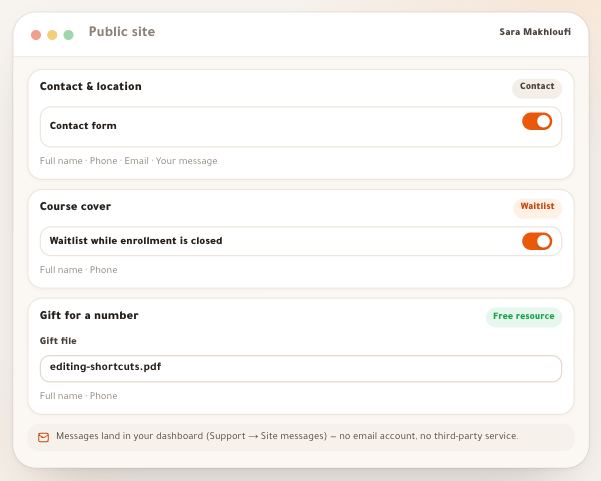
Above the list are the search and the filters: “Needs your reply” — every conversation where the student wrote last and that isn’t resolved, plus new site messages —, and “All” — everything except archived site messages. The others only show when they hold something: “From lessons”, “Site visitors”, “Mine” — what you took —, “Waiting on student”, “Resolved”, and “Archive” for archived site messages. The page opens on “Needs your reply” when it has anything, otherwise on “All”. Each row: the student’s photo and name, a “Mine” chip when the conversation is yours, the subject, then the last line (the team’s starts with its author’s name: “Karim Haddad: Receipt received, thanks”), then a chip with the lesson and the moment in the video when it was asked from a lesson (“Lesson 3 · 03:12”), otherwise the course, “Resolved” when it’s done, and a colleague’s name when someone else took it. The orange dot: something new that you haven’t opened; each member has their own, so if Karim opens the conversation, the dot stays for Sara. Site visitors’ rows carry a globe and a “Contact”, “Waitlist” or “Free resource” chip. The search “Search by name, subject or course…” matches the student’s name, the subject, the course, the last line and the lesson title; for site messages, the name, subject, message, email and phone. When 3 students or more asked about the same lesson within 30 days, a line shows above the list, such as “4 students asked about “Lesson 3” this month.”, with “Improve the explanation”, which opens the lesson editor (for those who edit lessons), and a “Hide” button. The list shows the 300 most recent conversations and refreshes itself every 45 seconds while the page is on screen.
On screenSearch by name, subject or course…Needs your replyAllFrom lessonsSite visitorsMineWaiting on studentResolvedArchiveContactWaitlistFree resourceImprove the explanationHideYesterdayTipWhen “Needs your reply” is empty you read: “Nothing needs your reply” — “Every question has an answer from your team. Well done.” Make that each day’s goal.
Heads-upThe dot is yours alone, but “Needs your reply” is shared by the team: when Karim replies, the conversation leaves it for Sara too, even if she hasn’t read it. So that everyone knows what they’re following, give each conversation to whoever “takes” it.
- Step 3 of 6
The conversation: who is writing, and about what
Click the row and the conversation opens next to the list (on a phone, in its place, with a “Back” arrow). Its head shows the student’s photo and name, with the subject and the course under it. The name is a button: it opens a card in the middle of the screen, with their phone and a “WhatsApp” button with a greeting in their name at the top (hidden when the school hides students’ numbers), then “Courses” with their progress in each — or “Expired”, “Suspended” or “Inactive” when an enrollment isn’t active —, then “Their account”: “Last order” with its status and amount (for those who see payments), “Last active” and “Support conversations” (“2 open · 3 resolved”), and at the bottom “Open the student’s file”. When the question was asked from a lesson, the “Question context” card shows above the messages: the lesson title, the moment in the video and the sentence they stopped at. Then the messages, grouped by day: “Today”, “Yesterday” or the date. Above each message, its author’s name and Algiers time (24h), yours under “You”, so you know who answered before you; photos sit under their message, tap one to enlarge it. Internal notes run the full width, in amber, with a lock. Under your last reply: “Seen by the student · 14:02” once they open it. An open conversation refreshes every 15 seconds: Yacine’s answer appears without reloading the page.
On screenBackWhatsAppCoursesExpiredSuspendedInactiveTheir accountLast orderLast activeSupport conversationsOpen the student’s fileQuestion contextTodayYesterdayYouSeen by the studentTipBefore answering Yacine about the video, click his name: if the enrollment is “Expired”, the problem isn’t the video but his access.
- Step 4 of 6
Replying: text, a photo, a saved reply or a Noqta draft
Type in “Write your reply…” under the conversation; the box grows with the text. Under it are your tools. “Saved replies”: your saved answers, most used first, with “Search your replies…”; typing “/” in an empty box opens them too. Write {name} or {course} in a saved reply and it is filled with the student’s first name and course. With no saved replies yet, the list offers three to start from; “Save what I wrote” (or “New reply” with an empty box) opens a window with a name and a text, and “Manage” edits or deletes them. “Photo”: up to 4 photos a message, compressed on your device before they go; you can also paste an image, or send a photo with no text. “Internal note” (the lock): the box turns amber with a dashed edge, and the button reads “Add note”; the note is for the team only, the student never gets it, it changes no status and notifies nobody. “Draft with Noqta”: Noqta writes a reply from the conversation and, for a lesson question, from that lesson’s published content; it shows above the box with “Use it” and “Dismiss”, and nothing is sent until you send it; your workspace gets 100 drafts a day. Then send with “Send” or ⌘ or Ctrl + Enter, or with “Send and close”, which sends and marks the conversation “Resolved”. The limit is 4,000 characters. Once sent, the status turns to “Waiting on student” by itself, and the student gets “Reply to your question” in their portal’s bell with your name and the start of your reply, and on their phone if notifications are on. The student sees your real name above your reply, not the school’s.
On screenWrite your reply…Saved repliesSearch your replies…Save what I wroteNew replyManagePhotoInternal noteAdd noteDraft with NoqtaUse itDismissSend and closeSend⌘ or Ctrl + Enter to sendReply to your questionTipMake a saved reply for what comes up every week, such as “Unclear receipt” starting with {name}. Karim’s example: before answering Yacine he leaves Sara an internal note, “The video was uploaded incomplete, I’ll re-upload it tonight”, then writes Yacine a reply that closes the question: “We re-uploaded the video. Try it now and tell me.”
Heads-upNoqta’s draft is a suggestion and the reply is yours: read it before sending. If you see “You can no longer write in this conversation.”, “Answer support” was taken from you or the conversation left your scope. If it says “Too many messages in a short time. Wait a moment.”, wait a few minutes: your text stays in the box.
- Step 5 of 6
The status, and who takes the conversation
In the conversation’s head are three status choices: “Needs your reply” — the student wrote and is waiting for you —, “Waiting on student” — your team replied —, and “Resolved” — it’s done. Most of the time it moves by itself: your reply sets “Waiting on student”, the student’s reply sets “Needs your reply” again, and if the student taps “My problem is solved” it becomes “Resolved”. Pick “Resolved” yourself when you know the question is over: it leaves your daily list. Changing the status sends the student nothing and doesn’t stop them writing: if they write in a “Resolved” conversation, it goes back to “Needs your reply”. Assignment: next to the status is the “Take” button. “I’ll take it” makes the conversation yours: it shows under “Mine” and every message reaches you; “Unassign” lets it go. Whoever holds “Assign student questions” (Owner and Admin) finds, in the same menu, the colleagues who answer support and hands it to one of them, who gets the notification “A conversation was assigned to you”. A conversation someone else took carries their name in the list. Conversations can’t be deleted: they stay under “All”.
On screenNeeds your replyWaiting on studentResolvedMy problem is solvedTakeI’ll take itUnassignMineA conversation was assigned to youTipAgree on one rule: whoever opens a question and can’t finish it now clicks “I’ll take it”, so two people never answer the same student. And close what’s done the same day.
- Step 6 of 6
“New conversation”: write first
Don’t wait for the student to ask: an unreadable receipt, a date reminder, a question about their progress. Click “New conversation” at the top of the page and a window opens in the middle of the screen: “It reaches the student in “Support” in their portal, with a notification.” The student list loads when it opens. In “Student”, search with “Find a student by name or phone…” and pick them (your school’s active students; “Change student” to swap). If they’re enrolled in courses, “Course (optional)” lists only theirs, or “No course”. Then “Subject” (2 to 160 characters) and “Message” — “The student reads it as you write it, line breaks included.” — and “Send”. The conversation starts as “Waiting on student”, the list switches to “All” and opens it, and the student gets “New message:” followed by the subject in the bell, and on their phone if notifications are on.
On screenNew conversationStudentFind a student by name or phone…Change studentCourse (optional)No courseSubjectMessageSendCancelTipSara’s example: Rania Cherif’s receipt is cropped. Instead of rejecting it without a word: “New conversation” → Rania → “Video editing from scratch” → “The receipt is unreadable”: “The image is cropped, please send the whole receipt.”
Heads-upThe message arrives inside the platform only, not by email or SMS. A student without notifications sees it when they open their portal.
Once your list is empty
- Turn on notifications“My account” → “Phone app” → “Turn on for this device”, on every device you use.
- See the student’s sideHow they ask with a photo, and how they know you saw their question: the lesson on support for students.
- Answer your site’s visitors“Site visitors” sits in the same list, and you answer them by email from the platform: the “Site messages” lesson.
- Ask the platform teamThe “Dirassa+ team” button at the top of “Support”: the “Dirassa+ team” lesson.
Questions
Can the student or teacher attach an image?
Yes. Up to 4 photos a message, on both sides, compressed on the device before sending; a message can be a photo alone. Only images attach, not PDFs or other files.
Does the student get my reply by email?
No. It arrives in “Support” in their portal, in its bell, and on their phone if notifications are on. No email, no SMS. Email is only for answering site visitors.
Does a teacher only see their own courses’ students?
Outside a “School”, everyone holding “Answer support” sees every conversation and is notified of every question. In a “School”, scope rules decide what each member sees, a question about a course goes to its teacher, and the “Support” count follows the same scope. Whoever took a conversation always sees it.
Can I assign a question to one team member?
Yes. “Take” → “I’ll take it” makes it yours and puts it under “Mine”. Whoever holds “Assign student questions” hands it to any colleague who answers support, who gets “A conversation was assigned to you”. “Unassign” lets it go.
Are there saved replies I can reuse?
Yes. “Saved replies” under the writing box, or “/” in an empty box. They’re shared by your workspace, most used first, and {name} and {course} fill themselves in.
What is an internal note?
A line for the team inside the conversation, from the “Internal note” lock. The student never sees it, it doesn’t change the status and it notifies nobody.
Does Noqta send anything to the student by itself?
No. “Draft with Noqta” writes a suggestion above the box; “Use it” puts it in the box for you to edit, and nothing leaves until you press “Send”. Your workspace gets 100 drafts a day.
Can I delete a conversation?
No. Conversations stay; “Resolved” moves them out of your daily list.
Does the student see my phone number?
No. They only see your name above your reply. You see theirs on their card because you’re on the school’s team, unless the school hides students’ numbers.
Why did the orange dot stay when a colleague opened the conversation?
Because each member has their own dot: it goes when you open it yourself. “Needs your reply” is shared by the team: the conversation leaves it as soon as anyone replies.