
Staff, departments and ending a collaboration
Who helps you, what they work on, who reviews what: it is all in “Staff and departments”. And when someone leaves, you choose between suspending, removing and ending the collaboration, each with what stays and what changes. At “Al Ofok Academy”: Yacine Mansouri assists Samia Benamor, two departments for science and languages, then Nadia Meziani leaves and comes back.
- About 10 minutes
- 10 steps
Who can do it: The page opens with “View the team”; every change, and suspending, removing and ending a collaboration, needs “Manage team and invitations”. You can’t change your own role, the owner’s account is protected, and only the owner changes a “Deputy director”.
In 10 steps
- 1Open “Staff and departments”: non-teachers grouped by what they do, each one’s scope in one column.
- 2“Manage” opens the member sheet: their role, the teacher or department they work on, what they can and can’t do.
- 3In “Departments”, create a department and pick its supervisor, its members and who reviews its courses.
- 4“Exceptions” are for one member, and the sheet says why it is read-only when it is.
Show all
- 5A teacher’s quotas (storage, courses, assistants) are on their page → “Permissions”.
- 6“Suspend” stops access at once and changes nothing else; “Lift suspension” brings it back.
- 7“Remove from the team” is for someone with no courses and no money; otherwise it is refused and points to ending the collaboration.
- 8“End collaboration” in four steps: courses, questions, date and message, review.
- 9Afterwards: their requests are withdrawn, their invitations stop, they are told, and their money stays readable at /former.
- 10A former member comes back with a new invitation, accepted with the same account.
Before you start
- “School” turned on, with at least one member besides you.
- “Manage team and invitations” to change things, or “View the team” to read only.
- Before ending a teacher’s collaboration: know who takes their courses and who answers their students.
- Step 1 of 10
“Staff and departments”: who works with you besides the teachers
Open “Staff and departments” in the “Team” group. Two tabs: “Staff” and “Departments”. The header counts members besides teachers, their roles and pending invitations, with “Roles and permissions” and “Invite a member”. Teachers don’t appear here; they have their own page: “Teachers have their own page: Teachers (3)”. Staff are grouped by what they do, each group with its sentence: “Deputy director”, “Supervisors”, “Assistants and graders”, “Support”, “Accounting”, “Marketing”, “Other roles”. The columns: “Member”, “Role”, “Scope” (the one that matters most: “Whole school”, “Science and maths department”, “Assists Samia Benamor”), “Last sign-in”, “Status”, then “Manage”. Search with “Search by name or email” and filter by “Role” and “Scope” (“Whole school”, “A department”, “A specific teacher”). A pending invitation shows in its group as a faded row with “Renew”.
On screenStaff and departmentsStaffDepartmentsRoles and permissionsInvite a memberSearch by name or emailRoleScopeA specific teacherMemberLast sign-inStatusManageRenewNever signed inTipWatch for the yellow badge in “Scope”: “Not linked to a teacher yet” means an assistant who sees no students, “Not in a department yet” a supervisor with no department. Open their sheet and finish linking them.
- Step 2 of 10
The member sheet: the role, and who they work with
“Manage” opens Yacine’s sheet: “Teaching assistant · joined Oct 3 · accepted version 1”. “Role” is a list with “Built-in templates” and “Your school’s roles”, and “You can only pick roles whose permissions you hold in full.”. Below it, the scope that fits the role: “Scope: linked to a teacher” for assistants and graders (“Sees the students of their courses and their questions, and grades for them — nobody else.”) with “Add a teacher…”: add Karim Haddad and he assists both. “Departments” for someone who works on a department (“Sees only what is in their departments.”). For someone who works across the school, the sheet says “Works across the whole school, as the role allows.”. Then two columns: “Can” (each area with its level and scope, like “Students: View · Their own”) and “Cannot”, recomputed with every change before saving. Then “Save”, and “Saved” appears.
On screenManageRoleBuilt-in templatesYour school’s rolesScope: linked to a teacherAdd a teacher…DepartmentsAdd a department…CanCannotSaveSavedTipWhat each role holds, and how to make a role for your school: the lesson “Roles and permissions”.
Heads-upChanging the role clears this member’s permission exceptions — they belonged to the old role. The sheet tells you so before you save.
- Step 3 of 10
“Departments”: who is in them, and who reviews their courses
The “Departments” tab has a card per department: its name and teachers, its supervisor (“Department supervisor · reviews its courses”, or “No supervisor · the director reviews” with “Assign a supervisor”), its members, and “Courses”, “Teachers”, “Awaiting review”, then “Edit department”. “New department” opens a sheet: “Department name” (here “Languages”), “Supervisor · optional” (“Nobody for now · the director reviews”), “Who is in the department” with “Add a teacher or a member…” (Nadia Meziani), and “Who reviews the department’s courses and requests?”: “The supervisor” (needs a supervisor first) or “The director” (they arrive in “Review and requests”). Then “Create the department”. A member can be in two departments; the sheet says so. And “Archive the department” needs an empty department, and deletes no person and no course.
On screenDepartmentsNew departmentAssign a supervisorEdit departmentDepartment nameSupervisor · optionalNobody for now · the director reviewsWho is in the departmentAdd a teacher or a member…Who reviews the department’s courses and requests?The supervisorThe directorCreate the departmentArchive the departmentTipDepartments are optional: without them the director reviews everything. They pay off once the school has several subjects and more than one reviewer.
- Step 4 of 10
Exceptions, and when the sheet is read-only
At the bottom of the sheet, “Exceptions”: what applies to this member alone. “Add an exception” opens “Area” (Courses and content, Students, Grading…) and “Scope” (“Whole school”, “Their department”, “Their own”), then “Add”: a line such as “Students: scope “Their department”” appears, with “A scope exception for this member only” and a cross to remove it. Granting or withdrawing one specific permission shows here as “Extra permission” or “Withdrawn permission”, and is added from the roles page. Under “Account”: “Email”, “Last sign-in”, and “Open their activity in the log” for whoever sees the log. The sheet is read-only, with a sentence saying why, when you lack the manage permission, when it is your own account (“You can’t change your own role or permissions.”), the owner’s account (“The owner’s account is protected…”), or “Only the owner can change a deputy director.”.
On screenExceptionsAdd an exceptionAreaScopeTheir ownTheir departmentAddA scope exception for this member onlyExtra permissionWithdrawn permissionAccountOpen their activity in the logTip“No exceptions. Everything they do comes from their role.” is the clearest state. An exception serves one case; if you need it for three people, it is a new role.
- Step 5 of 10
Quotas: storage, courses and assistants per teacher
A teacher’s quotas are on their page: “Teachers” → Samia Benamor → the “Permissions” tab → the “Quotas” card: “Storage (GB)”, “Maximum courses”, “Maximum assistants”, then “Save quotas”. “Leave a field empty to follow the default in the school’s rules.”. The “Overview” tab has a “Their quotas” card with “Edit”, which says “Default limits from the school’s rules.” when they have no limit of their own. Storage for each new teacher is set once in “School settings” → “Default quotas”, taken from your plan’s storage.
On screenTeachersPermissionsQuotasStorage (GB)Maximum coursesMaximum assistantsSave quotasTheir quotasEditDefault quotasTipSamia films a lot? Raise her storage alone to 20 GB here, instead of every teacher’s.
- Step 6 of 10
“Suspend”: stopping access without changing anything
In the member sheet, the “Suspend” button. It asks first: “Yacine Mansouri loses access right away and everything stays as it is. Lift it whenever you like.”, then “Suspend now” or “Go back”. Afterwards the sheet says “Suspended: can’t sign in for now, and everything they did stays.”, the button becomes “Lift suspension”, and the row fades in the list with the status “Suspended”. For a teacher, from their page: “⋯” → “Decisions” → “Suspend access” (“Immediate · lift it any time”). Its window says what doesn’t change: their courses stay published and on sale, their students carry on, their monthly statement continues as their contract says. Then “Suspend access”.
On screenSuspendSuspend nowGo backLift suspensionSuspendedDecisionsSuspend accessHeads-upSuspending doesn’t move questions: if a suspended teacher has unanswered questions, they stay with nobody to answer, new ones too, until you assign them from Support. The window tells you how many.
- Step 7 of 10
“Remove from the team”, and when it is refused
“Remove from the team” sits at the bottom of the member sheet, and in the “⋯” menu of a teacher’s page (“Loses access immediately”). In the sheet it asks: “… leaves the team and loses access right away; their links to teachers and departments are undone. Their replies and grading stay under their name.”, then “Remove for good”. With the removal, their pending requests are withdrawn and the invitations they sent that were never accepted stop. But removal is refused for anyone who still has courses in their name, a closed statement not yet paid, or an open dispute, with: “This member still has courses, money owed or an open dispute. Use “End collaboration” to hand over their courses and settle their money.”. The removal window on a teacher’s page warns you before you try: “They have 2 courses in their name…”, with the link “End collaboration instead”.
On screenRemove from the teamRemove for goodEnd collaboration insteadCancelHeads-upThe member sheet in “Staff and departments” has no “End collaboration”: it lives on the teacher’s page only (“Teachers” → the teacher → “⋯”), and it is the only way out for someone who teaches or is owed money.
- Step 8 of 10
“End collaboration” in four steps
From the teacher’s page: “⋯” → “End collaboration” (“4 steps: courses, questions, date, review”). A focus page, with “What will happen” at its side, updating with each choice. “Courses”: “Ending the collaboration with Nadia Meziani: where do 2 courses go?”. For each course, “Hand to a teacher” (it moves to them and their share follows their contract) or “Keep under the school’s name” (stays published and on sale, 100% of its share to the school). Students keep everything they bought whatever you choose. “Questions”: who answers the open and new questions on their courses: “Whoever takes each course” or one specific person on the team. “Date and message”: “End date” and “A message for them”, suggested: “Thank you, Nadia Meziani, for everything you gave the school’s students. We wish you all the best.”. “Review”: the courses, questions, date and message, and “The October statement stays in their name… closed and paid as usual.”, then “End collaboration”. At the end: “Collaboration with Nadia Meziani ended” and “Back to teachers”.
On screenEnd collaborationWhat will happenCoursesQuestionsDate and messageReviewHand to a teacherKeep under the school’s nameWhoever takes each courseEnd dateA message for themLeave without endingBack to teachersTipChanged your mind halfway? “Leave without ending” at the top takes you back to the teacher’s page and nothing changes.
Heads-up“Access stops when you confirm”: the date is saved with the decision in the log, but it doesn’t delay the stop. Don’t confirm before the day they actually leave.
- Step 9 of 10
After ending a collaboration: what changes, what stays
On confirming: the courses move as you chose, questions are reassigned, their links to assistants are undone, their pending requests are withdrawn from “Reviews and requests”, and every invitation they sent that was never accepted stops. Their access stops, their name stays in “Teachers” with the status “Suspended”, and everything they did stays in the log. They get “Your work with the school has ended” with your message, or “What you are still owed is paid as usual.” if you wrote none. The notification opens /former: “Your money from Al Ofok Academy”, with “Still owed”, “Received” and their statements, where they confirm each payment and dispute any line. You close and pay their statements from “Statements and payouts” as usual. Students are not affected and get nothing: their courses, progress and certificates stay as they are.
On screenSuspendedYour work with the school has endedWhat you are still owed is paid as usual.My money from former schoolsStill owedReceivedStatements and payoutsTipWhat the teacher sees at /former, and how they confirm and dispute: the lesson “My contract and earnings”.
- Step 10 of 10
A former member coming back with a new invitation
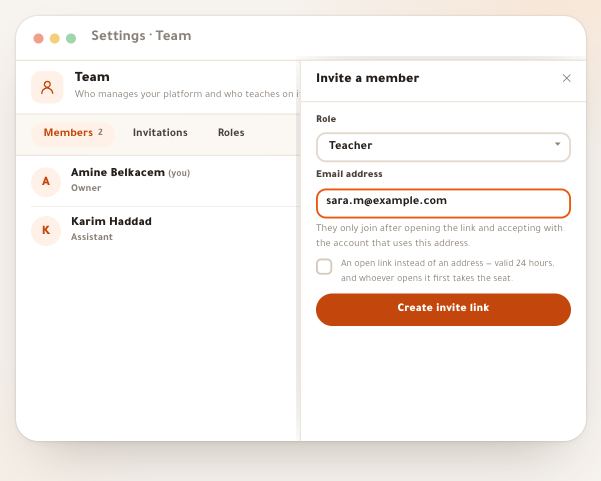
Someone whose collaboration ended comes back with an ordinary invitation: in “Teachers”, “Invite a teacher” (or “Invite a member” for non-teachers), with the role, department and contract you want now, ideally to the email you know so the link is theirs only. When they open it and tap “Join now” with their old account, they become an active member again with the invitation’s role and scope, join the department and are linked to teachers as the invitation says, and whoever invited them gets “Your invitation was accepted”. Their status in “Teachers” goes back to “Active”. Someone removed for good also comes back with an invitation, but as a new member.
On screenInvite a teacherInvite a memberJoin nowYour invitation was acceptedActiveTipCourses handed to others when they left don’t come back to them by themselves. To give them back, move them from the course page.
Once the team is in order
- Invite who is missingRole, department and contract in the invitation itself: the lesson “Inviting teachers and taking applications”.
- Set the rolesWhat each role holds, and making a role for your school: the lesson “Roles and permissions”.
- Pay those who leaveClosing and paying their statements: the lesson “Statements and payouts”.
- The teacher pageTheir courses, money and quality on one page: the lesson “Teachers”.
Questions
What is the difference between “Suspend”, “Remove from the team” and “End collaboration”?
“Suspend” only stops access, everything stays, and “Lift suspension” undoes it. “Remove from the team” takes them out for good, and only works for someone with no courses, no money owed and no dispute. “End collaboration” is for someone who teaches: their courses and questions are handed over and their money stays readable to them.
Removal was refused with “Use “End collaboration””: what now?
The member has courses in their name, a closed unpaid statement or an open dispute. Open their page in “Teachers”, then “⋯” → “End collaboration”.
Do students lose their courses if I end their teacher’s collaboration?
No. They keep everything they bought, their progress and their certificates, and get no notification. What changes is the teacher’s name on the course and who takes the share of new sales.
Where does a departing teacher find their money?
At /former: “Your money from …”, opened from the “Your work with the school has ended” notification. They see what is still owed and what they received, confirm each payment and dispute any line.
An assistant sees no students: why?
Their scope is “Not linked to a teacher yet”. Open their sheet with “Manage”, add a teacher under “Scope: linked to a teacher”, then “Save”.
Why can’t I edit a “Deputy director”’s sheet?
“Only the owner can change a deputy director.” Likewise nobody changes their own role, and the owner’s account is protected.