
“Your hours”: when your time can be booked, and what closes it
Everything people book with you comes from one page: “Your hours”. You draw your week once, add a Ramadan or summer schedule that switches by itself on its dates, close the days you’re away, and set the booking rules: how many hours before a time it can be booked, up to which day, how many minutes you rest between two sessions. Whatever fills your time elsewhere — a live class, an “Organization” event, a Google Calendar appointment — closes the hour by itself. And when something comes up, you close the time and decide each booking in it before anything closes. The example: Karim Zerrouki, English teacher at “Al-Ofok Academy”: his evenings for the “Private review session”, Saturday morning for the “Group English conversation” only, Friday closed. The same page serves a photographer opening her Hydra studio three days a week, or a marketing coach fitting sessions between meetings.
- About 15 minutes
- 7 steps
Who can do it: Open to anyone with “Own bookings” (they draw their own calendar, or that of the teacher they assist) or “All teachers' bookings” (they pick the calendar to edit in “Whose calendar”). “Booking rules” and the public-holiday switch apply to the whole academy: only “All teachers' bookings” changes them; others read them.
In 7 steps
- 1“Week”: one row per day from Saturday to Friday; + opens a window with “From”, “To” and “Offered for”, then “Save the week”.
- 2“Another schedule”: Ramadan, “Summer break” or “Special period” between two dates, in effect on its dates, then “Usual” returns.
- 3“Days off and holidays”: tap a day to close it whole or in part, or open extra hours; “Time off” from one day to another, up to two months.
- 4Algerian “Public holidays” are imported automatically and closed by default; a day can stay open.
Show all
- 5“Booking rules”: “Minimum notice” 3 h, “Bookable up to” 30 days, a 10-minute buffer after, starts every 30 minutes.
- 6Busy: your sessions and their buffers, time you block, your external calendar, your live classes, “Organization” events.
- 7“Something came up?”: close the rest of today, a day or a period, and decide each booking: move it or cancel with full credit.
Before you start
- The “Own bookings” or “All teachers' bookings” permission.
- At least one service in “Services” if you want to keep a window for one service (“Offered for” shows once you have two services).
- Your week in Algiers time: everything is saved in it, and anyone booking from abroad sees their own time.
- Step 1 of 7
“Week”: draw your usual week once
One row per day; each window is a chip that + opens and one tap edits.
- Saturday to FridayA day without a window shows “Closed”. Times go in 15-minute steps; a window lasts at least 15 minutes.
- “Offered for”“All services”, or “Some services”: anyone opening another service doesn’t see the window at all.
- “Save the week”Nothing counts before saving. A red chip = overlapping or too-short windows.
TipA change for one week only? Don’t edit the week: the page says so — “Add a day off or an extra opening in “Days off and holidays” instead.”
All the details
Open “Bookings” → “Your hours”. The head sums up your week (“19 open hours a week · “Usual” in effect · Algiers time”), with three segments under it: “Week”, “Days off and holidays”, “Booking rules”. In “Week”, one row per day from Saturday to Friday. Press + (“Add a window on Saturday”) and a window appears; tap it to open “Saturday window” with “From” and “To” (15-minute steps up to 24:00), then “Done”. Once you have two services, “Offered for” shows: “All services” (“All your services can be booked in it.”) or “Some services” you pick, and the chip reads “some services”. Karim opens Sunday to Wednesday from 17:00 to 21:00 for all his services, Saturday from 09:00 to 12:00 for the “Group English conversation” only, and leaves Friday “Closed”. The copy button beside a day (“Copy Sunday’s windows to other days”) replaces the chosen days’ windows with that day’s. Under the days, “Your week at a glance” reads the whole week, with the “Busiest day”. At the bottom, the bar “Unsaved changes to the week” offers “Discard” and “Save the week”, then “Week saved”.
On screenYour hoursWeekDays off and holidaysBooking rulesClosedSaturday windowFromToDoneOffered forAll servicesSome servicessome servicesYour week at a glanceDiscardSave the weekWeek savedHeads-upA week with a red chip won’t save: “Two windows overlap or one is shorter than 15 minutes. Fix the red chip.”. And anyone working several calendars (a director, or Manal who runs Salim’s) first picks one in “Whose calendar” in the head: each calendar has its own week.
- Step 2 of 7
“Another schedule”: Ramadan and the summer, on their dates
A schedule between two dates applies on its days only, then your usual week returns without you touching it.
- RamadanApproximate dates from the expected Eid; adjust the start when announced and the schedule switches by itself.
- “Summer break”July and August suggested; “Special period” for any period between two dates.
- Starts as a copy“Start from your usual week’s hours”, then adjust the windows and save.
TipRamadan’s date is astronomical: “Adjust the start date and the schedule switches by itself.”. What is already booked keeps its time; the schedule changes only what is offered from now on.
All the details
Above the days sit the “Schedules” cards: first “Usual” (“Always”, with its hours); the schedule in effect today carries the “In effect” mark. Press “Another schedule” (“Ramadan, summer…”) and pick the “Kind”: “Ramadan” (“Approximate dates from the expected Eid”: the thirty days before Eid al-Fitr, so 7 February to 8 March 2027), “Summer break” (“July and August”) or “Special period” (“Any period between two dates”). Fill in “Name”, “From” and “To”, keep “Start from your usual week’s hours” on for a copy to adjust (Ramadan starts empty), then “Draw its hours”, draw the windows and save the week. For Ramadan Karim draws evenings from 21:30 to 23:30 after tarawih and closes the mornings. On a dated schedule’s days it alone applies (“Applies on its dates only, then the usual week returns.”); every other day, “Usual” does. A dated schedule is removed with “Delete schedule”; “Usual” never is.
On screenSchedulesUsualIn effectAnother scheduleKindRamadanSummer breakSpecial periodNameFromToStart from your usual week’s hoursDraw its hoursDelete schedule - Step 3 of 7
“Days off and holidays”: a closed day, extra hours, time off
You change one day without touching your week, and take time off from one day to another.
- Tap a day“Close the whole day”, “Close part of it” from one time to another, or “Open extra hours” on top of your week.
- “Time off”From one day to another, up to two months, with a “Note for yourself”.
- Nothing cancelled quietlyIf the time holds bookings, they show first so you decide each one.
All the details
In “Days off and holidays”, “The next two months” as two calendars, with a legend: “Public holiday”, “Your day off”, “Extra opening”, and a dot on days that have bookings (“Has bookings”). Tap a day and “What to do on this day” offers “Close the whole day” (“Nothing can be booked”), “Close part of it” from one time to another, or “Open extra hours” (“On top of your usual week”), with a “Note for yourself” for a closure, then “Apply”. Karim closes Sunday 25 October from 17:00 to 19:00 (“Doctor’s appointment”) and opens Saturday 31 October from 14:00 to 17:00 as extra hours. For several days, the “Time off” button beside the title: “From one day to another, up to two months.” — 2 to 5 November, “Autumn break”, then “Next”. Everything shows in “Your days off and special days” (time off is one row, with its days or its bookings); each row goes with “Remove”, and a day with changes is cleared from its panel with “Remove what is set on this day”.
On screenDays off and holidaysThe next two monthsPublic holidayYour day offExtra openingHas bookingsWhat to do on this dayClose the whole dayClose part of itOpen extra hoursNote for yourselfApplyTime offNextYour days off and special daysRemoveRemove what is set on this dayHeads-upClosing time that holds bookings never happens silently: “If there are bookings in this time, they show first so you decide before anything closes.” — the “Something came up” sheet (the last step) opens on that time, and the closure is saved only after your decision.
- Step 4 of 7
“Public holidays”: closed by themselves, except the ones you choose to work
The Algerian holidays are in the calendar from the start, each one closed unless the academy decides otherwise.
- Imported automaticallyRevolution Day, New Year, Yennayer, both Eids, Islamic New Year, Ashura, Independence Day, Mawlid, Labour Day.
- Religious ones are approximateShown as “~… · approximate”, adjusted when announced.
- The academy’s decision“Close on public holidays” and “Work on …” are for “All teachers' bookings”.
All the details
Under the two calendars, “Public holidays” — “Algerian, imported automatically. Religious ones are approximate and follow the announcement.” — nearest first: “Revolution Day” Sunday 1 November, “New Year” Friday 1 January, “Yennayer” Tuesday 12 January, “Eid al-Fitr” “~Tuesday 9 March · approximate”… Beside each day, its state: “Closed” or “I work”. The “Close on public holidays” switch is on from the start, so nothing is booked on a holiday without you doing anything. Someone with “All teachers' bookings” sees a switch beside each holiday (“Work on Yennayer”) to keep it open, or can turn the main switch off so every holiday books like an ordinary day. Salim keeps Yennayer open, because many of his learners work that day, and closes the rest.
On screenPublic holidaysClosedI workClose on public holidaysWork on YennayerHeads-upThe switch and each day’s choice apply to the whole academy, every calendar. Someone with only “Own bookings” reads the state (“Closed” or “I work”) without changing it; to work on a day the others close, they ask the manager.
- Step 5 of 7
“Booking rules”: notice, horizon, buffers and caps
Rules every service follows, each one saying what it does right now in real times.
- “Notice and horizon”“Minimum notice” 3 h, “Bookable up to” 30 days from today.
- “Buffers and daily cap”“Buffer before” 0, “Buffer after” 10 min; “No cap” per day and per learner.
- “When sessions start”Every 15 min, every 30 min (the default) or “On the hour”.
TipA service that needs other rules (an intro call bookable an hour ahead, say) changes them in its editor in “Services”. The page names the services that change these rules (“1 service changes these rules: …”) with an “Open” link.
All the details
“Booking rules” has three parts. “Notice and horizon” (“When booking is allowed.”): “Minimum notice” — “Nothing starting sooner than this can be booked — no session you didn’t prepare for.” — 3 h at first, and “Bookable up to” 30 days. Under them a sentence with today’s times: “Now (10:00): first time offered Tuesday 17:00, last bookable day…”. “Buffers and daily cap” (“A buffer is time for you between two sessions.”): “Buffer before” (0) and “Buffer after” (10 min), the “Daily cap” on sessions a day, and “Per learner”, how many bookings of one service a learner may hold per week; both start at “No cap”. “When sessions start” (“The grid of start times inside each window.”): “Every 15 min”, “Every 30 min” or “On the hour”, with an example: “Sunday 17:00–21:00: 7 starts for a 60-minute session. On the hour: only 4.”. At the bottom: “Your hours are kept in Algiers time (UTC+1, no daylight saving). Someone booking from abroad sees each time in their zone, with Algiers time underneath.”; Rania in Paris sees the 17:00 slot in her own time, with 17:00 Algiers time under it. Any change shows “1 unsaved rule” — “Applies to upcoming bookings; what is booked keeps its time.” — and “Save rules”.
On screenBooking rulesNotice and horizonMinimum noticeBookable up toBuffers and daily capBuffer beforeBuffer afterDaily capPer learnerNo capWhen sessions startOn the hourSave rulesHeads-upThese are the academy’s rules: only “All teachers' bookings” changes them; everyone else reads “These are the academy’s rules, changed by its manager. You can change each service’s limits in its editor.”. Dated group sessions don’t go through the notice or the grid: you publish their time yourself.
- Step 6 of 7
What makes your time busy
An open window isn’t a free hour: whatever fills your time elsewhere closes it by itself.
- Your sessions and buffersEvery booked session, with the buffer before and after it.
- What you close“Block time” in the calendar, and the days off and closed days here.
- Your other calendarsYour external calendar, your live classes, your “Organization” events.
TipFrom Google Calendar only “busy” is read: no title, no details. The other way, your sessions show in your calendar through a private subscription link; both live in “Booking settings” → “Connections”.
All the details
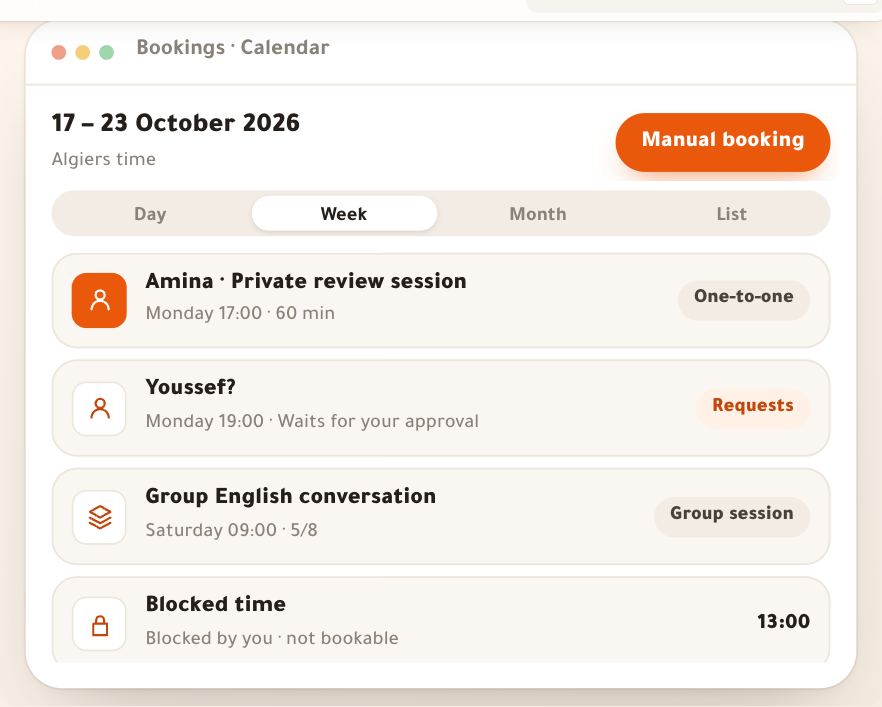
A time is offered when it fits inside an open window that day and touches — buffers included — none of these: your booked sessions in “Bookings”; time you block with “Block time” in the calendar (“Blocked time · Blocked by you · not bookable”); your external calendar once you connect its secret address in “Booking settings” → “Connections” (“Busy · From your external calendar · no details”, read every 30 minutes); your lives in “Lives”, scheduled or on air, from their start to their planned end (or until now if they run over on air); your “Organization” events (“Organization” event), unless cancelled; and a time a landing-page order holds for its buyer while they pay. On top of that come “Minimum notice”, “Bookable up to” and the “Daily cap”. On the learner’s side: nobody can book two sessions at the same time. All of this shows in grey in the calendar, with its name, so nothing is booked over it by mistake.
On screenBlocked timeBusyLive class“Organization” eventBlock time - Step 7 of 7
“Something came up?”: close the time and decide each booking
Sudden illness or travel: you close the rest of today, a day or a period, and pick for each learner another time or their full credit.
- What you close“Rest of today”, “A whole day” or “A period” from one time to another (up to 14 days).
- A decision per booking“Move to” a free time proposed from your hours, or “Cancel with full credit”.
- Nothing before you pressEach learner gets an apology in their name and time zone.
Tip“Each learner gets an apology in their name and time zone, with the proposed time or their full credit. Nothing closes before you press.” — Rania in Paris reads the new time in her own time.
All the details
The “Something came up?” button is always in the head of “Your hours”. It opens the “Something came up” sheet — “Close the rest of today or a whole day, and decide for each booking.” — with “What you close”: “Rest of today” (“From now…”), “A whole day” you pick, or “A period” with a start and end date and time. The page looks for the bookings in that time: “No bookings in this time. It will simply be closed.”, or “2 bookings affected”, one row each: the name, the service, the time (and for someone abroad, theirs), and the list “What happens to Amina’s booking”: “Move to Thursday 15 October 18:00” — up to four free times from your hours in the following ten days — or “Cancel with full credit”. Group sessions in that time are named on their own: “All their seats are cancelled with full credit.”. Then the red button “Close and tell 2 people” (or “Close this time” when there are no bookings). The time is closed, nothing more can be booked in it, and each booking is moved or cancelled as you chose: “Closed: 1 moved, 1 cancelled with full credit”.
On screenSomething came up?Something came upWhat you closeRest of todayA whole dayA periodMove to Thursday 15 October 18:00Cancel with full creditClose this timeCancelHeads-upCancelling here is a cancellation by you: the learner gets everything paid back as credit, whatever the cancellation policy. If a move fails (someone took the proposed time at that moment), the message says “… 1 failed. Open the calendar.”: open it and decide by hand.
Once your hours are drawn
- Add your servicesOne-to-one, group, in-person, intro call, and each one’s length: the services lesson.
- Read your day in the calendarSessions, requests and busy time in one place: the calendar lesson.
- Connect Google CalendarYour other appointments close your hours, your sessions show in your calendar: the booking settings lesson.
- The booking pageHow a visitor sees your hours and books, from Algeria or abroad: the booking page lesson.
Questions
Why doesn’t a learner see any time today although my window is open?
The reasons are in “Booking rules”: “Minimum notice” (3 h at first) hides what starts soon, the buffer after a session (10 minutes) can eat a start right after another session, and the “Daily cap” if you set one. Then whatever makes time busy: a session, blocked time, an appointment in your connected calendar, a live class, an “Organization” event. Also check the window is for “All services” or includes this service, and that the day isn’t a closed public holiday.
Do public holidays close by themselves?
Yes. Algerian holidays are imported automatically and “Close on public holidays” is on from the start, so nothing is booked on them. Someone with “All teachers' bookings” can keep a holiday open (“Work on …”) or switch the closure off entirely, for the whole academy. Religious holidays are approximate: marked “approximate”, they follow the announcement.
I want different hours for one week only — do I edit “Week”?
No. “Week” applies to every week. For one week use “Days off and holidays”: tap the day, then “Close the whole day”, “Close part of it” or “Open extra hours”. For a whole period with other hours, like Ramadan or the summer, add “Another schedule” with its two dates.
I closed a day that had bookings — were they cancelled?
Nothing is cancelled silently. Before the closure is saved, the affected bookings show in the “Something came up” sheet: for each, “Move to” a proposed time or “Cancel with full credit”, then you confirm. “Block time” in the calendar, on the other hand, leaves booked sessions where they are: “Sessions already booked in this time stay where they are. Move them from the calendar if needed.”
I have learners abroad — in which time do I write my hours?
Always Algiers time: “Your hours are kept in Algiers time (UTC+1, no daylight saving).”. Someone booking from abroad, like Rania in Paris or Mehdi in Montreal, sees each time in their own zone with Algiers time underneath, and gets reminders in their own time.
Can one service have rules different from the academy’s?
Yes, in the service’s editor in “Services”. “Booking rules” names the services that change them, with an “Open” link. For a window only one service can use, use “Offered for” → “Some services” on the window itself.
What are the main buttons in “Your hours”?
In the head: “Something came up?” (and “Whose calendar” for anyone working several calendars). In “Week”: + on each day, “Another schedule”, and “Save the week” in the bottom bar. In “Days off and holidays”: “Time off”, and a day in the calendar then “Apply”. In “Booking rules”: “Save rules”.