
Calendar and appointments: every commitment in one place
Before the “Calendar”, your live class lived on one page, your students’ bookings on another, and your calls in your phone. Here they come together: the live classes you scheduled, your “Bookings” sessions, dated tasks and your own appointments. In this lesson you pick a view, learn where each line comes from, create an appointment with a reminder, let the platform check the slot is free, then complete, cancel or restore an appointment, and reserve time for focused work. The example is “En-Nadjah Academy”, run by Amine Belkacem: the live class “Colour grading basics” on Thursday evening, a follow-up call with a student, the weekly team meeting and the editing hours Sara Makhloufi reserves. The same logic works for a marketing coach laying out a campaign week, or a teacher bringing revision classes and the parents’ meeting together.
- About 6 minutes to read
- 6 steps
Who can do it: Anyone with the “Tasks” permission opens the calendar and creates their own appointments. Seeing and managing colleagues’ “Shared” appointments needs “See team & workload”. Bookings appear with “Own bookings” (yours, and those of the teacher you assist) or “All teachers' bookings”, live classes with “Host live sessions”.
 Let Noqta show you
In 6 steps
- 1Views: “Agenda”, “Day”, “Week” or “Month”, with “Today”, “Previous”, “Next” and a jump to any date.
- 2Sources: your appointments and work time, dated tasks, “Bookings” sessions and live classes, each with its colour.
- 3Create: “New appointment” at the next hour, a title, two times and a zone, then type, visibility, plan and reminder.
- 4The schedule check: whatever overlaps the owner’s commitments, flagged at once, without blocking the save.
Before you start
- The “Tasks” permission in your role (owner, admin, teacher and assistant have it by default).
- Your time zone, “Week starts on” and “Default calendar view” in “Organization settings”, if you are not in Algeria or start your week on a day other than Sunday.
- The “Default reminder” in “Organization settings”: each appointment’s “Use default setting” option reads it.
- Your live classes scheduled in “Live” and your bookings in “Bookings”, so they show in the same calendar.
- Step 1 of 6
Open the “Calendar” and choose a view
In “Organization”, in the dark column at the edge of the screen, press “Calendar” in the panel beside it (on a phone, under “Menu”). The card’s header shows the period, such as “October 5 – 11, 2026”, and under it your time zone in words: “Algiers time”. Move with “Previous” and “Next”; “Today” brings you back to today, and the “Calendar date” icon jumps to any date. Then pick from “Calendar view”: “Agenda”, seven days from the chosen date, showing only the busy ones; “Day”, a single day; “Week”, seven columns from the “Week starts on” of your settings, each listing its items in order, without an hour grid (on a phone it becomes a list); “Month”, the month grid with coloured dots: press a day and its items open underneath. The calendar always opens on your “Default calendar view”.
On screenCalendarPreviousNextTodayCalendar dateCalendar viewAgendaDayWeekMonthDefault calendar viewTipMake “Agenda” your everyday view: in the morning you see the rest of the week without empty days. Use “Month” before promising a student a date, to spot the busy weeks at a glance.
Heads-upOn a phone, “Month” shows dots instead of titles: press the day to read its items. In “Week”, the days show as one list.
- Step 2 of 6
What the calendar shows, and where it comes from
The calendar gathers four sources, each with its colour and label: “Appointment” — what you create here, including hatched “Work time”; “Task” — every task with a date, at its deadline’s time if it has one, otherwise “During the day”; “One-to-one booking” in green, from “Bookings”: a one-to-one session under the learner’s name (or the name of a guest who booked without an account), and a group session once, under its title, with the same label; “Live class” from “Lives”, which turns red with “Live now” while broadcasting. Pressing an appointment or a task opens its panel here; pressing a booking opens its drawer in “Bookings”, a group session opens it in “Bookings” → “Calendar”, and a live class opens its page. Anything completed or ended stays struck through and faded (including a booking the learner attended); cancellations and no-shows hide until you switch on “Show cancelled”, and a request you declined or that expired never shows here. Whatever is handled on the booking itself (approval, payment, moving it) happens in “Bookings” → “Calendar”. The “Filters” button narrows the view: “Appointment type”, “Assignee” (to see a colleague’s shared appointments), “Work plan”; then save the combination under “Saved views” with a name like “This week’s classes” and “Save filters”.
On screenAppointmentWork timeTaskDuring the dayOne-to-one bookingLive classLive nowShow cancelledFiltersAppointment typeAssigneeWork planSaved viewsSave filtersTipThe class “Colour grading basics” on Thursday at 18:00 appears on its own, because Amine scheduled it in “Live”. Don’t create a second appointment for it, or you’ll see it twice.
Heads-upThe calendar doesn’t show exams, lesson publish dates or community events. It doesn’t sync with Google Calendar or your phone’s calendar. Connecting an outside calendar belongs to “Bookings” only, in “Booking settings” → “Connections”: its busy times don’t show here, but they count in the schedule check.
- Step 3 of 6
Create an appointment
Press “New appointment” at the top of the page: the panel proposes the next whole hour, for one hour (it’s 14:20? it proposes 15:00–16:00). Or a day’s “+”, which proposes 09:00–10:00 that day. Write the “Event title”, and “Details” if you like. In “Start” and “End”, moving the start moves the end and keeps the duration. Below them sits the appointment’s time zone, yours by default, with “Algiers time” at the top of the list. Then “Type”: “Appointment” or “Work time”; “Who can see this?”: “Private” (the default, nobody else sees the details) or “Shared”; “Work plan” to attach it to a plan; “Reminder”: “Use default setting”, “No reminder”, “At the scheduled time”, or anything from “5 minutes before” to “1 week before”; and “Repeat this appointment” if it recurs. Then “Create appointment”. Example: Amine creates “Call with Yacine — project follow-up” on Tuesday 6 October, 16:00–17:00, “Private”, “15 minutes before”.
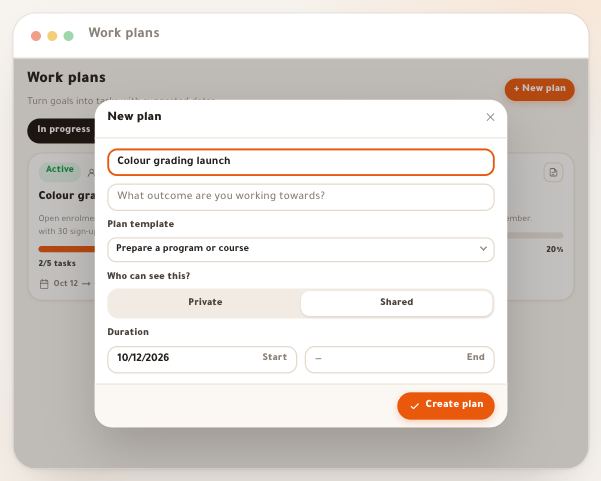
On screenNew appointmentEvent titleStartEndTypeWho can see this?PrivateSharedWork planReminder15 minutes beforeRepeat this appointmentCreate appointmentTipMake the team meeting “Shared” and attach it to the plan “Colour grading launch”: whoever sees the plan sees it, as does anyone with “See team & workload”. With “Repeat this appointment” on, the Repeat tab opens after creation so you can choose the days.
Heads-up“This is an organizational appointment. It does not create a paid booking or broadcast.” Nothing is sent to students. The end must follow the start, and an appointment lasts 7 days at most; otherwise the panel tells you before saving.
- Step 4 of 6
The schedule check: is the slot really free?
Under the two times, the “Schedule check” box runs by itself a moment after every change: “Checking commitments…”, then either “No overlap found in the available data.” in green, or “There are overlapping commitments or unknown durations.” with “Show results (2)”. Each result says what it is: “Event”, “Work block”, “Session booking”, “Live session”, “Time off”, or “Busy time” when you may not see its details; and the kind of overlap: “Time overlap”, “Overlaps a work block”, or “Unknown duration; possible overlap” for a live session with no planned end. The check looks at the appointment owner’s commitments: their appointments and work time; their “Bookings” sessions, one-to-one or group (“Session booking”, or “Busy time” if you may not see their bookings); “Time off”: what they closed with “Block time” in “Bookings”, what comes from their connected outside calendar, and their closed days off in “Your hours”; and their live sessions. Example: Amine moves his call to Thursday 17:30–18:30; his class “Colour grading basics” (18:00) shows as a “Time overlap”; he moves it back to 16:00 and the check turns green.
On screenSchedule checkChecking commitments…No overlap found in the available data.There are overlapping commitments or unknown durations.Show resultsTime overlapOverlaps a work blockUnknown duration; possible overlapBusy timeTipIf “The schedule check is unavailable. Retry before confirming the time.” appears, press the “Refresh” icon next to it before saving.
Heads-upThe check warns, it doesn’t lock: “This is a point-in-time check, not a reservation.” You can save despite an overlap, and no existing booking moves. Once saved, an appointment (type “Appointment”, not cancelled) closes its time in all your “Bookings” services: it is no longer offered on the booking page or on showcases, and shows in “Bookings” → “Calendar” as busy time, under its title, with “From “Organization” · busy”. Tasks aren’t part of the check.
- Step 5 of 6
Edit, complete, cancel or restore an appointment
Press the appointment: its panel opens with two tabs, “Details” and “Repeat”. Edit, then “Save details” (enabled after the first change; close without saving and the panel asks “You have unsaved changes. Leave without saving?”). Under the fields there are two buttons: “Mark completed” — the appointment stays in the calendar, struck through, with a “Completed” badge, and comes back with “Return to scheduled”; “Cancel appointment” — the panel asks “Cancel this organizational appointment? Its record will be kept.”: choose “Keep appointment” or confirm. A cancelled appointment carries a “Cancelled” badge, locks, and leaves the calendar unless “Show cancelled” is on; open it and press “Restore appointment”: it is scheduled and editable again. In “Follow updates”, choose “Automatic based on my role”, “Follow updates” or “Mute this item’s updates”. The Repeat tab makes it weekly or monthly; the details are in the lesson on recurring work.
On screenDetailsRepeatSave detailsMark completedCompletedReturn to scheduledCancel appointmentKeep appointmentCancelledRestore appointmentFollow updatesTipThe reminder goes to the appointment’s owner only, in the platform’s notifications. Anyone who chose “Follow updates” gets “Appointment updated” when the time or the status changes, not the title, and never the person who made the change.
Heads-upAppointments can’t be deleted: cancelling keeps one on record. And you can only edit a colleague’s appointment if it is “Shared” and you have “See team & workload”, or if it is attached to a plan you can edit.
- Step 6 of 6
Reserve time for your own work with “Work time”
Not everything in your day is a meeting with someone. Pick “Work time” under “Type” to reserve hours for focused work: Sara Makhloufi reserves Saturday 10 October, 09:00–12:00, “Edit colour grading lesson 3”. It shows hatched with the “Work time” label, so you tell it from meetings at a glance. In the schedule check it is a soft overlap: an appointment placed on top shows “Overlaps a work block”, not “Time overlap”, because that time can move. On the “Team & workload” page it adds up under “Planned work blocks”, while appointments, bookings and live classes add up under “Known commitment time”. A marketing coach reserves Sunday morning to write the campaign’s ads; a teacher, Wednesday evening to mark revision papers.
On screenTypeWork timeOverlaps a work blockTeam & workloadPlanned work blocksKnown commitment timeTipMake work time “Shared” and attach it to its plan: the team sees when you’re working on the launch, and Amine sees everyone’s planned hours in “Team & workload”.
Heads-upWork time doesn’t close bookings: to keep anyone from booking those hours, close them in “Bookings” → “Calendar” → “Block time”, or make it an appointment of type “Appointment”.
Once your calendar fills up
- Make the meeting weeklyThe appointment’s Repeat tab: copies created on their own, each with its reminder.
- Attach appointments to a planThe appointment’s “Work plan” puts it with the plan’s tasks, in the plan’s “Calendar” tab.
- Check the team’s workload“Team & workload”: commitments, work time and open tasks for each member.
- Set your reminders“Default reminder” and “Quiet hours” in “Organization settings”.
Questions
Can I connect the calendar to Google Calendar or my phone’s calendar?
Not the Organization calendar: it has no sync, export or import. “Bookings” does, in “Booking settings” → “Connections”: a subscription link shows your sessions in Google, Apple or Outlook (“Your sessions in your calendar”), and your outside calendar’s address closes your booking hours by itself (“Your other appointments”). “Follow updates” in the panel isn’t a calendar subscription: it sets your notifications about that appointment inside the platform.
Can I invite a student or a colleague to an appointment?
An organizational appointment has no attendees and isn’t sent to anyone. To share it with the team, make it “Shared” and attach it to a plan. For a meeting with a learner, use “Bookings” (including “Manual booking” in its “Calendar”) or “Live”: both show in this same calendar.
Does an appointment stop learners from booking that slot?
Yes, if it is an “Appointment” and not cancelled: it becomes busy time for you in “Bookings”, is no longer offered on the booking page or on showcases, and can’t be booked, just like your scheduled live classes. “Work time” doesn’t close bookings; to close other hours, use “Block time” in “Bookings” → “Calendar”, or “Time off” in “Your hours” → “Days off and holidays”.
How do I delete an appointment I created by mistake?
Appointments can’t be deleted. Press “Cancel appointment” and confirm: it leaves the calendar and stays on record. Cancelled by mistake? Switch on “Show cancelled”, open it and press “Restore appointment”.
Who gets an appointment’s reminder, and when?
Its owner only, in the platform’s notifications: at the time chosen under “Reminder”, or by the “Default reminder” in your settings (30 minutes unless you change it). None with “No reminder”, or if “Remind me about tasks and appointments” is off. During “Quiet hours” it is held, unless the appointment comes before they end: then it goes out at once. There are no email or SMS reminders.
Why does an appointment I completed stay struck through?
That’s by design: completed or ended items stay visible, faded and struck through, so you see what happened in your week. Only cancelled ones hide, and come back with “Show cancelled”.
Why don’t my exams and lessons show in the calendar?
The calendar shows appointments, dated tasks, “Bookings” sessions and live classes, nothing else. Exams, publish dates and community events aren’t in it; for a reminder, create a task with a date.
Why can’t I see a colleague’s appointments?
Their “Private” appointments are visible to them only. “Shared” ones show to anyone with “See team & workload” and to anyone who sees the attached plan; then pick their name under “Assignee” in “Filters”.
I work with a trainer in France — how do times show?
Everyone sees the calendar in their own zone, set in “Organization settings”. When creating, change the appointment’s zone with the globe icon under the times and write the Paris time: the appointment’s instant changes, the written time stays the same.