
Writing to the Dirassa+ team
Some questions nobody at your school can answer: changing your account email, a question about your plan, a payment that doesn’t show, a page that doesn’t work. For all of these there is a page of its own: **“Dirassa+ team”**. You write, the platform team receives it directly, and the answer arrives on the same page, in the “Inbox” and on your phone. No address to look up, no number to wait on. In this lesson, Sara Makhloufi, owner of “En-Nadjah Academy”, asks to change her account email, and her assistant Karim Haddad asks about a page. The same goes for a marketing coach asking about their plan or a photographer whose payment doesn’t show.
- About 4 minutes of reading
- 4 steps
Who can do it: Every member of the school’s team, whatever the role. Whoever holds “Workspace settings” (Owner and Admin) sees all the school’s questions; everyone else sees their own.
In 4 steps
- 1Door: the “Dirassa+ team” button at the top of “Support”, or “Contact support” under your email in “My account”.
- 2Question: “New question” → “Subject” and “Message” → “Send”; it starts as “Waiting for a reply”.
- 3Answer: it arrives on the page, in the “Inbox” and on the phone, and the status becomes “Reply received”.
- 4Closing: “It’s solved” sets “Resolved”; writing again reopens it for the team.
Before you write
- Gather what the team needs: what happened, where (the page or course name), and the order number if it’s about a payment.
- Turn on notifications in “My account” → “Phone app” so the answer reaches you even with the dashboard closed.
- Step 1 of 4
The way to the team
“Dirassa+ team” is a page of its own, not a tab. Three doors lead there. First: at the top of “Support”, the “Dirassa+ team” button, with an orange count of unread team replies. Second: in “My account”, the “Email” card: you don’t change your email yourself, instead “To change it, write to the Dirassa+ team from “Support” and we’ll update it after checking.”, and the “Contact support” link opens this page directly. Third: when a reply comes in, the “Inbox” shows a line “1 reply from the Dirassa+ team” under “In other sections” that opens it. The page is open to every team member: anyone without “Answer support” is even sent straight here by “Support”. At the top: “Your own questions to the team: your account, plan, a payment or any problem on the platform. The answer arrives here and in your inbox.”, the “New question” button, and a “Support” button that takes you back to your students’ questions (for those holding “Answer support”). Before your first question: “You haven’t written to the team yet”.
On screenSupportDirassa+ teamMy accountEmailContact supportInboxIn other sectionsNew questionYou haven’t written to the team yetTipBefore writing about how to use a feature, search this guide: most “how do I…?” questions are explained step by step.
- Step 2 of 4
Write your question
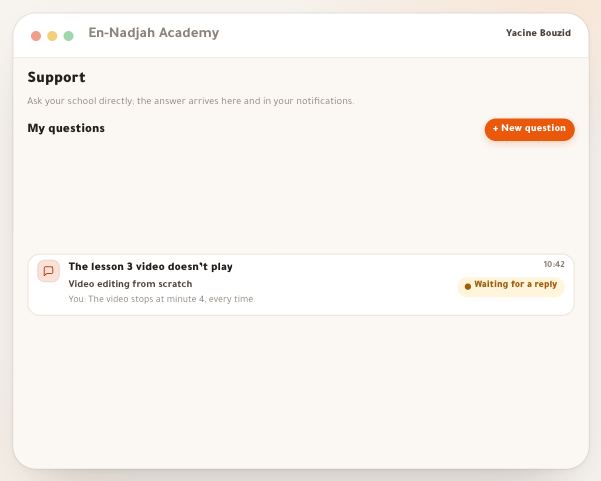
Click “New question” and a window opens in the middle of the screen: “A question for the Dirassa+ team” — “It reaches the team directly; the answer arrives here and in your notifications.” Write the “Subject” on one line — “e.g. I want to change my account email” (2 to 160 characters) —, then the “Message”: “Say what happened and where, and the order number if it is about a payment.” and click “Send”. Your question shows in the list as “Waiting for a reply” and its conversation opens. With your question the team sees your school’s name, your name, your phone and your account email, so there’s no need to introduce yourself. The message is text, up to 4,000 characters, line breaks kept; photos can’t be attached on this page.
On screenA question for the Dirassa+ teamSubjectMessageSendCancelWaiting for a replyTipOne question per topic. “Change email” and “missing payment” are two questions: each closes when solved, and neither gets lost in the other.
Heads-upA school gets 10 new questions a day. Beyond that you’ll see “Many questions today. Continue in an open one.”: write in an existing conversation, which has no such limit.
- Step 3 of 4
The answer arrives
The Dirassa+ team answers from its own console, and the reply goes to whoever opened the question: a phone notification “Reply from the Dirassa+ team” with the subject and the start of the reply, if notifications are on in “Phone app”, which opens the conversation; and a line in the “Inbox” under “In other sections”. In the list the question gets an orange dot, with the last line “Dirassa+ team: …”, then the status “Reply received” once opened; the “Dirassa+ team” button in “Support” and “Support” in the panel beside the column count unread replies. In the conversation, the team’s messages are signed “Dirassa+ team”, yours “You”, your colleagues’ with their names, all in Algiers time. To add something, write in “Write your message…”: the question goes back to “Waiting for a reply”.
On screenReply from the Dirassa+ teamIn other sectionsReply receivedDirassa+ teamYouWrite your message…Waiting for a replyHeads-upThe reply notification reaches only whoever opened the question. If Karim wrote it and is away, Sara isn’t notified, even though she sees the question in her list.
- Step 4 of 4
“It’s solved”, and who sees what
Once it’s fixed, click “It’s solved” in the conversation’s head: the status turns “Resolved”, and under the box: “This question is closed. Writing again reopens it for the team.” Who sees what: each member sees the questions they wrote; whoever holds “Workspace settings” — Owner and Admin among the default roles — sees all of the school’s, and can write in them and close them. So Sara sees Karim’s question about the page, but Karim doesn’t see Sara’s about her email. The list shows the 100 most recent questions.
On screenIt’s solvedResolvedWorkspace settingsTipClose the question yourself once it’s solved: the team knows it’s over, and your list stays readable.
After the first answer
- Turn on notifications“My account” → “Phone app” → “Turn on for this device”, so the answer reaches you in time.
- Check team permissionsWhoever holds “Workspace settings” sees all the school’s questions: the roles and permissions lesson.
- Answer your studentsThe “Support” button at the top of the page takes you back to your students’ questions: the “Student questions” lesson.
Questions
How do I change my account email?
Not from the settings. Click “Contact support” under your email in “My account” and give the new address: the team changes it after checking and tells you in the conversation.
Does the team’s answer come by email?
No. It arrives on the “Dirassa+ team” page, in the “Inbox”, and on your phone if notifications are on.
Can I attach a screenshot or a file?
No, not here. The conversation with the team is text only; photos are for conversations with students in “Support”. Describe what you see: the page name, the exact error text, what you did just before.
Where did the “Dirassa+ team” tab go?
It became a page of its own. Open it with the “Dirassa+ team” button at the top of “Support”, with “Contact support” in “My account”, or from the reply line in the “Inbox”.
Does my assistant see my questions to the team?
No, unless their role holds “Workspace settings”. Everyone sees their own questions; that permission shows all of the school’s.
Why does “Support” open only the “Dirassa+ team” page for me?
Because your role doesn’t hold “Answer support”: student questions and site messages are for those who do. Writing to the Dirassa+ team is open to every team member.
What happens if I write in a “Resolved” question?
It reopens and goes back to “Waiting for a reply”, so the team sees it.