
Site messages: what your visitors leave
A visitor to your site isn’t a student yet: no account, but they may ask about the next session, want to hear when enrollment opens, or leave their number for a free file. All of it lands in “Support”, in the same list as your students’ questions, under **“Site visitors”**, with a row in the “Inbox” and a notification on the phone. Because the visitor has no account, there’s no conversation in the platform: you answer them **by email from the platform** when they left an address — it reaches them under your academy’s name, and their answer lands in your mailbox —, or on WhatsApp or by phone in one click. In this lesson, the site of Sara Makhloufi, video-editing trainer at “En-Nadjah Academy”: Amine Kacimi asks when the next session starts, Nesrine Amrani waits for “Video editing from scratch” to open, and Walid Saadi asks for the free “Editing shortcuts cheat sheet”. The same goes for a photographer collecting shoot requests or a marketing coach giving away a guide.
- About 5 minutes of reading
- 5 steps
Who can do it: Reading, answering, archiving and deleting messages needs “Answer support” (all four default roles). Turning the form on in the site needs “Edit the public site”.
 Let Noqta show you
In 5 steps
- 1Sources: the “Contact form” in the “Contact & location” section, the “Course cover” waitlist while enrollment is closed, and the “Gift for a number” section.
- 2Notification: each message is an “Inbox” row under “Waiting” for whoever answers support, a phone notification, and a count on “Site visitors”.
- 3Reading: “Site visitors” in “Support”, then click the message; opening a new one marks it read for the whole team.
- 4Answering: by email from the platform when they left an address, or “Reply on WhatsApp” or “Call”.
Before you start
- A published site for your school, with a “Contact & location” or “Gift for a number” section, or a course page whose enrollment isn’t open yet.
- Notifications turned on from “My account” → “Phone app”: a visitor expects a faster answer than a student.
- WhatsApp on the phone or computer you answer from, for visitors who left only a number.
- Step 1 of 5
Where the messages come from
Three forms on your site write to “Support”, each with its chip in the list. “Contact”: in the “Your site” editor, section “Contact & location”, turn on “Contact form” (off until you turn it on). Its default fields are “Full name” and “Phone” (required), “Email” (optional) and “Your message” (required); you can add fields, up to 12. Under the switch: “Messages land in your dashboard (Support → Site messages) — no email account, no third-party service.”, and you find them in “Support” under “Site visitors”. “Waitlist”: in a course page’s “Course cover”, “Waitlist while enrollment is closed” is on from the start: while enrollment is closed the visitor leaves a name and number, and the message writes itself (“Wants to enroll when “…” opens.”), with the course attached. “Free resource”: the “Gift for a number” section with its “Gift file”: the visitor leaves a name and number, then the download link appears. Bot protection is built in: a hidden trap field, a minimum fill time, 3 messages per visitor every 10 minutes and 60 per site per hour; beyond that the visitor reads “Too many messages just now — please wait a moment.”
On screenYour siteContact & locationContact formCourse coverWaitlist while enrollment is closedGift for a numberGift fileContactWaitlistFree resourceTipA course opens in two weeks? Publish its page with enrollment closed: every name on the “Waitlist” is an interested person to call on opening day.
- Step 2 of 5
The notification: no message gets lost
Every site message shows in the “Inbox” (at the foot of the column; on a phone, in the bottom bar) of every member holding “Answer support”, under “Waiting”, in “Messages from your site”, with the visitor’s name, subject and the start of the message. With it comes what finishes it on the spot: “Reply” opens a box to answer by email when the visitor left an address, or “WhatsApp” when they left only a number, and a check button (“Done — answered outside the platform”) marks it read. It also reaches the phone of whoever turned notifications on in “Phone app” (the “Questions and messages” group), titled by form: “New message from your site”, “New waitlist sign-up” or “New free-resource request”; under it, the visitor’s name and the start of the message. The notification opens “Support” on that very message. When messages pour in, it stays one notification every 15 minutes while unread, so a successful ad doesn’t flood your phone. In “Support”, the “Site visitors” button shows the count of new messages, also counted in “Needs your reply” and in the “Support” badge of the “Academy” panel.
On screenInboxWaitingMessages from your siteReplyWhatsAppDone — answered outside the platformNew message from your siteNew waitlist sign-upNew free-resource requestSite visitorsPhone appQuestions and messagesTipOn the day you run an ad, keep “Site visitors” open: whoever leaves a number expects a call within the hour, not tomorrow.
- Step 3 of 5
Reading a message
Site messages sit in the same “Support” list, among students’ questions, with a globe. To see them alone, click “Site visitors” (with the count of new ones); archived ones are under “Archive”; old “?tab=site” links open “Site visitors”. Each row: the visitor’s name — bold with an orange dot while it’s new —, the subject or the start of the message (or the course or resource asked for), the form’s chip, “Archived” once you archived it, and the time. The search “Search by name, subject or course…” finds them by name, subject, message, email and phone. Click the row and it opens next to the list (on a phone, in its place), headed by the name, the form and where it came from — “From the “Home” page”, “From a course page” or “From your site” —, then the full message, “Phone”, “Email” and “Course” when given, every field you added to the form under its name, and “Received” with the day and time. Opening a new message marks it read: the dot goes and it leaves “Needs your reply”, for the whole team. The page shows the 200 most recent messages.
On screenSite visitorsArchiveArchivedSearch by name, subject or course…From the “Home” pageFrom a course pageFrom your sitePhoneEmailCourseReceivedHeads-upOpening the message is enough for it to leave “Needs your reply” for your colleagues. If you open it and don’t answer, the “Inbox” won’t remind anyone: answer right away, or agree on who answers.
- Step 4 of 5
Answering the visitor: by email from the platform, or on WhatsApp and by phone
When the visitor left an email, a reply box shows under their message: “Write your reply to Amine…”, with a line under it naming their address: “Sent to … under your academy’s name; if they answer, it lands in your mailbox.” Write and click “Send”: the email reaches them under your academy’s name, and if they answer, it lands in the mailbox of whoever replied, not in the platform. Every reply sent stays in the message — “Sara Makhloufi answered by email” with the day, time and text —, so your colleagues know someone answered. When they left a number: “Reply on WhatsApp” opens WhatsApp on their number with a ready greeting: “Hello Amine Kacimi, we received your message from our site.”, and “Call” dials their number from the phone. Without an email, the box is replaced by: “This visitor left no email. Answer by WhatsApp or phone, then archive the message.” What you write on WhatsApp isn’t kept in the platform. If the visitor later becomes a student, write to them from “Support” with “New conversation”.
On screenWrite your reply to Amine…SendSara Makhloufi answered by emailReply on WhatsAppCallTipFor “Waitlist” visitors: on opening day, go through “Site visitors” and “Archive” and answer everyone in order: an email with the course link to those who left an address, WhatsApp to those who left only a number.
Heads-upIf you see “Email sending isn’t switched on for the platform yet. Answer by phone or WhatsApp.”, email isn’t available right now: use WhatsApp or a call. With no phone and no email there’s no way left to answer: keep “Phone” required in the contact form; it is in the default fields.
- Step 5 of 5
Archiving and deleting
When you’re done with a message, click “Archive” in its head: it leaves “Needs your reply”, “All” and “Site visitors” and stays under “Archive”, and “Back to inbox” brings it back whenever you like. Only archived messages can be deleted: in an archived message, “Delete” asks first: “This message will be deleted for good and can’t be recovered.”, with “Keep” and “Delete for good”. Deleting can’t be undone and applies to the whole team: delete spam, archive the rest.
On screenArchiveBack to inboxDeleteKeepDelete for goodTipMake “Site visitors” your to-do list: what’s in it isn’t settled yet, what’s in “Archive” is done.
After your first visitor
- Answer your studentsEnrolled students’ questions, in the same list: the “Student questions” lesson.
- Turn on notifications“My account” → “Phone app” → “Turn on for this device”, to answer visitors while they’re interested.
- From visitor to studentOnce enrolled, you find them in “Students” and write from “Support”.
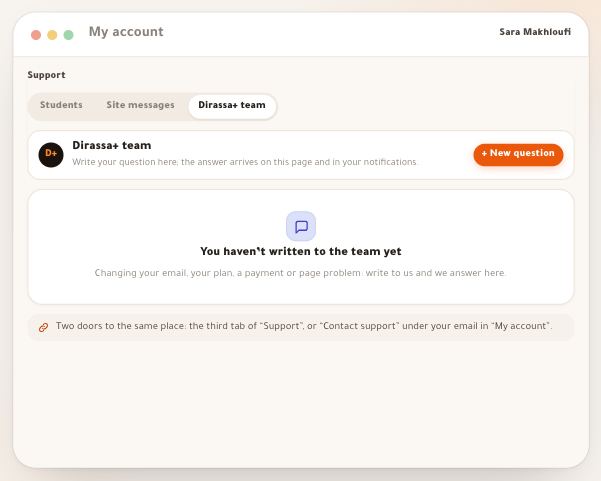
- Ask the platform teamA form or page problem: the “Dirassa+ team” lesson.
Questions
Can I reply to the visitor inside Dirassa Plus?
Yes, by email: when they left an address you write your reply under their message, it reaches them under your academy’s name, and their answer lands in your own mailbox. They have no conversation in the platform, since they have no account. Answer those who left only a number with “Reply on WhatsApp” or “Call”.
Do visitors’ messages reach my email?
No. They land in “Support” under “Site visitors”, in the “Inbox”, and on the phone if notifications are on. A visitor’s answer to your email, though, lands in the mailbox of whoever replied.
Where did the “Site messages” tab go?
Site messages now live in the one “Support” list, with students’ questions. Click “Site visitors” to see them alone; old “?tab=site” links go straight there.
Can the visitor send an image or a file?
No. The form holds text and fields only: name, phone, email, message and whatever fields you add.
Why didn’t a visitor’s message arrive?
They may have sent more than 3 messages in 10 minutes, or the site passed 60 messages in the hour: they then read “Too many messages just now — please wait a moment.”. Also check that “Contact form” is on and the site is published.
Why can’t I find the “Delete” button?
Because only archived messages can be deleted. Click “Archive” first, then open the message from “Archive” and click “Delete”.
Can I recover a deleted message?
No. “Delete for good” can’t be undone. To just move it away, use “Archive”.
Can I split messages between team members?
Site messages have no assignment. The whole team sees the same messages, opening a new one marks it read for everyone, and every email reply shows in it under its author’s name.
Can I search the messages?
Yes. The search at the top of “Support” finds a visitor’s message by name, subject, message text, email or phone.