
The session room: from “Enter the room” to the wrap-up
Every confirmed booking knows where the learner meets the teacher, from what you chose in the service under “Where you meet”: the “Session room” for one-to-one sessions, weekly slots and intro calls — video in the browser, no app, no link to paste; the “Live room” for group sessions; “Your fixed link” on Meet or Zoom; or “In person” with an address, a map and a code at the door. In this lesson Salim Bouzid, physics teacher at “Al-Ofok Academy”, meets Amina from Ouargla for a “Private review session” on Tuesday 20 October at 18:00; Karim Zerrouki runs a “Group English conversation” in the live room; and photographer Leila Kacimi welcomes her workshop in her Hydra studio.
- The session itself; a minute to get the room ready
- 7 steps
Who can do it: The room admits the session’s teacher, the people whose booking is confirmed, and whoever runs the teacher’s calendar (“Own bookings” for their own, “All teachers' bookings” for everyone), like Manel who runs Salim’s calendar. Opening the live room of a group session also needs “Own live classes”. Recording is for the session’s teacher only.
In 7 steps
- 1You enter from “Enter the room” on “Home” and in the booking drawer, the learner from “My sessions”; their door opens ten minutes before.
- 2In the waiting room each side checks camera and microphone; when you press “Open the room”, the learner goes in by themselves.
- 3Picture and sound travel straight between the two browsers; you have mic, camera and screen, and the connection comes back by itself if it drops.
- 4The “Board” is drawn on by both, and the “Panel” shows what the learner wrote, your notes, your files and the chat.
Show all
- 5Recording stays off until both agree in that session; your browser records and uploads it, and it is deleted after 30 days unless you keep it.
- 6A group session is broadcast in a live room made for it, and only its seat holders are invited.
- 7The alternatives: “Your fixed link” shows to the learner an hour before, and “In person” gives an address, a map and a door code that records attendance.
Before you start
- A published service with “Where you meet” chosen (the “Services” lesson), and a confirmed booking in it.
- A computer or phone with a recent browser, a camera and a microphone or headset. Screen sharing and recording work on a computer; the room recommends Chrome or Edge for recording.
- For in-person sessions: a printer for the door code, or a screen to show it at the entrance.
- Step 1 of 7
When the room opens, and where to enter
Ten minutes before the start, “Enter the room” appears for you and the learner, and only the people of the booking get in.
- Ten minutes beforeThe learner’s door opens ten minutes before, with a notification; the room stays up until half an hour after the end.
- For the booking onlyAnyone not signed in is asked to sign in; anyone without a seat in the session reads “Only the people of this session can enter”.
- Four ways to meetThe service decides: “Session room” in the browser, “Live room” for groups, “Your fixed link”, or “In person”.
TipYou can open the room before the ten minutes to check your gear. The learner can test camera and microphone in the waiting room whenever they like, but can’t go in earlier than ten minutes before. And Rania, booking from Paris, reads the room’s times in her own time zone.
All the details
No link to paste or send: every confirmed booking carries its room. Salim finds it on “Home”, on the next session’s card, with an “Enter the room” button that appears in the hour before; in the booking drawer, “Enter the room” becomes the first button from ten minutes before the start until half an hour after the end; and for sessions with seats, in the session drawer. Amina finds it in “My sessions”, under “Your next session”: before it opens she reads “The room link appears here 10 minutes before · opens at 17:50”, then the card says “The room is open” with “Enter the room”, and after the start “The session has started · enter now”. Ten minutes before, she gets the notification “The room is open” — an alert that cannot be turned off. How you meet is chosen in the service under “Where you meet”: one-to-one, weekly slot and intro call between “Session room”, “Your fixed link” and “In person”; group sessions between “Live room”, the link and in person; in-person sessions “In person” only. A “Work review” has no appointment, so no room.
On screenEnter the roomYour next sessionThe room is openWhere you meetSession roomLive roomYour fixed linkIn personHeads-upIf the session is cancelled or the booking isn’t confirmed (waiting for payment, say), the room won’t open for the learner: they read “Your booking doesn’t open the room” and are sent to their booking page. Half an hour after the end it closes: “The session has ended”.
- Step 2 of 7
The waiting room: check your devices, then “Open the room”
Before going in, each side sees their picture and microphone level, and the learner enters by themselves the moment you open the room.
- Check before paid timeThe camera opens by itself, with the microphone level and three marks: camera, microphone, connection. “Devices” switches camera or microphone.
- What you seeWho has arrived and when, what the learner wrote when booking, their pack balance and their past sessions with you.
- If one of you is lateAfter the waiting time (10 minutes by default) you’re offered to mark them absent, and the learner is offered their session back as credit if you haven’t opened.
TipNo sound on the learner’s side? The page tells them: “No sound? Open the same link on another device — your booking follows you.”. Opening “My sessions” on their phone with the same account is enough.
All the details
“Enter the room” first opens the waiting room, and the browser asks for the camera and microphone. On one side your picture (“Your camera”), the sound-level bars and the mic and camera buttons, then three marks “Camera”, “Microphone” and “Connection”, and “Devices” to pick another camera or microphone. If the browser refuses, the page says what to do (allow camera and microphone from the lock next to the address, then reload). On the other side, your card: the session’s title and time, a status line “Amina hasn’t arrived yet” then “Amina is in the waiting room · arrived 17:52”, the “Open the room” button, and “Call” when her phone number is known. Below: “Session 18:00–19:00”, “What they wrote when booking” (her answers to the service’s questions, and what reached her after the last session), her pack balance “2 left after today” and “Their past sessions with you”. Amina reads on her side: “You’re in the waiting room. You’ll go in by yourself when the teacher opens the room.”. No knocking, no waiting for permission: the moment you press “Open the room” she goes in by herself, and an “Enter the room” button shows for her too. Her arrival counts from the waiting room, so you know who was there first, and when.
On screenYour cameraCameraMicrophoneConnectionDevicesOpen the roomCallWhat they wrote when bookingTheir past sessions with youEnter the roomHeads-upIf the “Waiting time” (10 minutes unless the academy changed it in “Booking settings”) passes and you haven’t opened, the learner reads “The teacher hasn’t opened the room yet” with two choices: “Take the session back as credit” (the full price comes back as credit for another time) or “Wait a little longer”. If they take the credit, the cancellation is on your side and you are notified.
- Step 3 of 7
In the room: direct video between two browsers
Picture and sound go straight from your browser to the learner’s, and your tools sit in one bar at the bottom of the screen.
- Straight between youThe video passes no server on the way: between two people in Algeria, it stays in Algeria. If one side’s network blocks that, it goes through a relay when the platform has one set up.
- One barMic, camera, screen (on a computer), board, panel, then “End session”.
- Time in viewThe elapsed-time counter changes colour in the last ten minutes, and nothing cuts the session: you end it.
TipIf Amina hasn’t come in three minutes after the start, she gets a reminder automatically. After the waiting time, an alert tells you she hasn’t come in, with three buttons: “Mark absent” (ends the session and opens the wrap-up on the absence), “Wait 5 more minutes” and “Call”.
All the details
In the room the learner fills the screen and you are small in a corner. At the top, the session title, then the academy name and “with Amina”, and since she books from a pack: “session 2 of 4 in their pack”. Next to it, the elapsed-time counter “of 60” changes colour in the last ten minutes and never cuts the session; if another session follows you read “Next 19:30 · Youcef”. The connection is direct between the browsers: nothing to install, no video server on the way — between Salim in Algiers and Amina in Ouargla the stream never leaves the country. The signal reads “Good connection”, “Fair connection” or “Weak connection”, and quality follows the line. If the line drops you read “Connection lost, reconnecting…” and the picture comes back by itself, even when someone moves from Wi-Fi to 4G. Some networks block direct connections (some 4G carriers, university networks); then it goes through a relay when the platform has one set up, and you read “through a relay” next to the signal. At the bottom, the toolbar: “Mic”, “Camera”, “Screen” (when the browser can share a screen, usually on a computer; the button becomes “Stop sharing”), “Board”, “Panel” (“Chat” for the learner), then “End session”: it turns into “Confirm” for four seconds, and confirming ends the session for both and opens your wrap-up. The learner has “Leave” instead. At the end of the bar, the booking number and “Only the people of this booking can enter”.
On screenMicCameraScreenStop sharingBoardPanelEnd sessionConfirmLeaveGood connectionthrough a relayConnection lost, reconnecting…Mark absentWait 5 more minutesHeads-up“End session” takes both of you out and closes the connection. To step out for a moment and come back, reload the page instead of ending. And Manel, who runs Salim’s calendar, can join the same room if needed.
- Step 4 of 7
The “Board” and the “Panel”: what you draw, what the learner wrote
A board both of you draw on, and a side panel with what the learner wrote, your notes, your files and the chat.
- A board for twoEach stroke reaches the other side when you lift your finger, in four colours. Phone and laptop see the same picture.
- Notes save as you typeTwo boxes from the start: a note the learner sees, and a private one. Nothing is sent from the room: sending happens in the wrap-up.
- Chat and filesWritten messages during the session, and files you attach that go out with the summary.
TipWrite in the note the learner sees what you covered, in short sentences: Noqta drafts the summary after the session from that note alone. Whatever is only for you goes in “Private”, which never enters the summary.
All the details
The “Board” opens a white sheet in the middle of the screen, and your two pictures shrink to a strip beside it. Salim and Amina draw on it together, with a finger or a mouse, and Amina sees on her phone the same picture Salim sees on his laptop. Its colours are “Ink”, “Academy colour”, “Red” and “Green”, with “Undo”, “Clear the board” (“Press again to clear”) and “Close the board”. The board isn’t kept after the session, so the teacher has “Attach a picture of the board to the notes”: the picture goes into the session’s files (“A picture of the board was added to the files.”) and reaches Amina with the summary. The “Panel” sits beside the picture (on a phone it slides over it), in four parts: “What they wrote” — Amina’s answers to the booking questions, what reached her after the last session and how much homework she did (“Homework: 1 of 2 done”), and “Their past sessions with you”; “Your notes” — you choose between “Amina sees” (it reaches her after the session) and “Private” (nobody else sees it), saved as you type (“Saved 18:34”), with “Homework” and “Due” below; “Files” — what Amina sent when booking (“sent by the learner”) and what you add with “Attach a file”; and “Chat”. Amina’s panel only has “Chat” and “What I wrote”.
On screenBoardInkAcademy colourUndoClear the boardAttach a picture of the board to the notesPanelWhat they wroteYour notesFilesChatPrivateHomeworkDueAttach a fileHeads-upNotes are not sent from the room. Amina only receives them when you press “Send summary and homework” in the wrap-up.
- Step 5 of 7
Recording: with both sides’ consent, from your browser
Recording is always off, starts only when the learner agrees in that same session, and stops the moment they change their mind.
- Consent every sessionYou press “Record” and the learner gets a question with “I agree” and “No”. Today’s yes doesn’t carry over to the next session.
- Your browser records, then uploadsBoth pictures and both voices go into one file, uploaded when recording stops and counted in the academy’s storage.
- 30 daysThe recording is deleted after 30 days unless you keep it, and the learner only sees it if you share it.
TipIf you read “This browser can’t record the session. Try Chrome or Edge on a computer.”, open the room from a computer next time. And don’t close the page before the upload finishes: the file is in your browser until then.
All the details
The “Record” button sits at the end of the toolbar, for the session’s teacher only, in the “Session room”, and works once Amina is in the room. Pressing it records your consent and asks Amina: “Salim asks to record the session” — “The teacher keeps it for 30 days and may share it with you in “My sessions”. You can stop it at any time.” — with “I agree” and “No”, while you read “Waiting for Amina to agree to recording…”. When she agrees, recording starts by itself and a red “Recording” pill with its counter shows on both sides throughout. Your browser does the recording: both faces in one frame and both voices together, and nothing is uploaded during the session. On “Stop recording”, or when the session ends, the file uploads (“Uploading the recording… 40%”) and then “Recording saved. You’ll find it in the session wrap-up.”. Amina has “Stop recording” too: pressing it stops the recording and what was recorded is kept. In the wrap-up you’ll find “Session recording · 52 min” with two switches: “Share the recording with Amina” — “They watch it in “My sessions” and can’t download it” — and “Keep it after 30 days”; otherwise you read “Deleted on 19 November”. If you share it, Amina finds it on the session’s page in “My sessions” as “Session recording”.
On screenRecordI agreeNoRecordingStop recordingSession recordingKeep it after 30 daysHeads-upRecordings use the academy’s storage; when it’s full the upload fails with “The academy’s storage is full. Free some space or upgrade, then try again.”. And “Record” exists only in the “Session room” — not with a fixed link or in person.
- Step 6 of 7
Group sessions: a live room for each session
When you enter a group session, a live room is made for it in your academy, and only its seat holders are invited.
- A live in “Lives”The session becomes a live of kind “Group session”: studio, questions and polls, up to 4 on stage, recording and replay.
- Seat holders onlyA confirmed seat is invited; whoever cancels leaves the list by themselves. No course needed.
- A notice at the startInvitees are notified as the session approaches and when it starts.
TipPrefer Zoom for your groups? Choose “Your fixed link” instead of “Live room” in the service: the same link reaches every seat after confirmation.
All the details
A “Group session” service meets by default in the “Live room” — “A live room is created for each session and only seat holders are invited.”. Karim Zerrouki runs a “Group English conversation” with 8 seats on Thursday 22 October at 19:00. As the time nears he opens the session drawer in the “Calendar” and presses “Enter the room” (from ten minutes before): the first time, a live of kind “Group session” is made for it in “Lives” — no course, in Karim’s name, at the session’s time, audience “Invited only” — the confirmed seats are invited, and Karim lands in the live’s studio to start: backstage, then “Go live”, with the stage, questions, polls and recording like any live, and the summary and homework afterwards from the live’s page. The list follows the seats: whoever books later is invited, whoever cancels drops off, and if the session is moved or cancelled its room is moved or cancelled too. Youcef, Rania and Mehdi press “Enter the room” in “My sessions” and land straight on the live page; if Karim hasn’t set it up yet they read “The group session is a live class” — “The live room opens when the teacher sets it up; you’ll be notified when it starts.”.
On screenLive roomCalendarEnter the roomThe group session is a live classYour fixed linkHeads-upThe live room runs on the Dirassa+ room, which isn’t open yet: until it is, pick “Your fixed link” in the service for group sessions. If you stay on the live room, “Enter the room” leads to a studio that says the broadcast room isn’t ready yet: open the session’s live page in “Lives” and press “Move it to Meet”, and seat holders join your link from it. The studio needs “Own live classes” (or “All teachers’ live classes”), and the session’s live is only made when the teacher, or whoever runs their calendar, goes through “Enter the room”.
- Step 7 of 7
Your fixed link, or in person with a code at the door
With a fixed link the room shows it at the right time; with “In person” the room becomes an address, a map and a code that records attendance.
- A Meet or Zoom linkSent to the person who booked only after confirmation, and shown on the room page an hour before.
- The door codeAn 8-character code per session, working from an hour before the start until the end. The learner scans it with their phone and is marked present.
- The attendance listIt refreshes by itself every few seconds; from it you mark whoever forgot their phone and take cash at the door.
TipNo printer at the studio? Show the door code on a screen or tablet at the entrance: a phone camera is all it takes to scan it.
All the details
“Your fixed link” (“Meet, Zoom or any other”) is typed once in the service and must start with https://. Nesrine Haddad, a marketing coach, takes her “Intro call” on a Google Meet link: the room page tells the learner “You meet on meet.google.com. Open the link at the session time.” with an “Open meet.google.com” button, and more than an hour before they read “The link appears an hour before.”. Opening it at the session time records them as in. “In person” (“With address and map”) asks for a “Place name”, an “Address” and an optional “Map link”. Leila Kacimi runs “Studio lighting workshop” on Saturday 24 October from 10:00 to 13:00 in her Hydra studio: the learner’s room page shows the “Place”, an “Open the map” button and a “Check in” part. On Leila’s side, “Enter the room” in the session drawer opens the attendance list and the door code: a QR code with the 8-character “Door code” under it, “Active now” (or “Active from 09:00” before that) and “Print the door code”. The learner scans it with their phone camera: their page opens and they’re marked present (“You’re checked in” · “Arrived 09:47”); or they type the code and press “I’m here”. The “Attendance list” shows “5 of 8 arrived”, “scanned at 09:47” for those who scanned, a “Present” button for whoever forgot their phone (“marked at 10:05”), and a “Received” button for whoever “pays 3,500 DZD in cash” at the door.
On screenYour fixed linkIn personPlace nameAddressMap linkPlaceOpen the mapCheck inDoor codeI’m hereAttendance listPresentReceivedPrint the door codeHeads-upThe code only works for this session and only checks in people with a seat in it. Someone marked absent who turns up later isn’t checked in by the door: you mark them with “Present”.
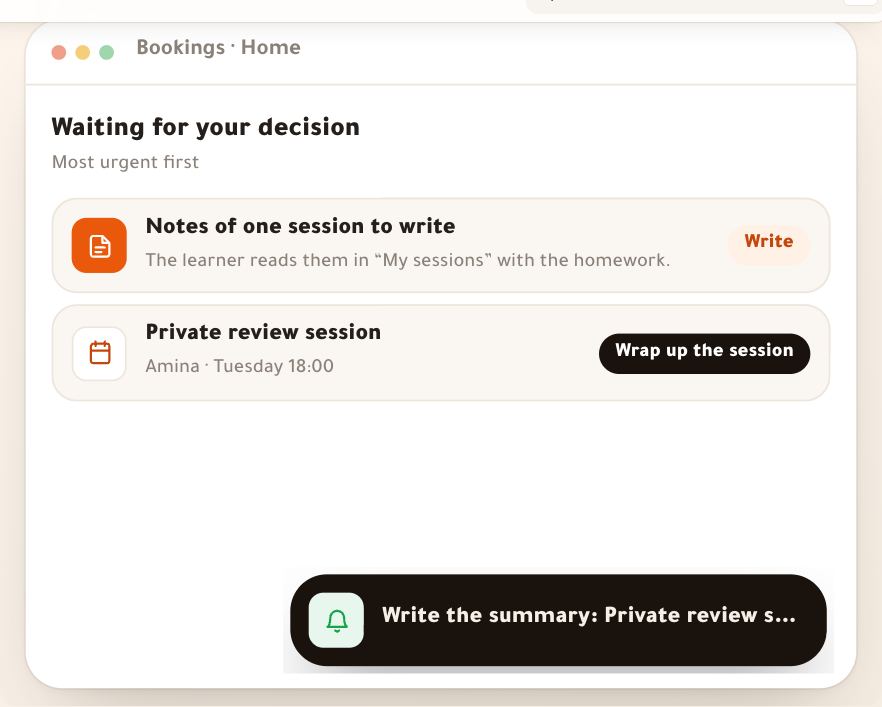
After the session
- Wrap up the sessionAttendance, summary and homework, and Noqta drafting from your notes: the wrap-up lesson.
- Choose where you meetSession room, live room, your link or a place, per service: the services lesson.
- Notifications and waiting timeReminders before the session, the room opening and what happens on a no-show: the booking settings lesson.
- What the learner sees“My sessions”: the next session and its door, then the summary and homework.
Questions
Does the learner need an app or a Zoom account?
No. The “Session room” works in the browser, on a computer or a phone; signing in with the account they booked with is enough. If you pick “Your fixed link” in the service, the learner opens your own link (Meet or Zoom) from the room page.
Does the session’s video go through Dirassa+ servers?
In the “Session room”, video and sound go straight from browser to browser; only the messages needed to connect the two sides pass through the servers. If one side’s network blocks a direct connection, it goes through a relay when the platform has one set up, and you read “through a relay”. Only a recording, if both agree, is uploaded to the academy’s storage.
Can I record a session without the learner knowing?
No. Recording only starts after the learner presses “I agree” in that same session; they see the “Recording” pill the whole time and can stop it at any moment. They only see it afterwards if you share it, and it’s deleted after 30 days unless you keep it.
The learner can’t hear me — what do I do?
Check that the “Mic” button isn’t muted and that the bars move in the waiting room, and pick another microphone under “Devices”. If the problem is on their side, they open the same link on another device: their booking follows them.
The learner is late — when do I mark them absent?
Three minutes after the start they get a reminder automatically. After the “Waiting time” (10 minutes by default) you see “Mark absent” and “Wait 5 more minutes”. What happens to the paid session follows the academy’s policy: by default it counts as held.
Does what we drew on the board stay after the session?
No. Press “Attach a picture of the board to the notes” before ending: the picture goes into the session’s files and reaches the learner with the summary.
Can a third person join a one-to-one session?
The room admits the teacher, the person who booked, and whoever runs the teacher’s calendar — an assistant dropping in when needed, say. Sessions for many people belong in the “Live room”, with group sessions.