
Create your account and school on Dirassa+ in minutes
From nothing to a school in your name, at its own address: a short form, a code in your inbox, three questions, then a welcome page that leads to your first course. Building is free; you pay when you open your academy to students. Every field and every message you’ll meet is here, with the example “أكاديمية النور للرياضيات”.
- About 5 minutes
- 6 steps
Who can do it: Anyone with an email address. The account that creates the school becomes its owner.
In 6 steps
- 1Type your academy’s name on the home page and press “Start free”, then fill in “Create your academy”: name, email, optional phone and password.
- 2Confirm your email with the 6-digit code or the button in the message.
- 3“Name and address”: your academy’s name and address. We suggest the address from the name — alnour-alriadiat for “أكاديمية النور للرياضيات” — and you can shorten it, such as nour-math.dirassaplus.com.
- 4“What you teach” (optional): subject and level, which write your site’s first description.
Before you start
- An email address you can open right now, on Gmail, Outlook, Yahoo or anything else.
- A WhatsApp number you answer: Algerian (05/06/07) or international, starting with +.
- A name for your academy, and a short address in Latin letters your students will remember.
- Your logo if you have one (PNG or JPG); if not, add it later.
- Step 1 of 6
The “Create your academy” form
The “Start free” button on dirassaplus.com leads to “Create your academy”, with this under the title: “Start free: building is free, and you pay when you open your academy to students.” If you typed your academy’s name in “Name your academy” at the top of the home page, it arrives with you on the “Your academy:” line, and we keep it for your setup. On a computer, the side panel shows the whole way: “Account · Confirm email · Your academy”; on a phone, a line reads “Step 1 of 3 · Account”. Fill in “Full name” (at least 3 characters), “Email address”, where the confirmation code will arrive, and “Phone number (optional)”: it’s where we reach you on WhatsApp to activate your academy, an Algerian number (05/06/07) or an international one starting with + and the country code. Then “Password”: at least 8 characters. The meter under it says what’s missing, such as “Add 3 more characters”, then “Acceptable”, “Good” and “Strong” as it grows; the eye shows it. Tick “I accept the terms of use and the privacy policy”, and press “Create account”.
On screenStart freeCreate your academyFull nameEmail addressPhone number (optional)PasswordShow passwordCreate accountAlready have an account?TipThe phone is optional here, but setup asks for it a minute later as your WhatsApp number: type it now and it will already be there. And if your email already has an account, the “This email already has an account” card takes the form’s place: “Sign in with this email”, “Forgot your password?”, or “Use another email”, which brings the form back as you filled it.
Heads-upWithout the tick, the account isn’t created. The small line under it says plainly what it includes: your data being processed and stored with providers outside Algeria to deliver the service, and a parent’s or guardian’s consent for anyone under 19.
- Step 2 of 6
Confirm your email: code or button
After “Create account”, the “Confirm your email” page takes the form’s place, and the side panel moves on to “Confirm email” (on a phone, “Step 2 of 3”). Under the title is your address as you typed it, with “Fix it” beside it if it’s wrong: the form comes back as you filled it. A message arrives, and whichever path comes first is enough: type the 6-digit code in “Confirmation code”, in Latin or Arabic digits (482913 or ٤٨٢٩١٣), and it confirms itself on the sixth digit; or tap the confirmation button in the message. If you open it on your phone or in another browser, this page notices and signs you in: “Email confirmed. Signing you in…”. For Gmail, Outlook or Yahoo, an “Open Gmail”, “Open Outlook” or “Open Yahoo” button opens your inbox in a new tab.
On screenConfirm your emailFix itConfirmation codeConfirmOpen GmailResend the messageSign inTipNo message? Check your spam folder. “Resend the message” starts with a countdown: “Resend in 60s”. The code works in the browser you signed up in; anywhere else, tap the button in the message.
Heads-upClosed the page before confirming? Tap the button in the message: if it doesn’t sign you in straight away, you land on sign-in with “Your email is confirmed. Sign in to continue.” Sign in with your password and you carry on to the questions. And if you try to sign in before confirming, the page says “Your email isn’t confirmed yet” and offers “Resend the confirmation email”.
- Step 3 of 6
“Name and address”: your academy’s name and address
After confirming comes the third step, “Your academy”: three questions named by thin bars at the top of the page, “Name and address · What you teach · Look and contact”. On a computer the side panel carries on the same path, with “Account” and “Confirm email” ticked, and under it “Your academy preview”, drawn by your answers; on a phone, a line reads “Step 3 of 3 · Your academy” above the bars. If you typed your academy’s name on the home page, you’ll find it in “Your academy’s name”; if not, type it as your students will see it, such as “أكاديمية النور للرياضيات”. From it we suggest “Your academy’s address”, in Latin letters the way Algerians write their names, without a generic first word such as “أكاديمية” or “Academy”: “أكاديمية النور للرياضيات” gives alnour-alriadiat. It takes lowercase letters, digits and dashes, 3 to 31 characters, and a space becomes a dash. It’s checked as you type: “Checking availability…” then “Address available”. Shorten it if you like, such as nour-math.dirassaplus.com, then press “Next” or Enter.
On screenName and addressWhat's your academy called?Your academy’s nameYour academy’s addressChecking availability…Address availableYour academy previewNextTipPick a short address with no random numbers, as the line under it says: “Keep it short: you’ll write it on your posts and messages.” An Arabic letter typed in the field doesn’t appear, and the line explains: “The address takes Latin letters only, e.g. nour-math.”
Heads-upIf another academy has it: “Another academy already has it. Try another.”; some addresses are reserved by the platform, such as www, admin, test or demo. If the connection drops during the check, we don’t call it taken: “We couldn’t check it just now. We’ll check again when you create.” You can change it later in “Settings › General”, and the old one forwards to the new one for a year.
- Step 4 of 6
“What you teach”: subject, level and the first description
The question reads “What do you teach, and to whom? (optional)”. Choose the “Subject”: Mathematics, Physics, Science, Arabic, French, English, Philosophy, or “Other” to type your own. If your academy’s name mentions its subject, it’s already chosen: “أكاديمية النور للرياضيات” arrives here with “Mathematics” ticked. Then the “Level”: Primary, Middle school · BEM, High school · Bac, University, or Training and skills. A chosen answer has a dark outline and a tick; a second press takes it back. From the two we write your site’s first description, and you see it in the preview as you choose: “Mathematics for high-school and Bac students, lesson by lesson.”, followed by “Video lessons, solved exercises and mock exams.”; after “Training and skills”, by “Video lessons you learn step by step, in your own time.”
On screenWhat you teachWhat do you teach, and to whom?(optional)SubjectLevelOtherBackNextTipThe question is optional: skip it, or answer only the subject, and we don’t write a description you never chose; you write it whenever you like. What we do write becomes your site’s first description, and every word stays editable.
- Step 5 of 6
“Look and contact”: colour, logo and WhatsApp
The question reads “Its colour, its logo, and your number”, with this under it: “Its colour and logo appear on its site and in your students’ app.” Choose the “Colour” from eight. Add the “Logo (optional)” with “Upload your logo” (PNG, JPG, WebP or SVG), or skip it, as the line under it says: “Not ready? Skip it, and add it later in settings.”; the name’s first letter then shows on your colour: “ن” for “أكاديمية النور للرياضيات”. Then the “WhatsApp number”, which is required; if you typed it at sign-up, it’s already there: “So we can help you when you open your academy. Your students never see it.” Every choice shows at once in “Your academy preview”, and on a phone in a small card above the number. When you’re done, press “Create my academy”, with this under it: “Building is free — nothing to pay now.” The button spins until the arrival page opens.
On screenLook and contactIts colour, its logo, and your numberColourLogo (optional)Upload your logoWhatsApp numberBackCreate my academyTipReloaded the page or switched language mid-way? Your answers are kept in this tab: you come back to the same question with the same words (except the logo, which you upload again), and a phone’s Back goes one question back. If the connection drops as you create: “The connection dropped. Your answers are kept — try again when it’s back.”
Heads-upA second press on “Create my academy”, or a second tab, never creates another academy: the same one comes back. If the logo or some answers couldn’t be saved, the academy is created anyway, and the arrival page says “Your academy is created, but not everything was saved”, with a link for each gap.
- Step 6 of 6
The arrival: your academy is ready to build
You land on a page in your academy’s colour, titled “أكاديمية النور للرياضيات is ready to build”, with this under it: “Start with your first course. Building is free, and your students won’t see it until you open it, when you’re ready.” The “Its address” card shows your real address, nour-math.dirassaplus.com, and “Copy” beside it copies the full link for your posts, then reads “Copied”. Then a single button: “Create the first course” — a title is enough to begin. Under it, two links: “Preview it as your students will see it”, which opens it in a new tab, and “Go to your dashboard”, to the home page and the “Finish setting up your platform” list. On a computer the side panel ticks all three steps, with your academy’s name and address under them.
On screenIts addressCopyCreate the first coursePreview it as your students will see itGo to your dashboardTipNot everyone who reaches “Your academy” sees the questions. A waiting invitation becomes the page: who invites you to which team, such as “Yacine invites you to the أكاديمية الأمل team”, the role, the expiry date and a single “Join” button; founding your own academy is still there behind “Or create your own academy”. After joining you land on “Welcome … — you've joined the team at …”: “What you can reach”, “Start here” with three pages, then “Go to your dashboard”. And an account that studies at an academy is first offered “Your courses at …” or “I’m a teacher — create my academy”.
After creating your account
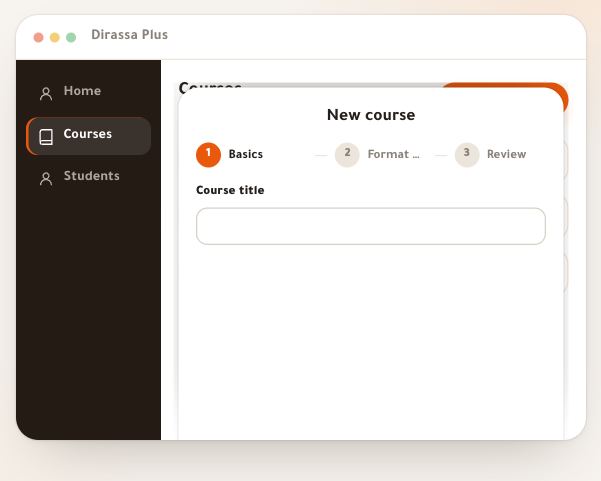
- Create the first courseA title is enough to start; description, price and cover whenever you like.
- Follow the setup list“Finish setting up your platform” on the home page leads you step by step.
- Set up paymentsHow students pay you: CCP, BaridiMob, code cards and more.
- Invite your teamTeachers and assistants, with roles and permissions, in “Settings › Team”.
Questions
I didn’t get the confirmation email. What now?
Check your spam folder, then press “Resend the message” when the countdown ends (60 seconds). If the address is wrong, press “Fix it” beside it. If you already created and confirmed an account with that address, no message arrives: the “This email already has an account” card takes the form’s place, to sign in or reset your password.
Can I change my academy’s address later?
Yes, in “Settings › General”, at most three times a month. The old address forwards to the new one for a year and stays reserved for you, then stops: share the new link before then. Simplest of all is to pick it short from the start, before it goes on your posters.
Is creating my school free?
Yes: building is free, and you pay when you open your academy to students. Creating the account and building your school and courses costs nothing; the monthly subscription, from 1,500 DA, is what keeps your school running for your students, and you pay it from “Plan and usage” when you’re ready. Every feature is on every plan, with no commission on your sales.
My phone number is from abroad. Is it accepted?
Yes. Type it in international form: + then the country code then the number, such as +33 6 12 34 56 78. A leading double zero (00) becomes + automatically.
I reloaded the page mid-way through the questions. Are my answers lost?
No. Your answers are kept in this tab: after a reload or a change of language you come back to the same question with the same words, except the logo, which you upload again. They’re cleared once the academy is created. If you close the tab, the questions start over, but the name you typed on the home page is still there.
Can I have several academies with one account?
Your account can belong to several academies: yours, and those that invite you into their team, and then the switcher appears in the workspace. Founding, though, happens once per account: “Your academy” only opens for an account that belongs to no academy yet, and a second press or a second tab returns the same academy instead of creating another. The server guards it too: no second academy from the same account within 10 minutes, and no more than 3 in all; you then read “Your academy was just created — open your dashboard to find it.” or “This account has reached its limit of academies. Write to us if you need another.” For a second academy of your own, create another account with another email address.
An academy invited me to its team. Do I create an academy?
No. Open the invitation link you received: without an account, press “Create an account and join”; after confirming you come back to the invitation and press “Join now”. If you land on “Your academy”, the invitation is the page itself: who invited you, as what, until when, and “Join”. If you opened the questions with “Or create your own academy”, the line “An invitation to the … team is waiting.” and “View it” take you back to it.
I forgot my password. How do I get it back?
On the sign-in page press “Forgot your password?”, type your email, then “Send reset link”. “Check your inbox” appears, with a button to your inbox and “Resend”. Open the link in the same browser, type the “New password” and press “Save password”: it’s saved, and your sessions on other devices are closed. The link works once and for a limited time; if it has expired, press “Ask for a new link”.
Sign-in says “Sign-in paused to protect your account”. Why?
After too many wrong passwords, we pause sign-in for that email for a few minutes, and the message says how many, such as “Try again in 12 minutes, or recover your password now.” The sign-in button waits until the time is up; “Recover your password now” works straight away.
How do I delete my account?
There’s no delete button in the workspace. Write to support at contact@dirassaplus.com from your account’s address, and we’ll handle it with you.