
Free and paid spaces: who gets in, how they pay, when it ends
Every space is free or paid, and the difference is more than the price: a free space opens in one tap or on a request you accept, and membership never ends. A paid space is bought as a subscription for a period: the student picks how to pay; a postal transfer comes with a receipt you check, while EDAHABIA or CIB lets them in at once. The period starts when the payment is confirmed, a renewal adds to what is left, and without one the space and its courses close by themselves. All of it here, then three worked examples with numbers from the spaces of Sara Makhloufi, a video-editing trainer: a free club, a monthly cohort at 1,500 DZD, and a bundle at 4,000 DZD by invitation. The logic is the same for a photography trainer selling monthly follow-up, or a teacher opening paid revision before an exam.
- About 6 minutes to read
- 7 steps
Who can do it: Setting price and joining needs “Community & moderation”. Approving receipts and “Extend” need “Approve payments”; seeing revenue needs “View payments”.
In 7 steps
- 1Free: seen by those its rule allows; they join at once or on an accepted request, and membership never ends.
- 2Paid: seen by those its rule allows; they press “Subscribe” and pay, with no approval after paying.
- 3Payment methods: the workspace’s or the space’s own — CCP and BaridiMob with a receipt, EDAHABIA and CIB automatic.
- 4The receipt: the student uploads it, you approve it from “Incoming”, the subscription starts and they’re notified.
Before you start
- At least one space: see the lesson “How to create a space”.
- A payment method ready in the workspace for paid spaces: CCP, BaridiMob or EDAHABIA and CIB.
- The “Approve payments” permission for whoever approves receipts (owner and admin have it).
- A clear audience: buyers of a course, one group, or people you add yourself.
- Step 1 of 7
A free space: joining with no payment and no end
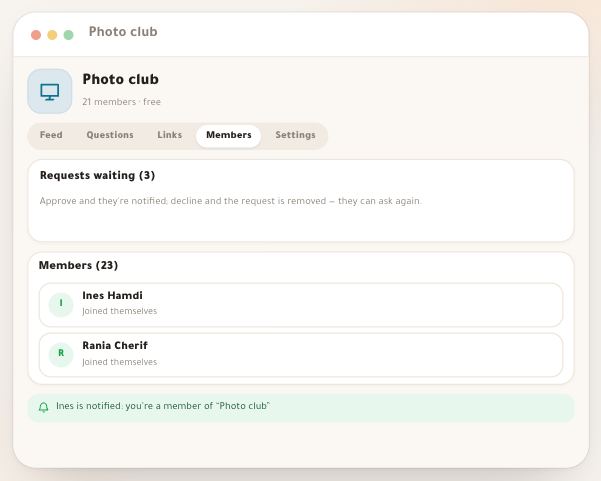
Its price is “Free” (0). A student sees it if a rule under “Who may join?” allows them, under “Open to join” on their community page. Then by “Joining”: “Instant” — they press “Join” and they’re in, with a welcome line in the feed; “On approval” — they press “Ask to join”, read “Request sent — awaiting approval” and “You'll be notified once accepted.”, you get a notification and approve from the “Members” tab; “Closed” — nobody asks, you add members, and a non-member reads “By your teacher's invitation only”. Free membership never ends, and a student can “Leave space” whenever they like. Example: the “Editing Q&A club”, for buyers of “Editing from scratch”, set to “Instant”.
On screenFreeWho may join?JoiningInstantJoinOn approvalAsk to joinRequest sent — awaiting approvalClosedLeave spaceTipA free club after the course keeps your students close: their questions here instead of scattered WhatsApp messages, and your answers stay for the next ones.
Heads-upIf you change or remove a rule, members who joined by themselves and no longer match any rule lose access. The platform asks you first.
- Step 2 of 7
A paid space: a subscription for whoever the rules allow
Its price is above zero, with a “Period”: “Monthly”, “Quarterly”, “Yearly” or “One-time” (“Access without expiry”). The rules decide who sees it and who buys it: “October cohort — editing”, set to the group “October cohort”, is visible to that group only. The student sees the space’s page with its price and what’s inside, and a “Subscribe” button that opens “Enrollment and payment” where they choose how to pay. No “On approval” on a paid space: payment is the door; you check a CCP receipt, EDAHABIA activates on its own. Set it to “Closed” (invite only) and only a member you added sees the pay button, to renew; anyone else reads “This space is by invitation from your teacher.”
On screenPeriodMonthlyQuarterlyYearlyOne-timeSubscribeEnrollment and paymentChoose payment methodClosedTipMatch the period to the rhythm: “Monthly” for ongoing weekly follow-up, “Quarterly” for a 3-month programme, “One-time” for a revision bundle paid once and left open.
Heads-upChanging the price later doesn’t touch anyone who paid: each keeps their end date, and an open order keeps its saved price.
- Step 3 of 7
The space’s payment methods
Under “Settings” → “Offer and access”, once the space is paid, “Payment methods for this offer” appears: “Use workspace settings”, or a choice for this space alone, each method with its state “Ready”, “Setup needed” or “Disabled in workspace”: “CCP / Algérie Poste” and “BaridiMob” by transfer and a receipt you check, “EDAHABIA & CIB — Chargily” as online payment confirmed automatically. “Recommended” badges your preferred method, “Student preview” shows what the student will see. Then “Save payment methods”. If you sell abroad, a student abroad sees the international-selling methods in their currency.
On screenPayment methods for this offerUse workspace settingsCCP / Algérie PosteBaridiMobEDAHABIA & CIB — ChargilyReadySetup neededRecommendedStudent previewSave payment methodsTipEDAHABIA and CIB don’t wait for your review: ideal for a monthly space with dozens of subscribers, so you don’t spend the start of every month checking receipts.
Heads-up“Visa / Mastercard” isn’t available on the platform today. If no method is ready, the student can’t subscribe.
- Step 4 of 7
The receipt: the student uploads it, you approve it
With CCP or BaridiMob the student reads “This order’s price and terms are saved. Transfer the displayed amount and attach the receipt here.” with the “Order reference”, transfers, attaches the “Transfer receipt · image or PDF up to 15 MB”, then “Submit receipt for review”. The order reaches you in “Incoming”, in the “Sales” group, under “Receipts to check” (its type in the list is “Spaces”); its “Check receipt” button opens its window: “Approval activates or extends the student’s community membership.” Open the “Payment receipt”, match it to the amount, then “Approve”, or “Reject” with “Reason shown to student (optional)”. Once approved, the subscription starts, the student is notified and reads “Your membership is active.” with “Enter community”. An EDAHABIA or CIB payment doesn’t go through you: it confirms itself and the student is in at once. Every order stays recorded in the “Payments log” as a “Community subscription”.
On screenOrder referenceTransfer receipt · image or PDF up to 15 MBSubmit receipt for reviewIncomingReceipts to checkCheck receiptCommunity subscriptionPayment receiptApproveRejectReason shown to student (optional)Enter communityTipThe reference ties a receipt to a student: if a student sends you a photo of the receipt on WhatsApp, ask for the reference to find their order fast.
Heads-upA subscription starts on approval, not on transfer. A receipt left for days delays a student who has paid: check “Waiting for you” on Home every day; its “Review” button opens the receipts in “Incoming”.
- Step 5 of 7
Renewing and lapsing
Each payment opens one period: “One month of access”, “Three months of access” or “One year of access”. “Access starts after payment confirmation. Renewals extend remaining time.” and “One payment for this period, with no automatic charge or renewal.” Seven days before the end, the student sees inside the space how many days are left and the “Extend membership” button. When the date passes without renewal, access closes at that very moment, the student moves to the lapsed list in the “Members” tab, and can renew whenever they like. If they pay you cash, press “Extend” by their name: one period added to what is left.
On screenOne month of accessExtend membershipMembersExtendTipOn the “Spaces” page, the “Renewal health” column for each paid space: green running, orange ending within a week, red overdue. “Needs a decision” gathers them.
Heads-up“Extend” creates no order, so it counts neither in the month’s revenue nor in the payments history. Keep your own note of cash.
- Step 6 of 7
The courses a subscription unlocks
In “What does membership unlock?” (settings) or “Courses the subscription unlocks” (creating), you pick courses a member studies while their subscription runs, without buying them separately: “Open while the subscription runs; they close themselves when it ends.” Access closes at the end with nothing for you to do, and their progress stays saved: if they renew, they carry on where they stopped. Archiving the space also stops it unlocking its courses. Example: the “Content creator bundle” opens “Editing from scratch” to every subscriber at 4,000 DZD a month.
On screenWhat does membership unlock?Courses the subscription unlocksSaves instantlyTipA bundle sells the course and the coaching together: the student studies the lessons, asks in the space and comes to your events, on one subscription.
Heads-upIn a free space, an included course opens free to everyone who enters, and the platform warns you: “This space is free: these courses will open free to everyone who enters it.”
- Step 7 of 7
Three full examples, with numbers
1. “Editing Q&A club” — free. Rule “Buyers of “Editing from scratch””, joining “Instant”. Ines buys the course on 2 October, the space appears under “Open to join”, she presses “Join” and she’s in. No payment, no end date; 64 members. 2. “October cohort — editing” — 1,500 DZD a month. Rule “Group “October cohort”” (40 students). Yacine transfers 1,500 DZD by CCP on 3 October and uploads the receipt; Sara approves it on the 4th: subscribed until 4 November; he renews on 1 November, running to 4 December. 38 students paid this month: “Month revenue” 57,000 DZD. Anis paid cash, so Sara pressed “Extend”: he’s in, and doesn’t count in revenue. 3. “Content creator bundle” — 4,000 DZD a month, by invitation. Sara adds Rania from “Add students”: she starts with one month, to 4 November, and “Editing from scratch” is open to her. Rania renews by EDAHABIA, 4,000 DZD confirmed automatically, to 4 December. Had she not renewed, the space and the course would have closed for her on 4 November, her progress kept.
On screenJoinMonth revenueExtendAdd studentsTip“Month revenue” adds approved orders by their approval date within the month (Algiers time), visible with “View payments”.
Heads-upPaid subscribers and the people you add count toward your plan’s student number. If the plan is full, adding or approving fails with a clear message.
Once you’ve chosen
- Set up payments“Payment methods for this offer” in the space’s settings, and the workspace’s first.
- Check receipts daily“Incoming” → “For you”: every day of delay delays a student who paid.
- Watch renewals“Renewal health” on the “Spaces” page, and the lapsed list in each space.
- Include your coursesA bundle that opens a full course sells better than a discussion space alone.
Questions
Can I make a paid space “On approval”?
No. In a paid space, payment is the door: you approve a CCP or BaridiMob receipt, and EDAHABIA and CIB activate on their own. To choose who gets in, set it to “Closed” and add members yourself; they renew by paying.
When does a student’s subscription start?
When the payment is confirmed: the moment you approve the receipt, or the moment an EDAHABIA or CIB payment succeeds. Not on the day of the transfer.
Does the subscription renew on its own?
No. Each payment covers one period, with no automatic charge. The student renews with “Extend membership” inside the space, and the renewal adds to their remaining days.
What happens when a subscription ends?
Access to the space and its included courses closes at that moment, and the student moves to the lapsed list. Their progress stays, and comes back in full if they renew.
A student paid me cash — how do I let them in?
In the “Members” tab, press “Extend” by their name (needs “Approve payments”), or add them with “Add students” if they aren’t a member yet: they start with one period. This doesn’t count in the month’s revenue.
Do all my students see a paid space?
No. Only those its rule allows see and buy it: buyers of a course, a group, or all your students enrolled in a course. A “Closed” space shows its pay button to its members only.
I changed the price — are subscribers affected?
No. Anyone who paid keeps their end date, and an open order keeps its price. The new price applies to future payments.
Can a student leave a paid space?
They can leave a free space whenever they like. In a paid space their membership runs to the end of the period, then ends by itself if they don’t renew.