
Team, workload and reports: what every number means
Two pages in Organization for whoever runs a team: “Team & workload” looks ahead — who carries how many tasks right now, who is busy how many hours in the coming days. “Reports” looks back — what got done in the period, how much of it on time, and where lateness is piling up. Every number comes from real records with a fixed definition, and this lesson gives you each definition word for word, so you never read a number the wrong way. The example: “En-Nadjah Academy”, run by Amine Belkacem with Sara Makhloufi (video-editing trainer), Karim Haddad (assistant for students and receipts) and Nour El Houda (photography trainer), preparing the launch of the course “Video color grading”. The same logic holds for a marketing coach splitting a campaign across a team, or a teacher coordinating exam revision with colleagues.
- About 6 minutes to read
- 4 steps
Who can do it: “Team & workload” needs “See team & workload”, “Reports” needs “View organization reports”, both together with “Tasks”. The owner and “Admin” have them by default; “Teacher” and “Assistant” only if you add them to their role.
In 4 steps
- 1“Team & workload”: one row per staff member, for a period starting today (7, 14 or 30 days, or up to 45).
- 2The columns: open tasks, overdue, known commitment time, planned work blocks, weekly capacity and availability.
- 3“Reports”: four numbers, a daily chart, overdue age and estimated versus recorded, for a period ending today (30 days by default).
- 4Every number defined: what counts and what doesn’t, with a whole month worked out.
Before you start
- The right permission: “See team & workload” or “View organization reports” (see the lesson “Roles and permissions”).
- Tasks with an assignee and a deadline: without a deadline a task enters neither lateness nor the on-time rate.
- “Shared” tasks for what you want to measure: a “Private” task is seen only by its creator and its assignee, and counts for nobody else.
- Optional: an “Estimated time” on tasks, time recorded by hand, and “Weekly working hours” in each person’s settings.
- Step 1 of 4
The “Team & workload” page: the days ahead
In the column, Organization → “Team & workload” in the panel beside it (on a phone, under “Menu”). Under the title: “Visible work and commitments, with private details protected.” The “Period” bar picks the days ahead, starting today: “7 days” (default), “14 days”, “30 days”, or “Custom dates” with “Start” and “End”, up to 45 days. Beside it, the “Displayed period” with its two dates and your time zone (e.g. “Algiers time”), and the “Refresh” button. Then the members with their count (“4 members”): one row per active staff member, 50 per page. Anyone who manages bookings also sees the link “Manage availability & bookings”. Example: Amine opens the page on Sunday 5 October in the morning and sees “Oct 5 — Oct 11”, with rows for Sara, Karim, Nour El Houda and himself.
On screenTeam & workloadMenuPeriod7 days14 days30 daysCustom datesStartEndDisplayed periodRefreshManage availability & bookingsTipOpen it every Sunday morning on “7 days” before handing out the week’s tasks: someone with 12 hours of commitments and 9 open tasks is not the right person for a new urgent one.
Heads-upMore than 45 days gives “Choose a period of no more than 45 days.”, and an end before the start gives “End must be after start.”. The page shows nobody’s calendar: to see a member’s shared appointments, use “Assignee” in the “Calendar” filters.
- Step 2 of 4
The workload columns: every number in a member’s row
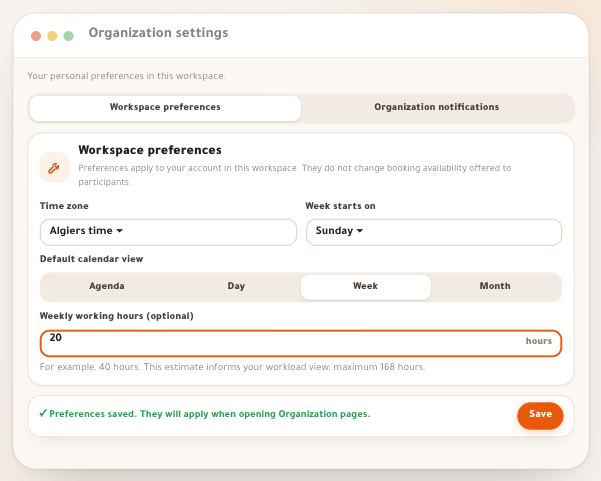
Under the name, “Declared weekly capacity”, taken from their “Weekly working hours (optional)”; missing if they left it empty. Then: “Open tasks” — tasks assigned to them that are not completed, cancelled or archived, among those you can see, regardless of the period; the number opens “Tasks” filtered to them. “Overdue” — those whose deadline has already passed. “Known commitment time” — what keeps them busy within the period: their appointments of type “Appointment” (private ones by duration only, with no title), their non-cancelled one-to-one bookings, and their live classes that have a planned end; overlapping stretches count once, with a “live sessions without planned duration” count underneath for those that can’t be measured. “Planned work blocks” — their shared “Work time” appointments (or yours). An empty cell shows “—”. The “Availability” button opens “Booking availability uses Algeria time”: their weekly booking rules and their “time-off periods in this range”. Sara: 7 open, 2 overdue, “12 h” of commitments, “4 h 30 min” of planned work, capacity “20 h”.
On screenDeclared weekly capacityOpen tasksOverdueKnown commitment timePlanned work blocksAvailabilityBooking availability uses Algeria timeNo availability rules saved.TipCompare commitment time with declared capacity: 12 hours out of 20 leaves Sara eight hours to prepare the “Video color grading” lessons this week, before you hand her all the editing.
Heads-upA “Private” task counts only for whoever can see it: its creator and its assignee — not even the owner sees it. If Sara creates her tasks for herself as “Private”, they won’t show in your numbers; ask for shared work to be “Shared”.
- Step 3 of 4
The “Reports” page: what happened in the period
Organization → “Reports”: “Defined-period metrics based on actual records.” Here the “Period” looks back and ends today: “7 days”, “30 days” (default), “90 days”, or “Custom dates” up to 93 days. Then four numbers: “Completed tasks”, “Completed on time” as a percentage with a bar, “Overdue now”, “Recorded time”. Below, the “Daily task completion” chart and the “Show daily figures” button, which opens a table: “Calendar date”, “Completed tasks” and “Recorded time” for each day. Then “Current overdue age” in three buckets, “Estimated and recorded time”, and at the bottom “How are these metrics calculated?” with the definitions exactly as the platform computes them. The report gathers every team task you can see together: there is no filter by member or by plan.
On screenReports30 days90 daysCompleted tasksCompleted on timeOverdue nowRecorded timeDaily task completionShow daily figuresCalendar dateCurrent overdue ageEstimated and recorded timeHow are these metrics calculated?TipRead both pages together: “Reports” tells you lateness is piling up, “Team & workload” tells you where. For one member, open “Tasks” filtered by “Assignee”.
Heads-upThese numbers rate nobody, and the platform says so: “These metrics do not rate trainer quality.” Recorded time is entered by hand, never inferred from app usage.
- Step 4 of 4
Every number defined, with a worked example
“Completed tasks”: tasks currently “Completed” whose completion date falls in the period; archived ones count, and reopening a task takes it out. “Completed on time”: among non-cancelled tasks whose deadline falls in the period and has already passed, the share completed on or before it; a date-only deadline ends at the end of that day, a task without a deadline never enters, and the deadline saved today is what counts; if none has passed, “—”. “Overdue now”: open, unarchived tasks whose deadline has passed right now, whatever the period; “Current overdue age” splits them into “Up to two days”, “Two days to one week”, “More than one week”. “Recorded time”: the total entered by hand under the tasks’ “Recorded time”, with a calendar date inside the period. “Estimates for tasks planned in this period”: the sum of “Estimated time” for non-cancelled, unarchived tasks whose “Planned work date” falls in the period; “Planned tasks without estimates” counts those without one. Days are split in your time zone. Amine’s 30 days: 42 completed; 25 deadlines passed, 20 met, 3 completed late, 2 still open → 80%; “Overdue now” 3 (2 “Up to two days”, 1 “More than one week”); “31 h 45 min” recorded against “40 h” estimated, and 6 tasks with no estimate.
On screenCompleted tasksCompleted on timeOverdue nowUp to two daysTwo days to one weekMore than one weekRecorded timeEstimates for tasks planned in this periodPlanned tasks without estimatesTipThe rate follows the deadline saved today: pushing back a deadline that has already passed makes the task “on time” in past reports. Agree to move a deadline only before it arrives, and the rate stays honest.
Heads-upA task completed before a deadline still to come counts in “Completed tasks” but enters the rate only once its deadline passes. Early in a period the rate can therefore look low on few tasks.
Once you’ve read the numbers
- Assign by workloadGive new tasks to whoever really has time in “Team & workload”, through “Assignee” in the task.
- Ask for recorded timeRecorded time is manual: one line under “Recorded time” in each task is enough to make the number mean something.
- Plan with “Work time”“Work time” appointments in the “Calendar” feed each member’s “Planned work blocks”.
- Review every month“Reports” on “30 days” at the start of each month: the on-time rate and overdue age.
Questions
Why can’t my colleagues see “Reports” or “Team & workload”?
They need “View organization reports” and “See team & workload”. The “Teacher” and “Assistant” templates don’t carry them; add them to the role you want under “Settings” → “Team” → “Roles”.
Can I see each member’s calendar from the team page?
No. The page shows numbers, not appointments, and private details always stay hidden. To see a member’s shared appointments, open the “Calendar” and pick them under “Assignee” in “Filters”.
Does “Recorded time” measure time spent on the platform?
No. It is what people entered by hand under “Recorded time” in their tasks. There is no automatic tracking and no timer.
Can I filter reports by member or by plan?
No. The report gathers every task you can see. For one member, use their row in “Team & workload” or “Tasks” filtered by “Assignee”; for a plan, open the plan’s page.
Why does “Completed on time” show “—”?
Because no task deadline has passed in the period yet. Widen the period, or give your tasks deadlines.
Why does commitment time look shorter than the sum of the appointments?
Overlapping stretches count once, and live classes without a planned end don’t enter (flagged as “live sessions without planned duration”). Whatever runs past the displayed period is cut off.
Can I download the report?
There is no export today. “Show daily figures” opens a day-by-day table you can read or copy.
Do archived tasks count?
Yes in “Completed tasks” and the on-time rate, since that work was done. No in “Overdue now”, “Open tasks” and the estimates.