
Recurring tasks and appointments: setup, rules, editing and stopping
Some work comes back every week: answering student questions on Sunday, publishing the week’s summary, preparing Thursday’s class. Instead of creating it each time, make it recur: you set the rule once and the platform creates the next occurrences by itself, each with its own date and reminder. This lesson covers setting it up for tasks and appointments, the rules, editing one occurrence or all of them at once, moving the dates, pausing or ending a series, and who may edit a shared one. The example comes from “En-Nadjah Academy”: Karim Haddad’s weekly task “Answer student questions”, and Sara Makhloufi’s Thursday slot to prepare her “Video color grading” class. The logic is the same for a marketing coach posting a campaign two days a week or a teacher grading homework every Sunday.
- About 7 minutes to read
- 5 steps
Who can do it: You set up recurrence on a task you manage that is assigned to you, on any task you manage if you have “Assign tasks and manage plan members”, and on an appointment you manage. A series is edited by whoever set it up; a “Shared” series also by someone with “Manage others’ recurrences” who can manage its first occurrence.
In 5 steps
- 1Setup: from the “Repeat” tab of a dated task, or with “Repeat this appointment” when creating an appointment.
- 2Rules: every day, week or month, on chosen days, until a number of occurrences or a date; tasks can also recur after completion.
- 3Occurrences: created up to 60 days ahead; edit one on its own, or all with “Edit occurrence content” after a preview.
- 4Dates: “Edit recurring schedule” moves the upcoming occurrences to a new day or time, with a review before applying.
Before you start
- A saved task or appointment: recurrence is set on an existing item, which becomes the first occurrence.
- For a task: a “Planned work date” or a “Deadline”, since recurrence starts from a date.
- Your time zone in “Organization settings” (default “Algiers time”): days and hours are computed from it.
- A clear decision before you set it: how often, which days, until when.
- Step 1 of 5
Setting up recurrence on a task or an appointment
For a task: save it first with a “Planned work date” or a “Deadline”, then open it, pick the “Repeat” tab and press “Set recurrence”; without a date you read “Set a planned date or deadline and save the task first.” For an appointment: in “New appointment”, turn on “Repeat this appointment” then “Create appointment”: the repeat tab opens by itself with the setup ready; or open a saved appointment and pick “Repeat”. Either way: “The current item is the first occurrence and keeps its date.” Set the rule, then “Preview dates” (required before saving) to see the first dates, then “Save recurrence”. Example: Sara Makhloufi creates “Prepare Thursday’s class”, of type “Work time”, on Thursday 8 October from 16:00 to 17:30, and turns on “Repeat this appointment”.
On screenRepeatSet recurrenceRepeat this appointmentCreate appointmentPreview datesSave recurrenceTipGet the first occurrence fully ready before repeating it: checklist, assignee, priority, reminder. Every occurrence is copied from it, with its checklist unticked.
Heads-upNo recurrence on a completed, cancelled or archived task, nor on an appointment that isn’t “Scheduled”; you then read “Recurrence can't be set up here: the item must be active and you must be able to manage it.” Any unsaved change in the panel must be saved or discarded first.
- Step 2 of 5
The rules: how often, which days, until when
“Recurrence mode” (tasks only): “On a calendar schedule” — occurrences arrive on their dates whether or not the previous one is done; or “After completing the task” — a single next occurrence is created when you set the current one to “Completed”, dated from the day you completed it. Then “Repeat every” (1 to 365) and the “Frequency”: “Day(s)”, “Week(s)” or “Month(s)”. Weekly, pick the days under “Repeat on”; monthly, the “Day of month”: “Same day number” or “Last day of the month”. Then “End recurrence”: “No end date”, “After a number of occurrences” (“Occurrences, including the current one”) or “On a date”. Examples: Karim’s “Answer student questions” every week on Sunday, no end; Sara’s preparation every week on Thursday until 26 November; Amine’s “Monthly sales report” every month on the last day; Nour El Houda’s “Camera gear maintenance” every 30 days after completion; and a marketing coach posting a campaign post every week on Monday and Thursday, 12 occurrences.
On screenRecurrence modeOn a calendar scheduleAfter completing the taskRepeat everyFrequencyRepeat onDay of monthLast day of the monthEnd recurrenceAfter a number of occurrencesOn a dateTip“After completing the task” suits work counted from the last time: maintenance, periodic review, backups. If you’re a week late, the next occurrence shifts with you, so missed occurrences don’t pile up.
Heads-up“Same day number” skips months without that day: a repeat on the 31st doesn’t land in November. Pick “Last day of the month” for every month’s end. “Time zone and clock changes” sets the series’ zone; the clock-change options don’t concern Algeria.
- Step 3 of 5
Occurrences: how they’re made, editing one or all
Once saved, occurrences are created up to 60 days ahead, and the platform keeps filling that horizon by itself as time goes by; in “After completing the task” only the next one exists. Each occurrence is a full task or appointment with its title, details, assignee and reminder, and for a task its checklist and prerequisites. The repeat tab of any occurrence shows the series card: “Every week”, “Algiers time · 8 saved occurrences” and the state “Active”. For one occurrence, edit it in “Details” and save: “Changes here apply to this occurrence only.” It becomes individually edited. For many, open “Edit occurrence content” → “Edit”: choose the “Edit scope” — “This occurrence and following ones” or “All upcoming occurrences in the series” —, tick under “Which fields should change?” (title, details, reminder; for tasks also assignee, priority and estimated minutes), then “Review changes” to read how many occurrences change and how many stay, then “Apply changes”. Occurrences created later take the new values too.
On screenEvery weekActiveEdit occurrence contentEditEdit scopeThis occurrence and following onesAll upcoming occurrences in the seriesWhich fields should change?Include individually edited occurrencesReview changesApply changesTipExample: Karim now answers in the community too. Amine ticks “Title” and types “Answer student and community questions”; the review says “6 occurrences will change…”: 6 upcoming occurrences change, while the one Karim completed and the one he edited by hand stay as they are.
Heads-up“Past, completed, cancelled, archived and restricted occurrences are preserved.” Individually edited occurrences (a cancelled one included) change only if you turn on “Include individually edited occurrences”. One edit covers at most 200 occurrences.
- Step 4 of 5
Edit recurring schedule: moving upcoming occurrences
When the slot itself changes — day, time or pace —, open “Edit recurring schedule” → “Edit”: pick the scope, then “New schedule starts” (today or later) and the “Time”, and adjust the rule if needed. Press “Review changes”: the review shows how many occurrences will “Move”, “Cancel”, “Keep” and stay “Unchanged”, with up to 8 “Current” / “New” examples and each one’s decision; for an appointment, an overlap check with your commitments shows too. Then “Apply new schedule”: “Schedule saved and reminders updated.” Example: Sara moves her preparation from 16:00 to 15:00 from 22 October: 5 occurrences under “Move”, and the 12 November one, which she had moved to Wednesday by hand, under “Keep”, with the reason “Individually edited instance; retained.”
On screenEdit recurring scheduleNew schedule startsTimeReview changesMoveCancelKeepUnchangedApply new scheduleTipOccurrences move instead of being replaced: “Comments, links and logged time stay attached”, and their reminders update by themselves.
Heads-upIf the new schedule cancels occurrences (a shorter schedule, fewer days), it won’t apply until you tick “I agree to cancel the 2 instances identified in this preview.” Read the examples first: a cancelled occurrence stays in the history and doesn’t come back by itself.
- Step 5 of 5
Pausing or ending a series, and who edits it
To pause, press “Pause new occurrences” on the series card: the state becomes “Paused”, and “saved tasks, appointments and their reminders remain unchanged”. When you’re back, press “Resume generation”; whatever fell due during the pause isn’t created, and you read “Missed occurrences before … were not created.” To end a series, there is no delete button: open “Edit recurring schedule” and set “End recurrence” to “On a date” or “After a number of occurrences”; occurrences past the end are cancelled once you agree. When the last one has been created, the state becomes “All occurrences generated”. To cancel a single occurrence, cancel it on its own: “Cancel appointment” for an appointment, the “Cancelled” status for a task. Who edits the series? Whoever set it up; for a “Shared” series, also someone with “Manage others’ recurrences” who can manage its first occurrence. Everyone else sees the card without buttons and completes their occurrences as usual.
On screenPause new occurrencesPausedResume generationEnd recurrenceAll occurrences generatedCancel appointmentCancelledManage others’ recurrencesTipDuring student holidays, pause “Answer student questions” instead of cancelling occurrences one by one, then resume when classes restart: occurrences start again from the day you resume.
Heads-up“Needs attention” means generation stopped, usually because the assignee lost their permission or access to the plan. Restore access, then “Resume generation”. Karim, the task’s assignee who didn’t set up its recurrence, completes his occurrences but doesn’t edit the series.
Once recurrence is set
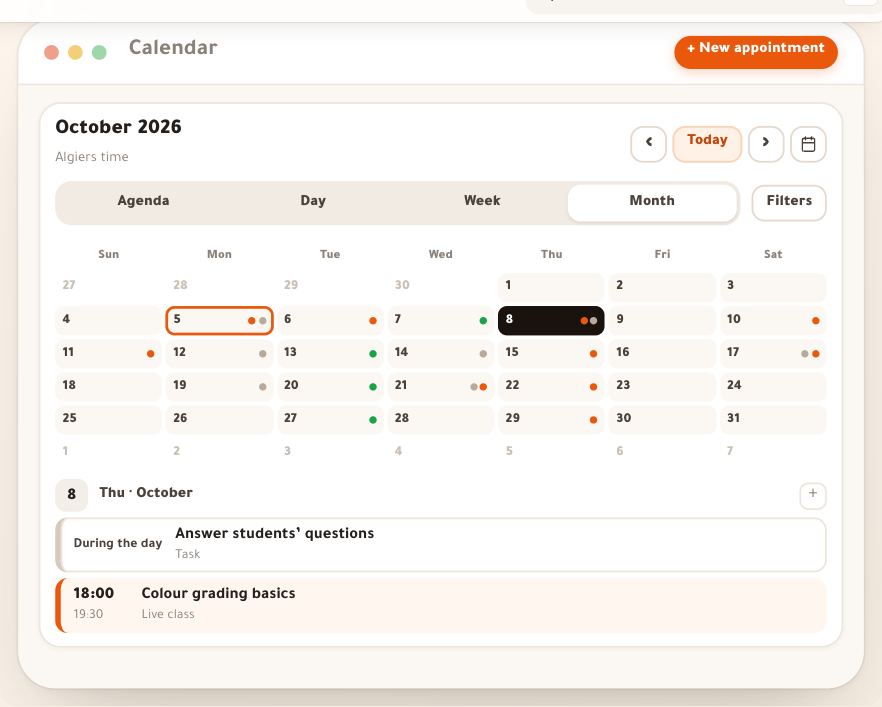
- Check the calendarDated occurrences show in the “Calendar”: your whole week at a glance.
- Set the reminderThe “Default reminder” in “Organization settings” comes before every dated occurrence.
- Tie it to a planA “Shared” recurring task inside “Work plans” is visible to the plan’s team.
- Follow completion“Reports” shows which occurrences were done and which ran late.
Questions
Can an appointment repeat in the calendar?
Yes. Turn on “Repeat this appointment” when creating it, or open a saved appointment and its “Repeat” tab. Appointments repeat on a calendar schedule only; “After completing the task” is for tasks.
Why can’t I set up recurrence on my task?
Recurrence needs a date: save the task with a “Planned work date” or a “Deadline”. It must be active (not completed, cancelled or archived), and you must manage it while being its assignee, or have “Assign tasks and manage plan members”. Save any change in progress too.
If I edit one occurrence, do the others change?
No. “Changes here apply to this occurrence only.” To change many, use “Edit occurrence content” or “Edit recurring schedule”.
How do I delete a series?
You don’t. Pause it with “Pause new occurrences”, or end it with an end date in “Edit recurring schedule”: occurrences past it are cancelled. Past and completed occurrences remain.
What is copied into each occurrence?
Title, details, assignee, priority, plan, reminder and estimated time, and for a task its checklist (unticked) and prerequisites. Not comments, recorded time or progress: every occurrence starts as “Not started”.
Am I reminded before each occurrence?
Yes if the occurrence has something to remind about: an appointment with its time, or a task with a “Deadline”. The reminder goes to the task’s assignee or the appointment’s owner, in the notification center, following the occurrence’s “Reminder” and their preferences.
Do my recurring appointments go into Google Calendar?
No. There is no sync with Google or Apple today and no ICS file; occurrences live in the platform’s “Calendar”. No invitations or attendees either.
A colleague set up a shared series and is away: who can edit it?
Someone with “Manage others’ recurrences” who can manage the first occurrence, and always the workspace owner. A “Private” series can only be edited by whoever set it up.
What does “All occurrences generated” mean?
The series reached its end (count or date) and every occurrence has been created. They stay in your lists and calendar, and you complete them as usual.