
“Incoming”: everything your students send, in one place
A CCP receipt for a course, a workbook order paid on delivery, a request for a one-to-one session, a card a student just used: everything your students send lands in one list, “Incoming”, the first page under “Sales”. At the top, “For you”, ordered by step; each row has one button that says what to do and opens that request’s own window over the list. No more going from payments to the store to bookings to find out what is waiting.
- About 5 minutes
- 5 steps
Who can do it: “Incoming” opens for anyone with at least one of: “View payments”, “Store and products”, “Orders and delivery”, “Own bookings” or “All teachers' bookings”, “Activation codes”; each person sees only what is theirs. Accepting or rejecting a receipt needs “Approve payments”, shipping “Orders and delivery”, “Sell a card” “Activation codes”, and the “How do your students pay you?” card “Payment settings”.
 Let Noqta show you
In 5 steps
- 1Open “Sales” › “Incoming”: the number on the row is what waits for you, and every request notifies you.
- 2“For you” is ordered by step: receipts, booking requests, phone confirmation, shipping, collection, returned parcels.
- 3Press the row’s button (“Check receipt”, “Confirm order”…): the request’s own window opens, you decide there, the list follows.
- 4“With the student”, “Done” and “Closed” for the rest; search by name, phone or order number, narrow by “Type”.
Before you start
- Something to buy: a published course with a price, a product in the store, or a booking service.
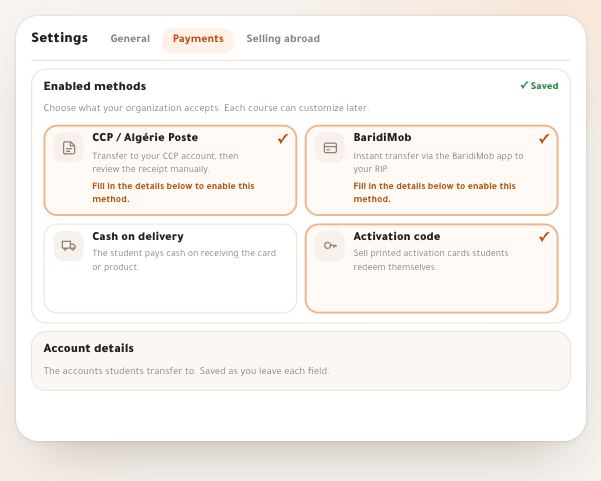
- At least one way to pay in “Sales” › “Payment methods” — otherwise “Incoming” shows the “How do your students pay you?” card for you to choose.
- The permission for what you will do: “Approve payments” for receipts, “Orders and delivery” for parcels.
- Step 1 of 5
Where “Incoming” is, and how you know something is waiting
The first row under “Sales”, right below “Workspace”, with the number of what waits for you.
- One numberThe number on “Incoming” is exactly the count of “For you”.
- Receipts from the inboxIn the “Inbox” and on the home’s “Waiting for you”, receipts are accepted in place; the rest is one row that opens “Incoming”.
- A notification per requestA receipt, an order, a booking request, a card ordered for delivery: each rings the bell, and the notification opens the request itself.
TipOn a phone, “Incoming” is in the section bar at the bottom of the screen, and in the ⌘K search. A receipt’s or an order’s notification opens “Incoming” on that very request, in its window.
All the details
In the “Academy” panel, “Sales” is now the second group, under “Workspace”, with four rows: “Incoming”, “Cards”, “Payment methods” and “Accounts”. “Incoming” carries a red number while something waits for you: it is the count of “For you”. Under the title, one line says where things stand, such as “4 requests are waiting for you”, or “Nothing is waiting for you. Everything your students send arrives here.”. In the “Inbox” and the home’s “Waiting for you” card, “Receipts to review” are still accepted in place, and the rest is one row, such as “3 requests wait for you in Incoming”, that opens the page. The page opens on “For you” while it holds anything, otherwise on “With the student”, then “Done”.
On screenSalesIncomingCardsPayment methodsAccountsInboxReceipts to reviewFor youHeads-upEach team member sees what is theirs: someone with only “Orders and delivery” sees parcels, not receipts; someone with “Own bookings” sees only their own booking requests.
- Step 2 of 5
“For you”: ordered by step, one button per row
Each group is one step, and each row’s button says what it needs from you.
- Six steps in orderReceipts, booking requests, phone confirmation, shipping, collection, returned parcels — each group with its count.
- Since whenEach row says how long it has waited, such as “3 hours ago”, so the oldest stands out.
- Who, what, how muchThe name, the payment method, the item with its term, slot or wilaya, and the amount.
TipAn example from “Studio Nour”: Yacine Benali’s receipt for “Ruqʿa basics” (3,500 DA, CCP) under “Receipts to check”, Salma Merabet’s request for a “one-to-one correction session” on Thursday under “Booking requests to answer”, Hichem Kadri’s “ruqʿa workbook” order under “Orders to confirm by phone”, and Amina Zerrouki’s confirmed parcel under “Parcels to ship”.
All the details
“For you” is made of groups in the order of the work: “Receipts to check” (a CCP or BaridiMob transfer with a photo of its receipt), button “Check receipt”; “Booking requests to answer”, button “Answer”; “Orders to confirm by phone” — cash-on-delivery orders —, button “Confirm order”; “Parcels to ship”, button “Ship”; “Cash with the courier”, a delivered parcel whose money you have not recorded yet, button “Record cash”; and “Parcels that came back”, button “Take back”. Each group shows its count. On each row: the student’s name (or number), then the payment method, how long ago and the order number, such as “CCP · 3 hours ago · #A-1024”; then the item — “Ruqʿa basics” — and under it what qualifies it: “1 month”, “Instalment 2 of 3”, the session’s slot, the wilaya or other items; then the amount. A receipt already sent with another request says “Receipt sent before”, and a request that came from a sales page says “From your page”.
On screenFor youReceipts to checkCheck receiptBooking requests to answerAnswerOrders to confirm by phoneConfirm orderParcels to shipShipCash with the courierRecord cashParcels that came backTake backReceipt sent beforeFrom your pageHeads-upA payment by bank card, Edahabia or PayPal does not wait for you: it confirms itself and goes straight to “Done”. A receipt left waiting is put back in front of you twice, a day after it was sent and three days after: a notification, on your phone too, and an email whose button opens the receipt here; the student reads that teachers usually review receipts within 24 hours.
- Step 3 of 5
The button opens the request’s own window: decide there
No new page: the request’s window opens over the list, and you decide there as you would on its page.
- Its own windowA receipt opens in the review window, a store order in its own, a booking in its card.
- The next one by itselfAfter a decision the window moves to the next request of the same kind, in the list’s order.
- The list followsThe row leaves “For you”, and the counts and the number on “Incoming” change together.
TipYacine’s receipt: compare the 3,500 DA on his photo with what actually reached your postal account, then “Approve”; the course opens for him, he gets a notification, and the window moves to the next receipt.
All the details
Press the row’s button — or anywhere on the row, it is one target. “Check receipt” opens the same review window as the “Payments log”: the receipt photo with zoom, the amount due and the one declared, the account the money should reach, the buyer; then “Approve” or “Reject” with a reason the student reads, and “Undo” for five seconds before the decision is sent. “Confirm order”, “Ship”, “Record cash” and “Take back” on a store order open its window as in “Orders”. “Answer” opens the booking’s card: “Accept” or “Decline…” with a sentence the learner reads. After a decision the window moves on to the next request of the same kind — such as “2 of 5” — and when you close it the row has left “For you” for its place: “With the student”, “Done” or “Closed”.
On screenCheck receiptApproveRejectUndo2 of 5Confirm orderShipAnswerAcceptDecline…Heads-upA row for a card a student used opens no window here: it opens “Cards” on its sale; a free join opens the student’s file. If a button shows but the window will not let you decide, ask the academy owner for the permission.
- Step 4 of 5
“With the student”, “Done” and “Closed”, search and type
What does not wait for you has three states, and each row there carries a quiet word saying why.
- “With the student”A receipt not sent yet, a parcel on its way, a card not used yet, or a step with a colleague.
- “Done” and “Closed”What was paid, activated or joined for free, and what was rejected, cancelled or came back — day by day.
- Search and narrowBy name, phone or order number, and by type: courses, products, sessions, spaces, tickets, cards, free.
TipThe state, the type and the search live in the page’s address, so you can keep a link to “Done” for cards only, for example. “Type” only appears when you receive more than one type.
All the details
The four states are a bar at the top of the page; “For you” and “With the student” carry their counts. “With the student” is what waits on someone else, and each row’s word says who: “Waiting for receipt”, “Parcel on its way”, “Not used yet”, or “With a colleague” when the step belongs to another team member. “Done” is what finished well: “Paid”, “Delivered and paid”, “Activated”, “Joined for free”; “Closed” is what ended otherwise: “Rejected”, “Cancelled”, “Parcel returned”, “Refunded”, “Expired”. In those two states the rows are grouped by day — “Today”, “Yesterday”, then the date — with each request’s time. Above the list, the search “Name, phone or order number”, and beside it “Type”: “All” or one of the types you actually receive. At the bottom, “Show more”.
On screenWith the studentWaiting for receiptParcel on its wayNot used yetWith a colleagueDonePaidDelivered and paidActivatedJoined for freeClosedRejectedCancelledParcel returnedRefundedExpiredName, phone or order numberTypeAllShow moreHeads-upA row in “With the student”, “Done” or “Closed” still opens the request — to look, or to refund a paid order — but it asks nothing of you.
- Step 5 of 5
“Sell a card”, “More”, and “How do your students pay you?”
In the page’s header: what you sell by hand, and the way to the pages that left the panel.
- “Sell a card”Opens “Cards” with its sale window: the course, the term, the price, the buyer’s WhatsApp number.
- “More”Payments log and export, shipping and printing, store orders table, follow-up desk, payment methods.
- When there is no way to payThe “How do your students pay you?” card with three answers; “Later” hides it for a week.
TipThe “Payments log”, “Shipping and printing” and the “Follow-up desk” are also found by name in the ⌘K search. Someone who ships a lot keeps the store’s “Orders” and its shipping table to print a whole batch.
All the details
Beside the title, “Sell a card” (with “Activation codes”) opens the “Cards” page and its sale window: a student paid you on WhatsApp or in person, so you create a card whose code reaches them in one message — the details are in the lesson on orders, receipts and codes. The “More” button (⋯) opens the pages that left the panel: “Payments log and export” (every transaction, its filters and the CSV export), “Shipping and printing” (shipments, labels and the tracking sheet), “Store orders table”, “Follow-up desk” (the calls from sales pages) and “Payment methods”; each by its permission. If your academy has a published course and your students find no way to pay, the “How do your students pay you?” card shows above the list for anyone with “Payment settings”, with three answers: “I sell cards myself” and its orange “Sell a card”; “CCP or BaridiMob transfer” and “Enter your account”; “Cash on delivery” and “Turn on cash on delivery”. “Later” hides it in this browser for a week.
On screenSell a cardMorePayments log and exportShipping and printingStore orders tableFollow-up deskPayment methodsHow do your students pay you?I sell cards myselfCCP or BaridiMob transferEnter your accountCash on deliveryTurn on cash on deliveryLaterHeads-up“Enter your account” opens “Payment methods” on the account: one account that receives transfers for courses, the store and bookings alike. While the card shows, your students’ checkout page offers no way to pay, even if they open it.
After “Incoming”
- Review receipts with confidenceWhat to check on a receipt, the reasons to reject and undo, in the lesson on orders, receipts and codes.
- Set up payment methodsThe one account and what your student sees at checkout, in the payment methods lesson.
- Sell a card on WhatsAppThe “Cards” page: selling, renewing, printing and looking up a code.
- Ship store ordersPhone confirmation, shipping and collection, in the “Store” lessons.
Questions
Where do I accept the CCP or BaridiMob receipt a student sent?
In “Sales” › “Incoming”, under “Receipts to check” in “For you”: press “Check receipt”, compare the receipt and the amount due with what actually reached your account, then “Approve”. You can also accept it in place from the “Inbox”.
What is the difference between “Incoming” and the “Payments log”?
“Incoming” is what your students send and what waits for you, from every source: courses, the store, bookings, cards. The “Payments log” is the ledger of transactions with its filters, figures and export, plus “Accounts & balances”. Open it from “More” › “Payments log and export” or the ⌘K search.
Where did “Activation codes” go?
It is now the “Cards” page under “Sales”: the same screen, with “Sell a card”, “Find a code”, the batch to print, the sales and the renewals. The old link takes you there by itself.
Why don’t I see receipts in “Incoming”?
Seeing and accepting receipts needs “View payments” and “Approve payments” in your role. Each member sees only what is theirs in “Incoming”: parcels with “Orders and delivery”, bookings with their permission.
Why does the “How do your students pay you?” card show?
Because your academy has a published course and your students find no way to pay on the checkout page. Pick one of the three answers — cards alone are enough — and it goes away. “Later” hides it for a week in this browser.