
Showcase results and leads: what happened, and who to call
Once your showcase is published, the “Results” tab answers a single question: is the page producing orders? First with a sentence, then numbers, then the funnel that shows where visitors stop, the days, and where they came from. And the “Leads” tab gathers those who left a name and a number without buying yet, with call and WhatsApp in one tap, a CSV and a door to the follow-up desk. Example: Nour, a video editor, sells her course “Phone Editing” at 2,900 DZD and collects leads with a free file.
- About 9 minutes
- 8 steps
Who can do it: “Results” for anyone with “Analytics”, and payment and collected figures for those who also have “Revenue figures”. “Leads” for anyone with “Edit showcases” or “Manage offers and prices”.
 Let Noqta show you
In 8 steps
- 1Open the showcase then “Results”, and choose “7 days”, “30 days” or “90 days”; dates are in Algiers time.
- 2The opening sentence sums up “visits → orders → paid = collected”, with four tiles beneath.
- 3The “From visit to payment” funnel has five steps, with a line saying where the biggest share stops.
- 4“Day by day”: bars are visits, dots are orders, and the last three hatched days are still maturing.
Show all
- 5“Where they came from”, “Devices” and “Wilayas (from orders)”; small sources fold into “Other”.
- 6“Measurement question”: the share who agreed to the ad measurement tools, and why Facebook counts fewer.
- 7“Leads”: everyone who left a name and a number, with type, status, source and answers.
- 8“Call” and “WhatsApp” in one tap, “Download CSV”, and “Open the follow-up desk” or “Follow up” for a specific person.
Before you start
- A published showcase whose link you have shared: no numbers before the first visit. Share it with “Share” or the lesson on sharing.
- The “Analytics” permission to see “Results”, and “Revenue figures” to see money in it. Without the second, visits and orders show but not “Collected”.
- For leads: the “Edit showcases” or “Manage offers and prices” permission, and a showcase with a form, “Notify me” or a waitlist.
- Step 1 of 8
Open “Results” and choose the period
You see what your page did over 7, 30 or 90 days, from the visit to the money collected.
- Who sees it?Anyone with “Analytics” access. Others ask the workspace owner for it.
- Which period?“7 days” by default, or “30 days” or “90 days”, always in Algiers time.
- What is a visit?A session, not a person, measured in the browser. Orders and money come straight from your records.
TipCompare periods: 7 days show what the last ad did, 30 days the trend, 90 days the season. Switch without leaving the tab.
All the details
From “Showcases”, open the showcase then the “Results” tab. Without “Analytics” you read “Results are for people with analytics access. Ask the workspace owner.” At the top, the “Period” switch: “7 days” (the default), “30 days” and “90 days”, with beside it the dates from the first to the last day (“7 Sep → 6 Oct”); every day is in Algiers time. If nobody came by in the period you read “Nobody came by in this period.” and beneath it “Share the link: numbers appear here after the first visit.” with the “Share” button if the showcase is published. And at the bottom of the tab, a note fixes the meaning of the numbers: “Visits = sessions, not people; measured in the browser, so they leave out anyone with “Do Not Track” on. Orders and money come straight from your records. Days in Algiers time.”
On screenResultsPeriod7 days30 days90 daysResults are for people with analytics access. Ask the workspace owner.Nobody came by in this period.Share the link: numbers appear here after the first visit.ShareVisits = sessions, not people; measured in the browser, so they leave out anyone with “Do Not Track” on. Orders and money come straight from your records. Days in Algiers time.Heads-upA visit here is a session, not a person: someone who opens your page three times on different days may count more than once. And visits are measured in the browser, so this counter leaves out those who block tracking.
- Step 2 of 8
The sentence, and the four tiles
One sentence sums up the period from visit to money, then four tiles let you compare your sources.
- What the sentence saysVisits → orders → paid = collected, plus “Mostly from Facebook.” when one source leads.
- “Value per visit”Collected ÷ visits: the fairest number to compare sources by, not visit count alone.
- And free courses?A sign-up to a free course counts in neither orders nor money collected.
Tip“Value per visit” is the fairest number to compare: a source bringing 100 visits worth 0 DZD is worth less than one bringing 20 visits worth 6,000 DZD. Don’t judge by visit count alone.
All the details
The first thing you see is one sentence summing up the period, for example: “412 visits → 9 orders → 6 paid = 17,400 DZD. Mostly from Facebook.” The first three numbers are visits, then orders placed, then paid, and the amount is what was collected (for those with “Revenue figures”); “Mostly from Facebook.” is added when 40% or more of visits come from one source, over a period of at least 20 visits. Beneath, two chips when there’s something to show: “4 orders to review · Review” which takes you to the “Payments log” where receipts and cash on delivery wait (the same ones wait for you in “Incoming”), and “7 leads left a number” counting those who left their number in the period. Then four tiles: “Visits”, “Visit → order” (orders ÷ visits, say 2.2%), “Collected”, and “Value per visit” (collected ÷ visits: 42 DZD), the last being the number to compare your sources by. Where the maths is impossible you read a dash instead of a number.
On screenVisitsVisit → orderCollectedValue per visitMostly from ….ReviewHeads-up“Orders” here are purchase orders. Someone who signs up to a free course is not in the orders counter or in the money collected, so on a free course’s page the orders look lower than reality.
- Step 3 of 8
The funnel: from visit to payment
Five steps from visit to payment, and a line naming where most people stop, so you know where to act.
- The five steps“Visits”, “Buy taps”, “Checkouts opened”, “Orders placed”, “Paid”, each with its share of the step before.
- Where is the drop?Visit to tap: the page and offer. Tap to checkout: the order sheet. Placing to paying: the payment itself.
- When does the line show?From 20 visits: a percentage of a handful of people means nothing.
TipTreat the biggest drop one at a time: change the headline or the button, wait 7 days, then compare the funnel.
All the details
The “From visit to payment” panel counts five steps with bars starting from the line’s start: “Visits”, “Buy taps” (who tapped a buy or sign-up button), “Checkouts opened”, “Orders placed”, “Paid”. Beside each number, its share of the step before: “62% of previous”. With 20 visits or more, a line beneath names the biggest drop: “77% stop between “Visits” and “Buy taps”.” It tells you where to act. If the drop is between visit and tap, the problem is in the page and the offer (headline, button, price). Between tap and checkout opened, it is the order sheet. Between placing and paying, it is the payment itself: a receipt that hasn’t arrived or cash on delivery not handed over. And the line doesn’t show under 20 visits: a percentage of a handful of people means nothing.
On screenFrom visit to paymentBuy tapsCheckouts openedOrders placedPaid62% of previous38% stop between “…” and “…”. - Step 4 of 8
Day by day, and the days still maturing
One bar per day for its visits, a dot for its orders; the last three days are hatched because they are still maturing.
- What you seeBar height is the day’s visits, the dot means orders. Hover to read the numbers.
- Why hatched?Receipts and cash on delivery settle after a few days, so “Paid” rises later.
- Yesterday’s ad?Don’t judge it by today’s bar: wait for the three days to mature.
TipDon’t judge an ad launched yesterday by today’s bar: wait for the three days to mature, then judge.
All the details
The “Day by day” panel shows one bar per day at the height of its visits, and on each bar a dot if there were orders, with a legend: “Visits” (the bar) and “Orders” (the dot). Hover a bar to read the date, visits and orders. The hatched bars are the last three days, today and the two before: “Hatched days are still maturing: receipts and cash on delivery settle after a few days.” The latest day may therefore look weak in “Paid” because receipts aren’t reviewed yet and parcels aren’t delivered; the figure will rise in a few days. A period with no visits draws a dash rather than a chart of zeros.
On screenDay by dayVisitsOrdersHatched days are still maturing: receipts and cash on delivery settle after a few days. - Step 5 of 8
Where they came from, on which device, from which wilaya
You know which channel your visitors came from, on which device, and which wilaya their orders come from.
- Where they came fromPer source: visits, orders, collected and “Visit → order”. Under 20 visits and 3 orders it folds into “Other”.
- The wilayasFrom the order’s address. Under 3 orders a wilaya folds into “Other”, so no buyer can be recognised.
- A “Direct” source?A link without a campaign may show as “Direct”. Use the ready links in “Share” for each channel.
TipNour compares the “Visit → order” column between Facebook and Instagram: Instagram brings fewer visits but a higher order rate, so she moves her budget there.
All the details
Three tables say who they are. “Where they came from”: for each source (Facebook, Instagram, TikTok, WhatsApp, Telegram, YouTube, Google, QR poster, email, direct, search engines, social networks, messaging apps, your site, Snapchat, X) the columns “Visits”, “Orders”, “Paid”, “Collected” and “Visit → order”. A source that reaches neither 20 visits nor 3 orders is folded with the others into “Other” so you don’t read a percentage of two people. “Devices”: “Phone”, “Tablet”, “Computer” and “Unknown”, with the same columns. And “Wilayas (from orders)” (shown if there are orders): for each wilaya, “Wilaya 16” for instance, its number of orders and paid ones, from the order’s address; a wilaya with fewer than 3 orders is folded into “Other”, so no particular buyer can be recognised. Without the “Revenue figures” permission, the “Collected” column disappears.
On screenWhere they came fromPaidFacebookInstagramTikTokQR posterDirectOtherDevicesPhoneTabletComputerUnknownWilayas (from orders)Heads-upThe visit’s source depends on the link you shared: a link without a campaign may appear as “Direct”. Use the ready links in “Share” for each channel, so you know where each order came from.
- Step 6 of 8
“Measurement question”: why Facebook and TikTok count fewer visits
You understand why Facebook and TikTok count fewer visits than your page.
- What it says“75% of visitors agreed” to the ad measurement tools, among those who answered.
- When does the share show?From 20 answers: a percentage of a handful of people means nothing.
- What isn’t affectedOrders and money collected. Only the pixels get nothing from those who say no.
TipYour orders and money collected don’t depend on the visitor’s choice; what is affected is what Facebook and TikTok see to optimise your ad. Pixels and measurement: see the measurement lesson.
All the details
Under the report, the “Measurement question” card. If your workspace has a Facebook or TikTok pixel, the page asks each visitor whether they allow the ad measurement tools; the card says how many agreed: “75% of visitors agreed” with the explanation “Agreement to the ad measurement tools (Facebook and TikTok), among visitors who answered the question.”, then how many answered and how many didn’t. The percentage shows from 20 answers; before that you read “The share shows from 20 answers: a percentage of a handful of people means nothing.” If there were refusals, the reason follows: “The pixels get nothing from those who say no, so Facebook and TikTok count fewer visits than this page. Orders and money collected are not affected.” That explains why Ads Manager shows less than the page. And with no pixel in your workspace: “No Facebook or TikTok pixel in your workspace, so visitors are not asked about measurement.”
On screenMeasurement questionAgreement to the ad measurement tools (Facebook and TikTok), among visitors who answered the question.The share shows from 20 answers: a percentage of a handful of people means nothing.The pixels get nothing from those who say no, so Facebook and TikTok count fewer visits than this page. Orders and money collected are not affected.No Facebook or TikTok pixel in your workspace, so visitors are not asked about measurement. - Step 7 of 8
“Leads”: those who left a name and a number
Everyone who left a name and number on the showcase, with their status, request type and the channel they came through.
- Who shows up?People who asked “Notify me”, joined the waitlist or filled in the form. The latest 300, newest first.
- The status“New”, “Contacted”, “Bought”, “Dropped”, “Unsubscribed”. It changes at the follow-up desk, not in this list.
- Who sees it?Anyone with “Edit showcases” or “Manage offers and prices”.
TipThe status follows what you do at the “Follow-up desk”: it stays “New” until you log an attempt, then “Contacted” while the person is being followed, then “Bought” or “Dropped” when closed.
All the details
The “Leads” tab is for those with “Edit showcases” or “Manage offers and prices”; others read “The leads list is for people who edit showcases or manage offers.” At the top, “8 people” (the latest 300 at most, newest first) and the hint “People who left a name and a number on the showcase. Answering within the first hour makes the difference.” If the list is empty: “Nobody on the list yet.” with “People who ask “Notify me”, join the waitlist or fill in the form show up here.” Each row has the name (or “No name”) and a status chip: “New”, “Contacted”, “Bought”, “Dropped”, “Unsubscribed”, then the type: “Waitlist”, “Notify me”, “Free file”, “Free live”, “Call-back request”, the date and time, the phone and email, and a source chip (Facebook for instance, with the campaign name if there is one) saying through which channel the person arrived. Beneath, the form’s answers as small chips.
On screenLeadsThe leads list is for people who edit showcases or manage offers.People who left a name and a number on the showcase. Answering within the first hour makes the difference.Nobody on the list yet.People who ask “Notify me”, join the waitlist or fill in the form show up here.No nameNewContactedBoughtDroppedUnsubscribedWaitlistNotify meFree fileFree liveCall-back requestHeads-upThe status has five names here, and at the follow-up desk other, finer ones (such as “No answer”, “Appointment” and “Interested”): the first sum up, the second detail. And the status isn’t changed from this list but from the desk.
- Step 8 of 8
Call, write, download, or follow up at the desk
You call or message each lead from their row, download the list, or follow them up at the desk so nobody gets lost.
- Call or write“WhatsApp” opens a message in their name that you edit and send yourself: nothing goes out automatically.
- “Download CSV”A file of the list shown, up to 300 people, that Excel reads in Arabic.
- The first hourAnswering within it makes the difference: open the follow-up desk every morning and start with the newest.
TipAnswering within the first hour makes the difference: open the desk every morning and start with the newest. Nour calls those who asked “Notify me” the day before the group opens.
All the details
To the side of each row: “Call” starts a call to the number, and “WhatsApp” opens a chat with “Hello Nour Eddine, thank you for your interest in “Maths course”.” that you edit and send yourself: nothing goes out automatically. Local numbers (0555…) are accepted and converted to the international format. Both buttons are missing without a valid number. At the top of the list, “Download CSV” builds a file in your browser from the list shown (up to 300 people) with the columns “Name”, “Phone”, “Email”, “Type”, “Status”, “Date” and “Answers”, encoded so Excel reads Arabic, and cells that start with a formula sign are neutralised so the spreadsheet doesn’t run them. Beside it, “Open the follow-up desk” opens this showcase’s desk, with beneath it: “At the desk you call them in order, log every try, and nobody gets lost.” And on each row “Follow up” opens the person straight at the desk to log a first call.
On screenCallWhatsAppHello …, thank you for your interest in “…”.Download CSVNamePhoneEmailTypeStatusDateAnswersOpen the follow-up deskAt the desk you call them in order, log every try, and nobody gets lost.Follow upHeads-upThe CSV holds only the people shown, the latest 300. To see more, open the follow-up desk.
After reading your results
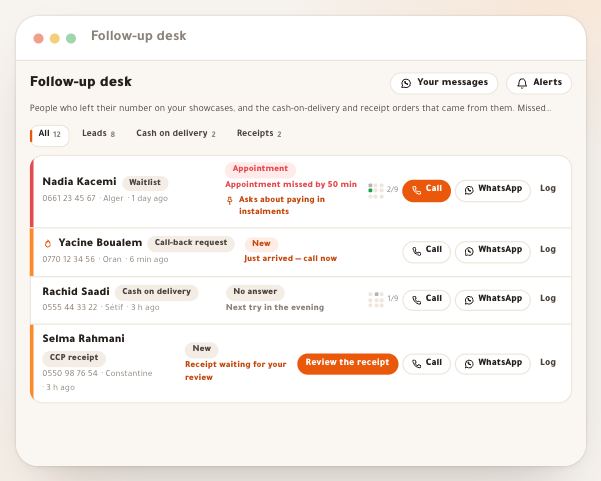
- Call those who are waitingThe follow-up desk lines up leads and cash-on-delivery orders and logs every try.
- Fix measurementPixels, measurement and the test event in the measurement lesson.
- Follow your page at a glanceThe “Overview” tab repeats the week’s story with the latest orders.
- Bring more visitorsShare links per channel and the QR poster make “Where they came from” clearer.
Questions
Why are visits lower than what Facebook Ads Manager says?
Because visits here are sessions measured in the visitor’s browser, without those with “Do Not Track” on, and Facebook counts in its own way: someone who refuses the measurement tools sends it nothing. Orders and money collected come straight from your records; rely on them.
What do the hatched days mean?
The last three days (today and the two before) are still maturing: receipts are reviewed and cash on delivery handed over a few days later, so “Paid” rises afterwards.
Why don’t I see money collected or “Value per visit”?
Because the “Revenue figures” permission isn’t granted to you. Visits and orders stay visible, and everything involving money is hidden. Ask the workspace owner.
What does “Other” mean in sources and wilayas?
A source with under 20 visits and under 3 orders, and a wilaya with under 3 orders, are folded into “Other”: a percentage of two people means nothing, and no particular buyer should be recognisable.
Does “WhatsApp” send the lead a message automatically?
No. The button opens a WhatsApp chat with a ready message, which you edit and send yourself. Nothing goes out without your hand.
How many leads does the list show, and how do I download them?
The latest 300, newest first. “Download CSV” downloads the list shown as a file that Excel or any spreadsheet reads with Arabic. For more, open the follow-up desk.
Why does “Measurement question” show no percentage?
The percentage shows from 20 answers. And with no Facebook or TikTok pixel in your workspace, visitors aren’t asked at all: the card says so.
What is the difference between the showcase’s “Results” and the week’s overview?
“Overview” shows a single week with its sentence, funnel and chart, and “Results” opens the period to 7, 30 or 90 days and adds the tiles, sources, devices, wilayas and the “Measurement question”.