
Writing with Noqta: she reads your course and proposes, you decide
Noqta doesn’t write in your place, she writes from your course: she reads its description, every chapter and every lesson, and what you told her about your students, then proposes the text right where it goes on the page. Nothing enters your page until you accept it; she never touches numbers, prices, dates or buttons, and refuses on her own any made-up promise or review. Our example: Sofiane, who teaches spoken English, writes his course page in two languages.
- Two to ten minutes
- 7 steps
Who can do it: Anyone with “Edit showcases”.
 Let Noqta show you
In 7 steps
- 1In “The draft from your data”, press “Write the draft for me”: each section is written before your eyes, and “Stop” works at any moment.
- 2Select a section and press “Noqta” in its bar (or ⌘J): write what you want or pick a ready request for that section.
- 3The proposal appears in place, framed “Proposed by Noqta”: compare “Before” and “New”, then “Accept” or “Reject”.
- 4Tap a text on the page, then “Noqta” in the formatting bar to ask for that one field.
Show all
- 5In “Page”, the “What Noqta knows” card: tell her “Who is it for, and why do they buy?”, then “Write the whole page” or “Fill what's missing”.
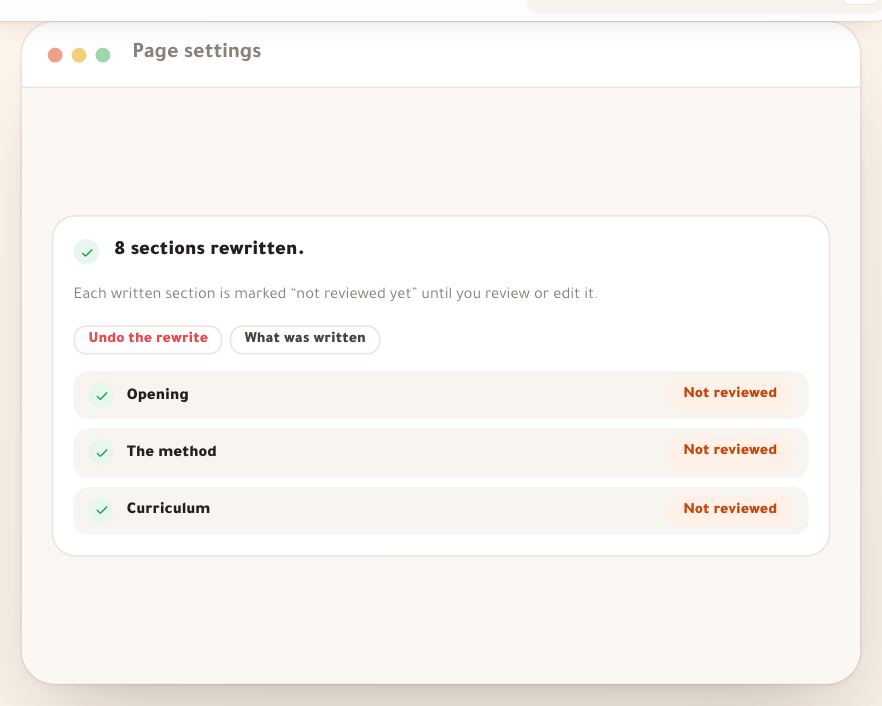
- 6What you accepted carries “Not reviewed” until you press “Reviewed” or edit it.
- 7Each section Noqta writes is one of your workspace’s 200 requests a day, renewed at midnight Algiers time.
Before you start
- A new showcase in the creation journey, or a showcase open in the editor.
- An offer linked to the page: Noqta reads its courses (description, chapters, lessons, free lessons, exams and live sessions).
- A well-described course: the clearer its description and lesson titles, the clearer the page.
- An internet connection: Noqta does not write offline.
- Step 1 of 7
“Write the draft for me” while creating
Noqta writes each section’s text from your offer and course while you watch, so you start from a written page, not a template.
- What isn’t writtenNumbers, prices and dates stay the platform’s. Noqta writes the words only.
- What does it cost?This showcase’s first draft does not count toward your allowance.
- Stopped it?What was written stays; the rest keeps the template text. The page is valid at every moment.
TipThe page is valid at every moment: a section not written yet keeps its template text, and Noqta fills it later in the editor.
All the details
At the “The draft from your data” stage, the page is first built from the template before your eyes, with a log of what was read from your offer (“The first copy comes from the template. Rewrite it in your own words in the editor.”). Below it, the “Write the draft for me” card: “We write each section's text from your offer and your answers. Numbers, prices and dates stay the platform's, and you can stop at any time.” Under the button, “This showcase's first draft does not count toward your allowance.” Press it and the sections are written one after another, the opening first: “Writing “Opening”…”, then “Wrote “Opening””, or “Kept the template text in “…”” when the check refused what was written. “Stop” halts the writing: “Stopped. What was written stays; the rest keeps the template text.” At the end: “Draft complete. Read the texts and adjust them before publishing.”, with “Details” for the list of sections. The draft is written in every language of the page, from the course’s chapters and lessons.
On screenThe draft from your dataWrite the draft for meThis showcase's first draft does not count toward your allowance.StopDetailsHeads-up“The AI texts were not saved, so the template draft stays.” means saving failed, not the writing: press “Try saving again”.
- Step 2 of 7
“Ask Noqta” on a section
You ask Noqta, in your own words, to rewrite one section, or pick a ready request made for that section.
- From where?On a computer, the line at the foot of the section’s panel, or ⌘J. On a phone, “Ask Noqta” in “Content”.
- What she readsThe section, your chapters and lessons, and what she knows about you.
- What she never touchesPrices, numbers, dates, reviews and buttons.
TipAsk as you would a colleague: “write the headline for shop owners who shoot on a phone” is clearer than “improve it”.
All the details
Select a section. On a computer, at the foot of its panel, the line “Ask Noqta in “Opening”” (or ⌘J); on a phone, the line “Ask Noqta” in the “Content” tab. The “Ask Noqta” window opens, as a sheet from the bottom of the screen on a phone: write what you want in your own words, or pick a ready request for that section. For the opening, for instance: “Clearer promise”, “For my audience” and “Shorter headline”; in a section with template text the first one is “From my course”. Under them, two lines: “Reads” the section, your chapters and lessons and what she knows about you; “Never touches” prices, numbers, dates, reviews and buttons. Then “Ask”. The window closes and the page scrolls to the section, which shimmers while she writes; the bottom bar says “Noqta is writing “Opening”” with “Stop”. The line does not appear in sections whose text all comes from your data, such as prices.
On screenAsk NoqtaClearer promiseFor my audienceShorter headlineFrom my courseReadsNever touchesAskStop - Step 3 of 7
The proposal in place: “Before” and “After”
You see the new text in its place on the page, compare it with the old, then you decide.
- Compare“Before” puts the old text back on the page, “After” returns to her proposal.
- Before accepting?Nothing enters your page: the proposal is only drawn over it. If the honesty rules refuse it, nothing changes.
- Changed your mind?After “Accept”, “Undo” brings everything back in one step.
All the details
When she is done, the new text shows in the section itself, so you see the page as it will be. On a computer a card “Noqta · “Opening”” rides by the section: how many texts changed, then “Compare” between “Before” and “After”, then “Accept”, “Try another” (the same request again) and “Dismiss”, with ““Accept” is one step that undo takes back.” under them. On a computer and a phone alike, a bar at the bottom of the page: “Ready to review” with “Accept” and “Dismiss”, and “Accept all” when several sections are ready (Enter to accept, Esc to dismiss). Nothing enters your page before “Accept”: the proposal is only drawn over it. After it: “Accepted” with “Undo”, which brings everything back in one step. If you edit the section yourself while she writes, your text is kept.
On screenCompareBeforeAfterAcceptTry anotherDismiss“Accept” is one step that undo takes back.Ready to reviewAccept allAcceptedUndoHeads-upIf the honesty rules refuse what she wrote, nothing changes, and “Try again” stays available.
- Step 4 of 7
“Noqta” on one text
You ask Noqta for one text, the opening’s headline or a single answer, and the rest of the section stays as it is.
- Where?Tap the text on the page, then “Noqta” in the “Text formatting” bar.
- And what you typed?It is saved first, then the request opens for that one field.
- On a phoneThe button sits in the bar above the keyboard, and the request opens from the bottom.
TipOn a phone the button sits in the bar above the keyboard, and the request opens from the bottom of the screen.
All the details
Tap any text on the page to write in it: the “Text formatting” bar appears with “Bold”, “Highlight”, “Link” and “Noqta”. Here “Noqta” saves what you typed, then opens the same request for that one field, so the rest of the section stays as it is. Ideal for the opening’s headline or one answer in the questions.
On screenText formattingBoldHighlightLinkNoqta - Step 5 of 7
“What Noqta knows” and the whole page
You answer one question, who is it for and why do they buy, and Noqta writes every section of the page with it.
- What you writeYour audience in one sentence, like Sofiane: “office workers who understand English but freeze when they speak in meetings”.
- The two writing buttons“Write the whole page”, a proposal per section, and “Fill what's missing”, for sections still on template text only.
- What does it cost?One request per section from today’s allowance, three sections at a time. Locked sections are never written.
TipA section you wrote yourself and like? Lock it: Noqta does not write in locked sections.
All the details
In the “Page” panel, the “What Noqta knows” card: what it “Sells” (your course or courses) and what is “Inside” (chapters and lessons), then one question worth a minute: “Who is it for, and why do they buy?”. Sofiane wrote: “office workers who understand English but freeze when they speak in meetings”. Noqta keeps your answer in the page and writes every section with it. Below it, “Goal”, “Visitors” and “Voice”. What you do to the whole page is asked in “Ask Noqta in your page”: on a computer, the same line at the foot of the panel when no section is selected (or ⌘J); on a phone, “Noqta” in the bottom bar. A field “What do you want for your page?”, whose request goes to every section Noqta writes, then four rows: “Fill what's missing” (only the sections still on template text; hidden when nothing is missing), “Write the whole page” (a proposal for every section), then “Design my page” and “Review as a visitor”, which do not write but arrange the sections and read the page as a buyer (the “Noqta designs and reviews” lesson). At the bottom, a line says how many sections will be written and how many requests you have left today. In “Publishing”, among the suggestions, each section still on template text says so, with “Write it”.
On screenPageWhat Noqta knowsSellsInsideWho is it for, and why do they buy?GoalVisitorsVoiceAsk Noqta in your pageWhat do you want for your page?Fill what's missingWrite the whole pageDesign my pageReview as a visitorWrite itHeads-upEvery section is one request from today’s allowance: “Write the whole page” on a nine-section page takes nine, and the sections arrive three at a time.
- Step 6 of 7
“Not reviewed” until you read it
You read what Noqta wrote before publishing, so the page keeps your own voice.
- How to spot itThe “Not reviewed” mark at the head of “Properties” and in the section list, and a notice in “Content”.
- How to reviewPress “Reviewed”, or edit any text in the section and it counts as reviewed.
- Does it block publishing?No, it stays a suggestion in “Ready?”. And a “Before Noqta” version is kept before every acceptance.
TipRead the section out loud: any sentence you would not say to a student in class, change it.
All the details
Every section you accepted carries a mark: “Not reviewed” at the head of “Properties”, her mark in the section list (“Not reviewed”), and a notice in “Content”: “Noqta wrote this section from your course. Read it and change anything that does not sound like you before publishing.” Read the section, then press “Reviewed”, “Or edit any text in the section and it counts as reviewed.”. In “Ready?”, a suggestion stays for each unreviewed section, with “Review it”. Review does not block publishing, but it is what makes the page sound like you. And in “Versions”, a “Before Noqta” version is kept before every acceptance.
On screenNot reviewedPropertiesNoqta wrote this section from your course. Read it and change anything that does not sound like you before publishing.ReviewedReady?Review itBefore Noqta - Step 7 of 7
Today’s requests, and what she never writes
You know how many requests you have left today, and what Noqta will never write, whatever you ask.
- How many requests?200 a day for the workspace, renewed at midnight, Algiers time. Each section Noqta writes is one.
- And the journey draft?It has its own allowance: 10 drafts a day, each showcase’s first one free.
- What she never writesNumbers, income or result promises, “the best”, urgency without a deadline, made-up reviews and stories, links and phone numbers.
TipWant your students’ reviews on the page? Gather real ones with “Sourced reviews”: Noqta writes no review and no success story.
All the details
Your workspace has 200 requests a day, renewed at midnight, Algiers time: each section Noqta writes is one request, from “Ask Noqta”, a single text or “Write the whole page”. A request that fails is given back. What is left shows under the request (“N requests left today”), and when it runs out: “No requests left today. They come back at midnight.” The journey draft has its own allowance: 10 drafts a day, each showcase’s first one free. What Noqta never writes: numbers in any form (they come only from your data), income, result or time promises, “the best” or “the first”, urgency without a real deadline, made-up reviews and stories, links and phone numbers.
On screenN requests left todayNo requests left today. They come back at midnight.
After writing
- Review every section“Reviewed”, or your own words, before publishing.
- Check on a phoneShorter sentences read better on a small screen.
- A title for each language“In search and chats” is not written by Noqta.
- Measure what visitors readThe results show where they stop.
Questions
How does Noqta know what is in my course?
From the course itself: its description, the titles of its chapters and lessons, what is free, the exams and live sessions, and your answer to “Who is it for, and why do they buy?”. She invents no lesson.
Does Noqta change my prices or dates?
No. Numbers, prices, dates and buttons come from your data and she never touches them. Any text that writes a number is refused before it reaches you.
Does anything change before I accept?
No. The proposal is only drawn over the page. “Reject” or “Dismiss” leave your page as it was, and autosave never saves a proposal you did not accept.
Does a request count if it fails or I reject it?
A request that fails is given back. A proposal that was written and then rejected counts, and so does “Try again”, which is a new request.
Does she write student reviews or success stories?
No, never. Reviews and result figures come only from real, verified sources; Noqta refuses to write them.
Which language does she write in?
Every language of your page at once, so they stay consistent. Read each language yourself.
Does “Not reviewed” block publishing?
No. It is a suggestion in “Ready?”. But do read every section: visitors buy from a person, not from generic text.