
“Calendar”: your day, your week, and the card of every booking
Everything booked with you lands in the “Calendar”: one-to-ones and group sessions, requests waiting for your approval, time taken by your other calendars. You read your week at a glance; tap a session and its card opens beside the page: who, when, where, how it was paid, what they wrote, and one prominent button for what needs doing now. You move a session by dragging it, log a booking that came by phone, publish a group session, block your lunch hour. The example: “Al-Ofok Academy”’s week of 17–23 October — Amina from Ouargla on her pack, Youssef in Oran asking for a time, Rania in Paris, Karim’s “Group English conversation” with eight seats, and Manal running Salim’s calendar. The same page serves a marketing coach grouping her sessions or a photographer running studio workshops.
- About 12 minutes
- 7 steps
Who can do it: Open to anyone with “Own bookings” (their calendar, and that of the teacher they assist) or “All teachers' bookings” (every calendar of the academy in their scope). Without either, it reads “The calendar is not part of your permissions”.
 Let Noqta show you
In 7 steps
- 1“Calendar”: “Day”, “Week”, “Month”, “List”, with arrows and “Today”, kind filters and “Requests”, busy time in grey with its name.
- 2“All calendars” picks the team’s calendars, “Day view” puts “A column per teacher”; on the phone, one day with the week strip and + for a manual booking.
- 3Tap a one-to-one: the booking card with time, place, payment, what they wrote, “With you before”, “What happened” and “Ready WhatsApp message”.
- 4One prominent button for what’s needed now (“Accept”, “Check the receipt”, “Enter the room”, “Wrap up the session”), and beside it “Decline…”, “Reschedule”, “Mark no-show”, “Attended”, “Cancel”.
Show all
- 5“Reschedule” offers the nearest free times or “Another time”; dragging with the mouse moves a session after a “From” / “To” confirmation; a clash is refused with nearby alternatives.
- 6A group session: “Attendees” and how each paid, the minimum and decision time, “Waitlist”, “Message attendees”, “Save attendance”; “Dated group session” to publish one.
- 7“Manual booking” for what came by phone: learner, service, time, “Cash”, “Pack”, “Free” or “Payment link”; “Block time” for an hour nobody may book.
Before you start
- The “Own bookings” or “All teachers' bookings” permission.
- At least one service and hours drawn in “Your hours”; otherwise you read “No calendar yet”.
- The whole calendar is in Algiers time; the booking card gives the learner’s own time if they are abroad.
- Step 1 of 7
Four views of one week
The week from Saturday to Friday on an hour axis, the day, the month, and a two-week list.
- “Day” “Week” “Month” “List”Week is the default; month counts each day’s sessions, the list shows 14 days.
- Filters“All”, one kind per service, and “Requests” for what waits for your approval.
- Busy timeGrey with its name: “Blocked time”, “Busy”, “Live class”, “Organization” event.
TipThe address keeps the view: ?view=list and ?d=2026-10-19 open the list from that day. Bookmark it to come back to the view you like.
All the details
Open “Bookings” → “Calendar” (in the “Today” group). At the top, the “Previous” and “Next” arrows, the period’s title (“17 – 23 October 2026”), “Today” when you move away from it, then the “View”: “Day”, “Week” (the default), “Month”, “List”. The week shows seven columns from Saturday to Friday on an hour axis, with the now line on today. Each session carries its kind’s colour on its edge: a “One-to-one” with the learner’s name, a “Group session” with its seats (“5/8”); a request waiting for your approval is hatched, with the person’s name and a question mark (“Youssef?”). Under the bar, the “Filter by kind” chips: “All”, one kind per service with its count, and “Requests”, with “Algiers time” at the end. Busy time is grey with its name: “Blocked time” (“Blocked by you · not bookable”), “Busy” (“From your external calendar · no details”), “Live class”, ““Organization” event”. Tap a day’s title to open it in “Day” view. In “Month”, “The number next to the day = sessions”, and tapping a day opens it. “List” shows two weeks as rows in time order. And an empty future time, tapped in day or week view, opens “Manual booking” at that time.
On screenCalendarPreviousNextTodayViewDayWeekMonthListFilter by kindAllRequestsAlgiers timeBlocked timeBusyLive class“Organization” event - Step 2 of 7
The team’s calendars, and the calendar on a phone
Anyone working several calendars picks what they see and gives each teacher a column in their day; the phone shows one day at a time.
- “All calendars”The “Calendars shown” list: tick the ones to see.
- “Day view”In “Day” view: “Together” or “A column per teacher”.
- On the phoneThe week strip, one day as rows, “Day” or “List”, and + for a manual booking.
TipWith “A column per teacher”, dragging a one-to-one from one column to another moves it to another teacher’s calendar: “The session moves to Karim Zerrouki's calendar.”.
All the details
Anyone working several calendars — a manager with “All teachers' bookings”, or Manal who runs Salim’s — sees an “All calendars” button in the bar. It opens “Calendars shown”, with each teacher’s photo, name and a tick: untick a calendar and it disappears; the button then reads “2 calendars”, say. In “Day” view, “Day view” shows underneath: “Together” or “A column per teacher” — Salim reads his Monday in three columns: himself, Karim and Leila. On the phone there is no hour axis: at the top the month and two arrows that turn a week, the strip of the week’s days with marks for each day’s session kinds, then the chosen day as rows with time, length and person, and busy time as a quiet row between them. “Day” and “List” switch between the day and two weeks, and the + button at the top is “Manual booking”. On the phone, the booking card opens as a sheet from the bottom.
On screenAll calendarsCalendars shownDay viewTogetherA column per teacherDayListHeads-upDragging with a finger on the phone doesn’t move a session: move it from its card with “Reschedule”.
- Step 3 of 7
The booking card: who, when, where, how it was paid
Tap a one-to-one and its card opens beside the calendar, with everything you need before deciding.
- The learnerTheir name, “Guest without an account” if they booked without one, their time if abroad, and “Call”.
- “Time” “Place” “Payment”How long until it starts, the room, link or address, the pack or amount and the order’s state.
- What folds away“All answers”, “With you before”, “What happened”, “Ready WhatsApp message”.
TipThe same card opens from every page of “Bookings” and from notifications: its link ends in ?b= and the booking’s id, so you and Manal come back to the same booking.
All the details
Tap a one-to-one and its booking card opens (a group session has its own, step 6). At the top, the name, the booking number and its state (“#B-2081 · Confirmed”). Then the learner: photo and name, “Guest without an account” for someone who booked without one, “Sees times in Paris time” for Rania, their number and a “Call” button. Then four facts: “Service”, with its kind and length; “Time”, with the day, the time and “in 1 day”, “in 2 h 15 min” or “happening now”, and the learner’s own time underneath if they are abroad; “Place”: “The built-in session room” (“Opens at 17:50”), “Fixed link” with its link, or the address with “Map”; and “Payment”: “From 4-session pack” and “3 session(s) left on it” for Amina, or “2,500 DZD · #…” with the order’s state (“Receipt to check”), or “Free”, or “Not paid yet · 2,500 DZD”, with what would come back on cancelling. For a held booking, “Hold”: “Held until 20:30 · … left”. Below, “Wrote before the session” with the learner’s first answer, then folds: “All answers”, your shared note if you wrote one, “With you before” (their last five sessions with you), “What happened” (each step with its date and who did it: booked, 24-hour reminder sent, joined the room…) and “Ready WhatsApp message”, with the text for its state, “Copy” and “Open WhatsApp”.
On screenGuest without an accountCallServiceTimePlacePaymentHoldWrote before the sessionAll answersWith you beforeWhat happenedReady WhatsApp messageCopyOpen WhatsApp - Step 4 of 7
One button for what’s needed now, and the rest beside it
At the bottom of the card, one prominent button for the booking’s state, other actions beside it, and every consequence said before you press.
- The prominent button“Accept” a request, “Check the receipt” once uploaded, “Enter the room” 10 minutes before, “Wrap up the session” once started.
- After the start“Mark no-show” after the waiting time, and “Attended” or “Correct: attended”.
- Before the start“Decline…”, “Reschedule”, “Extend the hold”, “Resend confirmation”, “Cancel”.
Tip“Wrap up the session” opens the wrap-up (notes, summary, attendance) in place of the card; the details are in the after-the-session lesson.
All the details
The prominent button follows the booking: “Accept” for a request waiting for your approval (“Booking accepted”: confirmed if it is free or paid from credit, otherwise held until paid); “Check the receipt” once the learner uploaded one, which takes you to “Requests” to see it beside its image; “Enter the room” from 10 minutes before; “Wrap up the session” once it has started; or “Open the review” for a work review. Beside it, two buttons, the rest behind “More”: “Decline…” opens “Decline Youssef's request”, with ready reasons he reads as they are, or “Another reason, in your words” (“If you decline, the full amount comes back.”), then “Decline and send”; “Reschedule” (next step); “Mark no-show” after the waiting time (““No-show” opens at 17:10 — 10-minute grace”) — “The no-show follows your policy…”; “Attended”, or “Correct: attended” for a no-show marked by mistake, within 48 hours after the end; “Extend the hold” by 1, 3 or 24 hours for someone who hasn’t paid yet; “I paid it back” when you return an amount owed yourself; “Resend confirmation”; and “Cancel”, in red: “Amina gets back everything paid as credit to book another time, with an apology.”, with “Reason (the learner reads it)” and the switch “Send Amina the apology”, then “Cancel the booking”. If the learner asks to move their session, the card shows “Rania asks to move the session · To …” with “Accept” and “Refuse the request”.
On screenAcceptCheck the receiptEnter the roomWrap up the sessionOpen the reviewMoreDecline…Decline and sendRescheduleMark no-showAttendedCorrect: attendedExtend the holdI paid it backResend confirmationCancelCancel the bookingRefuse the requestHeads-upWhen you cancel, everything paid comes back as credit whatever the time, without the cancellation policy. If you’d rather the learner keep another time than a credit, “Reschedule” before cancelling.
- Step 5 of 7
Moving a session: “Reschedule”, or drag it
Pick the new time from the nearest free times, or drag the session in the week; either way you confirm before it moves.
- “To when?”The nearest free times over two weeks, or “Another time”, even outside your hours.
- DraggingWith the mouse in “Day” or “Week”, for an upcoming session; then “From”, “To” and “Move”.
- No overlapsDropping on a session or busy time is refused, with the nearest possible times.
TipOnly upcoming, active sessions move: a past or cancelled session can’t be dragged.
All the details
“Reschedule” on the card opens “To when?” (“Current time: Monday · 17:00”) with the nearest free times for this service over the next two weeks — after your hours, your buffers and busy time — or “Another time”, with a day and time you type: “Bookable even outside your published hours. An overlap with another session is always refused.”. For a weekly standing slot, choose “This session only” or “This one and every week after”. The switch “Tell Amina now” (“Notification and email with the new time”), then “This doesn't count against their reschedules: you asked for it.”, and “Move and tell Amina” (or “Move” if the switch is off). On a computer it’s quicker: drag Amina’s session with the mouse in “Week” or “Day” — “Moving Amina · 60 min — drop it on the new time” — and drop it on Wednesday 18:00: “Move Amina's session to Wednesday · 18:00?”, with “From”, “To” and the same switch. Dropped on another session or busy time, the bar reads “Clash: it can't be dropped here”, the sheet says “It can't move here” and what it overlaps, and offers the “Nearest possible times that day”, or “Put it back at 17:00”. A group session moves whole (“Move the whole “Group English conversation”?”) and its attendees get the new time, but it stays in its teacher’s calendar.
On screenRescheduleTo when?Another timeThis session onlyThis one and every week afterTell Amina nowMove and tell AminaMoveIt can't move herePut it back at 17:00CancelHeads-upWhat moves keeps its payment or credit. But check the switch before confirming: off, “Tell … now” sends nothing, and it’s up to you to tell the learner.
- Step 6 of 7
The group session: seats, a minimum and a waitlist
A group session’s card tells you whether it will run, who booked and how, who is waiting, and gathers its actions.
- “Attendees”Each seat with how it was paid (“Paid”, “Pack”…) and the person’s own time if abroad.
- The minimum“Runs from 3”, the automatic decision at its time; or “Run it anyway”.
- “Waitlist”A freed seat goes to the first in line, then the next.
TipThe minimum and the decision time (24 h before the session at first) are set in the service’s editor. Leila sets a minimum of 4 for the “Studio lighting workshop”, so she doesn’t open the studio for two people.
All the details
Tap Saturday 09:00’s “Group English conversation”: at the top, its state (“Open”, “Full”, “Done”, “Cancelled”, “Did not run”) and “5/8 seats”. Then the decision line: “Runs from 3 · enough seats, it is confirmed. Automatic decision Friday 09:00.”, or “2 seats short. Called off automatically …, with credit back to everyone.”. Then “Attendees”: Amina “Pack”, Youssef “Paid”, and Mehdi with his time in Montreal. Then “Waitlist”: “When a seat frees up it goes to the first in line, with time to accept, then to the next.” — up to two hours to accept, ending an hour before the session at the latest. Before the start: “Message attendees (5)” (a message they get as a notification in “My sessions”), “Change the time” with a day and time, “Edit” the title, the “Seats” (“Not fewer than taken now (5).”) and the files, “Run it anyway” when it is short (“It won't be called off; attendees are told it's confirmed.”), and set apart, in red, “Cancel the whole session” (“Each of the 5 attendees gets everything back as credit, with an apology.”). Once it starts: “Enter the room”, “Save attendance” (“Untick whoever didn't come”) and “Wrap up the session”. To publish a new group session: “More” → “Dated group session” — “A time with seats learners book on your page”: “Service” (group, or in-person with seats), “Teacher”, “Day”, “Time” (“60 minutes long, as the service.”), “Seats”, “Repeat” up to 12 more weeks, “Title and files”, then “Publish the session” (or “Publish 5 sessions”).
On screenAttendeesWaitlistMessage attendees (5)Change the timeEditSeatsRun it anywayCancel the whole sessionEnter the roomSave attendanceWrap up the sessionMoreDated group sessionRepeatPublish the sessionHeads-up“Save attendance” assumes everyone came: untick whoever was absent before saving, because attendance counts for certificates and the session’s pay.
- Step 7 of 7
“Manual booking” for what came by phone, and “Block time”
A booking that came by phone, WhatsApp or face to face is logged in a minute; an hour nobody should book is blocked.
- Learner, service, time“Your learners” or “New learner” with name and phone; the nearest times or “Another time”.
- “Payment”“Cash”, “Pack”, “Free”, or a “Payment link” paid by card or receipt.
- “Block time”Lunch, an appointment, a day off: nobody books it; sessions already there stay.
TipAmina calls to book the third session of her pack: “Your learners” → Amina, “Private review session”, Thursday 17:00, “Pack”. It comes off her credit, and she gets the confirmation and both reminders.
All the details
“Manual booking” in the bar (or an empty time tapped, or + on the phone) — “For a booking that came by phone, WhatsApp or face to face”. “Learner”: “Your learners”, searched with two letters of the name, or “New learner” with “Name”, “Phone” and the optional “Email”. “Service”, with its kind and price, and “Teacher” (“Any available teacher”) when it has several. “When?”: “Nearest free times for 60 minutes”, or “Upcoming sessions with seats” for a group service, or “Another time”, even outside your hours; a work review has no time. “Payment”: “Cash”, “Pack” (“Taken from their pack. If it isn't enough, the booking is refused.”), “Free”, or “Payment link” for a paid service (“They get a link for 2,500 DZD (card or receipt).”). In “Options”: “Send a confirmation and two reminders” (“Now, then 24 h and 1 h before · notification and email”) and “Repeat every week” at the same time. Then “Book Thursday 17:00” → “Session booked” and its card opens; with a payment link, “Book and send the link” → “Payment link ready”: “Copy the message” or “Send by WhatsApp”, and the time stays held for them until they pay. As for “More” → “Block time” — “Lunch, an appointment, a day off — nobody can book it”: “Calendar”, “Day”, “The whole day” or “From” and “To”, and a “Name your team sees” (“Learners only see the time as unavailable.”), then “Block this time” → “Time blocked”. Later, tap the grey time and it offers “Reopen this time”.
On screenManual bookingLearnerYour learnersNew learnerServiceWhen?Another timePaymentCashPackFreePayment linkOptionsSend a confirmation and two remindersRepeat every weekBook Thursday 17:00Book and send the linkCopy the messageSend by WhatsAppMoreBlock timeThe whole dayName your team seesBlock this timeReopen this timeHeads-up“Pack” needs a learner with an account: it can’t be used for a “New learner”. A “Payment link” is for one session: don’t combine it with “Repeat every week”. And “Block time” doesn’t touch sessions already booked in that time: “Move them from the calendar if needed.”, or use “Something came up?” in “Your hours” to decide each booking.
After the calendar
- Draw your hoursWhat shows as free in the calendar comes from “Your hours”: the hours lesson.
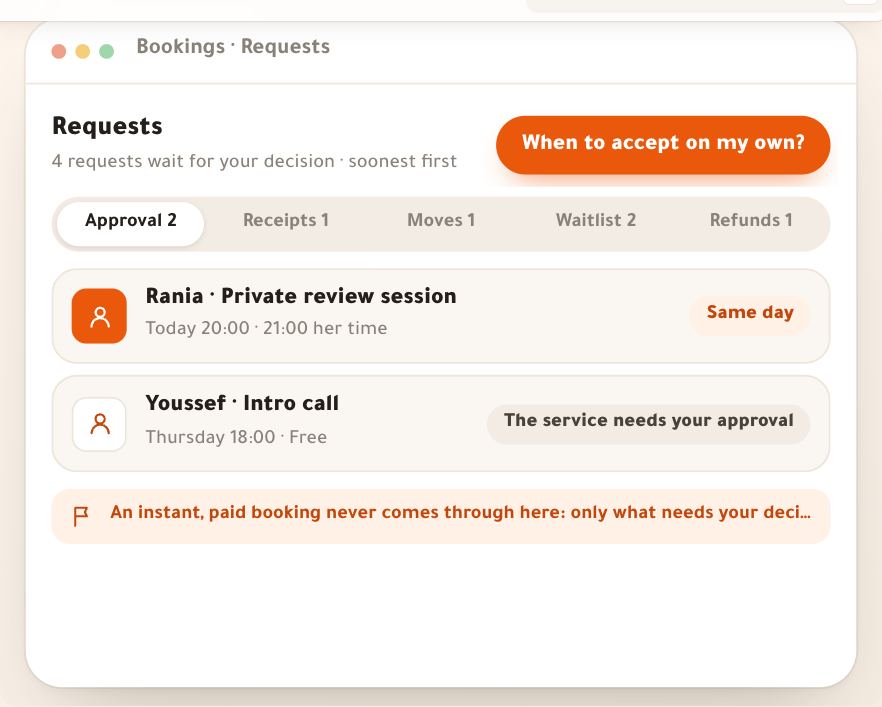
- Requests and receiptsApprovals, receipts, move requests, the waitlist, refunds: the requests lesson.
- The session roomWhat happens when you press “Enter the room”: the room lesson.
- After the session“Wrap up the session”: notes, summary and attendance: the after-the-session lesson.
Questions
Why can’t I drag a session?
Dragging works with the mouse, in “Day” or “Week” view on a computer, for an upcoming, active session. A session that has started, passed or been cancelled can’t be dragged, and a finger on the phone doesn’t move anything: use “Reschedule” on the card. A group session stays in its teacher’s calendar: “Move it within that column.”
If I move a learner’s session, does it count against their allowed changes?
No: “This doesn't count against their reschedules: you asked for it.”. The changes your policy allows (“Number of changes”) are for what the learner asks for themselves.
I cancelled a session — what does the learner get?
Everything they paid comes back as credit to book another time, whatever the time, and they get an apology with your reason if “Send … the apology” stays on. For a group session, “Cancel the whole session” does the same for every attendee.
Where do I see the requests waiting for my approval?
In the calendar, hatched, with the person’s name and a question mark; the “Requests” filter shows them alone. Tap one to find “Accept” and “Decline…”. They are also all listed on the “Requests” page.
A learner abroad: in which time do I see them?
The calendar is always in Algiers time. The card says “Sees times in Paris time” and shows their time under the session’s, and a group session’s card shows each attendee’s time abroad, like Mehdi in Montreal.
Can I book a time outside my hours?
Yes, from “Manual booking” or “Reschedule”: “Another time”, with a day and time. “Bookable even outside your published hours. An overlap with another session is always refused.”
What are the main buttons in the “Calendar”?
In the bar: “Previous”, “Next” and “Today”, the views “Day” “Week” “Month” “List”, “All calendars” for anyone working several calendars, “More” (“Dated group session”, “Block time”) and “Manual booking”. On the card: the prominent button (“Accept”, “Enter the room”, “Wrap up the session”), “Reschedule” and “Cancel”.