
Bookings: how your time is booked, paid for and given
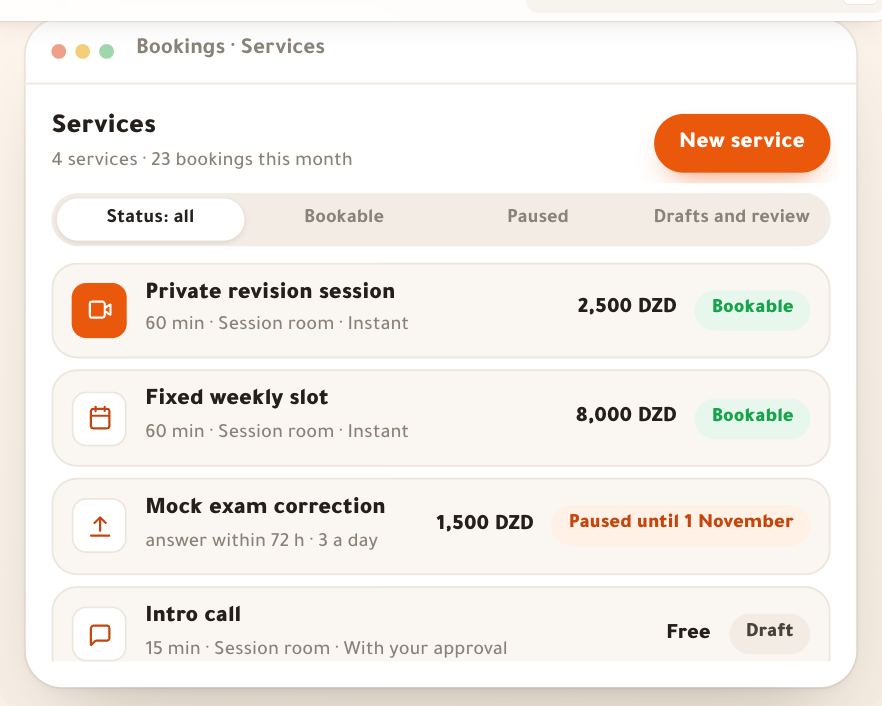
“Bookings” is a section of its own in your dashboard where you sell your time: a one-to-one whose time the learner picks from your hours, a group session with seats, a weekly standing slot on a monthly subscription, an intro call, a work review with no appointment, or an in-person session at your place. Learners book from the booking page on your site or from their portal, pay with your store’s methods or with their pack’s credit; the booking lands in your calendar, the reminders go out, you meet in a built-in video room, and afterwards they read your summary and homework in “My sessions”. This lesson shows the whole section at once, with “Al-Ofok Academy”: Salim Bouzid, a physics teacher, sells a 60-minute “Private revision session” at 2,500 DZD. The same path works for a photographer selling studio sessions or a marketing coach selling a weekly follow-up.
- About 6 minutes to read
- 6 steps
Who can do it: The section opens with “Own bookings” (your calendar and services, or the calendar of a teacher you assist) or “All teachers' bookings” (every calendar in your scope). The owner has everything.
 Let Noqta show you
In 6 steps
- 1“Bookings” is a section in the column under “Store”, with a panel in three groups: “Today”, “What you offer”, “People and numbers”.
- 2The first time, “Home” opens on “Open bookings to your learners”: four steps, and the booking page opens once you add a service and your hours.
- 3“Home” is your day: the next session and its room button, today’s sessions, “Waiting for your decision” and three numbers.
- 4Six kinds of service, packs as credit bought ahead, and the monthly subscription for a weekly standing slot.
Before you start
- At least the “Own bookings” permission: the owner, “Admin” and “Teacher” have it by default.
- Payment methods switched on in “Store settings” if you sell: bookings are paid through the store’s engine, with its payment methods.
- No Meet or Zoom link needed: the built-in “Session room” is ready; an external link or an address are optional.
- Step 1 of 6
Where “Bookings” lives: the column and its panel
A section of its own in the column, right under “Store”, in three groups of three pages.
- Today“Home”, “Calendar” and “Requests”: what happens today and what waits for you.
- What you offer“Services”, “Packs and subscriptions” and “Your hours”: what can be booked, and when.
- People and numbers“Learners”, “Reports” and “Booking settings”.
TipWorking alone? You see all nine pages. In an academy with teachers, each teacher sees their own calendar and services there, and the admin sees everyone’s calendars.
All the details
Bookings is a section of its own in the column at the edge of the screen, right under “Store”, because a booking is a sale like any other, paid through the store’s own engine. Beside the column, its panel has three groups: “Today” (“Home”, “Calendar”, “Requests”), “What you offer” (“Services”, “Packs and subscriptions”, “Your hours”) and “People and numbers” (“Learners”, “Reports”, “Booking settings”). The number on the section’s icon doesn’t count every booking, only what needs a person: booking requests to approve and payment receipts to check, in the calendars you work. Every booking notification in the bell opens that booking in a side panel over “Home”. In a school, management has one more page in the school panel: “Bookings in the school”. Without the permission, people read “Bookings are not part of your permissions”.
On screenBookingsStoreTodayHomeCalendarRequestsWhat you offerServicesPacks and subscriptionsYour hoursPeople and numbersLearnersReportsBooking settingsBookings in the school - Step 2 of 6
The first time: “Open bookings to your learners” in four steps
While you have no service or no hours, “Home” opens on four steps, two of them ready already.
- What do you offer?Six kinds; each opens a new service of that kind.
- Your hoursYour hours in the week; Algerian public holidays are closed for you.
- Ready valuesWhere you meet, payment and policy work from now on, and you can change them anytime.
TipSalim starts with a “One-to-one” called “Private revision session”, then opens Sunday, Tuesday and Thursday from 17:00 to 21:00 in “Your hours”. After those two steps, “Home” becomes the board of his day.
All the details
Before your first service and hours, “Home” opens on Open bookings to your learners: “Four steps. The booking page goes live after the second; the last two have ready values you can change anytime.”. Step 1, “What do you offer?”, shows six kinds with an example each: “One-to-one” (revision, private lesson, consultation, interview practice), “Group session”, “Weekly standing slot”, “Intro call”, “Work review”, “In-person session”; press one and the editor of a new service of that kind opens. Step 2, “Your hours”: the days and hours your time can be booked, with Algerian public holidays closed automatically; its button is “Next: your hours”. Step 3, “Where you meet”, carries “Ready values”: the built-in “session room”, only the person who booked gets in. Step 4, “Payment and policy”, carries “Ready values” too: your store’s payment methods and pack credits, free cancellation up to 24 h before, and a no-show without cancelling counts. A step not reached yet shows “After the first” or “Later”; a step done shows “Edit”. At the bottom: “No commission on your sessions. The money reaches you as in the store.” and “The booking page opens once you add a service and your hours.”.
On screenOpen bookings to your learnersWhat do you offer?Your hoursNext: your hoursWhere you meetPayment and policyReady valuesAfter the firstLaterEdit - Step 3 of 6
“Home”: the next session first, then what waits for your decision
Before a session you need the door and what the learner wrote, not numbers, so the next session comes first.
- Next sessionThe time and countdown, what the learner wrote, and “Enter the room” as the time gets close.
- Waiting for your decisionReceipts, requests, notes to write, amounts to pay back: most urgent first.
- Three numbersHow full your week is, this month’s session income, and paid sessions not given yet.
TipWhen nothing waits, you read “Nothing is waiting for you”; with no session ahead: “When someone books, the time, what they wrote and the button to enter the room show here.”.
All the details
At the top: “Good evening, Salim”, the date, today’s number of sessions and when the last one ends, and three buttons: “Booking link” copies the address of your site’s booking page, “Block time” closes hours in your calendar, and “Manual booking” records a booking yourself. Then the Next session card: its time and “in 25 min”, its kind, how it was paid (“Paid”, “From the pack”, “From the subscription”…), the title “Private revision session — Youcef” and, under it, “Wrote before the session” with the first answer to your questions. With less than an hour to go, “Enter the room” appears (for any remote meeting, not in person), and “Youcef's file” opens the whole booking (for a group session: “Seats and attendance”). Below, today’s sessions on an hour axis on a computer, as rows on a phone. Then Waiting for your decision, “Most urgent first”, each row with its button: “1 receipt to check” and “Check”, “1 booking request waits for you” and “Review”, “Notes of one session to write” and “Write”, “1 amount to pay back” and “Settle”, and freed seats offered to the waitlist, marked “Automatic”. If you have upcoming group sessions, they show beside it: “Runs from 3 · confirmed” or “One seat short · automatic decision…”. At the bottom, three numbers: “Hours booked this week” out of your open time, “Session income” this month against last month, and “Paid sessions not used yet” with “≈ … received for time not given yet”.
On screenBooking linkBlock timeManual bookingNext sessionWrote before the sessionEnter the roomSeats and attendanceWaiting for your decisionMost urgent firstCheckReviewWriteSettleAutomaticUpcoming group sessionsHours booked this weekPaid sessions not used yetHeads-up“Block time” and “Booking link” are on a computer only; on a phone “Manual booking” stays, and the calendar is under “Calendar”.
- Step 4 of 6
What can be booked: six kinds, packs and a monthly subscription
Every service has one kind, and the kind decides how it is booked and where you meet.
- A time they pickOne-to-one, intro call, weekly standing slot: the learner picks from your hours.
- Dates you publishGroup session, and in-person sessions with several seats: dates with seats and a minimum.
- No appointmentWork review: they send their work, you answer before a promised time.
TipAl-Ofok Academy has almost one of each: Salim’s “Private revision session”, Karim and Wafa’s “Group English conversation” (8 seats, runs from 3), Leila’s “Studio lighting workshop” in Hydra, and the “Portfolio review” with no appointment.
All the details
The six kinds as “What do you offer?” shows them: One-to-one — one learner, at a time they pick from your hours; you meet in the browser’s “Session room”. Group session — a dated session with limited seats that you publish, held if its minimum is reached; it runs in the “Academy live room”: a live in “Lives” to which only seat holders are invited (until the Dirassa+ room opens, you move that live to your Meet or Zoom link from “Lives” with “Move it to Meet”, or pick “External link” for the service). Weekly standing slot — the same day and hour every week, paid monthly. Intro call — a short call to meet before buying, 15 minutes and usually free, waiting for your approval by default. Work review — no appointment: the learner sends work and you answer before a promised time. In-person session — a meeting at a place or room, with its name, address and map, with one seat or several. Any service with a time can also use your fixed link (Meet or Zoom) instead of the room. On top of services, two ways to pay ahead, in “Packs and subscriptions”: the pack, credit bought ahead at a lower price and spent on the services you choose (say 4 sessions at 9,000 DZD instead of 10,000), and the monthly subscription, which holds a fixed weekly slot and is created from a “Fixed weekly slot” service.
On screenOne-to-oneGroup sessionWeekly standing slotIntro callWork reviewIn-person sessionSession roomAcademy live roomExternal linkIn personPackMonthly plan - Step 5 of 6
One booking’s full journey, with numbers
From the booking page to “My sessions”: payment, receipt, reminders, room, then a summary.
- PaymentWith your store’s methods (card, receipt, code, from abroad) or pack credit; Dirassa+ commission: 0%.
- Reminders24 h and 1 h before, then “The room is open” 10 minutes before.
- After the sessionAttendance, summary and homework, which the learner reads in “My sessions”.
TipReceipts are the store’s own orders: confirm them in “Requests” or in the store’s “Orders”, and the money reaches your own account, as in the store.
All the details
1. Booking: on Tuesday 13 October, Youcef in Oran opens the booking page on Al-Ofok’s site and picks the “Private revision session” on Thursday 15 October at 18:00; only times that are really free show (at least 3 hours ahead and up to 30 days ahead, with the default values). He answers your questions, then pays 2,500 DZD by “BaridiMob or CCP”: the time is held for him 3 hours to upload a photo of the receipt. 2. The receipt: it shows in your “Waiting for your decision” and in “Requests” → “Receipts”, and the booking is “Held”; Manal compares the “Amount expected on the receipt” with the picture and presses “Confirm payment and book”: the booking turns “Confirmed” and Youcef is told. (With an EDAHABIA card it is confirmed at once, and the time is held 30 minutes to finish paying.) 3. Reminders: Wednesday at 18:00 “Reminder: … tomorrow”, Thursday at 17:00 “In one hour: …”, and at 17:50 “The room is open” for both; on Thursday at 07:30, Salim gets “Your day”. 4. The room: from 17:50, “Enter the room” shows in “Next session”: a video room in the browser, no app, only for the people of the booking. 5. Wrap-up: after the session, Salim opens “Wrap up Youcef’s session”: attendance (“Came”, “Late” or “Didn’t come”), the summary Youcef will see (Noqta can draft it from your notes), the homework with its date, files, then “Send summary and homework”: Youcef gets “Your summary and homework are ready” and reads it in “My sessions”. If it isn’t written, “Home” reminds you with “Notes of one session to write”. Amina in Ouargla has a 4-session pack: she books “With my credit” with no payment, the booking is confirmed at once and 60 minutes come off her credit. And Rania in Paris sees every time in her own clock with Algiers time under it: “19:00 your time · 18:00 Algiers time”.
On screenBaridiMob or CCPCIB or Edahabia cardWith my creditReceiptsHeldAmount expected on the receiptConfirm payment and bookConfirmedEnter the roomWrap up Youcef’s sessionSend summary and homeworkMy sessionsHeads-upDefault policy: cancelling more than 24 h ahead returns everything as credit, between 6 and 24 h returns 50%, under 6 h returns nothing; a no-show without cancelling counts as a session. If you cancel, the learner always gets their full credit back. It is all set in “Booking settings” → “Policies”.
- Step 6 of 6
Who does what on your team
Two permissions in the roles’ “Scheduling” group, and an assistant can run a teacher’s calendar.
- Own bookingsTheir calendar, services and packs, or the calendar of the teacher they assist in a school.
- All teachers' bookingsEvery calendar in their scope, the school’s services and who gives them.
- The assistantConfirms receipts and records bookings in the calendar of the teacher they assist.
TipA session counts for the teacher who gave it, on the day it was given — not for whoever sold the pack, nor on the day of payment; unused credit is a liability, not income.
All the details
In “Roles”, the “Scheduling” group holds two booking permissions. Own bookings: run your own calendar, services and hours; the packs you sell are spent with you. All teachers' bookings: work every teacher’s calendar in your scope (the owner: everyone’s), create the school’s own services, and choose in the service editor who gives a service and how bookings are routed between them. By default: the owner has everything, “Admin” both, “Teacher” “Own bookings”, “Assistant” neither. The assistant who runs a teacher’s calendar: in a school, a member who has “Own bookings” and is linked as a teacher’s assistant in the school team works that teacher’s calendar as their own: sees the bookings, confirms the receipts, records a “Manual booking” and blocks time. At Al-Ofok, Manal Bouazza assists Salim: she confirms Youcef’s receipt and moves a booking when asked, without seeing other teachers’ calendars. Management has the Bookings in the school page with four tabs: “Terms”, “Sharing out”, “Review” and “Money”.
On screenRolesSchedulingOwn bookingsAll teachers' bookingsAdminTeacherAssistantBookings in the schoolTermsSharing outReviewMoneyHeads-upWith “All teachers' bookings” someone can cancel a colleague’s booking, and a staff cancellation gives the learner their full credit back. Give it to whoever runs the team’s schedules.
After this overview
- Create your first serviceKind, length, price, where you meet and questions: the “Services” lesson.
- Open your hoursDays, hours, holidays and exceptions: the “Your hours” lesson.
- Get to know your calendarWeek, day, month, manual bookings and moving a booking: the “Calendar” lesson.
- Sell a pack or a subscriptionCredit ahead and a weekly standing slot: the “Packs and subscriptions” lesson.
Questions
Does Dirassa+ take a commission on sessions?
No. On the first run you read “No commission on your sessions. The money reaches you as in the store.”: bookings are paid through the store’s engine with its methods; card payments go through your own gateway and receipts to your own postal account.
Do I need Zoom or Google Meet?
No. The “Session room” is a video room in the browser, open ten minutes before and only for the people of the booking. If you prefer your fixed link (Meet or Zoom), choose it in the service: it is sent only after confirmation.
When does the booking page open to visitors?
Once you have a service and your hours: “The booking page opens once you add a service and your hours.”. The “Booking link” button on “Home” copies its address so you can share it.
Do reminders go out by email?
They arrive in notifications and on the phone of whoever turned them on: 24 h and 1 h before for the learner, “The room is open” 10 minutes before for both, with an email copy as long as reminder emails are on in “Booking settings” → “Notifications”. And you get “Your day” at 07:30.
Learners book from abroad — what time do they see?
Your hours are set in Algiers time; a learner abroad sees every time in their own clock with Algiers time under it, like “19:00 your time · 18:00 Algiers time”, and their notifications arrive in their time. They pay with your store’s selling-abroad methods.
Can I record a booking myself for a learner who called me?
Yes, with “Manual booking” on “Home” or from “Calendar”: service, time, learner and payment (cash, their credit, free or a payment link). Details are in the “Calendar” lesson.
What happens to a group session that doesn’t reach its minimum?
It is decided automatically at the go/no-go time (24 h before by default): short of the minimum it is called off, each seat comes back as full credit and everyone gets an apology; at the minimum it is confirmed and everyone gets “The group session is on”.