
Community: the general space and your spaces
The “Community” section is where your students stay with you after the lesson: they ask, discuss, read your announcements, vote and come to your events. It holds two things: the “General space”, which every school has and all your students read, and the “Spaces” you create for a specific audience — a free Q&A club for a course’s buyers, a paid monthly cohort for a group, or an invite-only bundle that opens your courses. This lesson is the map of the whole section; each part has its own detailed lesson. The example: Sara Makhloufi, a video-editing trainer at En-Nadjah Academy; spaces work the same way for a photography trainer, a marketing coach or a school teacher.
- About 3 minutes to read
- 5 steps
Who can do it: The whole “Community” section needs the “Community & moderation” permission (owner, admin, teacher, assistant). Money columns need “View payments”.
 Let Noqta show you
In 5 steps
- 1In the column, “Community”, and in its panel: “Overview”, “General space”, the list of spaces, then “New space”.
- 2“General space”: one feed for every student in your school, for general announcements.
- 3The “Spaces” page: four numbers, filters and search, and a row per space with its audience, price and renewal health.
- 4Three shapes: a free Q&A club, a paid monthly cohort, a full bundle by invitation — pick by what you sell.
Before you start
- The “Community & moderation” permission.
- At least one published course: “All students” means those with access to one of your courses.
- An idea of what you want: a free place for questions, paid follow-up, or a bundle of course and coaching.
- Step 1 of 5
Where “Community” lives
In the dark column at the edge of the screen, “Community”, with an orange number of join requests waiting beside it. Its panel, beside the column: “Overview” (the whole “Spaces” page), “General space” (when it holds posts), then the “Spaces” group with your spaces by name (up to 12 in the panel), each with an orange badge counting join requests when there are any, and at the end “New space”. Pressing a space’s name opens its “Feed” directly, and the panel becomes that space’s tabs.
On screenCommunityOverviewGeneral spaceSpacesNew spaceTipThe orange badge on a space’s name is the quickest way to know someone is waiting for your approval.
- Step 2 of 5
The “General space”: one feed for all your students
The “General space” exists in every school without you creating it; its row on the spaces page reads “All students · the default feed”. Every student with access to one of your courses, or a member of one of your spaces, reads it, and each can write a discussion or a question there. It has one tab, “Feed”, with the writing box and the same post types. Put there what concerns everyone: holidays, a new course, a schedule change. Example: Sara announces “The “Video colour grading” course is out”.
On screenGeneral spaceAll students · the default feedFeedTipWhat concerns a specific audience — a cohort, a course’s buyers — goes in its space, not the general one, so you don’t flood everyone.
Heads-upGeneral-space posts send no phone notification and don’t update live. For an announcement that must arrive at once, use a space.
- Step 3 of 5
The “Spaces” page: numbers, filters and rows
At the top, “Spaces” with the number of spaces and active members, “Export CSV” and “New space”. Then four numbers: “Active members” (and this week’s joins), “Month revenue” (with “View payments”) against last month, “Renewal rate” and “Needs your decision” (requests and overdue). Then the filters “All”, “Paid”, “Free”, “Needs a decision”, and “Archived” when there are some, and the search “Search spaces…”. Each space has a row: its name, under it who comes in and how (for instance “Group “October cohort” · instant join”), then “Members”, “Price”, “Renewal health”, “Month revenue”, “Activity · 7d”. Select several spaces to “Notify”, “Export” or “Archive”.
On screenSpacesExport CSVNew spaceActive membersMonth revenueRenewal rateNeeds your decisionAllPaidFreeNeeds a decisionArchivedSearch spaces…Renewal healthActivity · 7dNotifyExportArchiveTip“Needs a decision” gathers spaces with requests, overdue subscriptions or ones ending within a week: start your day there.
Heads-up“Archive” from the bar asks first. An archived space disappears for students, and comes back from “Archived” → “Restore”.
- Step 4 of 5
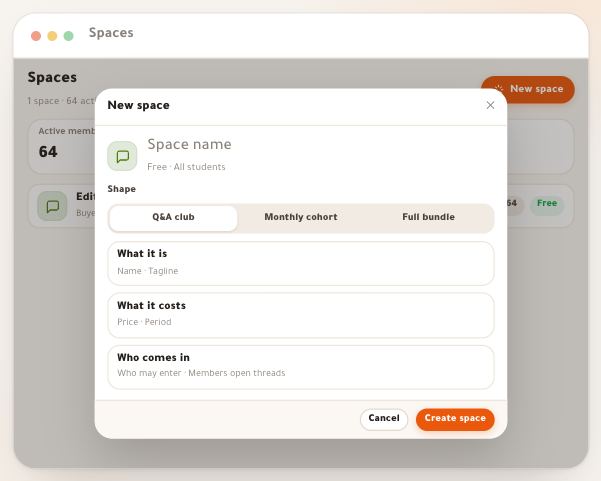
Three shapes: which one is yours?
“Q&A club” — free, “Everyone · members post · instant join”: for a course’s buyers asking afterwards, your answers staying for everyone. Sara’s example: the “Editing Q&A club”. “Monthly cohort” — 1,500 DZD/mo, “One group · paid · teacher posts”: weekly follow-up for one cohort, where you post classes and summaries. Her example: “October cohort — editing”. “Full bundle” — 4,000 DZD/mo, “Invite only · courses included · paid”: people you choose, and the subscription opens your courses while it runs. Her example: the “Content creator bundle”. Shapes only fill the form: everything stays editable.
On screenQ&A clubMonthly cohortFull bundleFree1,500 DZD/mo4,000 DZD/moTipA photography trainer: a free club for the “photo of the week”. A marketing coach: a monthly cohort following subscribers’ campaigns. A school teacher: a free space for an exam class, with announcements and events.
Heads-upA paid space can only be paid with a method ready in your school: CCP, BaridiMob or EDAHABIA and CIB.
- Step 5 of 5
Where your students find them
In the student portal, on a computer, a student switches between “Academy” and “Community” at the top of the menu: under “Community”, “All spaces”, their spaces by name with a “New” badge counting unread posts, and “Browse spaces”. On a phone, from “More” → “Community”. Their “Community” page shows “My spaces”, “Open to join” and the “General space”. Each space they open is marked read and its badge goes. What a student sees inside each space, step by step: the lesson “What students see in spaces”.
On screenAcademyCommunityAll spacesBrowse spacesMoreMy spacesOpen to joinGeneral spaceTipSend your students the space’s direct link: “Copy link” on any post copies it the way a student opens it.
From here
- Create your first spaceThe lesson “How to create a space”: shape, identity, price and who comes in.
- Learn the post typesNine types, and when to use each.
- Decide: free or paidWho gets in, how they pay, when a subscription ends.
- Follow your membersRequests, subscriptions and space health.
Questions
What’s the difference between the general space and a space?
The general space is one feed for all your students with access to a course, there without creating it, with no price, rules or phone notifications. A space is one you create for a specific audience, free or paid, with its members, settings and notifications.
How many spaces can I create?
The platform doesn’t limit the number of spaces. The panel beside the column shows the first 12; the rest are on the “Spaces” page.
Does a student see all my spaces?
No. They see the spaces whose rule allows them (buyers of a course, a group, or all your students enrolled in a course) and those you added them to. An invite-only space is visible to its members only.
Who on my team can run the community?
Anyone whose role has “Community & moderation”: owner, admin, teacher and assistant by default. Money columns show with “View payments”.
Can I export my list of spaces?
Yes: “Export CSV” at the top of the “Spaces” page, or select some spaces and then “Export”.
Can a space work like a Telegram channel?
Yes: turn off “Members open threads” and the space becomes your podium, with comments still open. Turn it on to make it a club where students write.