
Six ways to sell what you make
The same items sell in different ways: a fitness coach sells her programme in three tiers, a photographer gathers his courses in a bundle, a calligrapher lets buyers pick three courses out of six. You choose the type in “How you sell it”, and each type has its own price page, with suggested prices drawn from your current prices.
- About 10 minutes
- 6 steps
Who can do it: People with the “Offers” permission in the workspace.
 Let Noqta show you
In 6 steps
- 1“One item”: the price comes from the item’s settings, and it sells today through the current checkout page.
- 2“Bundle”: 2 to 12 items for one price, with three suggested prices and the saving line.
- 3“Pick what fits”: each item at its price, a special price for all, a minimum to pick.
- 4“Tiers”: two or three, each with its name, price, items and cap.
Before you start
- An offer open in “The offer sentence”, its items picked in “What you sell”; a type is offered only when it fits the number and kind of items.
- A published offer keeps its type: to try another, create a new offer from the same items.
- Every type is available in every workspace. If the Dirassa+ team pauses your workspace by hand, a banner shows at the top of the screen and the pages show “Notify me” until it is resumed.
- Step 1 of 6
“One item”
You sell one item at its usual price; the offer reads that price and never rewrites it, so every page keeps the same one.
- Where does the price come from?The item’s settings. To change it: “Edit the price in the item’s settings”.
- Where does it sell?“One item” works today with the current checkout page, the other types through the order sheet.
- Quantity pricesFor a space, sessions or a product, the sentence offers “Quantity prices”, which turns it into “By quantity”.
TipA one-item offer created by a showcase keeps its type: “A single-item offer keeps its type. To sell several items, create a new offer.”.
All the details
Tap the type in the sentence to open “How you sell it”: each type is a card with its name, description and an example in your numbers, and a line says where it sells: “Works today with the current checkout page” for “One item”, “Works now through the order sheet” for the others. Types that don’t fit your items are hidden and named in “These need more items: …”. In “One item” (“One item at its usual price.”) the offer doesn’t write the price: “This item’s price comes from its settings; the offer reads it and never rewrites it, so all its pages keep the same price.”; to change it, “Edit the price in the item’s settings”. For example “I sell Phone photography for 3,500 DZD”. For a space, sessions or a product, the sentence offers “Quantity prices”, which turns it into “By quantity”.
On screenHow you sell itOne itemWorks today with the current checkout pageWorks now through the order sheetEdit the price in the item’s settingsAdd a launch priceQuantity prices - Step 2 of 6
“Bundle”
You sell several items together for less than their separate value; the saving is computed and shown on its own.
- How many items?2 to 12 core items. With two, the bundle forms by itself, 20% below the separate value.
- Suggested pricesThree prices 15, 25 and 35% lower: for 8,000 DZD, 6,800, 6,000 and 5,200.
- When does the saving show?From 5% up, and only when every item sells on its own.
TipMore than five items, or one under 10% of the price? A warning comes with “Move it to “Comes with it””. Details in the “Add-ons and what comes with it” lesson.
All the details
A “Bundle” (“Every item together at one price.”) takes 2 to 12 core items: “I sell Phone photography + Photo editing + Lighting at home together for 6,400 DZD”. Pick two items and the bundle forms by itself, with a suggested price 20% below the separate value. On the price page you write the “Bundle price”, with “Suggested prices” under it: three prices 15, 25 and 35% lower, rounded down to 10 DZD under 1,000 and to 100 above; for a value of 8,000 DZD: 6,800, 6,000 and 5,200. Then “Worth 8,000 DZD separately today” and “The buyer saves 1,600 DZD (20%)”. Under 5%: “The price is close to the separate value: no saving line (it needs 5% at least).”; and if an item isn’t sold alone, no saving shows at all.
On screenBundleBundle priceSuggested pricesThe buyer savesAn estimate from your current prices; what buyers see is in the card under the sentence. - Step 3 of 6
“Pick what fits”
Buyers take what they need from your items, and whoever takes everything gets a special price.
- Each item’s price“Its price in this offer”; left empty, it keeps its usual price. 2 to 12 items.
- The price for allUnder it, the sum of the prices, say 10,600 DZD. If it isn’t below, the “Honesty notes” say so.
- The minimumThe “Minimum a buyer picks”, from 1 to the number of items.
All the details
“Pick what fits” (“Buyers choose one item or more, each at its price, with a special price for all.”) takes 2 to 12 items. A developer sells “Python basics”, “Web development” and “Databases”: “I sell … each at its own price · all for 8,500 DZD”. Each item has “Its price in this offer”; leave it empty for its usual price, and an item with no usual price needs one. Then “A special price for taking all”, with “Sum of the prices: 10,600 DZD” under it, to set the “Price for all”; if it isn’t below the sum, the “Honesty notes” say so. And the “Minimum a buyer picks”, from 1 to the number of items. The card lists every option, and “All” with its saving.
On screenPick what fitsIts price in this offerA special price for taking allPrice for allMinimum a buyer picks - Step 4 of 6
“Tiers”
Buyers compare two or three tiers, each with its items and price, and every tick in the comparison is true.
- In a tierA name, a price, what it holds ticked item by item, and an optional cap such as coaching seats. Up to three tiers.
- The compare tableIt is drawn from these ticks; every core item must be in at least one tier.
- Most chosenNever by hand: 20 paid orders over 90 days, and one tier holding 40% of them while leading alone.
All the details
“Tiers” (“Two or three tiers to compare, each with its items and price.”) need at least two core items. A fitness coach: “Essential”, the training programme, 2,500 DZD; “Complete”, adding nutrition and the follow-up space, 4,900 DZD; “Coaching”, 9,900 DZD. The type starts with two tiers named “Essential” and “Complete”; each has its “Tier 1 name”, its “Tier price” (with “Saves N% on its separate value”), “What it holds”, ticked item by item, and a “Cap for this tier (optional)”, such as coaching seats, counted on real orders. “Add a third tier” up to three. Every core item must be in at least one tier, and “the compare table is drawn from this membership, so every tick in it is true”. “Most chosen” is never picked: it shows when the offer has at least 20 paid orders over 90 days and one tier holds 40% of them while leading alone.
On screenTiersTier priceWhat it holdsCap for this tier (optional)Add a third tierRemove this tier“Most chosen” is computed from paid orders, never picked by hand. - Step 5 of 6
“Build your bundle”
Buyers build their own bundle from your list; the price comes from one rule you set once.
- A count for one price“Any 3 for 3,600 DZD”, a price kept below the cheapest 3 together.
- A growing discountOne to four steps, like “−10% for 2 · −20% for 4”; count and discount grow together.
- RoundingTotals round down to 10 DZD, in the buyer’s favour. 3 to 20 items.
All the details
“Build your bundle” (“Any number of items for one price, or a discount that grows with the count.”) takes 3 to 20 items. A calligrapher has six courses; the buyer picks. Two ways: “A count for one price” — “How many of 6?” (from 2 to one less than the number of items) and “Price for any 3”, with “The cheapest 3 together today: …” to stay below it; the sentence reads “I sell …: any 3 for 3,600 DZD”. Or “A growing discount”: one to four steps, each “From” a count (2 to 20) with a “Discount” (1 to 90%), both growing from one step to the next, like “−10% for 2 · −20% for 4”. Totals are rounded down to 10 DZD in the buyer’s favour. “Separate item prices in this offer” opens to set each item’s price inside the offer.
On screenBuild your bundleA count for one priceA growing discountFromDiscountAdd a stepSeparate item prices in this offer - Step 6 of 6
“By quantity”
Buyers take more for less per unit, in steps you set once.
- For which item?A space, sessions or a product, never a course: a course is bought once.
- The stepsTwo to six, the quantity growing: 1 for 1,200 DZD, 2 for 2,100, 3 for 3,000.
- Before publishingThe type is chosen before publishing, then fixed; changing it before removes a launch price tied to its options.
All the details
“By quantity” (“Quantity steps that cost less per unit as they grow.”) is for one item: a space, sessions or a product, never a course (“A course is bought once.”). A language tutor sells conversation sessions: the type starts with three steps from the “Price for one unit” of 1,200 DZD: 1 for 1,200, 2 at 10% off (2,100 DZD), 3 at 15% off (3,000 DZD), rounded down. Each step has its “Quantity” (1 to 20) and “Step price”, with “1,000 DZD each” under it. “Add a step” up to six: “Two to six steps, and the quantity grows at every step.”. The card shows each step with its unit price, and “Sold out” on a step the stock can’t cover.
On screenBy quantityPrice for one unitQuantityStep priceAdd a stepTwo to six steps, and the quantity grows at every step.Heads-upChoose the type before publishing. After that: “A published offer keeps its type; create a new offer of the other type.”; and changing type before publishing removes a launch price tied to the old type’s options.
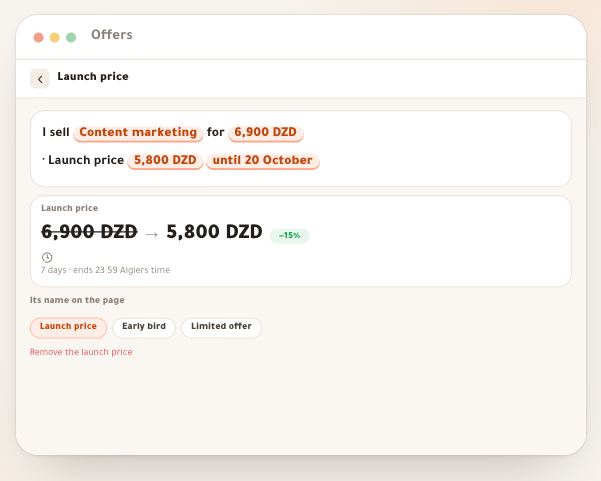
Once the type is chosen
Questions
Which page does each type sell through?
“One item” through the current checkout page, the other five through the “order sheet”. Nothing needs switching on: every workspace sells them by default. If the Dirassa+ team pauses your workspace by hand, its pages show “Notify me” until it is resumed.
Why can’t I see “Build your bundle”?
It needs at least 3 core items. Types that don’t fit are named under the cards in “These need more items: …”.
How are the suggested prices computed?
From today’s separate value: 15, 25 and 35% lower, rounded down to 10 DZD under 1,000 DZD and to 100 DZD above, never under 10 DZD. The first bundle price is suggested 20% lower.
Do I pick the “Most chosen” tier myself?
No. It shows by itself when the offer has at least 20 paid orders over 90 days and one tier holds 40% or more of them while leading the rest.
Can I sell a course by quantity?
No. “Selling by quantity is for products, sessions and spaces, not courses.”: a course is bought once.
How many tiers can I have?
Two or three. Each can have an optional seat cap, counted on real orders.
Does the course’s price change on its own page when I put it in a bundle?
No. The bundle price and the item prices inside “Pick what fits” or “Build your bundle” belong to the offer and don’t touch the item’s price in its settings.