
How to review payments and manage activation codes on Dirassa+
Every student who pays by CCP or BaridiMob transfer sends a receipt, and every receipt reaches you in “Incoming”, under “Sales”, among the “Receipts to check”, with one button: “Check receipt”. Behind it sits the “Payments log”: every order on a line, at the top what you collected this month and what waits for you, and every row says what it asks of you. You open the order in a popup — the same one from “Incoming” or the log — and see the receipt itself beside the amount due, approve or reject with a reason the student reads, and have five seconds to undo. From the “Cards” page you sell an activation card to one buyer who gets its code on WhatsApp, see who activated theirs and whose access is ending so you can renew it, print batches of cards for bookstores, look up a code a student says doesn’t work, and follow delivered cards until their money reaches you. Every button is explained, with what your student receives.
- About 13 minutes
- 9 steps
Who can do it: The “Payments log” and the accounts need “View payments”; approving, rejecting and settling courier money need “Approve payments”; the “Cards” page needs “Activation codes” (and the “Renewals” section “View students” too); shipping needs “Orders and delivery”. The owner and admins have them all; the default teacher role has none.
 Let Noqta show you
In 9 steps
- 1Receipts arrive in “Incoming”, under “Receipts to check”; every order is in the “Payments log” (through “⋯” in “Incoming”): the figures, “Needs you”, and every row says what it asks of you.
- 2Click an order: a popup shows the receipt to zoom into, the amount due, the account and the buyer.
- 3Approve, or reject with a reason the student reads; you have five seconds to undo before it is sent.
- 4From “Cards”, under “Sales”, sell one buyer a card: “Sell a card”, their WhatsApp number, “Create the card”, then “Send on WhatsApp” with a message carrying the code and the link.
Show all
- 5Follow the “Sales”: who activated their card and when, who hasn’t yet; renew access that is ending from “Renewals” with “Renew”.
- 6For bookstores and delivery: a “Batch to print” with its price, then print its cards from the batch page; “Stop” turns off an unused code when you need to.
- 7A student says their code doesn’t work: “Find a code” tells you its state and why.
- 8Follow delivered cards in “Shipping and printing” to the door, then confirm the funds received from the courier.
- 9Check “Accounts & balances” and price the code batches that have no price.
Before you start
- A payment method ready in “Payment methods”, under “Sales”: CCP, BaridiMob, cash on delivery or activation code — see the “Payment methods” guide.
- A published course with a price; a draft can’t be bought, and its card can’t be sold.
- The right permissions in your role: “View payments”, “Approve payments”, “Activation codes”, “Orders and delivery”.
- Access to your CCP account or BaridiMob, to check the money really arrived before you approve.
- Step 1 of 9
The “Payments log”: every order and what it asks of you
A receipt reaches you first in “Incoming” (“Sales” → “Incoming”): in “For you”, under “Receipts to check”, each row has one button, “Check receipt”, which opens the popup described in the next step — the full story is in the “Incoming” lesson. Every enrolment or purchase, finished or not, is in the “Payments log”: open it from “⋯” (“More”) at the top of “Incoming” → “Payments log and export”, or type its name in the ⌘K search. Under the title, a line such as “24 orders · 4 orders wait for you”, and beside it the page’s buttons: “Analyse my sales” asks Noqta to compare this month’s sales with last month’s, “Export”, “Payment accounts & methods”, “Shipping & print”; and while a receipt waits for you, one orange button such as “Review receipts (3)” opens the first. Below, two tabs: “Transactions” and “Accounts & balances”. Then the figures card: “Collected · this month”, net of what was given back, “Not collected”, split into “On delivery” and “No receipt”, then two figures you press: “Awaiting your review” and “To ship”, which leave only their orders in the list; a second press clears it. Below, four states in a row: “Needs you”, what waits for your decision or your parcel, “Awaiting payment”, what waits on the buyer, “Completed” and “All”; the log opens on “Needs you” while anything is in it. Every row says what it asks of you with a button: “Review receipt”, “Decide” for a cash-on-delivery order, “Ship”, or “Record the cash” when the money is with the courier and not recorded yet; when it waits on someone else, a quiet word says so, like “Awaiting receipt” or “With the courier”.
On screenIncomingReceipts to checkCheck receiptPayments log and exportPayments logAnalyse my salesExportPayment accounts & methodsShipping & printReview receipts (3)TransactionsAccounts & balancesCollected · this monthNot collectedAwaiting your reviewTo shipNeeds youAwaiting paymentCompletedAllReview receiptShipRecord the cashTipEvery order has one of five states: “Awaiting review” (a receipt waits for a decision), “Awaiting payment” (the payment isn’t complete yet, like a receipt not sent or a card on its way), “Paid”, “Rejected” and “Cancelled”; rejected and cancelled ones are under “More filters” → “Other states”. Search with “Search by name, phone, item or reference…”, narrow with “Period”, “Kind” and “Payment”, and under “More filters”, “Buyer” and “Receipt” (“No receipt” or “Has a receipt”). Choosing a “Period” changes the figure with it, like “Collected · last 7 days”. “Export” downloads what you see as a CSV that Excel reads in Arabic.
Heads-upOn the home page, the “Waiting for you” card says, for example, “3 receipts to review”, and its “Review” button opens “Incoming” on “For you”. Each tab shows only to those with its permission, and “Payment accounts & methods” to those with “Payment settings”. In a school, “Accounts & balances” doesn’t show: the teachers’ accounts live in “Contracts and commissions” and “Statements and payouts”.
- Step 2 of 9
Open the order: the receipt and what you check
Click a row or its button and the order opens in a popup in the middle of the screen, headed by the course, the reference and the date. On one side, the receipt image itself: enlarge it with “Zoom in” or a double-click, then drag it around; “Rotate” turns an upside-down photo, “Full size” opens it in a new window and “Download” saves it. On the other, what you check: the “Amount due”, such as 4,500 DZD for Yacine Benali, and under it what the buyer wrote, “Declared by the buyer: 4,500 DZD”; when they differ, a red badge such as “500 DZD short”; then how long it has waited, like “Arrived 3 hours ago”. Then “Payment” and the account the money should have reached: “To your account 0012345678 · key 90”. If the student already has access to this course, “Current access” says so, like “Has access via activation code since …”. Last, the “Buyer”: their name and a “Student” or “Guest” tag, “Student profile”, their phone, “WhatsApp”, their email, then “Previous orders” or “Their first order with you.”.
On screenZoom inRotateFull sizeDownloadAmount dueDeclared by the buyer: 4,500 DZD500 DZD shortPaymentTo your accountCurrent accessBuyerStudent profileWhatsAppPrevious ordersTipA CCP, BaridiMob or bank-transfer order with no receipt says “No receipt attached”: “No receipt is attached to this order — confirm the money arrived before approving.”, and it can’t be approved until its receipt is attached. If the same receipt was sent with another order, the popup warns you: “This same receipt was already sent for another order. Make sure it is a new payment before approving.” At the bottom, “On this record”: who decided and when.
Heads-upA receipt is an image the student uploads, not proof in itself: compare the amount and date with what really reached your CCP account or BaridiMob, not with the picture alone.
- Step 3 of 9
“Approve” or “Reject”, then “Undo” for five seconds
Above the buttons, one line says what approving will do before you click: “Approving enrols the student immediately.”, or for a subscription “Approving grants the student … of access from now.”. “Approve” opens the course to the student, who gets the notification “Course payment approved” — on their phone too if they installed your school’s app, with an email of the decision for a course or space order paid by transfer —, and their checkout page turns into “You have access to this course” with “Open the course”. “Reject” opens quick reasons, for a receipt order:“Amount short”, “Receipt unclear”, “Receipt already used”, “Money not received”, and the box “Reason shown to student (optional)”, then “Confirm reject” or “Cancel”. They get “Your receipt needs attention” with the reason (and an email with your reason), and read on their checkout page “The teacher refused the receipt”, then “The teacher’s reason” in your words, then “Send a valid receipt for the same order — don’t pay again.” After each decision, a bar such as “Yacine Benali’s order approved” stays with “Undo” for five seconds before it is sent, and the popup moves on by itself to the next order: “2 of 5” with “Next”. If the student already has access to this course, the button becomes “Approve and extend”, and this payment is added to their access.
On screenApproveRejectAmount shortReceipt unclearReceipt already usedMoney not receivedReason shown to student (optional)Confirm rejectCancelUndo2 of 5NextApprove and extendTipOn a computer: A approves, R rejects, J and K move, Z undoes. For several receipts at once, tick them (on a phone with “Select”) and a bar such as “3 orders selected” appears; “Approve 3 receipts” opens “Decide on the selection” with each receipt’s picture and the “Total” before anything happens, and bulk approval takes attached receipts only. A bulk rejection won’t run until you write the “Reason — the buyer reads it”.
Heads-upOnce those five seconds pass, or when you close the popup, the decision is sent and the popup can’t take it back; the platform doesn’t refund. If you approved by mistake, suspend the student’s enrolment in the course’s “Students” tab (status “Suspended”), settle the money with them and record what you gave back in the order’s “Refunds” section. EDAHABIA or CIB payments through Chargily, Visa / Mastercard and PayPal never reach you: they confirm themselves and show as “Paid”.
- Step 4 of 9
“Sell a card”: one card for one buyer, its code on WhatsApp
The “Cards” page (“Sales” → “Cards”) is built for a job that comes back every evening: a student messages you on WhatsApp and pays, and you sell them a card whose code reaches them in one message. At the top, the “Student places” line, such as “44 of 150 · 106 left · 3 reserved”, because “Each card holds a place until it is used or stopped.”; it becomes a card with a meter when your plan nears its limit. Below it, the orange “Sell a card” button — full width on a phone — with “Find a code” and “Batch to print” beside it. “Sell a card” is a short popup that opens on a single line such as “Mathematics — Bac 2026 · 1 month · 1,500 DZD”: the course, period and price of the last card you sold, otherwise the first published course and the price of its first period; “Change” opens the “Course”, the “Card access duration” and the “Price (DZD)”. Then the “Buyer's WhatsApp number (optional)”, “Their name (optional)” and “Create the card”. The result shows in the same popup, “The card is ready”: the code in large type — tap it to copy it, “Code copied” —, the “Ready · not activated yet” tag, then the orange “Send on WhatsApp to 0555 12 34 56”, which opens the buyer’s own chat with the message already written (with no number, WhatsApp lets you pick the chat), “Copy message”, “Another card” for the next buyer, with the same course, period and price, and “Done”.
On screenCardsStudent placesSell a cardFind a codeBatch to printChangeCourseCard access durationPrice (DZD)Buyer's WhatsApp number (optional)Their name (optional)Create the cardThe card is readyReady · not activated yetSend on WhatsApp toCopy messageAnother cardDoneTipThe message is in your dashboard’s language, and it is the same wherever you send it from: “Hello Yacine Benali,” then “Your card for “Mathematics — Bac 2026” is ready — 1 month.”, “Code: …”, “Open the link and create your account if you don't have one; the course opens by itself:”, the link alone on its line — it opens “Activate your card” at your academy with the code filled in —, then your academy’s name. “Sell a card” is also at the top of “Incoming”, in the navigation’s “+” menu, in the ⌘K search, and on a long press of your dashboard app’s icon on Android.
Heads-upA draft shows in the list marked “Draft” and can’t be picked, because its card opens nothing until you publish it; with no published course at all, the popup says “No published course yet: a card opens a published course.” with “Open courses”. A published course with no published lesson can be picked, but the popup warns: “No published lesson in this course yet: whoever activates a card walks into an empty course. Publish at least one lesson before handing out cards.” with “Open the curriculum”. A number WhatsApp can’t use is refused before the card is made: “This number won't work on WhatsApp.”. If your plan’s places are full, no card is created and the popup offers “Raise the limit”. Two presses on “Create the card” — or a retry after the network drops — give the same card, not two.
- Step 5 of 9
“Sales” and “Renewals”: who activated, who is waiting, whose access is ending
Under the buttons sits the “Sales” log: at its head the month line, such as “This month: 8 cards · 12,000 DZD · 6 activated”, and the “Code, name or number” search. Sales are grouped by day, on Algiers time — “Today”, “Yesterday”, then the date —, thirty at a time, then “Show more”. Each row gives the buyer’s name, or their number, or “No name — add a name” to tap and fill in, then the course, period, price and time, and where the card stands: “Activated after 6 min” (with the name of whoever activated it when that isn’t the buyer), “Not sent yet”, “Sent · not activated yet” — “Sent” as soon as you press send or copy the code or the message —, or “Stopped”. After a whole day without activation the state turns orange: “Unused for 2 days — message them”. While the card is valid, the end of its row has a WhatsApp button that sends the same message again and a button that copies the code. The row itself opens the card: the code and sending, “Edit” for the buyer, and “Stop the card”. Above the sales, the “Renewals” section, when someone’s access is ending: such as “3 ending this week · 4 ended”, and for each student “ends in 2 days” or “ended 3 days ago” with their course, and one button, “Renew”, which opens “Sell a card” already filled in: their name, their number, the same course, the period and price of the last card they activated, and a message that says “Renew your access to “…” with this card”. “Just remind” opens WhatsApp with a reminder, no card.
On screenSalesCode, name or numberTodayYesterdayShow moreadd a nameNot sent yetSent · not activated yetStoppedEditStop the cardRenewalsRenewJust remindTipThe “This month” line adds up the prices of the cards you sold this month: sales, not profit. “Accounts & balances” and the analytics’ “Confirmed sales” count a card’s money on the day it is activated, at its price; a card sold but not yet activated isn’t in them yet. A card you haven’t sent after a whole day shows “Not sent yet” in orange too.
Heads-upIn “Renewals”, a student who already holds a sold card they haven’t used says so — “Already holds an unused card” — and their button becomes “Send it again”, which opens that card: you don’t sell them a second one. If your school hides students’ phones from you, “Just remind” becomes “Copy reminder”. The section shows to members with “View students” as well as “Activation codes”, and counts access ending in the next two weeks or ended in the last two, six first then “Show all”. And if active cards wait on an unpublished course, a line under the buttons says so, such as “40 active cards are on “Natural sciences — Bac 2026”, an unpublished course — they won’t work until you publish it.”, with “Open the course”; a student holding one reads “This course isn’t open for enrolment yet, and your card wasn’t used. Message the teacher.”.
- Step 6 of 9
“Batch to print” and the batch page: cards for bookstores and delivery
For bookstores and delivery you print a batch. “Batch to print” opens a popup that first says how many places your plan has left, then: the “Course” — a draft is accepted here with its mark, with the line “This course is a draft: its cards won't work until you publish it.” and “Publish the course”, and a published course with no published lesson warns “No published lesson in this course yet: whoever activates a card walks into an empty course…” with “Open the curriculum” —; the “Card access duration” for a subscription course — “Starts at activation. Renewals add to the remaining access time.” —; the “Quantity”, from 1 to 500 (20 to start); the “Code price (DA)”, which is required: it starts from the price of the course or of the chosen period, so enter what a code really sells for, and 0 for free cards; and the optional “Batch name”, such as “El Amel bookstore — October”. The button says what will happen, such as “Generate 100 codes”, and takes you to the batch page: its name, then a line such as “Mathematics — Bac 2026 · 98 available · 2 used · of 100 · 4,500 DZD per card · made …”, and “Print cards” while there is something to print. Printing produces a sheet of cut-ready cards, two per row, with available codes only: each “Activation card” carries your academy’s address (your own domain if you connected one, never the platform’s name), the course, the access duration, the code and a QR code that opens “Activate your card” on the student’s phone with the code filled in; then three steps: scan the QR code or open your address followed by /join, create an account or sign in, tap “Activate card”. Below, every code on a row with its state: “Available”, “Used” with the name of the student who redeemed it and the date, “Stopped” or “In a parcel”; an available code has a button that copies it and “Send on WhatsApp”, with the same message as a sale — you pick the chat. “Stop” blocks an unused code — whoever types it reads “The teacher turned this card off — message them to replace it.” — and “Turn back on” brings it back.
On screenBatch to printCoursePublish the courseOpen the curriculumCard access durationQuantityCode price (DA)Batch nameGenerate 100 codesPrint cardsActivation cardAvailableUsedStoppedIn a parcelSend on WhatsAppStopTurn back onDelete batchTipOn the “Cards” page your batches sit under “Printed batches” — folded once you have sales —, each with its course, its date and something like “28 available · 12 used” with a thin bar. The row opens the batch, and its menu holds “Print cards” (the page and the print window at once) and “Price batch” for a batch with no price. There’s no CSV export of codes: the browser’s print window saves them as a PDF for a print shop.
Heads-upIf “One batch has no price — the ledger can't count their activations, and they block closing the month.” shows, press “Price them”: for each used batch with no price, a “Code price” box then “Save”, or “Use the course's price today”. “Delete batch” only appears while no code has been used or gone out in a parcel, and asks before it deletes; if the batch holds cards you sold or sent, it says so: “… — whoever paid will hold a code that doesn't work. Delete only if they were refunded.”. After the first activation the batch stays, because its history is part of your accounts: stop unsold codes instead of deleting.
- Step 7 of 9
“Find a code”: when a student says their code doesn’t work
A student tells you “my code doesn’t work” — on the phone, or through “Message the teacher on WhatsApp” under the refusal they read, with a ready message giving the last four characters of their card, such as “Hello, my card for “Mathematics — Bac 2026” doesn’t work (it ends in H4TP).”. Press “Find a code” on the “Cards” page (on a phone: the search icon beside “Sell a card”), type in “Code” what they read to you, as it is — in lower case, with spaces, without dashes, or just a part of at least 4 characters, like the four in their message — then “Search”. The code’s card appears: the whole code with a button that copies it, its state — “Available”, “Used”, “Stopped”, “Expired” or “In a parcel” —, a sentence saying why the site accepts or refuses it, then the “Batch” — or the “Buyer” for a card you sold —, the “Course”, and for a used code “Used by” with the student’s name and the time it was redeemed. From the card itself: “Send again on WhatsApp” for an available code — to its buyer’s number when you sold it to one —, “Stop” or “Turn back on”, and “Open batch”, or “Open the sale” for a sold card.
On screenFind a codeCodeSearchAvailableUsedStoppedExpiredBatchBuyerCourseUsed bySend again on WhatsAppStopTurn back onOpen batchOpen the saleTipThe student can type their code any way too: lower case, spaces, dashes and Arabic digits don’t matter, so “k7qf ٢٩xm h4tp” is “K7QF-29XM-H4TP”, and they can paste your WhatsApp message as it is: the code is picked out of it. No code contains 0, O, 1, I or L: the field tells them so before sending — “Codes never contain 0, O, 1, I or L — compare it with the card, character by character.” —, as it does for letters of another alphabet or a short code (“The code has 12 letters and digits; you typed 11.”). If you type one of them here, the popup says a character was probably misread; go through the code with the student one character at a time.
Heads-upOnly your own codes show here: a card from another teacher gives “None of your codes matches.”. And “Turn back on” for a stopped code holds a place for it again. After ten refused tries in a quarter of an hour, activation pauses on the student’s account: “Too many tries — try again in 9 minutes. Your card wasn’t used.”; look their code up here before they try again.
- Step 8 of 9
Delivered cards: from the order to the money
When a student picks “Order a card”, a code from the course is reserved for them; their order appears in “Incoming” under “Parcels to ship” with “Ship”, and the shipment itself on the “Shipping and printing” page: open it from “⋯” at the top of “Incoming” → “Shipping and printing”, with the ⌘K search, or as a window from the top of the “Payments log”. In “Transactions” its order says “Ship” while it is still with you, and the “To ship” figure counts it. A shipment moves through “To prepare”, then “Mark shipped” (with the “Tracking #” and the courier: Yalidine, ZR Express or manual), then “Mark delivered” or “Return”. Select shipments and print “Activation cards” — a personal A5 card with “Welcome, Yacine”, the code, a “Scan to activate” QR and your message — or “Print tracking”, a manifest for the courier. At “Mark delivered” the money sits with the courier: “Student paid; funds are held by the courier”, and the order moves in “Incoming” to “Cash with the courier” with “Record cash”. When the money really reaches you, press “Confirm funds received from courier” in the order’s popup.
On screenParcels to shipShipShipping and printingShipping & printNew shipmentTo prepareMark shippedMark deliveredReturnTracking #Activation cards (1)Print tracking (1)Cash with the courierRecord cashConfirm funds received from courierTipThe code opens the course, not the delivery: the student enters it from “Received your card? Enter its code”. For a student who ordered by phone, create the shipment yourself with “New shipment” and an available code is reserved for them — never a code you sold, sent or copied, which already belongs to someone. The call status — “New”, “Confirmed”, “No answer”, “Postponed”, “Refused” — helps you confirm the order by phone before shipping.
Heads-up“Return” on an undelivered shipment cancels its order. No shipment without available codes: “No codes available for this course — generate a batch first.” Confirming the funds needs “Approve payments”.
- Step 9 of 9
“Accounts & balances”: the month’s revenue and what’s unsettled
The “Accounts & balances” tab of the “Payments log” — the same as what “Accounts” opens under “Sales” — is a ledger derived from the records themselves, written by nobody. At the top, three figures for the month: “Month's revenue”; “Unsettled” — what teachers are owed and haven’t been paid yet —; and “Unpriced batches”: activations from batches with no price, which “block closing”. Below, “Code batches with no price”, each with “12 of 40 used”: type the “Code price” and press “Save”, and its activations join the statement. Then one card per teacher: “This month”, “Subscribers” and “Owed”, opening their statement and compensation rule.
On screenAccounts & balancesAccountsMonth's revenueUnsettledUnpriced batchesCode batches with no priceCode priceSaveThis monthSubscribersOwedTipBatches minted in the past from a course’s “Students” tab were created with no price, so they show up here until you price them, here or with “Price them” on the “Cards” page. Today “Activation codes” there opens the same “Batch to print”, where the code’s price is required.
Heads-upIn a school this tab doesn’t show: the teachers’ contracts and statements live in “Contracts and commissions” and “Statements and payouts”, and batches are priced from “Cards”.
After the log and the cards
- Follow your studentsWho got in and how, and whose access ends soon, in the “Students” directory.
- Set your payment methodsWhat the student sees at checkout, for the whole school or course by course.
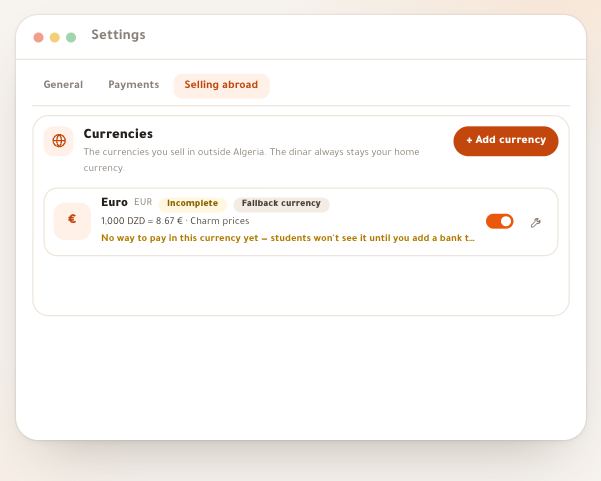
- Sell outside AlgeriaCurrencies, derived prices, bank transfer and PayPal in “Selling abroad”.
- Read the teachers’ statementsEach teacher’s rule and monthly statement, from their card in the accounts.
Questions
How do I approve a receipt a student sent?
Open “Incoming” under “Sales”: the receipt is in “For you”, under “Receipts to check”; press “Check receipt” on its row (or “Review receipts (3)” in the “Payments log”). Compare the receipt image and the “Amount due” with what really reached your account, then “Approve”: the student gets what they paid for and a notification. You have five seconds to “Undo” before it is sent.
How do I know a new receipt has arrived?
A notification reaches you and opens “Incoming”, which carries the count of what waits for you under “Sales”. The receipt also shows up in the “Inbox”, under “Receipts to review”, and on the home page the “Waiting for you” card says how many receipts wait for your review, with a “Review” button that opens “Incoming”. In the “Payments log”, the “Review receipts (3)” button is there while a receipt waits for you, and the “Awaiting your review” figure on the figures card shows them on their own.
I approved a payment by mistake. Can I undo it?
Within five seconds, yes: press “Undo” in the bar under the buttons (or Z on a computer) before it is sent. After that there’s no button, because approving opened the course: suspend the student’s access in the course’s “Students” tab (status “Suspended”) or from their profile in the directory, settle the money with them directly and record what you gave back in “Refunds”, in the order’s popup. The platform doesn’t refund by itself.
The student paid only part of the amount. What do I do?
The popup puts the “Amount due” beside what the buyer declared, and says something like “500 DZD short”. There’s no partial approval: reject with the reason “Amount short”, which the student reads before sending a valid receipt for the same order, or contact them with “WhatsApp” so they complete the transfer, and approve once the full amount has arrived. To let students pay in stages, price the course as “Installments”.
The student already has access to the course. What happens when I approve their new payment?
The popup shows “Current access”, and the button becomes “Approve and extend”: this payment is added to the access they already hold. If their access is suspended, reactivate it from their profile before approving.
A student says their code doesn’t work. What do I do?
Their screen already told them what to do, such as “We couldn’t find this code at …. Compare it with the card character by character”, with “Message the teacher on WhatsApp” and a message giving the card’s last four characters. Press “Find a code” in “Cards” and type the code as they read it to you, or those four characters. Its card says whether it is “Available”, “Used” (by whom and when), “Stopped” or “Expired”, and why the site refuses it. If it is stopped, press “Turn back on” on the card itself.
Can the same code be used twice?
No. A code redeems once; whoever enters it afterwards reads “This card was activated on …. If that was you, sign in with that account; otherwise message the teacher with a photo of the card.”, without the name of who redeemed it. The batch page and “Find a code” show you, next to every used code, the name of the student who redeemed it and the date.
A student lost their card. What now?
If it hasn’t been used, look its code up with “Find a code” or open its batch page (or its row in “Sales”), and press “Stop” — whoever finds it reads “The teacher turned this card off — message them to replace it.” — then give the student another “Available” code or a new card from “Sell a card”. If they had already redeemed it, nothing is lost: access belongs to their account, not to the card.
How do I know a student activated their card?
You get a single notification with their name and course, such as “Yacine Benali activated their card for “Mathematics — Bac 2026”” and “Access until 03/11/2026.” (or “Lifetime access.”), which opens that course’s Students tab; no “New student” is added for the same student; for a card you sold, its row in “Sales” turns to “Activated”. If a card holder is turned away because the places are full or the academy is closed, you get “A student with a card couldn't get in: no places left” (or “…: the academy is closed”), with their name, the course and “The card is safe and unused.”; it doesn’t repeat the same day while you haven’t read it.
How do I sell a card to a student on WhatsApp, or codes in a bookstore?
For one student: “Sell a card” in “Cards” (or at the top of “Incoming”), type their number in “Buyer's WhatsApp number (optional)” and press “Create the card”, then “Send on WhatsApp to …”: they get the code and the activation link in one message, and the sale shows in “Sales” with its price. For a bookstore or shop: one “Batch to print” per point of sale, under its name — for example “El Amel bookstore — October” — at the price the code sells for there, then print the cards and hand them over; the batch page tells you how many have been used. “Accounts & balances” counts each activation at its card’s price, on the day it is activated. Settling with the bookstore itself happens between you, outside the platform.
I sold a card on WhatsApp. How do I follow it?
In the “Sales” log of the “Cards” page: its row says “Not sent yet” until you press send or copy the code or the message, then “Sent · not activated yet”, then “Activated after 6 min” once they activate it — and a notification with their name reaches you. After a whole day without activation it turns orange: “Unused for 1 day — message them”, and the WhatsApp button at the end of the row sends them the same message again. If you sent it to the wrong person or they didn’t pay, open the row and press “Stop the card”: the site refuses it until you press “Turn back on”. The “Code, name or number” search finds it too.
How do I know who should renew, and renew for them?
The “Renewals” section above “Sales” counts access ending in the next two weeks and access that ended in the last two, nearest first, such as “ends in 2 days” or “ended 3 days ago”. “Renew” opens “Sell a card” with their name, number and course, the period and price of the last card they activated, and a message that says “Renew your access to “…” with this card”: when they activate it from their account, the time is added to what they have left. A student who already holds an unused card gets “Send it again” instead of a second card. “Just remind” opens WhatsApp with a reminder and no card, which they answer if they want to renew. The section needs “View students” as well as “Activation codes”.
Who can approve payments?
Anyone with “Approve payments” in their role: always the owner and admins, and any member you grant it to. “View payments” on its own shows the ledger without the decision buttons, and the default teacher role has neither. If a colleague decided first, you see: “Someone decided this order before you — refresh to see it.”
I minted codes from the course’s “Students” tab. Where are they?
In “Cards” (“Sales” → “Cards”), under “Printed batches” (unfold them if they are folded); you land on their page as soon as they’re generated. “Activation codes” opens “Batch to print”, where the code’s price is required; an older batch minted there with no price is priced with “Price them” in “Cards” or in “Accounts & balances” → “Code batches with no price”, for its activations to count.