
Free file and waitlist: pages that gather interested people before you sell
Not every showcase sells right away. Some give a file in exchange for a name and phone, others gather people waiting for your next course so they hear on launch day. These pages never lead to a payment, visitors need no account, and everyone who signs up lands in “Leads” and at the follow-up desk. The examples: Amina, a marketing coach, gives a PDF guide; Sami, a programmer, opens a waitlist for his next course.
- About 5 minutes
- 5 steps
Who can do it: Creating the page and uploading the file need “Edit showcases”, publishing it “Publish showcases”. The leads list is for “Edit showcases” or “Manage offers and prices”.
In 5 steps
- 1Three pages that gather leads: a free file, a free live for a free course, and a “Waitlist” for what isn’t on sale yet.
- 2Upload the free file in the draft or from the “Free file” screen: PDF, book, image, audio, video or document, up to 100 MB.
- 3The “Sign-up form” section: its kind, what people get, its fields and your questions, the consent text and when you call back.
- 4Visitors write their name and number and consent, then see “You're signed up” with the file or the calendar, with no account and no payment.
Before you start
- For a free file: the file itself ready on your phone or computer, up to 100 MB. No catalog item needed.
- For a waitlist: the item that will be sold exists on your platform, even as a draft.
- A published privacy policy: the form puts its link beside the consent text.
- The “Edit showcases” permission.
- Step 1 of 5
Three pages that don’t sell yet
Pages that gather names and numbers before you sell, and never lead to a payment.
- The free fileThe “A free file for a name and phone” card: no item, and a short “Free” page.
- The waitlistPick the item, then “Gather interested people before sales”: a “Be the first to know on launch day” form replaces the buy button.
- The free liveFor a free course with an upcoming live: “Free sign-up”, and the page shows the live’s date.
Tip“Free sign-up” doesn’t show for an item that’s sold: a free page never leads to a payment.
All the details
The free file: on the first stage of “New showcase”, pick the “A free file for a name and phone” card (“A PDF guide, a template or a recording: it arrives right after sign-up, with no payment and no account.”). No item to pick, the goal becomes “Free sign-up” alone, and the “Free” page is short: the opening, the form with the file’s cover, what they’ll learn, then who you are. The waitlist: pick the item, then in “Who and why?” “Gather interested people before sales”: the page becomes a “Waitlist”, with a “Be the first to know on launch day” form instead of a buy button. The free live: for a free course with an upcoming live, pick “Free sign-up”: the form becomes “Save your seat at the free live session” and the page shows the live’s date.
On screenA free file for a name and phoneFree sign-upFreeGather interested people before salesWaitlist - Step 2 of 5
Upload the file: in the draft or from “Free file”
You upload your file once; everyone who signs up gets it through a private link, never a public one.
- What can you upload?PDF, EPUB, ZIP, an image, audio, MP4 video or a DOCX, PPTX or XLSX document, up to 100 MB.
- Who gets it?Only people who signed up, through a link that expires after 15 minutes. The file sits in your workspace’s private storage.
- Forgot the file?“Ready to publish?” flags it in red with “Upload the file”. Uploaded to a draft, it reaches sign-ups once published.
TipThe file goes to your workspace’s private storage, not a public link: only people who signed up get it, through a link that expires after 15 minutes.
All the details
After “Create the draft”, stage 4 shows the “Upload the free file” card: “A PDF, image, audio or archive, up to 100 MB. It is handed over by a private link that expires after 15 minutes.”. Tap “Choose the file”: “Uploading… 64%”, then ““…” uploaded”, and “Test the download” opens the file as it will arrive. Accepted types: PDF, EPUB, ZIP, JPG, PNG and WEBP images, MP3 and M4A audio, MP4 video, DOCX, PPTX and XLSX documents. If the form has no file, “Ready to publish?” flags it in red, “A “free file” form with no file…”, with “Upload the file”: the “Free file” screen opens in a new tab while the editor stays open; upload there or “Replace the file”, then “Back to the editor”.
On screenUpload the free fileChoose the fileReplace the fileTest the downloadUpload the fileFree fileFormBack to the editorHeads-up“The file is larger than 100 MB.”: export a lighter copy; “Your workspace's storage is full.”: storage is full. A file uploaded to a draft: “Sign-ups get the file once the page is published.”
- Step 3 of 5
The “Sign-up form” section in the editor
The form is a section whose layout and kind you choose, asking what you need to know about each person.
- The form type“Waitlist”, “Notify on opening”, “Free file”, “Free live” or “Call me back”, each with its own heading and button.
- What to ask?Name and phone always. You add email, wilaya and up to 3 questions, whose answers show with every lead.
- “When you call back”For “Call me back”: the person reads it after sending, so pick what you’ll really keep to.
The 6 layouts
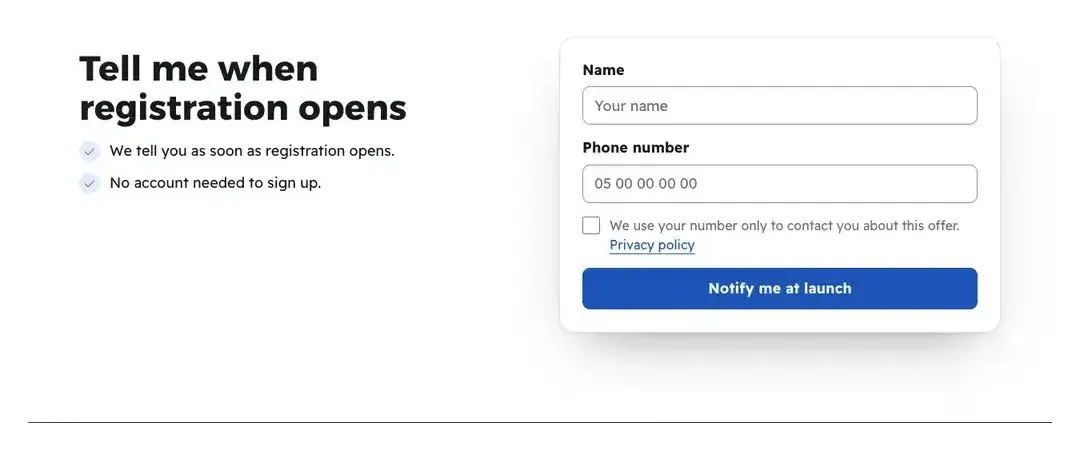
CardYour promise beside the form card. TipAmina asks one “Pick from a list” question: “What’s your business?”, with three choices. Answers show with every lead, so you know whom to call first.
All the details
The form is a section like any other, in six layouts: “Card”, “Cover”, “Centred”, “Dark slab”, “Ticket” and “With benefits”. In its settings, “Form type”: “Waitlist”, “Notify on opening”, “Free file”, “Free live” or “Call me back”, each with its own heading and button. Name and phone are always asked; you add the “Email field”, the “Wilaya field” and “Your questions (up to 3)”: each with an “Answer type” (“Short text”, “Pick from a list” with up to 4 choices, “Yes or no”) and “Answer required”. Then “What they get” (up to 3 lines), “Consent text” (the privacy policy link is added automatically), “File cover”, and for “Call me back” “When you call back”: “today”, “within 24 hours” or “within two days”. The “With benefits” layout sets what the person signing up gets beside the form, under “What signing up gets you”: above it the cover (the file’s, else the offer’s) only when it can be shown, and for “Free live” the next live date first. Its points replace the “What they get” lines: until you write anything, the standard points of this form type show as they are (for “Free file”: “The file arrives as soon as you sign up.”, “No account needed to get it.”, “Free, with no payment at all.”), and once you write your own in “What signing up gets them (up to 4)”, each with its “Icon”, they take their place.
On screenSign-up formCardCoverCentredDark slabTicketWith benefitsWhat signing up gets them (up to 4)IconForm typeWaitlistNotify on openingFree fileFree liveCall me backEmail fieldWilaya fieldYour questions (up to 3)Answer typeAnswer requiredWhat they getConsent textWhen you call backHeads-up“When you call back” is read by the person after sending (“We will call you within 24 hours…”), so pick what you’ll really keep to.
- Step 4 of 5
What visitors see
Visitors sign up with a name and phone in seconds and get what was promised at once, with no account and no payment.
- ConsentWithout the tick beside “Privacy policy”, nothing is sent. The number starts with 05, 06 or 07.
- After sendingThe “You're signed up” panel: “Download the file” through a link that works 15 minutes, “Add to calendar”, or a message on launch day.
- Already signed up?They read that their number is already on the list, with no need to sign up again.
TipThe form works even before the page finishes loading on a slow phone, and reports the sign-up to the pixel when one is set up.
All the details
They write their “Name” and “Phone number” (a number starting with 05, 06 or 07), plus the email, wilaya and questions you added, and tick the consent beside “Privacy policy”; without it nothing is sent: “Please agree to the use of your number first.”. No account, no payment. After sending, the form gives way to a “You're signed up” panel with a line for its kind: “The file is ready. Download it now.” with “Download the file” and “The link works for 15 minutes, so download and keep the file now.”; or “Your seat is saved. Add the date to your calendar.” with “Add to calendar”; or “We will write to your phone on launch day.” for a waitlist. A number already signed up reads “Your number is already on the list; no need to sign up again.”.
On screenNamePhone numberPrivacy policyYou're signed upDownload the fileAdd to calendar - Step 5 of 5
Where leads land
Everyone who signs up lands on the showcase’s page and at the follow-up desk, so nobody gets lost.
- What you seeName, status, type, date, phone and email, where they came from, and answers to your questions.
- One tap“Call”, “WhatsApp” and “Follow up”. The WhatsApp message is ready and you send it yourself; nothing goes out in your name.
- The whole list“Download CSV” for a spreadsheet, “Open the follow-up desk” to call them in order and log every try.
Tip“Answering within the first hour makes the difference.” Open the desk every morning: missed appointments first, then people nobody has called.
All the details
Everyone who signs up shows on the showcase’s page: in “Latest leads” on “Overview”, and in full in the “Leads” tab, newest first: name, status (“New”, “Contacted”, “Bought”, “Dropped”, “Unsubscribed”), type, date and time, phone and email, where they came from, and answers to your questions. For each person, “Call”, “WhatsApp” and “Follow up”. At the top, “Download CSV” and “Open the follow-up desk”: “At the desk you call them in order, log every try, and nobody gets lost.”. There they sit in the “Leads” lane with their form type.
On screenLatest leadsLeadsNewContactedBoughtDroppedUnsubscribedCallWhatsAppFollow upDownload CSVOpen the follow-up deskHeads-up“WhatsApp” opens your chat with a ready message you edit and send yourself; nothing goes out in your name automatically.
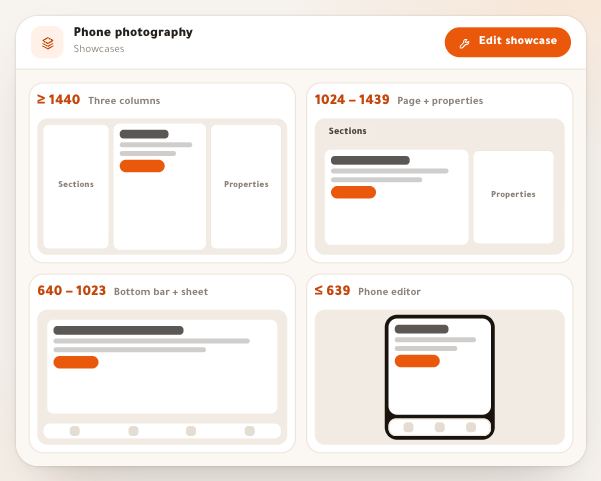
Once leads start arriving
Questions
Does the person need an account?
No. Name, phone and consent are enough, and the file arrives at once. No account and no payment on any free page.
What’s the largest file I can upload?
100 MB, as PDF, EPUB, ZIP, JPG, PNG, WEBP, MP3, M4A, MP4, DOCX, PPTX or XLSX. The file counts toward your workspace’s storage.
Why does the download link expire after 15 minutes?
So your file stays with the people who signed up: the link can’t be posted in a group. That’s why the panel tells them to download and keep it right away.
What happens to the waitlist when sales open?
It stays in “Leads” and at the follow-up desk, with the numbers. Create the sales showcase, then call or message them from the desk. In “Settings”, a stopped showcase can also show “An “ended” page with a waitlist”.
Can I download the list?
Yes: “Download CSV” in “Leads” gives name, phone, email, type, status, date and answers, readable in any spreadsheet.
Can I put the form on an ordinary sales page?
Yes, add the “Sign-up form” section to any showcase and pick its kind, like “Call me back” for people who want to ask before buying.