
The studio before air: your devices, backstage, slides and scenes
The studio is a full browser page you broadcast from, on a dark background so your face and slides stand out. Before going live you pass three stops: the device check (a minute), backstage where nobody sees you yet, then “Go live”. Here Salim Bouzid prepares tonight’s Unit 3 review at 20:00: he tests his devices, sees Manel the moderator ready, pins Amina’s question to start with, uploads his slides and picks “Slides + camera”. The same road for a photography trainer sharing Lightroom, or an English tutor writing on the board. The Dirassa+ room isn’t open yet: until it is, every live runs on a Google Meet or Zoom link, with no studio; this lesson describes the studio as it works once the room opens.
- About 5 minutes before each live
- 6 steps
Who can do it: The host and co-host see the full studio; the moderator sees the moderator console, without broadcasting.
In 6 steps
- 1Open the studio from “Open backstage” on Home or “Open the studio” on the live’s page, from 30 minutes before.
- 2“Device check”: picture and light, mic, speaker and upload speed (“Good”, “Fair”, “Weak”), then “Enter backstage”.
- 3Backstage, “Before you start”: the team and who is in, questions written ahead and “Pin for the start”, who is waiting.
- 4Slides: “Upload slides (PDF)” up to 100 MB, turned with the arrow keys; the board in four colours.
Before you start
- A recent browser on a computer (to share your screen) or a phone, with camera and microphone allowed.
- Your slides in one PDF file, if you use any.
- A live in the “Dirassa+ room”, once it opens; a live on an outside link has no studio and starts with “Start and open” on its page.
- Step 1 of 6
When and how to enter the studio
Backstage opens 30 minutes before the start, through three doors.
- Three doors“Open backstage” on Home, “Open the studio” on the live’s page, “Enter the studio” in the curriculum.
- 30 minutes beforeEarlier, you read when it opens, and the page connects by itself on time.
- One windowThe studio opens in one window; another one offers “Open it here”.
TipSalim opens backstage at 19:40: that leaves him 20 minutes to test his devices, upload his slides and pin the opening question.
All the details
The studio has its own address (/live/…/studio) and opens with your account. You reach it from Open backstage on Home’s next-live card, from Open the studio on the live’s page, or from “Enter the studio” on the live lesson’s line in the course curriculum. Backstage opens 30 minutes before (change it in “Live settings”); earlier, the screen says when it opens, with “Try again”, and the page connects by itself when the time comes. The studio opens in one window only: elsewhere you read “The studio is open in another window” and “Open it here”. For a live on a Meet or Zoom link: “This live runs on an outside link”, with “Open the meeting”. The host and co-host get the full studio; the moderator enters the moderator console: they see what students see and run chat, hands, pins and polls, with no camera.
On screenOpen backstageOpen the studioEnter the studioTry againThe studio is open in another windowOpen it hereThis live runs on an outside linkOpen the meeting - Step 2 of 6
“Device check”: a minute before backstage
Before you connect to the room, we see your picture, hear your voice and measure your upload speed.
- Picture and lightMirrored for you; we say if it’s dark.
- SoundA meter for the mic, a chime to test the speaker.
- InternetUpload speed and its verdict: good, fair, weak, very weak.
TipThe result is kept for seven days: the live’s page marks it under “Ready?”, and Home doesn’t ask for another check before your live.
All the details
As the studio opens, the Device check appears. Camera: this is how learners see you, mirrored for you only; light is checked every two seconds (“Lighting is good”, or a hint to put the light in front of you). Mic: a meter follows your voice, up to “Talk… we hear you well”. Speaker: earphones keep echo away from learners, and “Test” plays a chime (“Did you hear the chime?”). Internet: we measure your upload in a few seconds and give a verdict: “Good” (camera and screen together), “Fair” (camera, lighter screen), “Weak” (sound and slides first), “Very weak” (sound and slides without camera); “Measure again” repeats it. With more than one camera or mic, “Change” picks between them. Then Enter backstage: there, learners can’t see or hear you, and your choices are kept for next time. You can’t enter without a mic.
On screenDevice checkCameraLighting is goodMicSpeakerTestInternetGoodFairWeakVery weakMeasure againChangeEnter backstageHeads-upThere is no background blur. Choose a quiet spot, with the light in front of you, not behind.
- Step 3 of 6
Backstage: “Before you start”
Connected to the room while nobody sees you: your picture as it will appear, your team, students’ questions, who is waiting.
- The teamModerator and co-host: in now, or not yet.
- Questions aheadPin one; it shows on screen as you start.
- Waiting roomHow many are waiting and watching the countdown.
TipSalim pins Amina’s question “Why is the speed squared in Ec?” (14 votes): when he goes live it shows on screen with her name, and he starts where most students stumble.
All the details
In the middle, your picture tagged “How learners will see you”, with the scene cards below. In the side panel, Before you start: what you choose here shows as soon as you start. The team: each member’s role, in now or not yet, “Ready” or “Not yet”; with no team, the panel reminds you that you’ll run chat and hands yourself. Then the questions written before the start: the first four with their votes, each with “Pin for the start”; only one can be pinned and it becomes “Pinned for the start” with a button to unpin; the rest wait in the “Questions” tab. At the bottom, the waiting room: how many are waiting and seeing a countdown (refreshed every 15 seconds), or when the waiting room opens (15 minutes before).
On screenBefore you startHow learners will see youThe teamReadyNot yetPin for the startPinned for the start - Step 4 of 6
Slides from a PDF, and the board
One file, pages you turn; a student on “Audio only” sees the same page from the file, with no video.
- Upload a PDFUp to 100 MB: pages are read, then uploaded with a percentage.
- Turn pagesPrevious and next, or the arrow keys and space bar.
- The boardFour colours, three sizes, undo, redo, clear.
TipPicking “Slides + camera” before you have a file opens the file picker straight away, then switches to the slides when the upload ends.
All the details
Under the stage, a strip with Upload slides (PDF): one PDF, up to 100 MB (“The file is over 100 MB” otherwise); you see the pages being read, then the upload with a percentage. The button then becomes “Change file”, and the current page (“Slide 8 of 24”) shows between “Previous slide” and “Next slide”; the keyboard works too: arrow, Space and PageDown forward, the other arrow and PageUp back. Upload backstage or in the middle of the live. A student on “Saver” or “Audio only” doesn’t receive the slides’ video: their browser draws the same page from the file, sharp and light. In the Board scene the “Board tools” appear: four colours, “Pen size” in three sizes, “Undo”, “Redo” and “Clear the board” (what you clear comes back with “Redo”). Only the host draws.
On screenUpload slides (PDF)Change fileSlide 8 of 24Previous slideNext slideBoard toolsPen sizeUndoRedoClear the board - Step 5 of 6
“Scenes”: what students see
Five scenes, and a layout when guests are with you; the recording keeps exactly what students see.
- CameraYour face large, with the stage guests.
- Screen or slidesThe content large, your face in a corner.
- Break“Back in a moment”, mic off until you return.
TipLeila Kacemi teaches photo editing: “Screen + camera” on the Lightroom window alone, so students see neither her notifications nor the rest of her screen.
All the details
Scenes offers five: Camera (your face, with the stage guests); Screen + camera (a screen, window or tab, with its sound if the browser offers it, your face in a corner; computer only); Slides + camera (the current page and your face in a corner); Board (the board alone, no face); Break (the “Back in a moment” card; your mic turns off — “You're on a break · mic off” — and comes back as it was with “Back to the live”; students receive no video meanwhile). With guests on stage in the camera scene, the Layout appears: “Side by side”, “Speaker large” (whoever is talking) or “Slides and faces” if you have slides. Every scene change, and every slide kept for a few seconds, becomes a marker used for the replay’s chapters.
On screenScenesCameraScreen + cameraSlides + cameraBoardBreakBack in a momentBack to the liveLayoutSide by sideSpeaker largeSlides and facesShare screenHeads-upAfter a dropped connection comes back, screen sharing doesn’t resume by itself: press “Share screen” again.
- Step 6 of 6
“Go live”: 3-2-1
One press, three seconds to change your mind, and you’re on air.
- 3-2-1Learners see you in 3 seconds; “Cancel” takes you back backstage.
- The pinned questionIt shows on screen as you start, with its author’s name.
- RecordingIt starts by itself if it’s on.
TipRunning late? Students read that it starts in a moment and stay in the waiting room; you see at the top how many minutes late you are.
All the details
Go live, at the bottom of backstage (a 3-2-1 count before anyone sees you, and you can cancel it), starts the count with “Cancel”. At zero the live turns “Live now”: students are told it has started, and their waiting room turns into the live in front of them. At the top, “Live 00:00:05” in red, how many are watching, and your network. A short banner: “You're live · learners are coming in”, or the pinned question on screen if you pinned one. If recording is on, it starts by itself, with the “Recording” mark at the top.
On screenGo liveCancelYou're live · learners are coming inRecording
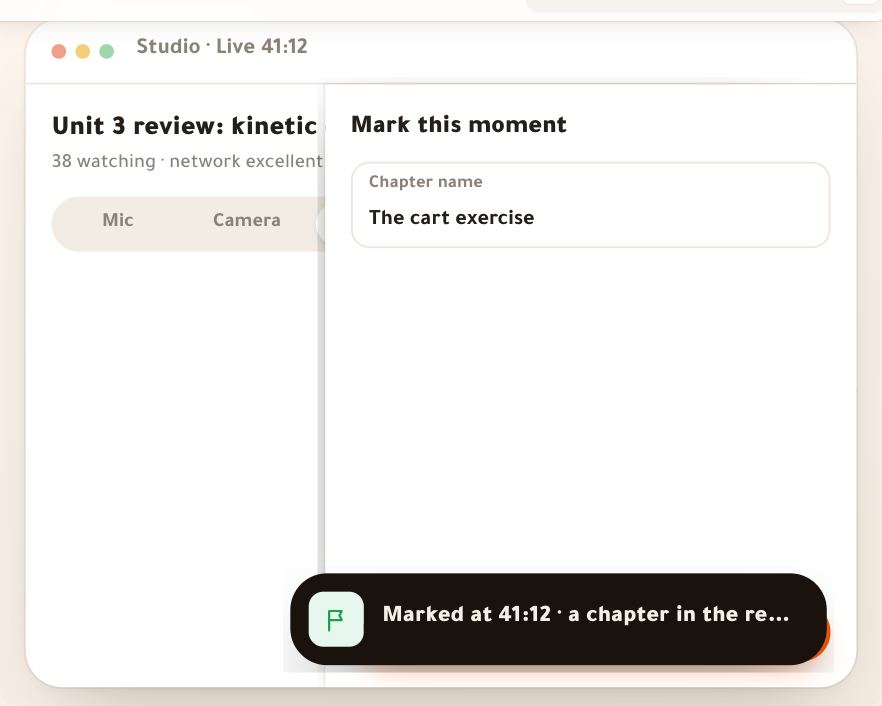
Once you’re live
Questions
Can I broadcast from my phone?
Yes. On a phone your face fills the screen, with “Sound”, “Camera” and “Flip” before the start, and scenes, poll, pin and mark under “More”. Screen sharing is computer-only.
Can I skip the device check?
There’s no skip button, but it takes a minute; “Enter backstage” works as soon as the mic is heard. If the live is already on air when you reopen the studio, you go straight in.
Do students see backstage?
No. Backstage, they can’t see or hear you: they are in the waiting room with a countdown until you press “Go live”.
How big can the slides file be?
One PDF up to 100 MB. Replace it with “Change file” at any time, even on air.
What does the moderator see in the studio?
The moderator console: what students see, the chat, questions and hands, “Pin” and “Poll”, and “Leave” instead of “End”. If the teacher hasn’t come in yet, it says so.