
Recording and replay: from the studio to a chaptered lesson
Every live in the “Dirassa+ room” is recorded by default from your browser: the studio keeps what students see, every voice included, and uploads it in parts during the live. Minutes after the end, the replay is ready in “Recordings”, with chapters made from the slides, polls, questions and your markers. There you trim the waiting and the goodbye, name the chapters, decide who watches and until when, or add it as a course lesson. Example: Salim Bouzid’s review (1 h 44 min) and Leila Kacemi’s free live, whose replay stays a week. The Dirassa+ room isn’t open yet: today lives run on a Google Meet or Zoom link, so no recording reaches this page; record from your meeting if you like, then add it as a lesson in your course.
- About 3 minutes per recording
- 6 steps
Who can do it: “Own live classes” for their lives’ recordings; “All teachers’ live classes” for everyone in their scope. Adding it as a lesson needs the right to edit the course’s lessons.
In 6 steps
- 1Recording happens in your browser: it starts by itself on air, in parts of up to 20 minutes uploaded during the live, and never stops the live if it stumbles.
- 2“Recordings”: every recording, with search, “Ready” and “Preparing”; the space is your lesson videos’ space.
- 3“Trim”: drag the start and end to remove the waiting and the goodbye.
- 4“Chapters”: from slides, polls, questions and your markers; edit time and name, add more.
Before you start
- A live in the “Dirassa+ room”: a Meet or Zoom live is recorded there, not here.
- A browser that can record (nearly every recent one), and video space in your plan.
- For a lesson: a course whose lessons you may edit.
- Step 1 of 6
How the live is recorded
Your browser records what students see and uploads it in parts; if recording stumbles, the live goes on.
- What students seeThe scene, guests, slide, the question on screen, every voice.
- Parts uploadedA part every 20 minutes, uploaded during the live with a small share of your speed.
- The live goes onA notice tells you, with “Record again”.
All the details
If recording is on for the live (it is by default, via “Record every live” in the settings), it starts by itself when you go live, with the Recording mark at the top. The studio composes one picture of what students see — scene, guests, slide or screen, the question on screen, the poll, the break card — and mixes your voice, the guests’ voices and the screen’s sound. It is kept on your device in parts of up to 20 minutes, each uploaded during the live using only a quarter of your upload speed; uploading pauses if the network weakens and resumes at full speed after the end. If it stumbles, a notice says the recording stopped and the live goes on, with Record again; if the browser can’t record, the live goes on without a recording. You can also stop it on air in the settings (“Record this live”). When you end, “Keep the recording” is on, and the end screen follows the upload to the end.
On screenRecordingRecord againRecord this liveKeep the recordingRecord every liveHeads-upRecording happens in your browser: if the studio closes, it stops and resumes as a new part when you come back; what came before is kept. Keep the page open after the end until the upload finishes, or reopen the studio on the same device to resume it.
- Step 2 of 6
“Recordings”: every replay in one place
One recording per live, with its status, attendance, views and who sees it.
- Statuses“Preparing” (ready in a few minutes), ready, or “Failed”.
- NumbersWho attended, replay views, length.
- SpaceThe same as your lesson videos.
TipWhen the replay is ready, those who came and those who missed it — if they asked for that reminder — get the notice once per live.
All the details
Recordings (every live is recorded and arrives here in chapters) offers “Search by title” and three choices: “All”, “Ready”, “Preparing”; 20 recordings a page. Each shows the live’s title and date, how many attended, replay views, length and who sees it. What is still being processed shows “Preparing” and “Ready in a few minutes”; what never arrived, “Failed”. At the top, the space line: kept with your lesson videos, from the same space, with what’s used. A click opens the recording’s side panel; you also reach it from “The recording and its chapters” on the live’s page or “Replay settings” on the end screen.
On screenRecordingsSearch by titleAllReadyPreparingReady in a few minutesFailedThe recording and its chapters - Step 3 of 6
“Trim”: remove the waiting and the goodbye
Two ends to drag, and students start with the teaching, not with “can you hear me?”.
- The start“Replay start”: after the first minutes of waiting.
- The end“Replay end”: before the goodbye.
- Before and afterThe recorded length and the length after trimming.
TipSalim trims the first four minutes (sound check and welcome) and two minutes of goodbye: the replay opens straight on Amina’s question.
All the details
In the panel, the Trim part: drag both ends to trim the waiting at the start and the goodbye at the end. “Replay start” and “Replay end” are two sliders; below, the recorded length and what remains after trimming (1:44:12, then 1:38:25), then what was cut from each side. At least 30 seconds always remain. Trimming doesn’t touch the original file: the replay starts and ends where you say, and chapters count from the new start. Then Save. While the recording is still being prepared, trimming and chapters wait until it’s ready.
On screenTrimReplay startReplay endSave - Step 4 of 6
“Chapters”: made by themselves, named by you
A chapter per slide, question, poll and marker, at least a minute and a half apart; your marker comes first.
- Their sourcesYour marker, slide, poll, question, scene, and the start.
- A minute and a halfTwo markers under 90 seconds apart make one chapter.
- Yours to editTime and name, remove, and “Chapter” to add one.
TipThe more moments you mark on air with a clear name (“The cart exercise”), the less you edit here.
All the details
The Chapters part (made from the slides, the questions and your markers): “Start” at 0:00, then a chapter per marker: “Your marker” (from “Mark this moment”), “Slide” (every slide kept for a few seconds), “Poll” (every launch), “Question” (every question put on screen), “Scene”. Markers less than 90 seconds apart merge into one chapter, and if one of them is yours, the chapter takes its name. Each chapter’s time and name can be edited, a button removes it, and Chapter adds one. Then “Save”. Students see the chapters on the replay bar and in the “Chapters” tab, and in the lesson if you make one.
On screenChaptersYour markerSlidePollQuestionSceneStartChapterSave - Step 5 of 6
“Who watches the replay, and until when”
Four choices; once the time is up, the recording stays with you and disappears for them.
- AlwaysEveryone who could attend the live sees it always.
- 7 or 30 daysThen it disappears for them and stays with you.
- Students onlyYour students with an account; not visitors.
TipLeila sets her free live’s replay to “7 days”: those who registered but missed it watch it within the week, then it stays with her as material for her paid workshop.
All the details
The Who watches the replay, and until when part: “Always” (everyone who could attend the live sees it always), “7 days” (a week after the live, then it disappears for them and stays with you), “30 days”, “Students only” (your students with accounts; visitors don’t see it). The starting value comes from the live’s “Replay available”, or from the settings (“Recording and replay”). Then “Save”. Whoever tries to watch after the time is up reads that the replay period has ended; a visitor without an account on a “Students only” replay reads that it’s for the academy’s students.
On screenWho watches the replay, and until whenAlways7 days30 daysStudents onlySave - Step 6 of 6
“Add it as a course lesson”, or delete
The replay becomes a lesson with video and chapters in your course, a draft you review then publish.
- A draft lessonIn the course’s last section, or a new section for live recordings.
- With its chaptersThe video, its parts, its trim and its chapters.
- DeleteIn two presses; the space frees up shortly after.
TipA “Live class” tied to a curriculum lesson doesn’t need this: after the end, the replay shows in that lesson’s place. “Add it as a lesson” is for a replay you want as a lasting lesson in another course.
All the details
Add it as a course lesson: it becomes a lesson with its chapters in the course’s last section, as a draft you review and then publish. Pick the “Course”, then “Add”: “Added as a course lesson (draft)”, and the recording then shows “In a course”. If the course has no section, a section for live recordings is created. The lesson carries the video and its chapters; publish it from the course curriculum once reviewed. At the bottom of the panel, Delete in two presses (“Press again to delete”): the recording disappears and its file is erased shortly after, freeing the space.
On screenAdd it as a course lessonCourseAddIn a courseDeletePress again to deleteHeads-upDeleting is final: the recording disappears for students and from “Recordings” at once.
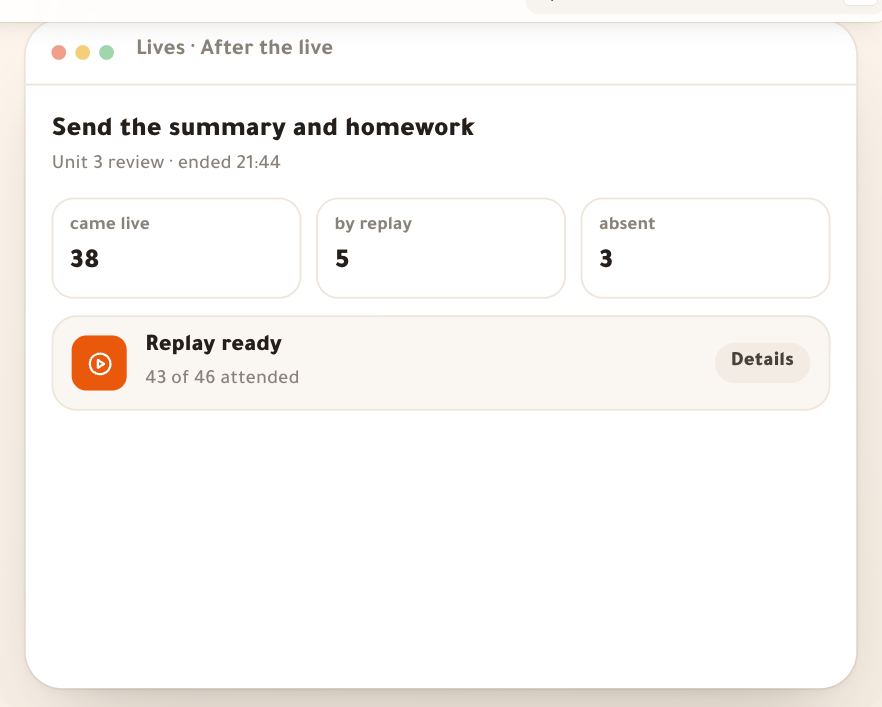
After the recording
Questions
Is the live recorded on a server or in my browser?
In your browser: the studio records what students see and uploads it in parts during the live. So keep the page open after the end until the upload finishes.
Does recording weigh on the live on a weak network?
No. Uploading takes only a quarter of your upload speed, pauses when the network weakens and resumes after the end.
Do recordings use my space?
Yes, the same video space as your lessons; the line at the top of “Recordings” shows what’s used. Deleting a recording frees its space shortly after.
How are chapters made?
From your markers (“Mark this moment”), slides, polls, questions put on screen and scenes, at least 90 seconds apart; edit them in “Chapters”.
Is a Zoom or Meet live recorded here?
No. Picture, sound and recording belong to that meeting. We keep only the page, reminders and attendance.