
Your ready messages at the desk, and the buyer’s sign-in link after payment
For every person at the desk you can open WhatsApp with a ready message in their language, completed by the desk with their name and order. The six messages start as our text; you adapt them your way, in three languages, with a preview before saving. Then what comes after the purchase: a personal sign-in link that works once, within 24 hours, a card that says how many buyers actually got into what they bought, and a panel that resets the devices of someone who changed phone. Our example: Nour, a French tutor selling a conversation pack.
- About 10 minutes, once
- 6 steps
Who can do it: Anyone who opens the desk (edit showcases, manage offers and prices, orders and delivery, approve payments) sees and edits the messages, and they are saved for the whole workspace. Creating the sign-in link and resetting devices: “Orders and delivery” or “Approve payments”. The “Paid → signed in” card: “View payments” or “Analytics”.
 Let Noqta show you
In 6 steps
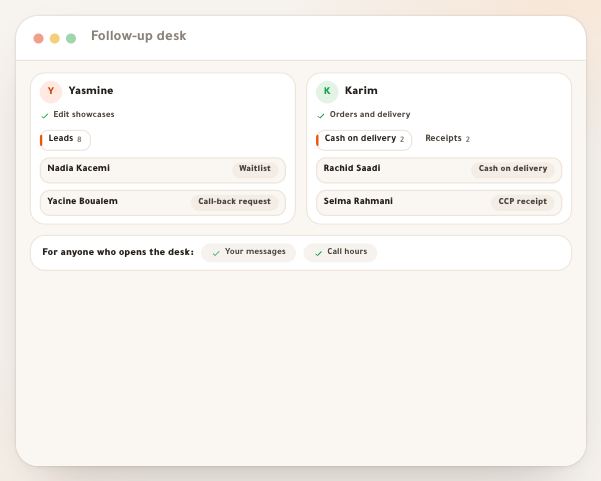
- 1“Your messages” at the top of the desk: six messages, each in Arabic, French and English; what you do not change stays our text.
- 2Add the name, offer and order number with a tap, check “Preview”, go back to our text any time; each message is 1 to 1200 characters.
- 3In the panel you see the messages that fit the person’s type, in their language, and edit the text before “Open WhatsApp”; nothing goes out on its own.
- 4“Create the sign-in link” makes a personal link for the buyer, working once within 24 hours, and fills the welcome message.
Before you start
- Your workspace name as you want it in the messages: it fills the “Your school” fill-in.
- Decide which languages most of your customers speak: the message goes in the language of the page the person used, else Arabic.
- For the sign-in link: a paid order at the desk, and “Orders and delivery” or “Approve payments”.
- Step 1 of 6
The six messages in three languages
You write once the WhatsApp messages your team sends, in Arabic, French and English.
- Which messages?Six: confirm a delivery order, order awaiting payment, receipt under review, welcome, first contact, reminder.
- In which language?The person’s, not your interface’s. Each language is separate: changing the Arabic doesn’t change the French.
- What you don’t touch?It stays our text; what you edit carries the “edited” chip.
TipThe message is written in the person’s language, not your interface language: adapt the three languages your customers speak.
All the details
Tap “Your messages” at the top of the desk: “Ready WhatsApp messages” opens. Pick the “Message language” (العربية, Français or English; it starts on your interface language) and you get six messages in this order: “Confirm a delivery order” (for a cash-on-delivery order), “Order awaiting payment” (for someone who has not sent their receipt yet), “Receipt under review” (used on its own once the receipt arrives), “Welcome and sign-in steps” (for someone who paid), “First contact” and “Reminder”. What you edit carries the chip “edited”, and what you do not touch stays our text, even if it improves later. Each language is separate: changing the Arabic does not change the French.
On screenYour messagesReady WhatsApp messagesMessage languageConfirm a delivery orderOrder awaiting paymentReceipt under reviewWelcome and sign-in stepsFirst contactReminderedited - Step 2 of 6
Fill-ins, preview, restore and limits
You add the name, offer or order number to the message, and see how it arrives before you save.
- Fill-ins“Name”, “Offer”, “Order no.” and more, filled by the desk for each person. A line with nothing to fill is dropped whole.
- “Preview”The message as a sample customer receives it; “Back to our text” restores the original.
- Whose messages?The whole workspace’s: what you save, your whole team sends. Each message 1 to 1200 characters.
TipFill-ins are written in Arabic or Latin letters alike: {name} in an Arabic message is fine.
All the details
Open a message: its text is in a box you can write in. Under it, “Insert” and the fill-ins that suit that message: “Name”, “Your school”, “Offer”, “Order no.”, “Place” (to confirm a delivery), “Sign-in link” (for the welcome) and “Reason” (for the first contact). A tap puts the fill-in at the cursor, written in the language of the message: {الاسم} in Arabic, {name} in French and English. The desk fills it for each person. A line that holds an order number, a place, a link or a reason that the person does not have is dropped whole: “Order no.: ” never goes out empty. The “Preview” box shows the message as it reaches a sample customer, with your workspace name. “Back to our text” appears on an edited message and restores it. Then “Save messages”: every message, in all three languages, must be 1 to 1200 characters, or the button stays off or “Couldn’t save. Each message must be 1 to 1200 characters.” shows. Only what differs from our text is saved.
On screenInsertNameYour schoolOfferOrder no.PlaceSign-in linkReasonPreviewBack to our textSave messagesHeads-upThe messages belong to the whole workspace: what you save, everyone on your team who opens the desk sends.
- Step 3 of 6
The message in the person’s panel
Each panel holds the person’s ready message in their language; edit it if you like, then send it yourself from WhatsApp.
- Which language?The language of the page they used, else Arabic.
- Which message?By type: “First contact”, “Confirm the order”, “Payment and receipt”, and “Follow-up” for everyone.
- Who sends it?You do: “Nothing goes out on its own”. An edit here is for this message only and isn’t saved.
TipThe “Confirm the order” message reminds the buyer of what they ordered, the order number and the place, and asks whether the details are right: the call is shorter.
All the details
In the panel of a person who has a phone, the “WhatsApp message” block carries at its edge “In their language: English” (the language of the page they used, else Arabic). You pick the message that fits their type: for a lead “First contact” and “Follow-up”, for cash on delivery “Confirm the order” and “Follow-up”, for a receipt “Payment and receipt” and “Follow-up” (which turns by itself into the “Receipt under review” message once the receipt arrives), for a paid order “Welcome and access” and “Follow-up” (the welcome only when the order comes from a showcase in sale mode). It shows filled with your own text if you edited it, and you can change the words in the box before sending (1200 characters at most), for this message only, without saving. Then “Open WhatsApp”: the message opens ready and you send it, “Nothing goes out on its own”, and the logging sheet then opens on “Message sent”. The small “WhatsApp” button in the row opens the most fitting message for the row directly; for the welcome with its link, open the panel.
On screenWhatsApp messageIn their language: EnglishFirst contactFollow-upConfirm the orderPayment and receiptWelcome and accessOpen WhatsApp - Step 4 of 6
“Create the sign-in link” for the buyer
You create a personal sign-in link that the desk puts in the welcome message, so the buyer finds their purchase open.
- How does the link work?Tied to the order’s number, it works once and expires after 24 hours. Five links a day at most per order.
- Who creates it?Anyone with “Orders and delivery” or “Approve payments”; its creation is logged.
- Before the welcomeWith no link, its line is dropped from the message: don’t send the welcome before creating it.
All the details
When you choose “Welcome and access” for a paid order, the desk says: “This message needs the buyer’s personal sign-in link. It works once, within 24 hours.” Tap “Create the sign-in link”: a link specific to this order is created and put in the message in place of {الرابط}. Done? “Open WhatsApp” and send it. The link belongs to the order’s own number, works once, expires after 24 hours, its creation is logged, with five links a day at most per order. The button is off without “Orders and delivery” or “Approve payments”. If it fails, the sheet says “Couldn’t create the link. Open the order and try from there.” And the message tells the buyer to open the link, create their account in a minute and find what they bought open.
On screenWelcome and accessCreate the sign-in linkOpen WhatsAppHeads-upWith no link created, the link line is dropped from the welcome message: do not send the welcome before creating it.
- Step 5 of 6
“Paid → signed in”: did the person who paid get in?
You know whether those who paid signed in to receive their purchase, and who is still waiting.
- What it saysOver 30 days: how many who paid got in, the “Median time to sign in” in minutes, and how many within an hour.
- Who is waiting?How many buyers haven’t signed in and the oldest, with a prompt to send the link from the ledger.
- Who sees it?Anyone with “View payments” or “Analytics”, once someone has paid or is waiting.
TipIf buyers have been waiting for days, send them the link: someone who paid and waited long is likelier to ask for a refund.
All the details
Someone who buys without an account pays first, then signs in to receive what they bought. At the top of the desk, the “Paid → signed in” card says, for the last 30 days: how many of those who paid got in (“21 of 23” and their share with “signed in”), the “Median time to sign in” in minutes (“The median shows after 5 sign-ins” until there are enough) and how many signed in within an hour, and a third box: “1 buyer is waiting to sign in” with “The oldest paid on …” and “Send them the login link from the ledger.”, or “Nobody is waiting to sign in.” If you pick a showcase in the list, the numbers are that showcase’s. The card appears only once someone has paid or is waiting. You see it with “View payments” or “Analytics”.
On screenPaid → signed insigned inMedian time to sign inThe median shows after 5 sign-insNobody is waiting to sign in. - Step 6 of 6
“Buyer’s access” and resetting devices
You see whether the buyer got in and on which devices, and reset their devices if they changed phone.
- How many devices?Two at most: “Devices: 1 of 2”, with the “Devices it opened on” history.
- The link on WhatsApp“Send the login link on WhatsApp” goes to the order’s own number only.
- ResettingIt doesn’t cancel the purchase or return money: it only allows a new device.
All the details
In the panel of a paid order from your showcase, the “Buyer's access” block says whether they got in (“Signed in …” or “Paid, and the buyer has not signed in yet.”), whether their account has an email or is open only on their phone, and the number of devices: “Devices: 1 of 2” (the limit is two), the active or used link, and “Devices it opened on”: the device history. Below, for those with the permission, “Send the login link on WhatsApp” (to the order’s own number only) and “Reset devices”: for someone who changed phone and hit the limit; tap, then “Confirm the reset” (or “Cancel”), and a new count starts from their current device, so they can move their order to a new phone. The welcome message remains the easiest path: they open the link from their new phone.
On screenBuyer's accessDevices: 1 of 2Devices it opened onSend the login link on WhatsAppReset devicesConfirm the resetHeads-upResetting does not cancel the purchase and returns no money: it only allows a new device.
After the messages
Questions
Does the desk send the messages itself?
No. Each message opens ready in WhatsApp and you press send.
I edited a message and then you improved yours: do I get it?
What you edited stays your text. What you did not edit follows ours; to go back, tap “Back to our text”.
In which language does the message go?
In the language of the page the person used (Arabic, French or English), else Arabic. So write all three.
What happens to a line whose value I do not have?
If it holds the order number, place, link or reason and there is no value, the whole line is dropped. An empty name or workspace leaves no trace.
Can the sign-in link be used more than once?
No: it works once, within 24 hours, and you can create another (five a day per order). It goes only to the order’s own number.
Why does the “Paid → signed in” card not show?
Because nobody has paid or is waiting yet, or because you have neither “View payments” nor “Analytics”.
Does the welcome message suit everything I sell?
Our text assumes the buyer finds their purchase in “My courses”. If you sell something else, adapt the message.