
The showcases list: every sales page on one screen
“Showcases” gathers every sales page you created: its real opening, what it sells and for how much, where it stands, and its week in numbers. In the menu you now find this list as “Campaigns”, inside the “Designer”; the old page still opens from its link. From there you open, share, duplicate, unpublish or archive any showcase. The example: Nour, an Arabic calligraphy teacher with four showcases — a course, 1:1 sessions, a free file and a waitlist.
- About 3 minutes
- 6 steps
Who can do it: The list opens with “Edit showcases” or “Publish showcases”. The collected column and the “Highest revenue” sort need “Revenue figures”.
 Let Noqta show you
In 6 steps
- 1The “Showcases · Offers · Growth · Follow-up desk” strip shows only what you may open, with “New showcase” below.
- 2Status filters with counts, search by name, link or offer, sorting by revenue, visits, last edit or name.
- 3Each row: the showcase’s opening, what it sells and its price, its status, its link, and the week’s visits, orders, paid and collected.
- 4⋯ for each showcase: edit, preview, copy link, share, duplicate, unpublish and archive with two taps; no delete.
Before you start
- “Edit showcases” or “Publish showcases” in your role.
- At least one showcase to see rows; otherwise the list opens on its starts.
- Numbers need a published showcase and visits: a draft can’t be visited.
- Step 1 of 6
The strip and the header
A strip that shows only the screens you’re allowed into, with your showcase count and the button to create one below it.
- What’s on the strip?“Showcases”, “Offers”, “Growth” and “Follow-up desk”, each tab only when your permission opens it.
- When does it disappear?When only one screen is left for you. So the list never leads to “no access”.
- Who sees “New showcase”?Whoever has “Edit showcases”. Under the title a line counts them: “4 showcases · 2 published”.
Tip“Offers” opens for whoever edits showcases or has “Manage offers and prices”; “Growth” adds “Analytics”; “Follow-up desk” adds “Orders and delivery” and “Approve payments”.
All the details
At the top, the “Showcase sections” strip: “Showcases”, “Offers”, “Growth” and “Follow-up desk”. Each tab shows only when your permission opens it, so the list never leads to “no access”; with one screen left, the strip disappears. Below, the “Showcases” title, a line counting them, like “4 showcases · 2 published”, and the “New showcase” button with “Edit showcases”.
On screenShowcasesOffersGrowthFollow-up deskNew showcase - Step 2 of 6
Filters, search and sort
You find any showcase in seconds, and the list is waiting just as you left it.
- The chips“Published”, “Drafts”, “Scheduled”, “Ended” and “Archived”, with counts. “All” leaves archived ones out.
- What does search look in?The name, the link and the offer’s name.
- The starting sort“Highest revenue” with “Revenue figures”, otherwise “Most visited”.
TipFilter, search and sort stay in the page address: open a showcase and come back, the list is as you left it; send the link to a colleague and they see the same view.
All the details
Status chips with counts: “All” (everything not archived), “Published”, “Drafts”, “Scheduled”, “Ended” and “Archived”; an empty chip doesn’t show. “Search showcases” looks in the name, the link and the offer’s name. The sort: “Highest revenue”, “Most visited”, “Last edited” and “Name”. It starts on “Highest revenue” if you see revenue, otherwise on “Most visited”. Nothing found: “No showcase matches” and “Show all”.
On screenAllPublishedDraftsScheduledEndedArchivedSearch showcasesHighest revenueMost visitedLast editedNameNo showcase matchesShow allHeads-up“Highest revenue” doesn’t even appear without “Revenue figures”.
- Step 3 of 6
A showcase’s row and its week
Each row tells you what the showcase sells, where it stands, and what happened to it over the last 7 days.
- The thumbnailThe showcase’s real opening, then what it sells and its price: “1:1 sessions · 2,500 DZD” or “Free”.
- The status“Draft”, “Scheduled”, “Published”, “Stopped” or “Archived”, plus “Unpublished changes” when your edits aren’t live yet.
- The week“Visits”, “Orders”, “Paid” and “Collected”. Nothing measured shows a dash, never a zero; visits are sessions, not people.
TipA published showcase with no visit says “No visits yet.” with “Share the link”, which opens the share tools straight away.
All the details
Each row starts with a thumbnail that is the showcase’s real opening, then its name, then what it sells: type, price and the item’s title, like “1:1 sessions · 2,500 DZD”, or “Free”, or “No offer yet”. Below, the status pill: “Draft”, “Scheduled”, “Published”, “Stopped” or “Archived”, and “Unpublished changes” when a live showcase has edits not yet published, the /l/… link, and the dated line: “Goes live Thursday 20:00”, “Stops on …”, “Stopped on …” or “Edited …”. On a computer, four columns for the last 7 days: “Visits”, “Orders”, “Paid” and “Collected”; on a phone they fold under the name after “7 days:”. What wasn’t measured shows a dash, never a zero.
On screenFreeNo offer yetDraftScheduledPublishedStoppedArchivedUnpublished changesVisitsOrdersPaidCollected7 days:No visits yet.Share the linkHeads-upUnder the list: “Last 7 days, Algiers time. Visits = sessions, not people.”. A visitor who came back two days running counts as two visits.
- Step 5 of 6
The first visit, and the 300 cap
An empty list offers what you already sell, so you can start in one tap.
- “Start from something you sell”Up to 6 items from your catalog with their prices; each opens the journey with the item picked.
- Nothing to sell yet?“Create a first course” starts you there.
- How many showcases?Up to 300 non-archived ones, on every plan. Archiving frees a place at once.
TipStarting from the catalog is the fastest path: name and link come from the item’s title, the price from its offer.
All the details
With no showcase at all, the screen says “No showcases yet”: “Pick what you offer: a course, a space, a live session, a session, a product or a book.”. Beside it, “Start from something you sell”: up to 6 items from your real catalog with their prices, like “A showcase for the course “Kufic from scratch””, each opening the journey with the item picked, with “New showcase”. Nothing to sell yet: “Nothing to sell yet” and “Create a first course”. Each workspace gets 300 non-archived showcases, on every plan.
On screenNo showcases yetStart from something you sellNew showcaseNothing to sell yetCreate a first courseHeads-upAt the cap, the attempt says “You reached 300 showcases. Archive the ones you no longer need.”. Archiving frees a place at once.
- Step 6 of 6
Who edits, who publishes
Two separate permissions: one prepares the showcase, the other publishes and stops it.
- “Edit showcases”Create, edit, duplicate, and archive a draft that was never published.
- “Publish showcases”Publish, schedule, unpublish, archive a showcase that was published, and change settings.
- And the teacher?Holds “Edit showcases” only by default: they prepare their course’s showcase, the account holder publishes it.
TipIn ⋯, each person sees only what they can do: a teacher doesn’t see “Unpublish”, and sees “Archive” on their drafts.
All the details
Two separate permissions in roles: “Edit showcases” creates, edits, duplicates and archives a draft that was never published; “Publish showcases” publishes, schedules, unpublishes, archives a showcase that was published, and changes its settings. Owner and admin hold both. A teacher holds “Edit showcases” only by default: they prepare their course’s showcase and the account holder publishes it. Around them: “Manage offers and prices” for a new offer and its price, “Revenue figures” for the collected column, “Analytics” for results.
On screenEdit showcasesPublish showcasesManage offers and pricesRevenue figuresAnalytics
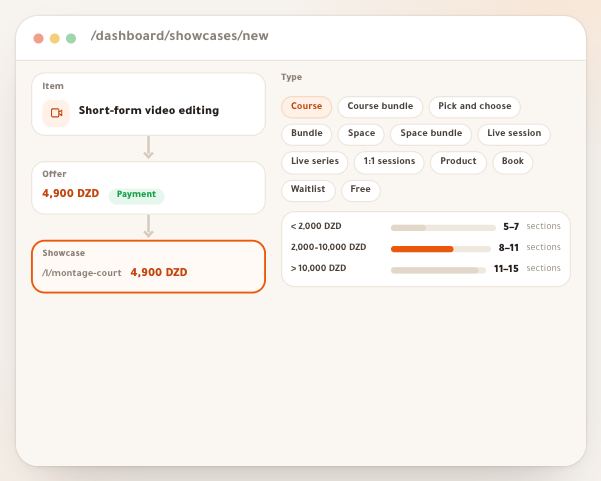
From the list to the work
Questions
How do I delete a showcase?
There is no delete. Unpublish it if it’s live, then archive it: it leaves “All” and stays in “Archived” with its numbers and versions, restorable at any time.
Why a dash instead of numbers?
A dash means nothing was measured in the last 7 days: a draft, which can’t be visited, or a live showcase nobody reached. The list never writes zeros where nothing was measured.
I see neither “Collected” nor “Highest revenue”.
Both need “Revenue figures”. Without it you keep visits, orders and paid, and the sort starts on “Most visited”.
What’s the difference between “Stopped” and “Archived”?
“Stopped”: its stop date has passed, and visitors see what you chose in settings (an “ended” page with a waitlist, your site, or another showcase). “Archived”: you took it off the list.
The teacher on my team can’t publish.
That’s the default: their role holds “Edit showcases” only. They prepare, the owner or an admin publishes, or add “Publish showcases” to their role.
Does my plan limit showcases?
Up to 300 non-archived showcases per workspace, on every plan. Archived ones don’t count.