
Offers and their sentence: what you sell, how, and for how much
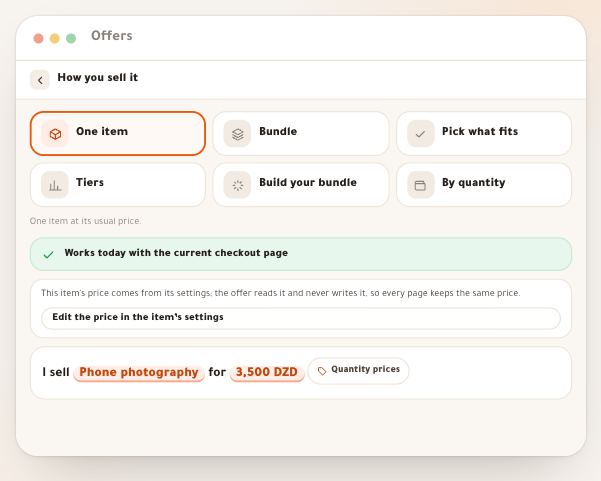
An offer is what actually gets bought: its items, price, dates and seats; a showcase is the page that sells it. You write it as one sentence that reads the way you would say it, “I sell Phone video editing + Creators space together for 7,900 DZD”, and every part is a button to its setting. Under it, a card shows with the server’s own figures what a buyer will see, before anything reaches a page. A one-item offer sells through the current checkout page; bundles, choices, tiers and quantities sell through the “order sheet”.
- About 8 minutes
- 6 steps
Who can do it: Creating and pricing offers needs the “Offers” permission. Without it, people who edit showcases read the sentence and link a published offer to their page.
 Let Noqta show you
In 6 steps
- 1Open “Offers” in the showcases strip: every offer with its type, items, pages, price and state.
- 2Tap an offer or “New offer”: “The offer sentence” reads and edits, and every part opens its setting.
- 3In “What you sell”, pick the items and each one’s role: “Core” or “Comes with it”.
- 4Read “What a buyer sees”: price, saving and what the button does, from the server, with the “Honesty notes”.
Before you start
- Something to sell in your workspace: a course, a space, sessions, a product or a book. Otherwise the screen says “Create a course or a product to sell first.”.
- Every new showcase also creates the offers of its items, so the list may hold offers you never wrote yourself.
- A one-item offer sells through the current checkout page. The other types sell through the “order sheet”, with nothing to switch on: the offer engine runs by default in every workspace.
- Step 1 of 6
The “Offers” screen
All your offers in one list, each with its state for a buyer right now.
- On each rowType and name, item count, how many showcases sell it, its “from” price and its state.
- What does the state mean?“On sale”, “Paused”…: what a buyer finds at this very moment.
- DraftAn unpublished offer carries “Draft”; with no page it reads “no showcase sells it”.
TipThe state in the list is the offer’s state for a buyer right now: “Paused” means the page takes no purchase at this moment, and the reason is inside the offer.
All the details
From the showcases, open the “Offers” tab (/dashboard/showcases/offers). At the top: how many offers you have and how many are published, and the “New offer” button. No notice under it: the engine runs for every workspace, so every type sells through the order sheet. (If the Dirassa+ team pauses your workspace by hand, a card “The offer engine is paused for your workspace” appears under it, with “Ask to switch it on”, which opens Support, and the pages of multi-item types show “Notify me” until it is resumed.) Then the list, newest first: each offer with its type icon, its name, a “Draft” tag if unpublished; beneath it the type, the item count, how many showcases sell it or “no showcase sells it”, and when it was edited; at the end its “from” price and its state: “On sale”, “Opens soon”, “Closed”, “Full”, “Sold out” or “Paused”. Past eight offers, “Search offers” appears.
On screenOffersNew offerThe offer engine is paused for your workspaceAsk to switch it onDraftno showcase sells itOn salePausedSearch offers - Step 2 of 6
“The offer sentence”
You build the offer as one sentence, read as a buyer reads it; every part is tapped to edit.
- The sentence“I sell [Phone video editing + Creators space] [together] for [7,900 DZD]”: items, type, price.
- Add to the sentenceLaunch price, limited seats, one-tap add-on, sales period, payment methods, guarantee. Each follows after a dot.
- Two namesThe “Internal name” for your team only; the optional “Name shown to buyers” replaces the item names.
TipA part with something to fix turns red. Tap it: its page opens with what to correct at the top, in plain words.
All the details
Tap a row or “New offer”: a side panel (a sheet on phones) opens, titled “The offer sentence”. At the top, the name, type and state, and the pencil “Rename”: the “Internal name”, seen only by your team (120 characters at most), and the optional “Name shown to buyers”, which replaces the item names on the offer card. Then the sentence, for example “I sell [Phone video editing + Creators space] [together] for [7,900 DZD]”: every underlined part opens its page in the same panel — items, type, price. Whatever you add follows after a dot: launch price, “for the first 15”, seats, add-on, period, methods, guarantee. Under the sentence, the “Add to the sentence” row: “Launch price”, “Limited seats”, “One-tap add-on”, “Sales period”, “Payment methods”, “Guarantee” — what you add leaves the row. A second row informs: “Installments”, “Discount code”, “Waiting list”, “Selling abroad”.
On screenThe offer sentenceRenameInternal nameName shown to buyersAdd to the sentenceLaunch priceLimited seatsOne-tap add-onSales periodPayment methodsGuaranteeInstallmentsDiscount codeWaiting listSelling abroad - Step 3 of 6
“What you sell”: items and their roles
You choose what the offer holds from everything your workspace sells, and each item’s role in it.
- From where?Courses, spaces, sessions, products and books, each row with its own price.
- Core or comes with it?“Core” counts in the value; “Comes with it” is given with the offer without counting, six at most.
- And the type?It follows the items: two core items make a bundle at a suggested price, back to one makes it “One item”.
TipAn offer holds 24 lines; “Search what you sell” appears past eight items.
All the details
A new, empty offer opens straight on “What you sell”: everything your workspace sells, grouped into “Courses”, “Spaces”, “Sessions” and “Products and books”, each with its price alone. A row may carry a tag: “Draft: not on sale”, “Closed space” (putting it in an offer opens it to every buyer), “Shipped” for a physical product, “Subscription” for a subscription course. Tick what you sell and its settings open beneath: its role, “Core” or “Comes with it” (given with the offer without counting in its value, six at most), the “Access plan” of a subscription course in a several-item offer, and the number of periods, sessions or the quantity (1 to 20). At the bottom, the count: “2 core items · Worth 8,800 DZD separately”. The type follows on its own: two core items make a bundle at a suggested price, going back to one makes it “One item”, and the name follows the items until you type your own.
On screenWhat you sellCoursesSpacesSessionsProducts and booksCoreComes with itAccess planDraft: not on saleClosed spaceShippedSubscriptionHeads-upA one-item offer created by a showcase stays on its item: “A single-item offer stays on its item. Add what comes with it, or create a new offer to sell several items.”.
- Step 4 of 6
“What a buyer sees”
You see exactly what a buyer pays, as the server computes it, before you save.
- Who computes it?The server: every figure on the card is its own, not an editor estimate.
- When does the saving show?When every core item sells on its own and the saving reaches 5%.
- Honesty notesA draft item, a closed space, a long bundle, a cheap item, no payment method ready… some with a fix button.
TipThe card’s rules are the page’s: a struck price only after a real launch price ends, no saving under 5%, no “N left” before its time, and “Most chosen” comes from paid orders. What you don’t see here, a buyer won’t see.
All the details
Under the sentence, the “What a buyer sees” card: after every change it asks the server (“Computing…”) and shows its “Server answer”; every figure is the server’s, not an estimate. It opens with “The buyer pays” and the price (“The buyer pays from” when there are several options). Then “Worth 8,800 DZD separately · saves 900 DZD (10%)”, only when every core item sells alone and the saving reaches 5%. Then “What it holds”, with each item’s price alone or “Only in the bundle”, then “Comes with it” and the add-on. At the bottom, the state and what the button does: “The buy button opens the order sheet.”, “The buy button goes to this item’s current checkout page.” or “The button gathers “Notify me”.”, the reason for a pause (“Paused because the offer is a draft.”) and the methods after “Paid by:”. Under the card, the “Honesty notes”: a draft item, a closed space, a long bundle, a cheap item, no saving line, no ready method — some with a button that fixes it.
On screenWhat a buyer seesServer answerThe buyer paysOnly in the bundleThe buy button opens the order sheet.Honesty notesComplete the sentence to see what a buyer pays. - Step 5 of 6
Draft or published, then save
You decide whether the offer sells now or stays a draft, then save it with one button.
- The draftIt doesn’t sell: pages that sell the offer show “Notify me” until you publish it.
- Review, then saveIf a part needs fixing, the button opens it instead of sending the server what it would refuse.
- Once publishedThe type is fixed. To try another, create a new offer and leave the old one for people who bought it.
All the details
At the bottom of the panel, a fixed bar: choose “Draft” or “Published”, then “Save offer” (it appears once something changed). If a part needs fixing, the button becomes “Review, then save” and opens that part instead of sending the server something it would refuse. Afterwards: “Saved just now” and the message “Offer saved”. A draft doesn’t sell: “The offer is a draft: pages that sell it show “Notify me” until you publish it.”. A one-item offer has no such choice: “A single-item offer stays published while its item is.”. Once published, the type is fixed (“A published offer keeps its type; create a new offer of the other type.”) and the items stay within its limits. Closing before saving asks: “Changes to this offer are not saved.”, “Keep editing” or “Discard them”.
On screenDraftPublishedSave offerReview, then saveSaved just nowChanges to this offer are not saved.Keep editingDiscard themHeads-upA published offer keeps its type. To try another type with the same items, create a new offer and leave the old one as it is for people who bought it.
Once the offer is written
Questions
What’s the difference between an offer and a showcase?
The offer is what gets bought: items, price, dates. A showcase is a page that sells it. One offer can be sold by several showcases, and every change to the offer reaches all of them.
Why are there offers I didn’t create?
Every new showcase creates the offers of its items: a “One item” offer for each course or product it sells. It stays published while its item is, and its price comes from the item’s settings.
Can I sell a bundle today?
Yes. Prepare and publish it and it sells through the “order sheet”, with nothing to switch on. Only if the Dirassa+ team pauses your workspace by hand does its page show “Notify me” and gather interested people in the follow-up desk, with no payment, until it is resumed.
Why doesn’t the saving line show?
It shows only when every core item sells alone and the price is at least 5% below their total. The “Honesty notes” say which condition is missing.
Does the offer change the course’s own price?
No. A one-item offer reads the price from the item’s settings and never rewrites it, so every page keeps the same price; to change it, “Edit the price in the item’s settings”. A bundle has its own price and doesn’t touch its items’ prices.
Who can change prices?
People with the “Offers” permission. Others see “The account owner sets prices. You can read the sentence and link a published offer to the page.”.
I edited the offer on two devices at once — what happens?
The second save never silently erases the first: “This offer changed elsewhere” lets you choose between “Load the newer version” and “Save mine over it”.