
Lives: from the date to the summary, in one section
“Lives” is a section of your dashboard where you teach live: a class for a course’s students, a free live with registration, a paid workshop, or a weekly slot. You start it now in one press, or schedule it and the reminders go out on their own; afterwards you send the summary and homework to those who came and those who missed it. **Today every live runs on a Google Meet or Zoom link** you paste once: the Dirassa+ room (streaming from the browser, with questions, polls and recording) isn’t open yet, and when it opens its option comes back in “New live” by itself. Picture, sound and chat happen in your meeting; we keep the live’s page, the reminders and who clicked to join. Example: at “Al-Ofok Academy”, Salim Bouzid, a physics teacher, reviews “Unit 3: kinetic energy” tonight with 46 students on his Google Meet link. The road is the same for a photography trainer running a free live, or a marketing coach selling a “Reels in an hour” workshop.
- About 6 minutes to read
- 6 steps
Who can do it: The section opens for whoever has “Own live classes” (their lives and those of a teacher they assist) or “All teachers’ live classes” (the lives of everyone in their scope). The owner has everything.
In 6 steps
- 1“Lives” is a section of the column under “Bookings”, with a panel in three groups: “Today”, “What you broadcast”, “People and numbers”.
- 2The first time, Home opens on “Your first live”: “Start now” or “Schedule”, and your permanent Meet or Zoom link, saved once.
- 3Home is your day: one sentence that says where you stand, one orange button for what is due now, then the next live and “Upcoming”, and on the side “Last live”, “Didn’t start” and two numbers for the month.
- 4You don’t pick the kind: it follows your answer to “Who is it for?” and “Repeats weekly”; a “Group session” comes from “Bookings”.
Before you start
- At least the “Own live classes” permission: the owner and the “Director” and “Teacher” roles have it by default.
- A permanent Google Meet or Zoom meeting link: until the Dirassa+ room opens, your lives happen there. No meeting yet? “Create a Meet meeting” opens one.
- A computer or phone that opens Google Meet or Zoom, with a camera and a microphone; earphones if you can, they keep echo away from students.
- Step 1 of 6
Where to find “Lives”: the column and its panel
A section of its own in the column, right under “Bookings”, with three groups and seven pages.
- Today“Home” and “Schedule”: what happens today and this week.
- What you broadcast“Series and programmes” and “Recordings”: the recurring and the recorded.
- People and numbers“Audience”, “Reports” and “Live settings”.
TipWorking alone? You see all seven pages with your own lives. In an academy with several teachers, each teacher sees their lives, and whoever has “All teachers’ live classes” sees everyone’s and picks in “Schedule” and “Reports” whose lives to show.
All the details
Lives is a section of its own in the column at the edge of the screen, right under “Bookings”. Beside it, its panel in three groups: “Today” (“Home”, “Schedule”), “What you broadcast” (“Series and programmes”, “Recordings”) and “People and numbers” (“Audience”, “Reports”, “Live settings”). The New live button at the top of Home opens a small menu: “Start now” for a live right away, “Schedule” for a date ahead; in “Schedule”, “New live” opens the scheduled form directly, which also creates series and question hours. Every live has its page in your dashboard (before: questions, invitees and settings; during: its state and the button to end it; after: summary, homework and attendance) and one link for students whose content changes with time: the registration or ticket page before, then the button to join your meeting a quarter of an hour before, then what comes after. In a school, management has a page in the school panel: “Lives in the school”.
On screenLivesBookingsHomeScheduleWhat you broadcastSeries and programmesRecordingsAudienceReportsLive settingsNew liveStart nowLives in the school - Step 2 of 6
The first time: “Your first live”, two ways in
While you have no live yet, Home opens on two choices, and on your permanent link.
- Start nowA live right away on your link: your students get “The live has started”.
- ScheduleThe day, the time and who it’s for; reminders a day, an hour and 10 minutes before.
- Your permanent linkPasted once, “Start now” finds it every time.
TipSalim Bouzid has taught on one Google Meet meeting for years: he pastes its address here once, and from then on any last-minute session is one press of “Start now”.
All the details
Before your first live you read Your first live: start it now, or schedule it and your students get a reminder. Two choices. Start now: a live right away on a Google Meet or Zoom link; your students get “The live has started” and join from the live’s page. Schedule: pick the day, the time and who it’s for; your students get a reminder a day, an hour and 10 minutes before. Below them, Your permanent Meet or Zoom link: the Dirassa+ room (streaming from the browser) isn’t open yet; until it is, your lives run on your own link, pasted once. Paste your permanent meeting’s address and press “Save”: it then reads as one line with “Change”. No meeting yet? “Create a Meet meeting” opens Google Meet in a new tab; copy the address and come back. At the bottom, two lines: nothing new for your students (the live is in their lessons and your academy’s app, with the reminders), and on a Meet or Zoom link, video and chat happen there while we keep the live’s page, the reminders and who clicked to join.
On screenYour first liveStart nowScheduleYour permanent Meet or Zoom linkSaveChangeCreate a Meet meeting - Step 3 of 6
Home: what is due now, and one button
You open it to know one thing: is your next live ready, and what do you press now.
- One button“Start and open Google Meet” when it’s time, “Move it to Meet” for what was in the room, otherwise “New live”.
- UpcomingThe next seven days with dates and times, drafts marked.
- On the side“Last live” and who came, “Didn’t start” with “Reschedule”, two numbers for the month.
TipOn a phone there is no button at the top: the “+” in the bottom bar offers “Start a live now”, “Schedule a live” and “Live series”; when something is due now, a line with the live’s title and its orange button sits above the bar.
All the details
At the top, Lives and one sentence that says where you stand: next live in 4 days with its date, next live tomorrow 19:00, it’s time for the live, or on air for 12 min. Beside it, “Schedule” and one orange button that changes with the moment: “Start and open Google Meet” when a live on your link is near (from 30 minutes before), “Open Google Meet” while it’s on air, “Move it to Meet” for a live scheduled in the Dirassa+ room, which isn’t open yet, otherwise New live with its menu: “Start now” (a live right away: your students are told) and “Schedule” (reminders a day, an hour and 10 min before). Until you’ve saved a link, a band at the top says your lives run on Google Meet or Zoom, with “Save my link”. Then the next live in a card: its kind and course, its title, the day, the time and who attends (“46 invited”), when it starts in words (in 4 days, in 18 min; a moving countdown in the last hour), then “Open Google Meet” to check your meeting, “Copy the student link” and “Details”. Then Upcoming: the following seven days’ lives with their date and time, drafts marked. On the side, Last live: “38 of 46 attended” with a bar (live, replay, absent), “Send the summary” until it has gone, and “Attendance”; then Didn’t start: lives of the last 14 days that never started, each with “Reschedule”; and two numbers for the month: lives held and hours watched (“—” with no data).
On screenLivesScheduleNew liveStart nowStart and open …Move it to MeetSave my linkCopy the student linkDetailsUpcomingLast liveSend the summaryDidn't startRescheduleHeads-upThe two numbers cover the current month in Algiers time and count only lives really held: started by you, or joined by someone through the link. The full detail is in “Reports”.
- Step 4 of 6
Kinds follow “Who is it for?”
You don’t pick the kind from a list: your answer to “Who is it for?” and “Repeats weekly” names it.
- For your students“A course’s students” or “All my students”: a live class, or a Q&A hour if it repeats.
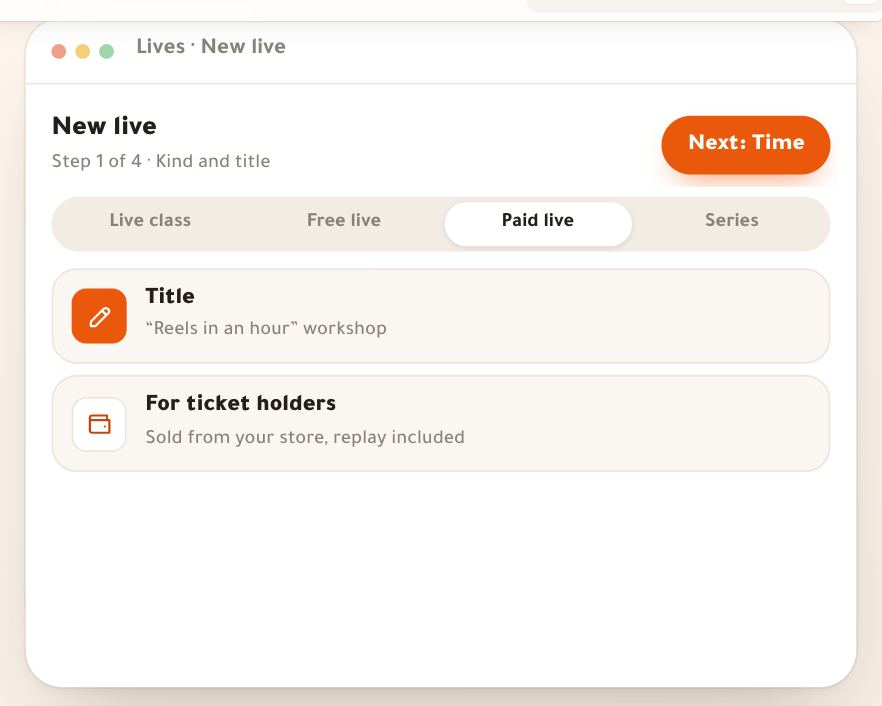
- For everyone“Anyone who registers”: a free live; “With a ticket”: a paid live sold from your store.
- Every week“Repeats weekly” makes it a series, or a Q&A hour for all your students.
TipAl-Ofok has one of almost each: Salim’s Unit 3 review (live class), Leila’s photography live (free, 312 registered), Nesrine’s “Reels in an hour” (1,200 DZD), “Bac without fear” (a series of 8 Friday episodes) and Karim’s English Q&A hour every Sunday at 18:00.
All the details
In “New live” there is one question, Who is it for?, with four cards, and the kind follows: “A course’s students” makes a Live class: the course’s students get in without registering, it shows in their lessons, and you can tie it to a curriculum lesson. “All my students” makes a live class for every student account in your academy. “Anyone who registers” makes a Free live: a registration page on your academy site (name and phone), and registrants reach you. “With a ticket” makes a Paid live, sold from your store with all your payment methods. Under the time, the Repeats weekly switch turns the date into the first of a Series (weekly episodes, one registration), or of a Q&A hour when it’s for all your students. A Group session comes from “Bookings”: the group session you sell there makes its own live, and only seat holders are invited. The kind shows as a chip on every live, on Home, in Schedule and on its page.
On screenWho is it for?A course's studentsAll my studentsAnyone who registersWith a ticketRepeats weeklyLive classFree livePaid liveSeriesQ&A hourGroup session - Step 5 of 6
A live’s life, from reminder to summary
What happens by itself, and what you do; on your Google Meet or Zoom link.
- BeforeThe day-before reminder goes only the day before, then an hour and 10 minutes before; and a heads-up for you 10 minutes before.
- On time“Start and open” opens your meeting and tells students; if you don’t press, it starts on its own on time.
- AfterWho clicked to join, then the summary and homework to those who came and those who missed it.
TipAll these times are defaults you change in “Live settings”: when starting opens for you, when students see the join button, and the reminders.
All the details
Before: Salim publishes his live; it shows in the lessons of the “Physics Bac 2027” students and the reminders go out: “A day before” (sent only on the day before; a live scheduled for the same day gets the later ones), “An hour before”, “10 minutes before” and “When it starts” (on the phone, and by email for those who registered on the site). Students write questions before the start from the live’s page. Ten minutes before, Salim himself gets “Your live in 10 minutes”. On time: from 30 minutes before, the orange button becomes “Start and open Google Meet”: it opens his meeting in a new tab, puts the live on air, and students get “The live has started”. Students see the “Join via Google Meet” button on the live’s page a quarter of an hour before; whoever clicks counts as present, and the meeting address doesn’t reach them before then. If Salim presses nothing, the live starts on its own on time and students join his link; Home says so, and five minutes later he gets “Your students are waiting · open the meeting”. The end: when it’s over he presses “Mark as ended” on the live’s page; otherwise the join link stays open to his students until half an hour after its time ends, then the live ends on its own. If the class runs over, “Extend by 15 min” on the live’s page, up to 4 times. After: the live’s page shows who came among the invited, then the summary in short lines and the homework with a due date and attachments, to those who came right away and to those who missed it.
On screenA day beforeAn hour before10 minutes beforeWhen it startsStart and open …Mark as endedExtend by 15 minSend the summary and homeworkHeads-upA live still set in the Dirassa+ room (a group session from “Bookings”, say) can’t start while the room isn’t open: move it to your link with “Move it to Meet”. If its time passes and it never starts, it ends on its own half an hour after its end: those waiting get “The live did not take place”, you get “Your live did not start”, and it shows under “Didn’t start” with “Reschedule”.
- Step 6 of 6
Who does what in your team
Two permissions in the roles’ “Scheduling” group, and two roles inside each live.
- Own live classesTheir lives, for their own courses, and those of a teacher they assist.
- For all teachersEveryone’s lives in their scope and their courses, and the academy’s defaults.
- Inside the liveA co-host and a moderator, in the Dirassa+ room’s studio.
TipIn a school where management chooses who broadcasts, only those chosen schedule a live or a series; the others read that only those the director picks broadcast.
All the details
In the roles, the “Scheduling” group has two live permissions. Own live classes: schedule and start their lives, see their audience and reports, and those of a teacher they assist in a school; a live for a course only if they teach it. All teachers’ live classes: see and manage the lives of every teacher in their scope and schedule them for those teachers’ courses (the owner: everyone), and set the academy’s values in “Live settings”. By default the owner has everything, “Director” has both, “Teacher” the first. Inside each live, two roles are chosen in “More”: the Co-host broadcasts with you, camera and screen; the Moderator clears messages and runs raised hands without broadcasting. Both work in the Dirassa+ room’s studio, so once it opens; on a Meet or Zoom link, the meeting’s organiser runs the meeting. In a school, management also adds school moderators, present as moderators in every live of the academy.
On screenOwn live classesAll teachers’ live classesCo-hostModeratorHeads-upA co-host can end the live for everyone, just like you. Choose someone you trust.
After this overview
- Create your first live“Start now” or “Schedule”, who for, when and on which link: the “New live” lesson.
- Every weekA series of episodes, a Q&A hour: the “Series and Q&A hours” lesson.
- After the liveWho came, the summary and homework: the “After the live” lesson.
- What your students seeThe live’s page, the join button, the reminders: the “Live on the student’s side” lesson.
Questions
Do I need a Zoom or Google Meet account?
Today, yes: every live runs on a Google Meet or Zoom meeting link, because the Dirassa+ room (streaming from the browser) isn’t open yet. You paste your link once in “Your permanent link”, and we keep the live’s page, the reminders and attendance.
When will the Dirassa+ room open?
We don’t announce a date. When it opens, its option comes back in “New live” and “Live settings” by itself, with nothing to change on your side, and your lives on a link stay as they are.
How many students can attend at once?
On a Meet or Zoom link: whatever your meeting and your plan there allow. We don’t limit how many press the join button.
Are lives recorded?
On a Meet or Zoom link we record nothing: if you want a recording, make it from your meeting, then add it as a lesson in your course. Recording and the chaptered replay come with the Dirassa+ room.
Is attendance counted?
Yes: whoever presses “Join via Google Meet” (or Zoom) from the live’s page counts as present. You see it on the live’s page after the end, in “Audience” and “Reports”. We don’t know how long they stay in the meeting itself.
Does the student get the meeting link ahead of time?
No. They see the time and reminders on the live’s page and in their lessons, and the join button a quarter of an hour before: your link doesn’t travel to people who weren’t invited.