
Publish your showcase: from “Ready?” to the link you share
Before anyone sees your showcase, “Ready?” checks it item by item: what blocks publishing in red, what would improve it in yellow, and for each item a button that takes you where to fix it. Then you put it live now or on a date in Algiers time, and decide when it stops and what visitors see afterwards. Our example: Nour, a product photographer, publishes the page of her live workshop “Product photography on your phone”.
- About 5 minutes
- 6 steps
Who can do it: “Ready?” opens with “Edit showcases”. Publishing, scheduling, the stop date and unpublishing need “Publish showcases”.
 Let Noqta show you
In 6 steps
- 1Open “Ready?”: fix the red with each item’s button, take what suits you from the yellow.
- 2Try “Preview over time” to see the page when the live starts or after closing, with nothing changed.
- 3In “Publish”, pick “Now” or “Schedule”, check the changes and languages, then “Publish the page”.
- 4From the showcase’s “Settings” tab: a publish time, a stop date, and what visitors see after it.
Before you start
- A showcase with an offer linked (what you sell and for how much), and a payment method ready if it sells.
- The “Publish showcases” permission to publish yourself; without it, send the preview to someone who has it.
- If your workspace is not open for sales yet, scheduling still works: the showcase goes live by itself once it opens.
- Step 1 of 6
“Publishing” starts with what blocks
Press “Publish”: if something stops the page from going live, the dialog starts with it, and each item takes you to the place to fix.
- What is red?What leads the buyer to a dead end: no payment method ready, a buy button that leads to no offer, a closed offer…
- How do I fix it?The item’s button closes the dialog and takes you to the section or field itself. “Publish” brings you back, its number going down.
- A number typed by hand?In the proof and decision sections it becomes a red item: counts and seats come from your real data only.
TipThe check runs by itself on every edit. “Check again” reads the offer and payments afresh after you changed them elsewhere. And the server checks again at the moment you publish: if it finds something the dialog had not seen, it says so and the list refreshes.
All the details
The “Publish” button at the top is never disabled; it carries the number of things to fix before publishing, when there are any. Press it and “Publishing” opens in the middle of the screen. If something blocks publishing, it starts with that alone, under a title like “2 to fix before publishing”: items that block so the buyer never sees a page that doesn’t work, like no payment method ready or a buy button outside the phone’s first screen. Each item has a button that takes you exactly to its place, the section, the field in the missing language or the panel: “Set up payments”, “Choose a shorter layout”, “Write the title”. The bottom button fixes the first, and under it “Check again” for when you come back from a fix elsewhere. Suggestions are folded into one line like “3 suggestions”: open it to see them, each with its button like “Add an image”. When nothing blocks, the dialog shows the publish itself.
On screenCheck againSet up paymentsChoose a shorter layoutWrite the titleAdd an imageHeads-upA number you type by hand in the proof and decision sections, like “over 500 trainees” or “only 3 seats left”, becomes a red item: counts and seats on a showcase come from your real data only.
- Step 2 of 6
Watch your page over time
You see your page as the buyer will at every moment your offer reaches: before the live, after it, and after closing.
- Where do the moments come from?From your offer’s stored dates: “Now”, “When the live starts”, “After the live”, “After closing”…
- What changesUnder each moment, its date and what changes for a buyer: the price, or the button state like “Button: waiting list”.
- Does the real page change?Nothing changes on the real page, and “Back to now” brings you back.
TipThe “When the launch price starts” and “When seats run out” moments appear when the showcase’s offer has a launch price or seats. Every other moment always works.
All the details
A page that sells a live workshop does not stay the same: before the live it sells, after it its button changes. The “Preview over time” button in the editor’s top bar lists the moments your offer really reaches, from its stored dates: “Now”, “When the live starts”, “After the live”, “After closing”… Under each, its date and what changes for a buyer: the price, the button state such as “Button: notify me” or “Button: waiting list”, or “Same offer; only the page’s dates move”. Pick a moment and the page is drawn as the server will answer then, a “Preview: After the live” ribbon shows above it, and “Back to now” brings you back. “Nothing changes on the real page.” An offer with no dates says so: “This offer has no dates or seats yet…”.
On screenPreview over timeNowWhen the live startsAfter the liveAfter closingBack to now - Step 3 of 6
Publish now or at a set time
When nothing blocks, the same dialog shows the page’s link and what changed since the last publish, then the button.
- Now or later?“Schedule…” under the button picks a time in Algiers time. A workspace not yet open for sales can only schedule.
- Which languages?In “More”, “Languages going live” shows each language in green, or “incomplete” when a required text is missing.
- And your edits?They don’t reach visitors until you press “Publish the changes”. The live page stays as you published it.
TipYour edits on a live page do not reach visitors until “Publish the changes”: the editor saves your draft only, and the live page stays as you published it. A visitor asking for an unpublished language goes to the page’s main language.
All the details
When nothing blocks, “Publishing” shows the page’s state, then the “Page address” with “Change the link”, and “Copy” after the first publish, once the link works. For a live page you edited, the list of what was added, edited, moved or removed shows. In “More”: the “Languages going live” (each language in green, or “incomplete”), the stop date, and “Unpublish” or “Cancel the schedule”. Then the button: “Publish the page” the first time, “Publish the changes” for a live page. Under it, “Schedule…”: type the “Publish on” time, read beneath in Algiers time, and the button becomes “Schedule publishing”; “Publish now instead” takes you back. After publishing, the share tools rise in the same dialog.
On screenSchedule…Publish onLanguages going liveincompletePublish the pagePublish the changesSchedule publishingPublish now insteadCancel the scheduleHeads-upA workspace not yet open for sales cannot publish “Now”: the panel says so and switches to “Schedule”. And if the page has a stop date already behind you, remove it first or publishing is refused.
- Step 4 of 6
Publish time and stop date from “Settings”
In “Settings” you set when the showcase goes live, when it stops, and what visitors see afterwards.
- Which dates work?At least a minute ahead, at most 366 days. The draft goes live as it was when you scheduled.
- After it stops?An “ended” page with a waitlist, your site, or another showcase; if that one isn’t live, they get the “ended” page.
- Do visitors see the date?No, it never shows as a countdown.
TipAlgeria is on UTC+1 all year, so the time you type is the time your visitors in Algeria live, wherever you are. A “Stopped” showcase comes back to life if you remove its stop date or pick a later one.
All the details
In “Showcases”, open the showcase, then its “Settings” tab. In “Publish at a time” (an unpublished showcase), type “Time (Algiers)” then “Schedule”: at least a minute ahead, at most 366 days, and before the stop date if there is one. The draft goes live as it was when you scheduled it, so if you edit afterwards, schedule again. In “Stop the showcase on a date”, type “Stops on (Algiers time)”, then choose under “After it stops, visitors see”: “An “ended” page with a waitlist” (titled “This offer has ended”, with a waiting list and “Visit the site”), “Your site”, or “Another showcase” picked in “Replacement showcase”. “Visitors never see this date as a countdown.” Then “Save”. “Remove the stop date” cancels it. The same date sits in the editor at the bottom of the “Publish” panel: “Stop the page: never”.
On screenSettingsPublish at a timeTime (Algiers)ScheduleStop the showcase on a dateStops on (Algiers time)After it stops, visitors seeAn “ended” page with a waitlistYour siteAnother showcaseReplacement showcaseRemove the stop dateHeads-upIf the “Replacement showcase” is not live at the stop time, visitors see the “This offer has ended” page instead. And the “Another showcase” choice does not show if you have no other showcase.
- Step 5 of 6
Unpublish and archive
Unpublish and the showcase leaves its link at once, draft kept; archive it and it leaves the list.
- UnpublishThe showcase leaves its link right away; the draft and every version stay, to republish whenever you like.
- The archiveUnpublishes, cancels the schedule and switches the preview link off. “Restore from archive” brings back a draft.
- And your ad?Unpublishing doesn’t stop it: pause the campaign first, or you pay for clicks to a missing page.
TipArchiving a live or scheduled showcase needs “Publish showcases”; a draft never published can be archived with “Edit showcases”. The limit is 300 showcases per workspace, and archived ones do not count until you restore them.
All the details
“Unpublish” in “Settings”, in the “More” menu of the showcase’s row, or at the bottom of the editor’s “Publish” panel: “The showcase leaves its link right away. The draft and every version stay.” It becomes a draft again that you republish whenever you like. The first press asks for confirmation: “Tap again to confirm” within 3 seconds. “Archive showcase” goes further: it unpublishes, cancels the schedule, switches the preview link off and moves the showcase to the “Archived” filter. “Restore from archive” brings it back as an unpublished draft. An archived showcase’s link opens nothing, and neither do its old links.
On screenUnpublishTap again to confirmArchive showcaseArchivedRestore from archiveHeads-upUnpublishing does not stop your ad: pause the campaign first, or you pay for clicks that land on a missing page.
- Step 6 of 6
The showcase link: its shape, changing it, your domain
Your showcase link is a short word you choose; change it after publishing and the old link still leads to the new one.
- Its shapeYour workspace’s domain, the language, /l/, then the word: nour.dirassaplus.com/en/l/photo-produit.
- The ruleLowercase Latin letters, digits and single hyphens, up to 48 characters. Some words are reserved.
- Who can change it?For a showcase already published, it needs “Publish showcases”; without it, saving is refused.
TipPick the word before you print a poster or launch an ad: the redirect works, but a short, clear word is easier for someone typing it by hand.
All the details
A showcase’s link is your workspace’s domain, the page language, /l/, then its word: nour.dirassaplus.com/en/l/photo-produit. If you connected your own domain, the link moves onto it with the same path. To change the word: “Settings” → “Showcase link” → “End of the link”, then “Save link”; or in the editor, “Page” → “Page link”. The rule: lowercase Latin letters, digits and single hyphens, up to 48 characters, no hyphen at either end; some words are reserved, such as preview, share or admin. If the showcase was published before, “The old link keeps working and sends visitors to the new one.”, so no post you shared and no poster you printed is lost. A word another showcase uses is refused: “Another showcase already uses this link. Try a different word.”
On screenShowcase linkEnd of the linkSave linkPage linkThe old link keeps working and sends visitors to the new one.Heads-upChanging the link of a showcase that was already published needs “Publish showcases”; without it, saving is refused.
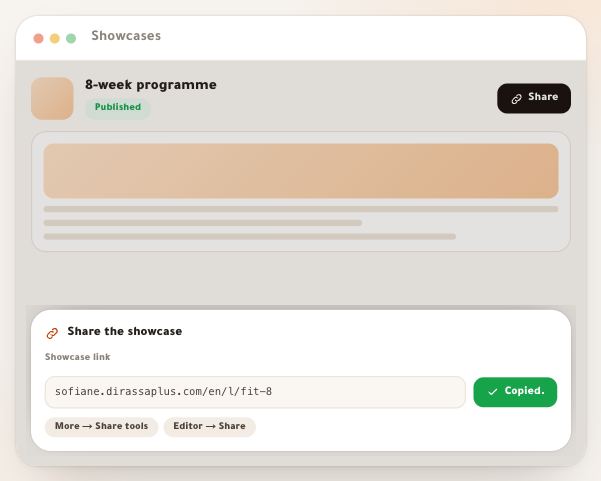
After publishing
Questions
I edited a live showcase. When do visitors see it?
When you press “Publish the changes” in the “Publish” panel. The editor saves your draft by itself, and the live page does not change until you publish. In the showcases list, its row shows “Unpublished changes”.
Why does the publish button say “Fix 2 to publish”?
Because “Ready?” has two red items blocking publishing, such as an offer with no payment method or a buy button outside the first phone screen. Press it to go to the first one; every item has its own fix button.
Can I schedule a showcase before my workspace opens for sales?
Yes. “Now” is refused while the workspace is not open, but scheduling is accepted: the showcase goes live by itself at its time once the workspace has opened.
I scheduled, then edited. What goes live?
The draft as it was when you scheduled. To include your latest edits, press “Schedule” again with the same time.
What does a visitor see after the stop date?
What you chose under “After it stops, visitors see”: the “This offer has ended” page with a waiting list and “Visit the site”, your site, or another live showcase. They never see a countdown before it.
I changed the showcase link. Do my old posts break?
No, if the showcase had been published: the old link sends visitors to the new one. If you archive the showcase, neither link opens any more.
What is the difference between “Unpublish” and “Archive showcase”?
Unpublishing takes the page off its link and leaves it in your list as a draft. Archiving stops publishing, the schedule and the preview link together, and moves the showcase to “Archived”, from where it comes back as a draft.
Who can publish in my team?
People with “Publish showcases”. Others read in the “Publish” panel that publishing needs that permission, and can send the preview from “Share”.