
Page settings: its link, how it shows in Google and WhatsApp, its languages and its stop date
After the text and images come the questions about the page itself: which link to share, how it looks when the link is sent on WhatsApp, which languages it reads in, and when it stops. They are all in one panel, and every number in it is read from your data. Our example: Karim, a content-marketing coach, sells his course in Arabic and French.
- About 5 minutes
- 8 steps
Who can do it: Anyone with “Edit showcases”. Changing the link of a page that was already published, and the stop date, need “Publish showcases”.
 Let Noqta show you
In 8 steps
- 1“What this page sells”: what the offer holds, its price and state, and “Set the offer” to change it.
- 2Only you see the “Showcase name”; the “Page link” takes lowercase Latin letters, numbers and dashes, and the old link keeps working.
- 3“In search and chats”: a “Title” and “Description” per language, with the “In Google” and “In a chat” previews.
- 4A 1200×630 “Share image”, or the automatic card made from your title and price.
Show all
- 5“Languages”: turn on Arabic, French or English, choose the “Main language”, and fill in what is missing.
- 6“Header and footer”: the logo, the footer, the “Buy bar”, and “Ask for tracking consent”.
- 7“Stop the page”: “Never” or “On a date”, Algiers time, with no countdown for visitors.
- 8“Ad tracking”: whether the Facebook and TikTok pixels are set up, and “Tracking settings” to set them.
Before you start
- A showcase open in the editor. On a computer: the “Page” tab of the side panel, or “Page settings” when no section is selected. On a phone: “More”, then “Page”.
- A short Latin word for the link, like content-marketing.
- For a custom share image: a wide image of 1200×630 or larger.
- To measure ads: a Facebook or TikTok pixel set up in the tracking settings.
- Step 1 of 8
“What this page sells”
You see what this page sells and for how much, and open the offer itself in one tap to change it.
- What it sellsEverything in the offer with its kind: “Course”, “Space”, “1:1 sessions” or “Product”, then “Buyers pay”.
- Prices in sectionsBound to this offer, so they update on their own when you change it with “Set the offer”.
- No offer?The page cannot be published: “Choose or create an offer”.
TipThe “launch price” and “seats” are set in “Offers” and work through the order sheet. A single price and the payment methods work for everyone.
All the details
The panel opens with the offer card: everything it sells with its kind (“Course”, “Space”, “1:1 sessions”, “Product”) and an “Edit” link that opens it in its place in the dashboard, then “Buyers pay” with your offer’s price, and the sales state. “Set the offer” (“Price, launch price, seats and payment methods”) opens the “Offer” panel. With no offer: “No offer is linked to this page yet. It cannot be published before one is.” with “Choose or create an offer”. The prices shown in the page’s sections are bound to this offer, so they update on their own when you change it.
On screenWhat this page sellsCourseSpace1:1 sessionsProductEditBuyers paySet the offerChoose or create an offer - Step 2 of 8
Name and link
You name the showcase for yourself, and give the page a short link from its subject that changes at once without losing a visitor.
- Who sees the name?Only you, in your list of showcases. Like “Content marketing — October cohort”.
- The link’s shapeLowercase Latin letters, numbers and dashes, 48 characters at most, like kids-english. Some words are reserved.
- And the old link?If the page was ever live, it keeps working and takes visitors to the new one.
All the details
The “Showcase name” (“Only you see it, in your list of showcases.”): name it the way you recognise it, like “Content marketing — October cohort”. The “Page link” starts with your site’s address, then your word: “Lowercase Latin letters, numbers and dashes. For example: kids-english”, 48 characters at most, no two dashes in a row, and a few words are reserved (admin, login, checkout…). Type, then “Save”: the link changes right away, without waiting for a publish. If the page was ever live, “The old link keeps working and takes visitors to the new one.”, and the panel confirms it with the old link.
On screenShowcase nameOnly you see it, in your list of showcases.Page linkLowercase Latin letters, numbers and dashes. For example: kids-englishSaveThe old link keeps working and takes visitors to the new one.Heads-up“Another showcase uses this link. Choose a different one.” means the word is taken in your workspace. “The link contains a word reserved for an official body or a well-known brand.” stops a name that isn’t yours: pick a word from your subject.
- Step 3 of 8
“In search and chats”: a title per language
You write how your page shows in Google and when its link is sent on WhatsApp, one language at a time.
- What you writeThe “Title”, about 60 characters, and the “Description”, two sentences of about 160: who it’s for and what buyers get.
- How to see itThe “In Google” and “In a chat” previews follow as you type.
- What blocks publishingA missing title in any active language. An empty or long description is only a suggestion.
All the details
“In search and chats” (“How your page shows in Google and when its link is sent on WhatsApp.”). If the page has several languages, pick the “Text language”, then write for each: the “Title” (“Required”, about 60 characters) and the “Description” (“Two sentences: who this page is for and what buyers get.”, about 160 characters). Two previews follow as you type: “In Google” with that language’s link, title and description, and “In a chat” with the link card as it arrives. A language without a title is marked in the switcher.
On screenIn search and chatsText languageTitleRequiredDescriptionIn GoogleIn a chatHeads-upThe title is required for every active language: without it, “Ready?” lists it as a fix and the page cannot publish. An empty description, or one over 160 characters, is only a suggestion.
- Step 5 of 8
“Languages”: each one publishes on its own
You sell in Arabic, French and English on one page; each language is written and published on its own, with its own link.
- What you seeEach language’s state: “Main language”, “Ready”, what is missing, or “Off”.
- The main languageIt shows first and can’t be turned off, nor can the last one. “Make it main” changes it.
- What blocks publishingA language missing a required field in a section. Complete it or turn it off.
TipNeed French? Noqta writes each section in every language of your page at once, from your course; then you review each language.
All the details
“Languages” (“Each language is written and published on its own. The main language comes first.”): Arabic, French and English, each with its switch. Under each name, its state: “Main language”, “Ready”, how many fields are missing (“2 fields missing text”), or “Off”. “Make it main” changes which language shows first; the main language cannot be turned off, nor can the last one. Each language has its own link, and you write its text by switching the “Content language” at the top of the editor.
On screenLanguagesMain languageReadyOffMake it mainContent languageHeads-upA language missing a required field in a section blocks publishing (“… is missing a required field in the “…” section.”): complete it, or turn that language off.
- Step 6 of 8
Header, footer, buy bar and measurement
You decide what frames your page: header and footer, a buy bar that stays in view on phones, and asking visitors before measuring.
- Header and footer“Logo” or “None” on top, “Minimal” or “None” below. Without a logo, your workspace name shows.
- The “Buy bar”Keeps price and button in view while people read on a phone. Leave it on for long pages.
- Tracking consentWith a Facebook or TikTok pixel, one line asks the visitor first. Turning it off means no measurement of your ads.
TipKeep the “Buy bar” on for long pages: people reading on a phone find the button without scrolling back up.
All the details
“Header and footer”: the “Header” “Logo” or “None” (with no logo in your site settings, your workspace name shows), and the “Footer” “Minimal” or “None”. The “Buy bar”: “Keeps the price and the button in view while people read on a phone.” When your workspace has a Facebook or TikTok pixel, the “Ask for tracking consent” switch appears, on unless you turn it off: “One line asks the visitor first; the Facebook and TikTok tools run once they agree.” With no pixel: “No tracking tools are set up, so no consent is needed.”
On screenHeader and footerHeaderLogoNoneFooterMinimalBuy barAsk for tracking consentHeads-upTurning off “Ask for tracking consent” means no consent line and no measurement of visits or orders in your ads. “Ready?” reminds you, with “Turn measurement on”.
- Step 7 of 8
“Stop the page”: a date with no countdown
You set the date the page stops selling, with no countdown pressing the visitor.
- Which time zone?The day and hour in Algiers time. The date applies as soon as you “Save the date”, no publish needed.
- What happens after?Visitors see “This offer has ended” and a “Notify me about the next round” form for their name and number.
- Who can stop it?Anyone with the “Publish showcases” permission, and only for a time in the future.
All the details
“Stop the page”: “Never” or “On a date”. In “Stop date”, choose the day and time in Algiers time (a date a week ahead is suggested), then “Save the date”: “Saved” shows, and the date applies at once, without waiting for a publish. “Remove the date” cancels it. “Visitors never see a countdown.” After the date the page stops selling; its visitors see “This offer has ended” with a link to your site, and a short “Notify me about the next round” form where they leave their name and number.
On screenStop the pageNeverOn a dateStop dateSave the dateSavedRemove the dateNotify me about the next roundHeads-up“Choose a time in the future.” shows when the date has passed. Stopping a page needs the “Publish showcases” permission.
- Step 8 of 8
“Ad tracking”
You see whether your Facebook and TikTok ads are measured, and open their setup in one tap.
- What you see“Facebook and Instagram” and “TikTok”, each “Set up” or “Not set up”.
- Where to set itOnce for the whole workspace, in “Tracking settings”, not on the page.
- When?Before the ad starts: the first days are the ones it learns from. No pixel never blocks publishing.
TipRunning a Facebook ad? Set the pixel up before the ad starts, not after: the first days are the ones it learns from.
All the details
At the end of the panel, “Ad tracking”: two lines, “Facebook and Instagram” and “TikTok”, each “Set up” or “Not set up”. “Tracking tools are set once for the whole workspace.”: no pixel code on the page itself. “Tracking settings” opens the setup page in the dashboard. With no pixel at all, “Ready?” says “Pixels are not set up, so your ads will not be measured.” with “Set up pixels”, as information: it does not block publishing.
On screenAd trackingFacebook and InstagramTikTokSet upNot set upTracking settingsSet up pixels
After the settings
- Share the linkFrom “Share”: the link, a QR code and a link per channel.
- Set up measurementPixel, conversions API and consent.
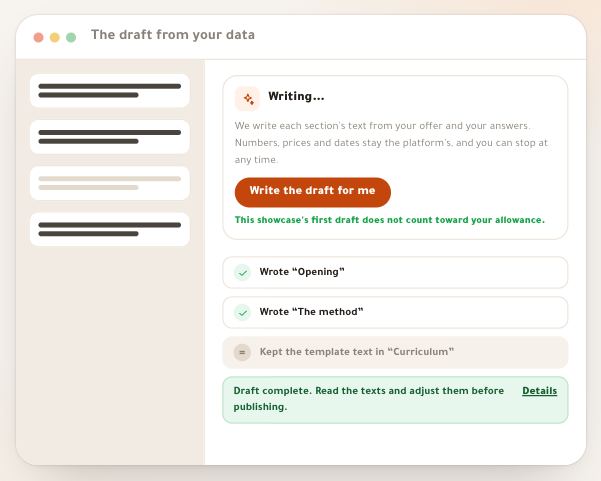
- Writing with Noqta“Write the whole page” in the “What Noqta knows” card.
- Check before publishing“Preview” opens the page as a visitor sees it.
Questions
I changed the link after sharing it — are visitors lost?
No. If the page was ever live, the old link keeps working and leads to the new one; the panel tells you so with the old link.
Why can’t I write the link in Arabic?
Because an Arabic link turns into a long string of codes when copied into WhatsApp or Facebook. Write a short Latin word from your subject, like fitness-home or tajwid-warsh.
Why does WhatsApp show a different title from my page?
Because WhatsApp reads the “Title” and “Description” from “In search and chats”, not the opening’s heading. Write them there for each language. WhatsApp may also keep the old card for a while: try the link in a new chat.
Do I need a share image?
No. Without one we make a card in your theme’s colours with the title, the real price and your workspace name. Your own image looks better if you have a good one at 1200×630.
Do visitors see a countdown before the stop date?
No. The stop date is never shown as urgency. After it the page stops selling, and visitors see “This offer has ended” and the “Notify me about the next round” form.
Do I need to publish after changing the link or the stop date?
No, both apply right away. The title, description, share image, languages, header and footer reach visitors when you publish.
I turned a language off — is its text lost?
No. It stays in the draft and comes back when you turn the language on again. While it is off, its link takes visitors to the page in the main language.
Do I put the pixel code on every page?
No. Measurement tools are set once for the whole workspace in “Tracking settings”, and work on all your showcases after the visitor agrees.