
When the certificate is granted: conditions, average, tiers and rank
On Dirassa Plus a condition is a sentence you read, not a box you fill: “Completes all published lessons, and reaches an average of ≥ 10 / 20 over 3 papers”. The average is computed from the papers you marked, with the coefficients you choose: no mark copied by hand. In this lesson Mourad has the calligraphy certificate granted on the average of two tests and an exam, with a “certificate of excellence” from 16 and a “certificate of achievement” from 10. Same for a tutor certifying the end of a term for their group, or a trainer rewarding a pass in their final assessment.
- About 7 minutes
- 6 steps
Who can do it: Needs “Manage certificates” to change the conditions. With “Issue certificates” you see them without changing them.
In 6 steps
- 1Read the conditions as sentences and add the source’s; beside them, how many earn it now and how many would with your change, before you save.
- 2“Average”: choose the papers and their coefficients, or read them from the gradebook, and what happens to absences.
- 3“Certificate tiers”: “certificate of excellence” from 16, “certificate of achievement” from 10; title and seal follow.
- 4“Print the student’s rank”: “1st of 28”, once every paper is closed.
Before you start
- Publish the papers that will count and set “Show results” on each: a paper whose results show “Never” counts for no certificate.
- If the course has a saved “Gradebook”, its coefficients are ready for the certificate to read.
- Step 1 of 6
Conditions as sentences, and what they do to the numbers
Each source shows its own conditions with their real values; all of them must be met. Beside them, how many students earn it now, and how many would with your change, before you save.
- Course or groupLessons by percentage, an exam with a mark, the average, a minimum duration; for a group, the attendance list and its end.
- Live and sessionsLive classes attended and their minutes, or the sessions completed from the pack.
- “4 would qualify (now 6)”Counted on your real students, with the conditions you haven’t saved yet.
TipThe exam condition reads what the student sees: after the paper’s result is out, with the attempt that counts (the best or the last).
All the details
On the certificate’s page, the “Conditions” tab: the conditions and “How is it granted?” are one form, saved once. It opens with “The certificate is granted when the student meets all of the following”. For a course or group: “Completes … of the published lessons” (all, 90%, 80%…), “And passes … with a mark ≥ … / 20”, “And has been enrolled for at least …” (against skipping through lessons in a day); for a group, “And was marked present on the group’s attendance list” and “And the group has ended”. For a live course: “Attends at least … of the live sessions, … minutes or more in each”, counted from actual presence in the room. For a sessions pack: “Completes … of the pack’s sessions”. For a track: every course’s certificate. Beside each condition, × to remove it; below, “Add a condition:” with what’s left: “Lessons”, “Exam”, “Average”, “Minimum duration”, “Attendance list”, “Group end”… On the side, “With these conditions, right now”: a large number for those who “qualify and haven’t received it”, then “Close”, “On the way”, “Issued” and “Awaiting your approval”. Change a condition and the count is redone with your conditions before you save, and every number that moves keeps the old one beside it: “(now 6)”. At the bottom of the tab, as long as something changed, the save bar: “Unsaved changes · 4 would qualify (now 6)”, with “Discard” and “Save conditions”. Leave the tab before saving and a popup asks first. And if someone changed them in another window before you: “These conditions were changed in another window. We loaded what was saved there and kept your edits: save them to replace it.”
On screenConditionsThe certificate is granted when the student meets all of the followingAdd a condition:LessonsExamAverageMinimum durationAttendance listGroup endWith these conditions, right nowqualify and haven’t received itDiscardSave conditionsHeads-upNew conditions apply to those who haven’t received it yet; nothing already issued is withdrawn. On an active certificate the save message says “Conditions saved. 4 students qualify now.” with “Grant it now (4)”; otherwise everyone is re-checked tonight.
- Step 2 of 6
“Average”: several papers, with coefficients
Choose the papers and each one’s coefficient, or read them from the gradebook; the average computes itself from your marking.
- Average or total“Weighted average” out of 20, or “Points total” over the points possible.
- Absences“waits until they sit it”, or “counts zero once it closes”.
- Gradebook“Gradebook” instead of “Chosen here” reads the course’s coefficients; any change there applies here.
TipSet coefficients once in the “Gradebook” and have the certificate read it: you see them next to everyone’s marks, and every certificate built on it follows.
All the details
“Average”, under “Add a condition:”, adds a minimum-average sentence out of 20 and, under it, the papers counted: every published test and exam of the course, a box to choose it and its coefficient beside it (× 0.5 to × 5). Exams start at × 2, tests at × 1. Mourad’s example: “Ruqaa test” × 1, “Naskh test” × 1, “Final exam” × 2; Amina has 15, 17 and 18, so (15 + 17 + 18 × 2) ÷ 4 = 17 / 20. The method: “Weighted average” or “Points total” (points earned over points possible, scaled to 20; no coefficients). “Missed a paper:” “waits until they sit it” or “counts zero once it closes”. If the course has a saved gradebook, a choice appears: “Chosen here” or “Gradebook”. The average is complete once every paper’s results are out to the student; until then they see a paper awaiting results. When the course has two papers or more, Noqta offers to switch to the average, with “Use the average”.
On screenAverageWeighted averagePoints totalMissed a paper:waits until they sit itcounts zero once it closesChosen hereGradebookUse the averageHeads-upA paper whose results show “Never” is never released, so an average that counts it never completes. Change its “Show results” or remove it from the calculation.
- Step 3 of 6
“Certificate tiers”: excellence and achievement
One certificate, issued with different titles and seals depending on the result.
- Up to four tiersEach with a name, the mark it starts at and its seal’s colour.
- The title followsThe tier’s name replaces the certificate’s title.
- The seal followsGold for excellence, silver for achievement, bronze, or your academy’s colour.
TipStart the lowest tier at the condition’s mark (10 / 20): every student who passes gets a tier.
All the details
With an average or exam condition, a folded “Certificate tiers” section appears at the end of “How is it granted?”; its summary says what’s set: “No tiers: one certificate for everyone who meets the conditions.” or the tiers and their marks. Open it and turn on “Tiers by result”: one certificate, several tiers by result — “certificate of excellence” from 16, “certificate of achievement” from 10. Each tier has its name, “from” (≥ 16 / 20…) and its “Seal colour”: “Gold”, “Silver”, “Bronze” or “Academy colour”. “Another tier” adds one, up to four. Then “Title follows the tier” and “Seal in the tier’s colour”. Amina, averaging 17, gets a certificate of excellence with a gold seal; Karim, at 12.5, a certificate of achievement with a silver seal, from one design. Below the lowest tier there’s no tier: the certificate keeps its own title if the conditions are met. Tiers are saved with the conditions. In the editor, the “Certificate tier” field writes it elsewhere if you wish.
On screenCertificate tiersTiers by resultTier namefromSeal colourGoldSilverBronzeAcademy colourAnother tierTitle follows the tierSeal in the tier’s colourCertificate tier - Step 4 of 6
“Print the student’s rank”
“1st of 28”, worded for the student and frozen at issue.
- Papers closedA certificate that prints the rank waits until every counted paper is closed.
- Among whom?Among those with complete results in the same source: the course, or the group alone.
- Off by defaultPublishing a rank can embarrass some students: turn it on when you really want it.
TipFor a “top of the class” certificate, combine the rank with tiers: the first with a gold seal, the rest by their tier.
All the details
With an average condition, “Print the student’s rank” appears: counted among complete results and frozen at issue, it makes the certificate wait until every counted paper is closed. It reads “1st”, “3rd of 12”; equal averages share a rank. It’s counted within the same source: a group certificate ranks that group’s students. Since a rank is only true once everyone has sat, the certificate waits until each counted paper is closed; the student sees that it waits for the papers to close. Close them at their closing time, or from each paper’s page with “Announce results” (or “Stop taking answers” in ⋯ for a paper whose results show immediately), and every certificate goes out with a true rank. In the editor, place the “Rank” field where you want; if you forget to turn printing on, the “Before activating” list tells you.
On screenPrint the student’s rankAnnounce resultsStop taking answersRankBefore activatingHeads-upOnce issued, the rank doesn’t change, even if you edit a mark later.
- Step 5 of 6
How it’s granted, the grade and the name
Who grants it, how the grade reads, whether the student confirms their name, and how long it stays valid.
- Three ways“Automatically” once the conditions are met, “After your approval” with the evidence, or “Manually”.
- The gradesPass ≥ 10, fairly good ≥ 12, good ≥ 14, very good ≥ 16, excellent ≥ 18.
- The nameOnce: how their name is written in Arabic and Latin letters, and the wording.
TipA professional certificate renewed every two years? “Expires” after 24 months: “Valid until …” shows on it and on the verification page.
All the details
Under the conditions, in the same tab, “How is it granted?”: “Automatically” (the moment the conditions are met), “After your approval” (“Requests reach you in “Students” with the evidence: you approve or decline.”, and also at the top of the “Register”; a rejection carries a reason the student receives) or “Manually” (only when you grant it yourself). Under it, switches: “Ask the student to confirm their name before issuing” (“Recommended”: most certificate mistakes are names); “Notify the student when it’s issued”; and “Expires” (off: “Never”; on, you choose how long it’s “Valid for”: 6, 12, 24, 36 or 60 months). Then “Grade from the mark”: on the baccalaureate scale, pass ≥ 10, fairly good ≥ 12, good ≥ 14, very good ≥ 16, excellent ≥ 18; with an average condition, the line under it reads “The grade comes from the average”. All of it is saved with the conditions, in one bar: “Save conditions”.
On screenHow is it granted?AutomaticallyAfter your approvalManuallyAsk the student to confirm their name before issuingRecommendedNotify the student when it’s issuedExpiresNeverValid forGrade from the markThe grade comes from the averageSave conditions - Step 6 of 6
“Design”: what’s printed
The printed duration, the date format, the Hijri date and the number prefix, for this certificate only; the preview changes with you before you save.
- Duration“From the lessons” (the published lessons’ total) or “Type it yourself”.
- Date“9 October 2026” or “2026/10/09”, with the Hijri date if you like.
- NumberA prefix for this certificate alone, instead of the identity’s.
TipA course both streamed and recorded? Type the duration yourself if the real hours exceed the published videos’.
All the details
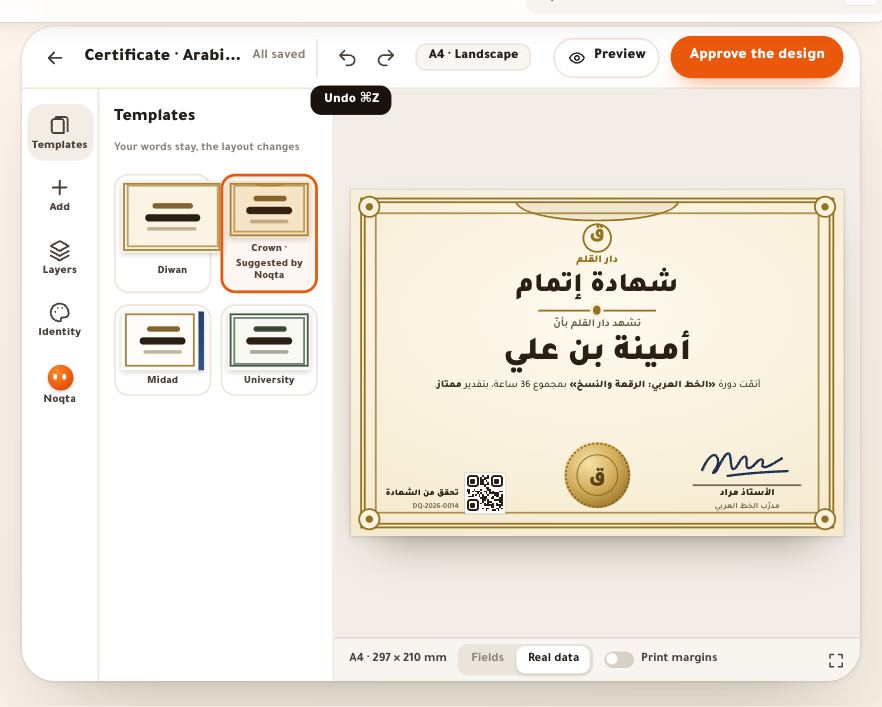
The certificate page’s “Design” tab: the certificate’s preview in a sample student’s name, at its current version; when the design has changes that aren’t approved yet, you choose between “Approved” and “Draft”, with “Approve the new design”. Beside it, the “What’s printed” card (“The preview changes at once; it applies to what’s issued after you save.”): “Printed duration”: “From the lessons” or “Type it yourself”; “Date format”; “With the Hijri date”; and “Number prefix”, which replaces the identity’s for this certificate only (numbers already issued don’t change). Change something and a bar, “Unsaved changes to what’s printed”, appears with “Save”: “Saved. It applies to what’s issued from now on.”. The certificate’s name (in your dashboard, and on the certificate wherever you placed its field) changes from ⋯ at the top of the page → “Rename”. Under the card, “Versions: what’s issued never changes”: each certificate keeps the design version it went out with, and that’s where you reissue older ones (the lesson “Issuing and following up”).
On screenDesignApprovedDraftApprove the new designWhat’s printedPrinted durationFrom the lessonsType it yourselfDate formatWith the Hijri dateNumber prefixSaveRenameVersions: what’s issued never changes
Once the conditions are set
Questions
When is the average computed?
Once every one of its papers’ results is out to the student: immediately or when the paper closes, per “Show results”. The certificate is then checked again by itself.
A student missed a test: do they get the certificate?
As you chose for absences: “waits until they sit it”, and their average stays incomplete; or “counts zero once it closes”, and it’s computed with a zero on that paper.
The student sat the test twice: which mark counts?
The one you choose in the paper itself: “Attempt that counts” — “The best” or “The last”.
Why haven’t the ranked certificates gone out yet?
The rank waits for every counted paper to close. Close them from their page, or wait for their closing time.
Can I use other grades?
Grades follow the baccalaureate scale: from pass at 10 to excellent at 18. For tiers with your own names, use “Certificate tiers”.
I changed a mark after issuing: does the certificate change?
No: what’s issued keeps its result from the day it went out. To correct it, revoke it from the register; its conditions are checked again.
I eased the conditions of an active certificate: does it go to those who now qualify?
Yes. Before you save, the bar says how many would (“9 would qualify (now 4)”); after, the message says “Conditions saved. 9 students qualify now.” with “Grant it now (9)”. Otherwise everyone is re-checked tonight.