
The follow-up desk: who to call now, and what happened on every call
Whoever leaves a number on your showcase, orders cash on delivery or sends a receipt needs a person to call them at the right time. The “Follow-up desk” lines them up in one queue: who to call first, what was said last time, where the person came from. This lesson explains the whole desk: what reaches it, how to walk the round, how to log each try. Our example: Lina, a photographer selling her printed book by cash on delivery and keeping a waitlist for her next editing course.
- Short rounds every day
- 8 steps
Who can do it: Leads: “Edit showcases” or “Manage offers and prices”. Cash on delivery and receipts: “Orders and delivery” or “Approve payments”. The owner sees everything.
 Let Noqta show you
In 8 steps
- 1The desk gathers the last 45 days of leads, cash-on-delivery orders and receipts coming from your showcases.
- 2The round line counts the calls due now, and “Start the round” takes you from the most urgent to the last, with filters, types and search.
- 3Each row says who the person is, their state and next step, with “Call”, “WhatsApp” and “Log”.
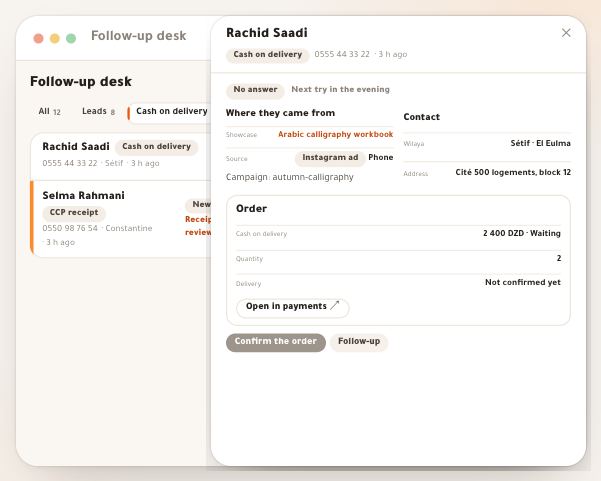
- 4The panel gathers where they came from, their details, a pinned note, “Change status” and “Previous / Next”.
Show all
- 5“Log a try”: the channel, then what happened, in one choice that moves you on.
- 6If they answered: the outcome, the call-back appointment and the closing reason.
- 7One window per person, the 3×3 ladder, and automatic closing after nine calls that you can prevent.
- 8With no network, the try stays on the device and goes out when it returns.
Before you start
- A published showcase that collects numbers: a sign-up form, “Notify me” and a waitlist, or a cash-on-delivery or receipt order.
- A phone in your hand: the desk is made for calling from it, and works on a computer too.
- The right permission for the kind of people you follow (see “Who reaches the desk”).
- Step 1 of 8
Who reaches the desk
One place to follow up everyone who left a number, ordered cash on delivery or sent a receipt.
- Who arrives?“Leads”, “Cash on delivery” and “Receipts”, all from your showcases. Card and Chargily orders don’t.
- For how long?The last 45 days, up to 60 for an order waiting. A lead stays until their case is settled.
- How many?At most 400 leads and 400 orders, newest first.
TipThe desk link from a showcase’s page opens it filtered on that showcase alone.
All the details
Open the “Follow-up desk” from “Incoming”, under “Sales”: the “⋯” button at the top of the page, then “Follow-up desk”; or type its name in the ⌘K search, or press “Open the follow-up desk” in a showcase’s “Leads” tab. Three kinds reach it, all from your own showcases: “Leads” (sign-up form, “Notify me”, waitlist, free file or live, call-back request), “Cash on delivery” and “Receipts” (CCP or BaridiMob receipt). An order paid by card or Chargily does not reach it. You see the last 45 days; an order waiting for confirmation or review stays up to 60 days, and a lead stays as long as its case is not settled. At most 400 leads and 400 orders, newest first. Desk empty? Share your showcase link to begin.
On screenFollow-up deskLeadsCash on deliveryReceipts - Step 2 of 8
The round line and the queue
One button starts the call round in the right order, missed appointments first.
- Three windows“Morning round” before 12:00, “Midday round” until 17:00, “Evening round” after, in Algiers time.
- Who comes first?Missed appointments, then arrivals under an hour old, then people never called, then those with no answer.
- The numbers“Arrived today”, “In progress”, “Converted”, “Close rate” and “Average time to first call” over 30 days.
Tip“Now” and “In progress” are sorted for the round; “Converted” and “Closed” by most recent closing.
All the details
On top, the round line: how many calls are due now, the current window in Algiers time, “Morning round” before 12:00, “Midday round” from 12:00 to 17:00, “Evening round” after 17:00, with two chips: missed appointments, new arrivals, and one button. “Start the round” opens the first person to call: missed appointments first, then people who arrived under an hour ago and were never called, then people never called, then people with no answer in this window, then people to follow up today. Under it, one strip of numbers divided by hairlines: “Arrived today”, “In progress”, “Converted” (with “Close rate” under it: converted ÷ (converted + closed)) and “Average time to first call” over 30 days — answering within minutes makes the difference. Then the queue, with filters “Now”, “In progress”, “Converted”, “Closed”, “All”; beside the search, the “Type” list when there is more than one type; the “All showcases” list when there are several showcases, which filters the numbers and the list together; and “Search by name or phone”, which matches the name, showcase, offer, email or part of the number, in local 0550 or international +213 form.
On screenMorning roundMidday roundEvening roundStart the roundArrived todayIn progressConvertedClose rateAverage time to first callNowClosedAllAll showcasesSearch by name or phone - Step 3 of 8
The row: who it is, and what to do now
Each row says who the person is, where they came from, and in one line what you do with them now.
- In the rowName, phone, wilaya, type, source, state, and the next step like “Just arrived — call now”.
- The coloursRed for a missed appointment, amber for someone waiting for a call, green for converted. The nine squares are the tries ladder.
- Three buttons“Call”, “WhatsApp” with a ready message in their language, and “Log” on a computer.
TipThe flame means: arrived under an hour ago and never called, the call most likely to sell.
All the details
Each row says the name, phone, wilaya and how long ago the person arrived, their type (waitlist, notify me, cash on delivery…), the offer or showcase, the source (Facebook ad, QR poster…), their state, and one line about the next step, like “Just arrived — call now” or “Never called”. The states: “New”, “No answer”, “Appointment”, “Interested”, then “Bought” for a lead, “Confirmed” for cash on delivery and “Paid” for a receipt, then “Closed” or the closing reason like “Price”. A coloured bar on the side: red for a missed appointment, amber for someone waiting for a call, green for someone converted. Nine small squares with “3/9” are the tries ladder. Three buttons: “Call” starts the call on your phone, “WhatsApp” opens WhatsApp with a ready message in the person’s language, and “Log” on a computer (on a phone the sheet opens after “Call” and “WhatsApp”). With no phone but an email you get “Email”; with nothing, “No phone”. Tapping the name opens their panel.
On screenCallWhatsAppLogNewNo answerAppointmentInterestedJust arrived — call nowNever calledEmailNo phone - Step 4 of 8
The person’s panel
A panel holds everything the desk knows about the person, and walks you to the next one without going back to the list.
- What’s in itWhere they came from, contact, the order, their form answers and a “Pinned note” of up to 500 characters.
- “Change status”When it is settled without a call. An appointment asks for a time, closing for a reason.
- Who called before?Each try with its time, note and who logged it, so your team sees who came first.
TipThe panel says who follows the person and who logged each try, so your team sees who called before them.
All the details
Tap a row to open a panel with all the desk knows about the person: their state, next step and who follows them, the call and WhatsApp buttons, then “Where they came from” (showcase, offer, source, device, campaign), “Contact” (phone, email, wilaya, address), “Order” if it is one, “Their form answers”, a ready WhatsApp message, and a “Pinned note” of up to 500 characters, shown on the row with a pin (the right time to call, their hesitation); the “Save” button appears when you type. At the bottom, “Previous” and “Next” with “2 of 14” walk you through the list you came from so you finish the round without going back to it, and “Log a try”. When it is settled without a call (a WhatsApp chat that ended, a closed person coming back), use “Change status”: pick the status; an appointment asks for a time, closing asks for a reason, and for a receipt “Paid” does not appear, because it converts when the money arrives. Further down, “Tries”: the nine-square ladder, then each try with its time, note and who logged it. A person settled by the order itself (bought on the showcase, order paid, cancelled, unsubscribed) says so, and their status does not change from here.
On screenWhere they came fromContactOrderTheir form answersPinned noteSavePreviousNextLog a tryChange statusTries - Step 5 of 8
Log the try: what happened?
After each call or message you pick what happened in one tap; the desk knows when to bring the person back.
- For a call“They answered”, “No answer”, “Busy”, “Phone off”, “Wrong number”. No answer comes back next window.
- For WhatsApp“Message sent”, “They answered”, “Not on WhatsApp”. The last neither closes the row nor flags the number.
- “Wrong number”On a call, it closes the row and counts against the number.
TipLog even the unanswered call: that tells the desk your window is used, so it does not ask again within the hour.
All the details
After “Call” or “WhatsApp” (or from “Log a try”), the “Log a try” sheet opens with the name, the try number and its window. First the “Channel”: call or WhatsApp (from “WhatsApp” it arrives on “Message sent”). Then “What happened?”: one choice, and you move straight on. For a call: “They answered”, “No answer”, “Busy”, “Phone off”, “Wrong number”. For WhatsApp: “Message sent”, “They answered”, “Not on WhatsApp”. Someone who does not answer stays in the queue and comes back in the next window; the sheet says when. “Not on WhatsApp” is a miss on WhatsApp only: the row stays open as “No answer” and the number is not flagged, since the person may answer a call. “Wrong number” on a call closes the row and counts against the number. Below, “Note on this try (optional)” up to 1000 characters, and the “Log the try” button.
On screenLog a tryChannelWhat happened?They answeredNo answerBusyPhone offWrong numberMessage sentNot on WhatsAppNote on this try (optional)Log the try - Step 6 of 8
If they answer: what was the outcome?
If they answer, you log the outcome: bought, thinking, call back later, or not interested and why.
- “Bought, or buying now”Closes the follow-up as a success without creating an order: it is a mark on your side only.
- Appointment to call backIn an hour, today 18:00, tomorrow, or a time you pick within 90 days. When it’s due, it rises into “Now”.
- Why not?“Price”, “Not interested” or another. Reasons are counted: if “Price” keeps coming up, it’s the offer.
TipReasons are counted: if “Price” keeps coming up, the problem is the offer, not the calls.
All the details
If you pick “They answered”, the sheet asks “What was the outcome?”, an answer is required, and the submit button becomes “Confirm the outcome”. For a lead: “Bought, or buying now” (closes the follow-up as a success, without creating an order: it is a mark on your side only), “Interested, thinking” (followed up once a day), “Appointment to call back”, “Not interested”. For a cash-on-delivery order: “Order confirmed” in place of the first, “Cancels the order” in place of the last. For a receipt there is no “Order confirmed”: it converts only when the money arrives. “Appointment to call back” asks “When to call back?”: “In an hour”, “Today 18:00”, “Tomorrow 10:00”, “Tomorrow 18:00”, or a time you choose, in Algiers time, within 90 days; at the set time the row rises into “Now” in any window, and turns red if you are late. “Not interested” and “Cancels the order” ask “Why? The reason is counted later”: “Price”, “Not interested”, “Wrong number”, “Duplicate” or “Other reason”.
On screenWhat was the outcome?Bought, or buying nowInterested, thinkingAppointment to call backNot interestedOrder confirmedCancels the orderWhen to call back?In an hourToday 18:00Tomorrow 10:00Tomorrow 18:00Why? The reason is counted laterPriceDuplicateOther reasonConfirm the outcome - Step 7 of 8
One window, nine calls, automatic closing
Rules that protect people from being chased: one try per window, nine calls, then the row closes.
- One windowOnce a try is logged, the row leaves “Now” for the next window: nobody is rung twice within an hour.
- The 3×3 ladderThree days × three windows = nine squares, each coloured by its try’s outcome.
- Automatic closingAfter nine unanswered calls over three days: “Unreachable”. “Keep it open” prevents it.
All the details
One window: as soon as you log a try in the current window (morning, midday or evening), the row leaves “Now” and says “Tomorrow morning” or the next evening try: nobody is rung twice within an hour. A lead you follow once a day, and an appointment falls at its time. The 3×3 ladder: three days × three windows = nine squares, and each try colours its square by its outcome. Automatic closing: after nine calls over three different days with no answer, the row closes as “Unreachable”; WhatsApp messages do not count toward the nine; and “Wrong number” on a call closes it at once. Before you save, the sheet says so and offers “Keep it open”: switch it on if you know the person will answer. Someone who answered and whose status moved on is not closed automatically.
On screenTomorrow morningUnreachableWrong numberKeep it openHeads-up“Keep it open” shows in the sheet only when this try would close the row.
- Step 8 of 8
With no network
If the network drops, your try isn’t lost: it stays on the device and goes out with its real time when the network returns.
- When does it go?When the network returns or you open the desk, each try with its time, in its own window.
- Where is it kept?On this device and browser, for this workspace, 50 tries at most.
- Until when?A try older than 12 hours isn’t sent. The desk refreshes itself every 90 seconds.
All the details
If the network drops while saving, the try is not lost: “Kept on this device, sent when the network returns.” appears, the row moves on your screen with the chip “Waiting for network”, and a bar on top says how many tries are waiting, with “Retry”. They go out when the network returns or you open the desk, each with its real time so it lands in its own window. They are kept on this device and this browser for this workspace (50 tries at most), and a try older than 12 hours is not sent. The desk refreshes itself every 90 seconds and when you come back to its window, so you see your team’s news.
On screenKept on this device, sent when the network returns.Waiting for networkRetry
After following up
- Cash on delivery and receiptsWhat “Confirmed” means, the marks on numbers, prepaid only by wilaya.
- Your ready messagesWrite your WhatsApp messages your way, in three languages, and the buyer’s sign-in link.
- The team and alertsWho sees what, who follows, and phone notifications.
- Read the resultsWhich source brings people who actually buy.
Questions
Does the desk send messages for me?
No. WhatsApp messages open ready and you press send. Nothing goes out on its own.
Why don’t I see an order paid by card?
The desk is for numbers that need a call: cash on delivery and receipts. Card and Chargily orders do not reach it.
Does “Bought” create an order?
No. “Bought” is a mark on the lead’s row that closes its follow-up as a success; no order and no money is recorded by it.
What happens to people who never answer?
They come back in the next windows; after nine calls over three days with no answer they close as “Unreachable”, unless you choose “Keep it open” on the last try. You can reopen them with “Change status”.
Why did someone leave “Now” after my call?
Because the morning, midday or evening window is used for them. They come back in the next window, or at their appointment if you set one.
Can I work offline?
Logged tries stay on the device and go out when the network returns; the desk shows how many are waiting. A try older than 12 hours is not sent.
Can two teammates call the same person?
Nothing locks the row. But the panel says “Followed by …”, logs who called and how it ended, and the desk refreshes every 90 seconds: the second person sees that the person’s window is used.