
Noqta designs your page and reviews it as a visitor
Here Noqta doesn’t write, she arranges. She reads what your offer really holds (lessons, cover, verified reviews, dates, WhatsApp number, guarantee), suggests the sections that have something true to show now, picks for each the layout its data calls for, with the reason, then reads the page the way a buyer does before paying. You choose the sections, nothing changes until you apply, and every apply is one undoable step. Our example: Amina, a digital-marketing trainer, designs the page of her course “Facebook ads for small shops”: 24 lessons in 5 chapters, a cover, a WhatsApp number, one upcoming live session, a guarantee on the offer, and no reviews yet, because her first cohort hasn’t started.
- Three to ten minutes
- 8 steps
Who can do it: Anyone with “Edit showcases”.
 Let Noqta show you
In 8 steps
- 1In the “What Noqta knows” card press “Design my page” or “Review as a visitor”, or open them from “Theme”.
- 2Pick the “Page length”: short up to 7 sections, medium up to 11, long up to 15; remove what you don’t want, except what carries “Core”.
- 3Add from “Add a section”; greyed ones wait for data and say which. Then “Design with these N sections”.
- 4“Your proposed page” is drawn on the canvas and nothing has changed: each section has its decision, layout and reason; what you leave out is hidden, never deleted.
Show all
- 5“Apply the design” is one undoable step; on a phone, “See the page”, then “Apply” from the small bar.
- 6In one section’s “Layout” tab: “Noqta picks “…” for this section” with the reason, and “Try it”.
- 7“Review as a visitor” asks the buyer’s questions in the order they scroll your page, and only those your page raises.
- 8Each question is answered by a section (“Show me”), open with one fix, or waiting for real data; Noqta never invents proof.
Before you start
- A showcase open in the editor, linked to an offer: Noqta reads its courses (chapters, lessons, dates), its cover, its guarantee and its verified reviews.
- Your data in place: the course cover, your photo, your workspace’s WhatsApp number. Each one changes the sections and layouts Noqta suggests.
- A section you wrote and whose layout you like? Lock it first in the “Layout” tab: Noqta never restyles or hides a locked section.
- Step 1 of 8
Where to open “Design my page” and “Review as a visitor”
Noqta arranges your page from your data, then reads it as a buyer before you publish; here are the two ways in.
- From where?“Ask Noqta in your page”: at the foot of the panel on a computer when no section is selected, and “Noqta” in the bottom bar on a phone.
- What does it cost?Nothing from today’s requests: Noqta works the proposal out from your page’s data and writes no text.
- In what order?“Design my page”, then “Fill what's missing”, then “Review as a visitor” before you publish.
TipA new page? Start with “Design my page”, then “Fill what's missing” so Noqta writes the new sections, then “Review as a visitor” before you publish.
All the details
On a computer, at the foot of the panel when no section is selected, the line “Ask Noqta in your page” (or ⌘J); on a phone, “Noqta” in the bottom bar. Under the request field, the whole page’s rows: “Fill what's missing” and “Write the whole page” to write, then “Design my page” (“Sections, layouts and rhythm”) and “Review as a visitor” (“The buyer’s questions before paying”). Each has its own panel: at the side of the screen on a computer, a full-screen sheet on a phone. Neither takes from today’s requests: Noqta works out what she proposes here from your page’s data, and writes no text.
On screenAsk Noqta in your pageDesign my pageSections, layouts and rhythmReview as a visitorThe buyer’s questions before paying - Step 2 of 8
Step 1: the sections Noqta suggests, and the page length
Noqta suggests the sections that have something to show now; you choose the page length and what stays.
- Why this section?Each carries its reason from your data, like Amina’s: “24 lessons · 5 chapters, seen before paying.”
- “Page length”“Short” up to 7 sections, “Medium” up to 11, “Long” up to 15. Noqta starts at the one that suits your price.
- What can’t be removedThe “Opening”, the price section and the “Final word”: they carry “Core”.
TipA visitor from an ad who doesn’t know you yet? “Long” leaves Noqta room for “Value math”, “Benefits”, “Objections” and a mid-page button, whenever she has something to put in them.
All the details
The panel opens on “Noqta suggests N sections for your page”: “From your course, your offer and what you really have.” Noqta suggests a section only when it has something to show now, and each one carries the reason from your data; for Amina, under “Curriculum”: “24 lessons · 5 chapters, seen before paying.” Above the list, “Page length”: “Short” (up to 7 sections), “Medium” (up to 11), “Long” (up to 15), with “Short for a small price or a visitor who knows you, long for a big price or a new visitor.” Noqta starts at the length that suits your offer’s price; changing it redoes the suggestion. In “Page sections · N”, tap a section to remove it and tap it again to bring it back. Three cannot be removed and carry “Core”: the “Opening”, the price section (or the “Sign-up form” on a page that collects sign-ups) and the “Final word”.
On screenNoqta suggests N sections for your pagePage lengthShortMediumLongPage sections · NCore - Step 3 of 8
“Add a section”: what you add yourself, and what waits for data
You add the ready sections you want to Noqta’s suggestion; each joins the page at its own place.
- Where does it go?At its place in reading order: hook, explanation, proof, offer, reassurance, final word.
- A greyed sectionIt waits for data and can’t be tapped; it says what is missing: “Sourced reviews” until the first reviews arrive.
- Then?When your list is ready, press “Design with these N sections”.
TipA wedding photographer selling a retouching course? “Student work” becomes available once the offer holds real work: data opens sections, not wishes.
All the details
Under the list, “Add a section”: “Other sections that fit this page type. Greyed ones wait for data.” Tap a ready section and it joins the list at its place on the page, not at the end: Noqta orders sections the way visitors read, from the hook to the explanation, the proof, the offer, the reassurance and the final word. A greyed section can’t be tapped and says underneath what it is waiting for: for Amina, “Sourced reviews” stays grey until her students’ first reviews arrive. When your list is ready, press “Design with these N sections”.
On screenAdd a sectionOther sections that fit this page type. Greyed ones wait for data.Design with these N sections - Step 4 of 8
Step 2: the designed page, before anything changes
You see the designed page drawn in place of yours, with the reason for each decision; nothing has changed yet.
- “Noqta’s decisions”One line per section: new, restyled or kept, with the reason when the data calls for a layout.
- What isn’t touchedKept sections’ words, and a locked section’s layout. What you leave out is hidden, never deleted.
- Read the reasons“No cover yet” or “no photo yet” tells you what to add for a richer layout.
TipRead the reasons before applying: a reason that says “no cover yet” or “no photo yet” tells you what to add for a richer layout.
All the details
“Your proposed page”: “It is drawn on the canvas; nothing has changed yet. Existing sections keep their words.” The new page is drawn in place of yours, with its order and layouts, and under “Noqta’s decisions · N” there is one line per section: its name and layout, a mark saying whether it is new, restyled or kept, then the reason when the data calls for a particular layout. For Amina: “Curriculum · Contents” with “Many lessons read faster as a table of contents.” Otherwise you read the decision itself: “New section with template words.”, “New layout, same words.” or “Stays as it is.” The rules never change: kept sections keep their words untouched; a locked section keeps its layout and, if you didn’t choose it, stays shown; the sections you leave out are hidden, never deleted, as the line “Hidden: …” says (“Their words are kept.”). The “Announcement bar” and the thin deadline ribbon move above the opening. Then the page takes its rhythm from “Presentation”, as with “Let Noqta set the page rhythm”, without touching your head, accent word and pictures choices. Want to change your selection? “Back to sections”.
On screenYour proposed pageIt is drawn on the canvas; nothing has changed yet. Existing sections keep their words.Noqta’s decisions · NNew section with template words.New layout, same words.Stays as it is.Hidden: …Back to sections - Step 5 of 8
“Apply the design”: one undoable step
You put the designed page in place of yours at once, and get yours back with a single “Undo”.
- One stepA single “Undo” brings your page back. Closing the panel without applying leaves it as it is.
- On a phone“See the page” folds the sheet to show the whole design, and the “Noqta’s design” bar keeps “Apply”.
- When do visitors see it?When you publish. Read-only editors see the plan, but “Apply the design” stays disabled.
TipNew sections arrive with template words: then open “Ask Noqta in your page” and press “Fill what's missing” so Noqta writes them from your course, or write them yourself.
All the details
“Apply the design” puts the designed page in place of yours at once, with “One step, undoable” under it: a single “Undo” brings your page back as it was, and the history names it “page design with Noqta”. Closing the panel without applying leaves your page as it is. On a phone the sheet covers the page, so press “See the page” to fold it and see the whole design; a small “Noqta’s design” bar stays above the page with “Sections” (which brings the sheet back), “Apply”, and a close button, “Leave the design”, that returns your page unchanged. After applying, Noqta says “Noqta designed your page” and “N added, N restyled, N hidden.”, with “Undo”, “Review it as a visitor” and “Design again”. Autosave takes it from there, and visitors see nothing until you publish.
On screenApply the designOne step, undoableSee the pageNoqta’s designSectionsApplyLeave the designNoqta designed your pageN added, N restyled, N hidden.UndoReview it as a visitorDesign againHeads-upSomeone who opens the editor read-only sees the suggestion and the plan, but “Apply the design” stays disabled for them.
- Step 6 of 8
A better layout for one section
Don’t want to redesign the whole page? Noqta suggests the best layout for one section, from your page’s data.
- Where?The section’s “Layout” tab: the “Noqta picks “…” for this section” card, with its reason.
- An exampleFor Amina: “Curriculum” as “Contents” for her 24 lessons, “Questions” as “With contact” since her WhatsApp is saved.
- Try freely“Try it” switches, “Undo” switches back. When the data prefers nothing, your taste decides.
All the details
Don’t want to redesign the whole page? Select a section, then the “Layout” tab: above the layouts, a small card reads “Noqta picks “…” for this section”, with the reason from your page’s data under it. “Try it” switches the layout, “Undo” switches it back, and the recommended layout carries a small “Noqta” chip in the list. For Amina, “Curriculum” suggests “Contents” because she has 24 lessons, “Questions” suggests “With contact” because her WhatsApp number is saved, and “Live schedule” suggests “Single date” for her one upcoming session. When the section already uses that layout, a quiet line says so: “This is the layout Noqta picks for this section”, with the reason. And when nothing in the data prefers a layout, nothing shows: your taste decides. All the rules are in the lesson on a section’s layout.
On screenLayoutNoqta picks “…” for this sectionTry itNoqtaThis is the layout Noqta picks for this section - Step 7 of 8
“Review as a visitor”: the buyer’s questions in scroll order
Noqta reads your page the way a buyer does, asking their questions in the order they meet the page.
- What she asks“What exactly do I get?”, “Who is behind this offer?”, “Has anyone tried it before me?”… up to “Convinced: where do I press?”.
- Your page’s questions onlyWith no upcoming sessions or shipping, no date question; with no guarantee, no “And if it does not suit me?”.
- With “Ready?”“Ready?” checks what publishing needs, “Review as a visitor” what buying needs. Run both.
Tip“Ready?” checks what publishing needs, “Review as a visitor” what buying needs: run both before you publish.
All the details
“Review as a visitor” reads your page the way a buyer does: “The questions a buyer asks before paying, in the order they meet your page.” Open it from “Ask Noqta in your page”, or with “Review it as a visitor” after a design. The questions, in order: “What exactly do I get?” (answered by “Curriculum”, “What you get”, “Product and book”, “Benefits”, “Value math”, “Comes with” or “Intro video”); “Who is behind this offer?” (“The creator” or “Text and media”); “Has anyone tried it before me?” (“Sourced reviews”, “Real numbers”, “Student work”, “Logos”, “Moments”, “Video results”); “Did I see the proof before the price?” when the page has proof and a price section; then “When are the live sessions?” when you have sessions coming, or “When does it arrive, and what does delivery cost?” for a shipped product; “And if it does not suit me?” when your offer carries a guarantee; “I have a question: where do I ask?” (“Questions”, “Contact”, “Support” or “Objections”); and last, “Convinced: where do I press?”. Only the questions your page raises are asked: with no upcoming sessions and nothing to ship there is no date question, and an offer without a guarantee is not asked “And if it does not suit me?”.
On screenReview as a visitorThe questions a buyer asks before paying, in the order they meet your page.What exactly do I get?Who is behind this offer?Has anyone tried it before me?Did I see the proof before the price?When are the live sessions?When does it arrive, and what does delivery cost?And if it does not suit me?I have a question: where do I ask?Convinced: where do I press? - Step 8 of 8
Answered, one fix, or waiting
Every unanswered question comes with one fix a tap away, which undo reverses if you don’t like it.
- The fixes“Add “…”” in the right place, “Show “…””, “Move it above the price” or “Turn the buy bar on”.
- A waiting question“Has anyone tried it before me?” waits for your first verified reviews, and doesn’t count in the total.
- No invented proofNoqta writes no review and no figure to answer: proof comes from verified reviews and the platform’s data only.
TipAmina moved “Real numbers” above the price with “Move it above the price” once she had students: visitors read the proof, then the number, not the other way round.
All the details
At the head of the panel, “Your page answers N of N questions” and a small bar per question. An answered question says which section answers it, and “Show me” takes you there on the page. An unanswered one says what is missing and why it matters (“One unanswered question is enough to close the page.”), with one fix a tap away: “Add “…”” puts the section that answers it in the right place (before the price for what buyers get, the creator, the proof and the dates; after it for the guarantee and delivery; before the final word for questions); “Show “…”” when the section exists but is hidden; “Move it above the price” when the proof sits below the price; “Turn the buy bar on” when visitors scroll through five or more sections in a row without a buy button. “Each fix is one step, undoable.”, and the list updates at once after every fix, undo or edit. Some questions are waiting: on a page with no reviews and no students yet, “Has anyone tried it before me?” says “Answered once your first verified reviews arrive; Noqta never invents proof.” A waiting question does not count in the total. And when your page answers them all: “Your page answers everything a visitor asks before paying”.
On screenYour page answers N of N questionsShow meAdd “…”Show “…”Move it above the priceTurn the buy bar onEach fix is one step, undoable.Your page answers everything a visitor asks before payingHeads-upNoqta writes no review and no figure to answer a question: proof comes only from verified reviews and the platform’s own data.
After the design
- Write the new sections“Fill what's missing” in “What Noqta knows” writes what still has template words.
- Tune one sectionLayouts, tone, spacing and lock in the “Layout” tab.
- Theme and rhythmColours, fonts, “Theme layouts” and the page rhythm.
- Check before publishing“Ready?” for what publishing needs, then publish.
Questions
Does Noqta write the text in “Design my page”?
No. She only picks the sections, their layouts and their rhythm: kept sections keep their words, new ones arrive with template words. To have Noqta write them from your course, use “Fill what's missing” in the “What Noqta knows” card.
Are the sections I leave out deleted?
No. They are hidden with their words, and you show them again from “Sections” whenever you like. A locked section is never hidden or restyled.
Do the design or “Review as a visitor” use today’s requests?
No. Noqta works them out from your page’s data in the editor and writes no text, so nothing is taken from today’s requests.
Why doesn’t Noqta suggest “Sourced reviews”?
Because she never suggests a section with nothing true to show yet. It appears greyed in “Add a section” with what it waits for, and becomes available once your first verified reviews arrive.
What is the difference between “Review as a visitor” and “Ready?”?
“Ready?” checks what publishing needs: missing fields, tones that break the rhythm, unreviewed text. “Review as a visitor” reads the page as a buyer: do they find the answer to each question before paying, and where.
I applied the design and don’t like it — what now?
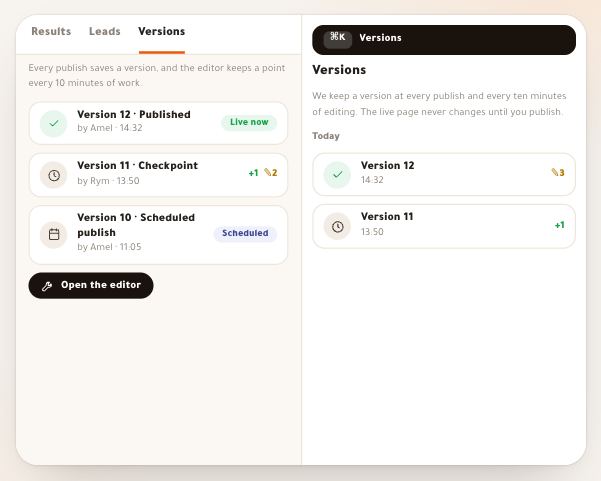
One “Undo” brings the page back as it was, from the done step or the editor’s bar. And “Versions” keeps your saved versions if you want to go further back.
Do my visitors see the design right away?
No. It changes in the editor only, and reaches visitors when you publish.