
Services: what people book of your time, from kind to publishing
A service is what people book of your time: a kind, a length, a price, where you meet, how it is confirmed and who sees it. All six kinds are made in one editor, and the kind decides what shows in it: seats and a minimum for a group session, what to send and the promised answer time for a work review, a monthly price for a weekly slot. In this lesson Salim Bouzid at “Al-Ofok Academy” creates a 60-minute “Private revision session” at 2,500 DZD, and with him we look at Karim Zerrouki’s “Group English conversation” and the photographer Leila Kacimi’s “Studio lighting workshop” and “Portfolio review”.
- About 10 minutes for the first service
- 7 steps
Who can do it: “Own bookings” is enough for your services (and those of a teacher you assist in a school). The school’s own services, and choosing who gives a service, need “All teachers' bookings”.
 Let Noqta show you
In 7 steps
- 1“Services” is a list grouped by kind: price, bookings this month, who sees it, status and quick actions.
- 2“New service” shows the six kinds with an example each; nothing is created before the first save.
- 3“Essentials”: name and short description, length, price and a price for your students.
- 4What the kind adds: seats, minimum and go/no-go for a group; files, promised answer time and daily capacity for a work review.
Show all
- 5“Where you meet”: session room, live room, fixed link or a place; and “Confirmation”: instant or with your approval.
- 6“More · optional”: limits and buffers, questions before the session, cancellation policy, who sees it and who gives it.
- 7The preview and the save bar, then “Publish” or “Send for review”; behind every service, a store row at 0% commission.
Before you start
- At least the “Own bookings” permission.
- A clear idea of what you sell: who it is for, how long it lasts, how much; and the place’s name and address if it is in person.
- Your hours in “Your hours”, or the service goes live with no time to book.
- Step 1 of 7
“Services”: everything that can be booked, grouped by kind
One page that tells you, for each service, its price, this month’s bookings, who sees it and whether it can be booked now.
- Grouped by kindEach kind in its colour, each number with its unit: bookings, seats, subscribers, calls.
- Actions on the rowCopy the link, pause or make bookable, and “More” for the editor, duplicating and removing.
- On a phoneA tap opens a quick edit: price, who sees it, pause.
TipIn a school, the admin sees their own services and the school’s here, with a line saying the teachers’ services are managed in “School → Bookings”, and an “Open” button to “Bookings in the school”.
All the details
Open Services from “What you offer”. At the top, how many services and bookings this month (“4 services · 23 bookings this month”) and how many are paused, then “Status: all” to filter (“Bookable”, “Paused”, “Drafts and review”), “Booking page”, which opens your site’s booking page in a new tab, and “New service”. The list is grouped by kind, with the columns “Service”, “Price”, “This month”, “Who sees it”, “Status”. Under each name, a line sums the service up: “60 min · Session room · Instant”, or for a group “90 min · 8 seats · runs from 3”, or for a review “answer within 72 h · 3 a day”. Under the price, what qualifies it: “monthly · 4 sessions” for a weekly slot, “per seat” for a group, “your students 2,000 DZD” when there is a student price. Under “This month”, the number with its unit and a small chart of the last weeks. On the row: “Copy service link”, “Pause” (or “Make bookable”) and “More”: “Full editor”, “Duplicate” (a draft with the same settings and a new link), “Open the booking page”, “Remove from the list”. On a phone, tapping a row opens a quick edit: price, “Who sees it”, pause, copying the link and “Full editor”.
On screenServicesStatus: allBookablePausedDrafts and reviewBooking pageNew serviceThis monthWho sees itCopy service linkPauseMake bookableMoreFull editorDuplicateOpen the booking pageRemove from the listHeads-up“Remove from the list” is refused while the service has upcoming bookings: “It has upcoming bookings. Cancel or move them first, or pause it.”.
- Step 2 of 7
“New service”: pick the kind first
Six kinds, each with a sentence and an example from another trade; each asks only for what it needs.
- A time the learner picksOne-to-one, weekly slot, intro call, and an in-person session with one seat.
- With seatsGroup session, and in-person sessions with several seats: dates you publish.
- No appointmentWork review: they send their work, you answer before a promised time.
TipThe kind can’t change after saving. For a similar service of the same kind, use “Duplicate” in the list and edit the copy.
All the details
Press New service: “What do you sell of your time? Pick the kind — each asks only for what it needs.”. Six kinds, in this order: “One-to-one” — “Time with you alone, picked from your hours.”; “Fixed weekly slot” — “The same day and time every week, paid monthly.”; “Group session” — “A session with seats on a date you set, held if its minimum is reached.”; “Work review” — “No appointment: the learner sends work, you answer before a promised time.”; “Intro call” — “A short call, usually free, before someone decides.”; “In-person session” — “At a place: studio, room, office. One seat or several.”. Under each, an example (“E.g. a hands-on studio photo session, training in a room.”). Pick one and the editor opens with fitting values: a 60-minute one-to-one in the “Session room”, instant; a 90-minute group with 8 seats and a minimum of 4, in the live room; a free 15-minute intro call, “With your approval”; a 120-minute in-person session at a place; a weekly slot as “Private link”. Nothing is saved before the first save, so leaving the page leaves no draft.
On screenNew serviceOne-to-oneFixed weekly slotGroup sessionWork reviewIntro callIn-person sessionHeads-upPacks are not a kind of service: “Packs (credit bought ahead) are created in “Packs and subscriptions” once you have a service.”.
- Step 3 of 7
“Essentials”: name, length and price
What a visitor reads first: the service’s name and two lines, how long it lasts, and how much.
- Name and descriptionShown on the booking page and in the confirmation.
- Length15 to 120 minutes in one tap, or “Other length” from 5 minutes to 8 hours.
- PriceIn dinars, and a lower price for anyone who bought one of your courses if you like.
TipThe long description (programme, what to bring, what arrives afterwards) goes in “Full description” at the bottom of the editor; keep the two lines here for people who decide fast.
All the details
The editor’s first part is Essentials. “Name and description”: the name (up to 120 characters) and the short description — “Two lines to decide: who it is for, and what they leave with.” — “Shown on the booking page and in the confirmation.”. “Length”: 15, 20, 30, 45, 60, 90 or 120 minutes, or “Other length” (5 minutes to 8 hours). Then the price, named after the kind: “Price”, or “Monthly price” for a weekly slot with “Sessions a month” (1 to 8) and the line “That is 2,000 DZD a session.”, or “Price per seat” for a group. Beside it, the “Price for your students” switch — “For anyone who bought one of your courses.” — suggests 80% of the price, which you can change; it can’t exceed the price. An intro call at 0 says “Free: no payment; the time is booked at once or after your approval.”. And under the price, always: “A buyer abroad sees the price in their currency automatically, following the store’s selling-abroad settings.”. Salim types “Private revision session” and “For final-year students: we go over the lesson that worries you and solve its exercises together.”, picks 60 minutes, 2,500 DZD, and 2,000 DZD for his course students.
On screenEssentialsName and descriptionLengthOther lengthPriceMonthly priceSessions a monthPrice per seatPrice for your studentsFreeHeads-upIn a school that set prices per kind, “School limits for this kind: … to ….” shows under the price, and a price outside them won’t save.
- Step 4 of 7
What the kind adds: seats and go/no-go, or the review details
Group and in-person sessions add seats and a minimum; a work review adds what is sent and when you answer.
- Seats and minimumAll seats, how many it runs from, and the coloured line on the seat strip.
- Go / no-goAutomatic, 12, 24 or 48 h before the session.
- Work reviewAccepted files, promised answer time, daily capacity and what you deliver.
TipLeila sells a “Portfolio review” at 3,000 DZD: images only, 20 photos, an answer within 72 h, 3 portfolios a day. If her queue grows until the first possible date falls beyond 72 h, booking closes by itself until it clears.
All the details
A group or in-person session gets a “Seats” part: “All seats” (from 2 for a group, up to 500) and “Runs from” (“Always” = no minimum), with a seat strip that marks the minimum with a coloured line. Then “Go / no-go” — “Automatic, at the set time.” — “12 h before”, 24 or 48, and a sentence saying what will happen: “If 3 seats aren’t taken 24 h before: the session is called off, each seat comes back as full credit and everyone gets an apology. Otherwise it is confirmed.”, with the money line “Full: 9,600 DZD a session · at the minimum: 3,600 DZD” for Karim’s “Group English conversation” (8 seats, 1,200 DZD a seat). For an in-person session: “One seat = a time the learner picks. Several seats = dated sessions you publish.”; you publish those dates from “Calendar”, in “Dated group session”. A work review has no length; its parts: “What the learner sends” (“Images”, “PDF”, “Video”, “Document”, “Link”; “Uploaded after payment; the clock starts when the upload is complete.”), “Number of files” (up to 50) and “Total size” (up to 500 MB); “Answer promised within” 24 h, 48 h, 3 or 5 days; “Daily capacity” — “It sets the queue and the date the learner sees. When the first free place falls after the promise, booking closes by itself.”; “What you deliver” (“Notes on the work itself”, “Voice note”, “PDF summary”, “Short video”); and “Extra reviews after changes”. Starting values: images and PDF, 20 files, 50 MB, an answer within 72 h, 3 a day, notes and a voice note, one extra review.
On screenSeatsAll seatsRuns fromAlwaysGo / no-goWhat the learner sendsNumber of filesTotal sizeAnswer promised withinDaily capacityWhat you deliverExtra reviews after changesHeads-upDon’t go below the seats already taken in an upcoming session: “An upcoming session already has more seats booked than that.”.
- Step 5 of 7
“Where you meet” and “Confirmation”
A room inside the platform, your fixed link or a place; then: booked at once, or after your approval?
- Session roomVideo in the browser, open ten minutes before, only for the booker.
- Your fixed linkMeet or Zoom, sent only after confirmation, starting with https://.
- ConfirmationInstant, with your approval (48 h at most), or instant for your students only.
TipKeep the “Session room” unless you have a reason: no link to copy, nobody else can get in, and you see their answers to your questions while you are in it.
All the details
Where you meet offers three choices by kind. For one-to-ones, intro calls and weekly slots: “Session room” — “A video room in the browser, open ten minutes before, only for the person who booked.”; for a group, “Live room” — “A live room is created for each session and only seat holders are invited.” (it runs on the Dirassa+ room, which isn’t open yet: until it is, pick “Your fixed link” for a group session). Each also has “Your fixed link” (Meet, Zoom or any other): “The link is sent only after confirmation.”, and “The link must start with https://”. And “In person”, with address and map: “Place name” (required), “Address” and “Map link” — “Optional. Gives the learner directions.”. An in-person session shows only the place; a work review has no meeting place. For the “Studio lighting workshop”, Leila types “Hydra studio”, the address and the map link. Then Confirmation: “Instant” — “Booked as soon as it is paid”; “With your approval” — “Waits for your answer, 48 h at most” (an intro call’s starting value); or “Instant for your students only” — “New visitors need your approval”. What needs your approval lands in “Requests” → “Approval”.
On screenWhere you meetSession roomLive roomYour fixed linkIn personPlace nameAddressMap linkConfirmationInstantWith your approvalInstant for your students onlyHeads-upA request you don’t answer expires by itself after 48 h or when its time comes, and the time is freed.
- Step 6 of 7
“More · optional”: limits, questions, policy, who sees it, who gives it
Folded parts that inherit your general rules; open them only when this service is different.
- Questions before the sessionUp to 12: text, choice, level, file, link; asked after payment.
- Who sees itPublic, your students, private link or hidden; linked courses and the service link.
- Who gives itSeveral teachers, routed in turn, to the least busy, or by the learner’s choice.
TipA “Level” question comes with three ready words (“Starting from zero”, “Intermediate”, “Advanced”): “A level in words at both ends, not numbers: the answer becomes honest and useful.”. In a “One-to-one English lesson” given in turn by Karim and Wafa, each sees the level before entering the room.
All the details
Under “More · optional”, folded parts; any part you changed carries a dot. Limits and buffers — “Inherits your general rules; change here what this service needs.”: “Minimum notice” (3 hours to start with), “Bookable up to” (30 days ahead), “Daily cap”, “Per learner” each week, “Buffer before” and “Buffer after” (10 minutes after), and “When sessions start” (every 15, 30 or 60 min); an empty field inherits, and “Back to general rules” clears your changes. Questions before the session: “Add a question” of five types (“Short text”, “Choice”, “Level”, “File upload”, “Link”), each with “Required” and “Help under the question (optional)”, at least two options for a choice; or “Or copy another service’s questions”. “Asked after payment, never before; editable until the session starts. You see the answers on the booking and in the room.”. Cancellation policy: “General policy” or “Own policy”, with its tiers and the number of “Time changes”. Visibility, courses and link: “Public” (every visitor of the booking page), “Your students” (only people enrolled in your courses), “Private link” (not listed), “Hidden” (not bookable; you book people in yourself); then “Linked courses” — “The service shows on the course page and to its students in the portal.” — and the “Service link” after /book/. Who gives it: for people with “All teachers' bookings” when the team has more than one teacher; pick the teachers, then “How bookings are routed”: “In turn”, “Least busy”, “The learner picks”, “First one first”. Last, the “Full description”.
On screenMore · optionalLimits and buffersMinimum noticeBookable up toBuffer afterWhen sessions startBack to general rulesQuestions before the sessionAdd a questionRequiredOr copy another service’s questionsCancellation policyGeneral policyOwn policyVisibility, courses and linkPublicYour studentsPrivate linkHiddenLinked coursesService linkWho gives itHow bookings are routedIn turnLeast busyThe learner picksFirst one firstFull descriptionHeads-upChanging the “Service link” “breaks links you already sent”. And in a school that locked some cancellation rules: “The school locked some rules: you can make them stricter, not looser.”.
- Step 7 of 7
Preview, publishing, pausing, the store and the school’s review
The card on the side is what a visitor sees; the bar at the bottom names what changed and saves it.
- As a visitor sees itRedrawn as you type, with the real next free times once published.
- Sold by the storeBehind every service, a store row that takes payment with its methods; Dirassa+ commission: 0%.
- The school’s reviewA teacher’s new service and new price wait for the school when it asks for that.
TipWhen the school asks for a change, you read “The school asked for a change: “…”. Edit, then send again.”: edit, then press “Send for review” again.
All the details
On the editor’s side, As a visitor sees it: the name, the length, where you meet, “Instant”, the price and student price, and the line “Free cancellation up to 24 h before.”. Once published it adds “Next times”: four days with their really free times, after notice, buffers and the daily cap; or “No free times in the next three weeks. Check “Your hours”.”. Under it, the service link and its copy button. At the bottom, the save bar: “New service, not saved” or “2 unsaved changes” with the fields’ names, and “Existing bookings keep their price” when you change the price; its buttons: “Discard”, “Save draft”, “Publish”, or “Save changes” for a published service. Statuses: “Draft”, “Bookable”, “Paused”, “With the school”, “Changes requested”, “Price in review”. “Pause” asks: “Until a date” (“It comes back by itself that day”) or “Until I resume it”, and “Existing bookings stay; the link keeps working and says when it comes back.”. The store: behind every service, a store product row sells it with the store’s engine and payment methods; it isn’t shown to your store’s visitors but sells from the booking pages, and stops selling when the service is paused or hidden. The school’s review: in a school that reviews its teachers’ services (on by default), the teacher reads “The school reviews its teachers’ services before they go live…” and the button becomes “Send for review”; the service turns “With the school”: “Sent to the school for approval; bookable once approved, usually within a day.”. If the teacher changes a published service’s price, it keeps selling at the approved price until the school agrees. Management decides in “Bookings in the school” → “Review”: “Approve”, “Ask for changes”, “Reject”.
On screenAs a visitor sees itNext timesNew service, not savedExisting bookings keep their priceDiscardSave draftPublishSend for reviewSave changesDraftBookablePausedWith the schoolChanges requestedPrice in reviewUntil a dateUntil I resume itApproveAsk for changesRejectHeads-upPublishing alone isn’t enough: with no hours in “Your hours”, the service shows no time to book.
Once your service is live
- Open your hoursThe days and hours the service can be booked: the “Your hours” lesson.
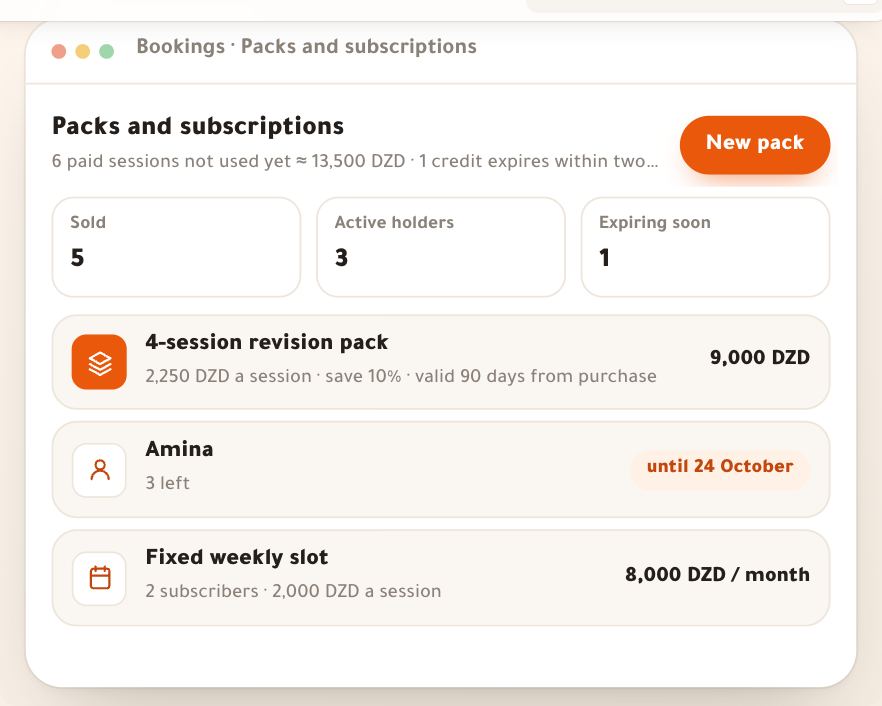
- Add a packCredit bought ahead at a lower price: the “Packs and subscriptions” lesson.
- Share the booking pageThe service link, the booking section on your site and guest booking: the “Booking page” lesson.
- Set your policyCancelling, moving and no-shows: the “Booking settings” lesson.
Questions
Does the service show in my store?
Not to the store’s visitors. A store product row sells it with the store’s engine and payment methods, but it isn’t on display there: the service sells from the booking page and the student portal. Dirassa+ commission: 0%.
I changed the price — what happens to existing bookings?
They keep their price: “Existing bookings keep their price.”. The new price applies to new bookings. In a school that reviews prices, the approved price stays until the school agrees (“Price in review”).
I’m away for two weeks — how do I pause a service?
“Pause” → “Until a date”: it comes back by itself that day, existing bookings stay and the link says when it returns. To close given days across all your services, use “Your hours”.
Why can’t I remove a service?
Because it has upcoming bookings: “It has upcoming bookings. Cancel or move them first, or pause it.”. Once they are over or moved, “Remove from the list” works.
How do I keep a service for one course’s students?
In “Visibility, courses and link”, choose “Your students” then tick the course under “Linked courses”: “The service shows on the course page and to its students in the portal. With “Your students” it is theirs only.”.
When does the learner answer my questions?
After payment, never before, and they can edit the answers until the session starts. You see them on the booking and in the room, and the first text answer shows in “Next session” under “Wrote before the session”.
Can several teachers give the same service?
Yes, for people with “All teachers' bookings”: in “Who gives it”, pick the teachers, then “How bookings are routed”: “In turn”, “Least busy”, “The learner picks” or “First one first” (the others when they are busy).