
After the live: the summary and homework, for those who came and those who missed it
Today every live runs on a Google Meet or Zoom link: when the class is over, mark it ended to write its summary and see who came; the summary and homework reach those who came and those who missed it, but with no replay from us: the replay, its chapters and what Noqta draws from them come with the Dirassa+ room, “Soon”. After every live, one page: who came and who missed it, a summary in short lines (written by you, or a Noqta draft from the live’s chapters, questions and polls that you read and approve), and homework with a due date and attachments. One send: those who came get it now, those who missed it get it with the replay when it’s ready. Salim Bouzid sends the Unit 3 summary and exercises 12, 14 and 17 to his 46 students; the photography trainer sends her free live’s registrants the key points and her workshop link; the English tutor sends the session’s vocabulary.
- About 3 minutes after each live
- 5 steps
Who can do it: The host, and whoever has “All teachers’ live classes” in their scope.
In 5 steps
- 1“Review and send” from the end screen, or the live’s page afterwards: the composer with the attendance bar.
- 2“Summary”: write it, or “Write it with Noqta” from the chapters, questions and polls, then approve it.
- 3“Homework” with its date and time, and “Attachments”: the live’s slides or links.
- 4“Who receives it”: “Those who came” now, “Those who missed it” with the replay when ready.
Before you start
- A live that has ended: this page appears after the end.
- Uploaded slides if you want to attach them, and markers set on air for a sharper Noqta summary.
- Step 1 of 5
The after page and the attendance bar
From the end screen or the live’s page: who came, who caught up by replay, who was absent.
- The door“Review and send” on the end screen, or the live’s page after it ends.
- AttendanceCame live, by replay, absent.
- The replayReady, being prepared, or not recorded.
All the details
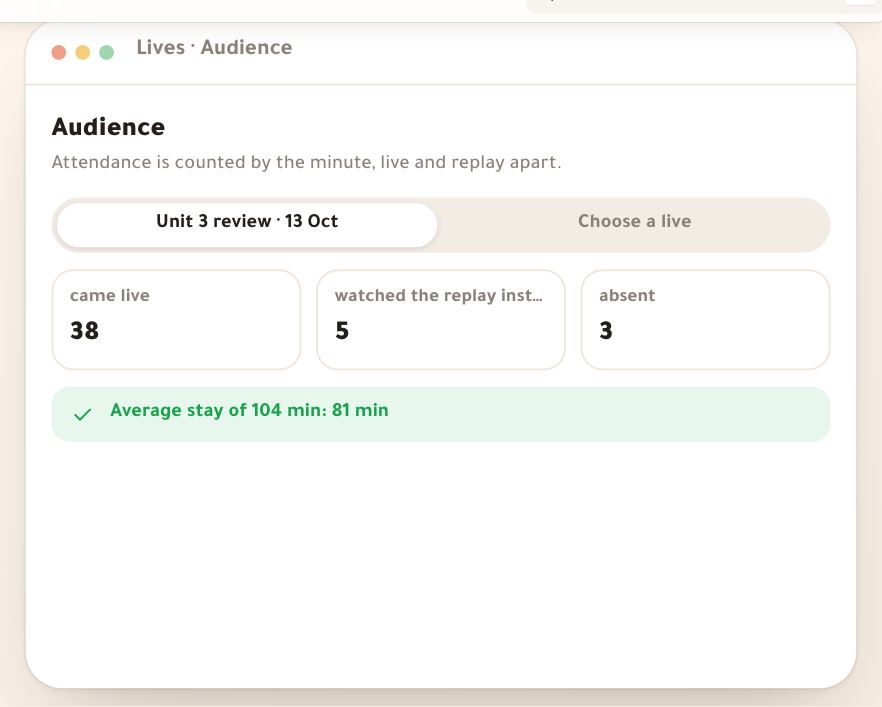
After the end, the live’s page opens on the summary and homework composer (and “Review and send” on the studio’s end screen goes straight there). At the top, the Attendance bar: attended out of invited, in three colours — “came live”, “by replay”, “absent” — and “Details” opens “Audience” minute by minute. Beside it, the replay status: “Replay ready”, “Replay being prepared”, not arrived yet, or not recorded. In the “More” menu at the top: “Attendance minute by minute” and “The recording and its chapters”.
On screenSend the summary and homeworkReview and sendAttendancecame liveby replayabsentDetailsReplay readyReplay being preparedAttendance minute by minuteThe recording and its chaptersHeads-upA live that never started has no summary: you read “This live didn’t happen”, its time and who was told, with “Reschedule”. On a Meet or Zoom link (every live today), whoever pressed the join button counts as present, and there is no replay from us.
- Step 2 of 5
“Summary”: by hand, or by Noqta and approved by you
Noqta drafts from the live’s chapters, questions and polls; nothing goes out before you read and approve it.
- Write it with NoqtaFrom chapters, questions, poll results and slide titles.
- Approve itWithout approval, a Noqta summary isn’t sent.
- 60 a dayFor the whole academy; “Rewrite” counts as one.
TipThe markers you set on air (“The cart exercise”) and the questions you put on screen are what Noqta builds from: name them well and the summary gets sharper.
All the details
In Summary (what you explained and answered, in short lines) write it yourself, or press Write it with Noqta: “Noqta is writing…”, then a draft marked “Written by Noqta”, yours to edit, and “Rewrite” for another version. Below, the box I've read it and approve it — students will see “Summary by Noqta, reviewed by the teacher”; until it’s ticked, a line asks you to read and approve before sending, and nothing goes out. Noqta has 60 writes a day for the whole academy (what’s left today is shown), and with no chapters or questions in the live, there’s nothing for her to write from.
On screenSummaryWrite it with NoqtaNoqta is writing…Written by NoqtaRewriteI've read it and approve itRead and approve Noqta's summary before sending.Heads-upNoqta writes from chapters and questions, not from your voice: what you said without marking or showing it, she doesn’t know. Read before you approve.
- Step 3 of 5
“Homework” and “Attachments”
What students must do before a due date, with the slides or links.
- HomeworkOne clear line, like “Exercises 12, 14 and 17, page 86”.
- DueA day and time (20:00 by default), shown with the homework.
- AttachmentsThe live’s slides in one tap, and links, up to 10.
TipAfter the English hour, Wafa Sellami sends no homework but the link to the vocabulary she used: homework is optional, the summary alone is enough.
All the details
Homework is a text field, with “Due” (the day) and the time (20:00 by default). Then Attachments (the live’s slides, or links: a Drive file, a page, a video): the slides in one tap if you uploaded some, and for each link “Attachment name” and “Attachment link” (https://), then “Add”; up to 10. Students see the homework in their portal, among the lives they missed, under homework with its due date.
On screenHomeworkDueTimeAttachmentsAttachment nameAttachment linkAdd - Step 4 of 5
“Who receives it”: those who came, and those who missed it
Two groups, each with its timing: now for those who came, with the replay for those who missed it.
- Those who cameEveryone with minutes on air: summary, homework and attachments now.
- Those who missed itWith the replay when it’s ready, or now if there’s no recording.
- The replayThe summary opens the replay at its moment.
TipLeila turns off “Those who came” and sends only to “Those who missed it”: the key points and her paid workshop’s link for those who registered but didn’t come.
All the details
Who receives it has two switches. Those who came: everyone who watched part of the live — the summary, homework and attachments, now. Those who missed it: everyone else who could attend (course students, registrants, ticket holders…) — they get the summary with the recording when it’s ready, or now if there’s no recording. Below, What happens next: “Now” (a notice for so many people), “When the replay is ready” (the replay-ready notice for those who asked, and the summary opening the replay at its moment), and the homework’s due date.
On screenWho receives itThose who cameThose who missed itWhat happens nextNowWhen the replay is ready - Step 5 of 5
Send, or keep a draft
One button that says how many it reaches; an edit is sent again.
- Draft“Save draft” and come back whenever you like.
- Send“Send to 46 students”: a notice, which stays on the live’s page.
- EditSend the edit again, at least 10 minutes later.
All the details
At the bottom, “Save draft” (“Draft saved”) and the send button that counts recipients: Send to 46 students (or nobody if both groups are off, or a reminder to write the summary or homework if both are empty). Once sent, the page says when. It arrives as a notice in the platform and stays on the live’s page. If you edit afterwards, the button becomes sending the edit; a second send is accepted only 10 minutes after the first.
On screenSave draftDraft savedSend to 46 studentsSentHeads-upThe summary arrives as an in-platform notice for account holders, not by email or SMS.
After sending
Questions
Can a Noqta summary go out without me seeing it?
No. It isn’t sent before you tick the approval, and students read “Summary by Noqta, reviewed by the teacher” with it.
How many summaries does Noqta write a day?
60 writes a day for the whole academy, “Rewrite” included. After that, write it yourself or come back tomorrow.
When do absent students get the summary?
With the replay when it’s ready, and the summary opens the replay at its moment; or right away if the live wasn’t recorded.
Can I edit the summary after sending?
Yes. Edit, then send the edit, at least 10 minutes after the first send.
Where do students find the homework?
In the notice, in their portal among the lives they missed, under homework with its due date, and on the live’s page.