
Images, video and motion: media that sells without slowing the page
A good photo says in one second what a whole section explains. In a showcase you upload your images as they are and we shrink them so they open fast on phones; you pick their most important part, which is never cropped away; you add a YouTube or Vimeo video, or a short silent clip that moves when the visitor reaches it. Our example: Amine, who teaches phone photography, prepares his course page.
- About 5 minutes
- 6 steps
Who can do it: Anyone with “Edit showcases”.
 Let Noqta show you
In 6 steps
- 1Pick a section, then “Content”, and press “Choose an image” or drop it: we shrink it for phones.
- 2Tap the most important part of the photo, watch the “Phone” and “Desktop” crops, or give the phone its own focal point.
- 3Write the “Image description” in every language of the page: heard by people who cannot see it, read by search engines.
- 4Paste a YouTube or Vimeo link, and choose the “Video orientation” when it is offered.
Before you start
- A showcase open in the editor, and a section with an image or video: “Opening”, “The creator”, “The method”, “Curriculum” or “Video results”, for example.
- Your images as JPG, PNG or WebP, each under 15 MB. No need to shrink them yourself.
- The promo video published on YouTube or Vimeo. Your lesson videos on the platform are protected and cannot show on a public page.
- For motion: a screen recording or a short shot with no sound, up to 30 seconds and 12 MB.
- Step 1 of 6
Upload the image: we shrink it
You upload your phone photo as it is; it reaches the page light and opens fast on phones.
- How big?Up to 15 MB. The browser shrinks it before upload to 1,600 px and about 350 KB.
- Changed your mind?Every upload is a new file, so “Undo” brings the old one back. The live page keeps its image until you publish.
- Which format?JPG, PNG or WebP. Export an iPhone HEIC photo as JPG first.
TipAn “Opening” without an image uses the course cover, and the button never sits on the photo, so its readability never depends on the picture.
All the details
Pick the section on the page, then the “Content” tab of “Properties” on a computer, or “Edit” in the bottom bar on a phone. In the image field, press “Choose an image” or drop it on the box (“Or drop it here. We shrink it so it opens fast on phones.”). Images up to 15 MB are accepted; the browser shrinks them before upload to 1,600 px on the long side and about 350 KB, so a 4 MB phone photo arrives light. You see the progress (“Uploading… N%”), then the image in place. After that, “Replace image”, or “Remove image” when the field is not required. Every upload is a new file, so “Undo” brings the previous image back, and the live page keeps its own until you publish again.
On screenContentPropertiesEditChoose an imageOr drop it here. We shrink it so it opens fast on phones.Replace imageRemove imageHeads-up“This file is not an image. Choose a JPG, PNG or WebP.” means another format (an iPhone HEIC, say): open it, export it as JPG, then upload it.
- Step 2 of 6
The focal point: what matters is never cropped
You tap what matters in the photo, a face, a hand, a plate, and it stays visible however each screen crops it.
- How to check?The “Phone” and “Desktop” previews under the image update with every move of the dot.
- A point for phones onlyFor the section’s first image: “Focal point for” → “Phone only”; “Reset” drops it.
- And the text?It never differs between devices. Only the image is cropped differently.
TipIn sections that place the image beside the text, the “Layout” tab has “On phone: image after the text”, so the heading reads first on a small screen.
All the details
One photo is cropped in different shapes: tall on phones, wide on desktops. “Tap the most important part of the photo. It stays visible however the photo is cropped.”: a face, a hand holding the camera, a plate in the light. A dot appears where you tap; drag it, or move it with the arrow keys (5% steps, 1% with Shift). Two previews update at once: “Phone” and “Desktop”. The section’s first image has one more option, “Focal point for”: “All screens” or “Phone only”, to give phones their own point; “Different on phone ·” then shows with “Reset” to drop it. Text never differs between devices, only the image.
On screenTap the most important part of the photo. It stays visible however the photo is cropped.PhoneDesktopFocal point forAll screensPhone onlyDifferent on phone ·Reset - Step 3 of 6
The “Image description”, in every language
One sentence describing the image, heard by people who can’t see it and read by search engines, in each of your page’s languages.
- What to writeWhat the image shows, not what you sell: “A student photographs a dessert plate by the window”. About 125 characters is enough.
- For each languageThe description is for the language you are editing. Switch “Content language” and write it in the other one too.
- If you forget?“Ready?” suggests “Add descriptions”. A suggestion, not a block on publishing.
TipA purely decorative image needs no description. Describe the ones that carry meaning: your face, a student’s work, the product.
All the details
Under the image sits the “Image description” field (“Heard by people who cannot see the image, and read by search engines.”). Describe what the image shows in one sentence, not what you sell: “A student photographs a dessert plate by the window with her phone”. The description is written for the language you are editing: if the page is in Arabic and French, switch the “Content language” at the top and write it in French too. A counter shows as you type: about 125 characters is enough, 200 is the limit. If you forget, “Ready?” shows “Images without a description in the “…” section (N).” with “Add descriptions”: a suggestion, not a block on publishing.
On screenImage descriptionHeard by people who cannot see the image, and read by search engines.Content languageReady?Add descriptions - Step 4 of 6
A YouTube or Vimeo video
You paste your promo video’s YouTube or Vimeo link; it stays an image until the visitor taps it, so the page stays fast.
- Which link?A watch link, a short share link, Shorts, a live link or a Vimeo page. It is taken as soon as you paste it.
- Landscape or portrait?Shorts read as portrait on their own; where the field takes both, pick “Video orientation”.
- One of your lesson videos?Refused: it is protected for your students and won’t play for visitors. Use a YouTube or Vimeo link instead.
TipA promo video is not a lesson: one to two minutes, your face, a glimpse of what the buyer will learn. Put it on your channel, even as “unlisted”.
All the details
In a video field (like the “Promo video” of the “Opening”), “Paste a YouTube or Vimeo link”: a watch link, a short share link, Shorts, a live link, or a Vimeo page. The link is taken as soon as it is pasted, with its picture and the platform’s name. A Shorts link reads as portrait on its own; where the field takes both shapes, “Video orientation” offers “Landscape” or “Portrait”, and a vertical video shows in full in “Split”. Add a “Video title” (120 characters at most). On the page, “The video shows as an image until the visitor taps it, so the page stays fast.” To change it, “Change video”, or delete it with the bin (“Remove video”).
On screenPromo videoPaste a YouTube or Vimeo linkVideo orientationLandscapePortraitVideo titleChange videoRemove videoHeads-upA link to one of your lesson videos on the platform is refused at the paste: those videos are protected for your students and would not play for visitors. If an old video of that kind is still on the page, “Ready?” counts it among the fixes before publishing. Put a YouTube or Vimeo link in its place.
- Step 5 of 6
Motion: a GIF or a short silent video
A moving screen instead of an image in some sections, showing the step as it happens.
- What to uploadA silent MP4 or WebM up to 30 seconds, or a GIF, up to 12 MB. MP4 is far lighter.
- When does it move?When the visitor reaches it, stopping once they scroll past. Every clip has a “Pause the animation” button.
- Data-saving phonesOn phones that reduce motion or save data, it stays a still image until the person starts it.
TipFor the same length, an MP4 is far lighter than a GIF. Record 15 seconds of your screen while editing a photo, export with no sound, and it plays even on slow networks.
All the details
Some sections take a moving screen instead of an image: “Moving screen (GIF or short video)” for each step of “The method” (in the “Phases” layout), “Moving recording (GIF or short video)” for each chapter of the “Curriculum” (in the “Tour” layout), and the clips of “Video results”. Press “Choose a GIF or a short video”: a silent MP4 or WebM up to 30 seconds, or a GIF, up to 12 MB. The file is uploaded as it is, after a first frame taken from it; you see it loop in the field with “Video loop · N s”. Write a “Short description”. On the page the first frame shows, then it moves when the visitor reaches it and stops once they scroll past; every clip has its “Pause the animation” / “Play the animation” button. On phones that reduce motion or save data it stays a still image until the person starts it.
On screenMoving screen (GIF or short video)Moving recording (GIF or short video)Choose a GIF or a short videoA silent MP4 up to 30 seconds (the lightest) or a GIF, up to 12 MB.Short descriptionMoves when the visitor reaches it; stays a still image on phones that reduce motion or save data.ReplaceRemoveHeads-up“Longer than 30 seconds. Shorten it to loop lightly.” or “The file is over 12 MB. Shorten it or export at lower quality.” mean nothing was uploaded: trim the clip in your app and try again.
- Step 6 of 6
“Video results”: only with their consent
Short, silent, vertical clips of what your students made; none shows without its maker’s consent.
- What you addUp to 12 clips, each with a “First name” and “What they made”.
- ConsentA clip stays hidden until “The student agreed to publish” is on. For a minor, consent comes from a parent.
- When does it show?Once one clip has consent. Until then the whole section stays hidden.
The 6 layouts
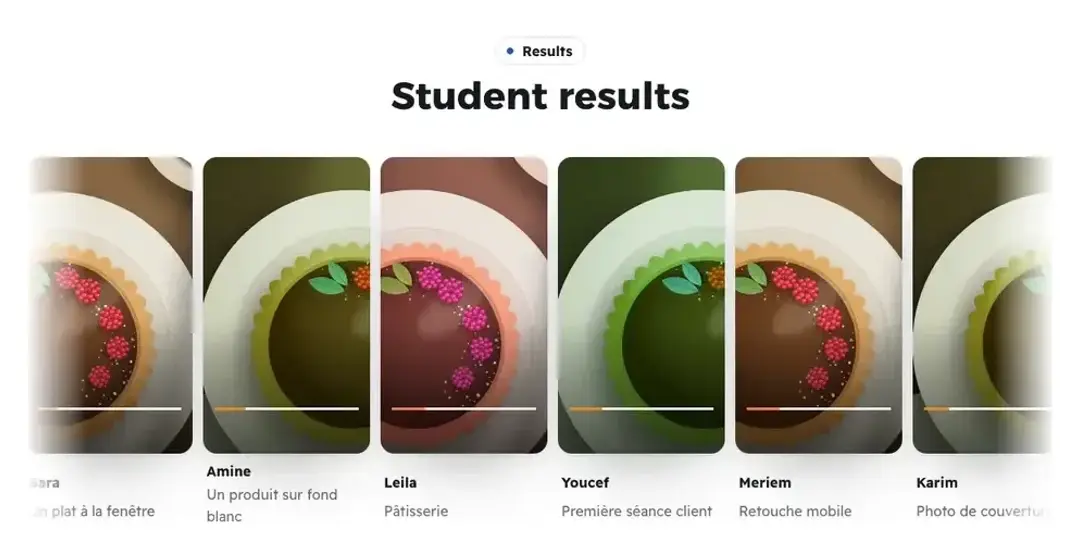
MarqueeA moving strip that stops under the pointer. TipThe moving strip looks best with four clips or more. With two or three, choose “Phones” or “Spotlight”.
All the details
The “Video results” section shows short, silent, vertical clips of what your students made. Each clip in “Clips” (up to 12) has “The clip”, “First name”, “What they made” and the “The student agreed to publish” switch. A clip stays hidden from visitors until that switch is on, and the whole section stays hidden until one clip has consent; “Ready?” reminds you: “Some clips stay hidden until you confirm their students agreed to publish.” with “Confirm consent”. “Layout” offers six shapes: “Marquee” (which stops under the pointer or on focus, with “Speed” “Slow” or “Normal”), “Rail”, “Grid”, “Spotlight”, “Phones” and “Stories” (round bubbles above one large player; a tap on a bubble switches the clip, with no script). “Captions” shows or hides the names.
On screenVideo resultsClipsThe clipFirst nameWhat they madeThe student agreed to publishConfirm consentSpeedCaptionsHeads-upAsk for consent before publishing, in writing in a chat for example, and use the first name only. For a minor, consent comes from a parent.
After the media
Questions
Do my photos lose quality when shrunk?
Visitors see no difference: the image keeps up to 1,600 px on its long side, more than a phone screen shows. Shrinking makes it open fast on a mobile network, which decides whether the visitor stays.
Why can’t I use a video from my lessons?
Because lesson videos are protected: their links are signed for your students, expire within hours and do not play on a public page. Put your promo clip on YouTube or Vimeo and paste its link.
Does the video slow the page?
No. A YouTube or Vimeo video shows as an image until the visitor taps it, and loads nothing before that. Moving clips start as an image and load only when the visitor reaches them.
Can I add a video with sound that plays by itself?
No. Moving clips are always silent, and a YouTube or Vimeo video plays only when the visitor taps it. Nobody is surprised by sound in a public place.
What is the difference between a GIF and an MP4?
Both loop without sound. An MP4 or WebM is far lighter for the same length, so it is the one we suggest. A GIF suits very short movements. The limit is 12 MB either way, and 30 seconds for video.
Do I write the description in every language?
Yes, the description is written for the language being edited. Switch the “Content language” at the top of the editor and write it for each language the page has.
Who sees a student’s clip whose consent I haven’t confirmed?
No visitor. It stays in the draft and the editor only, and the whole section is hidden until one clip has consent.