
Create your students’ first certificate
On Dirassa Plus a certificate isn’t an image you design and then send by hand: it’s a **program** tied to what the student achieves — a course, a group, a sessions pack, a live course, a track, a paper or an event — that issues itself, in their name, with a number and a verification link, the moment they meet your conditions. In this lesson Mourad Hallab of “Dar Al Qalam” creates the certificate for the course “Arabic calligraphy: Ruqaa and Naskh”, from the empty page to activation. Same path for a marketing trainer certifying the end of a cohort, or a photographer certifying attendance at a workshop.
- About 5 minutes
- 6 steps
Who can do it: Needs the “Manage certificates” permission. Someone with only “Issue certificates” issues and follows up, but doesn’t create.
 Let Noqta show you
In 6 steps
- 1Open “Certificates” in the “Academy” panel, or the course’s “Certificate” tab, and press “New certificate” (“Start your first certificate” the first time).
- 2Pick the course from your list of courses (or a group, a paper, an event). A course that already has a certificate says so, and “Open its certificate” finishes it instead of creating a second one.
- 3Or “Or describe it to Noqta” in one sentence: it fills in the three steps and takes you to the last one to review.
- 4Read the conditions as sentences and choose how it’s granted: automatically, after your approval, or manually.
Show all
- 5Name it and choose its look: the suggested template, three more or “All templates (24)”, in the template’s colours or one you pick, and look at it in a student’s name.
- 6“Create certificate” saves a draft and opens its page, where “Activate it” opens a popup that checks what’s missing and says what will happen.
Before you start
- Publish the course and its lessons; for an exam condition, publish the paper too: conditions read what is published, and for a course with no published lesson “New certificate” warns you that nobody can earn it yet.
- Add your signature and your academy’s seal once, in “Signature & seal” (the link at the head of “Certificates”), and they appear on every certificate.
- Decide what your certificate means: completion? a pass with a mark? attendance? The answer picks the source and the conditions.
- Step 1 of 6
The ways into “Certificates”
A whole page in the “Academy” panel with two tabs, a tab in every course, and one line that says what needs you now.
- Two tabs“Certificates” your certificates, and “Register” everything issued; beside it, how many requests await your approval.
- From the courseThe course’s “Certificate” tab opens its certificate, or starts one with the course already chosen.
- One lineWhat needs you now: requests, then a draft not activated, then a deleted course, then students who finished a course without a certificate.
TipStart from the course’s “Certificate” tab: you land on “Conditions” with the course chosen, and the template is suggested from its subject.
All the details
In the “Academy” panel beside the column, “Teaching” group: “Certificates” (and “+” at the head of the panel → “Certificate” starts one from any academy page). At the top, two tabs: “Certificates” (for each one, its small design, its source, when it’s granted, what it issued and its status) and “Register” (every certificate issued; when requests wait for you it carries their number, and its first section is “Awaiting your approval”). At the head of the page, the “Signature & seal” link: a page of its own for the signers, the seal, the numbering and the verification page. Before the first certificate, under the tabs there is one card only: “Your students’ first certificate” and its two buttons, “Start your first certificate” and “Or describe it to Noqta in one sentence”. If students already finished a course that has no certificate, the card says so (“3 students finished it”) and its button becomes “Create the certificate for “Arabic calligraphy: Ruqaa and Naskh”” (or “Create its certificate” on a narrow screen), with the course already chosen. After the first certificate, the head shows “New certificate” and “Design it with Noqta” (on a phone the “+” in the bottom bar creates), and one line under the tabs shows what matters most, in this order: requests waiting (“Review”), then a draft “Not activated yet” (“Activate it”), then a certificate whose course was deleted (“The course was deleted — link it or delete this certificate”), then a course students finished without a certificate. The second way in is the course itself: its “Certificate” tab shows its certificate with “Open”, “Edit design” and “Conditions”, or “Create this course’s certificate” when it has none, which opens “New certificate” on the “Conditions” step with the course already chosen, and the close button takes you back to the course.
On screenCertificatesRegisterAwaiting your approvalSignature & sealYour students’ first certificateStart your first certificateOr describe it to Noqta in one sentenceCreate the certificate for “Arabic calligraphy: Ruqaa and Naskh”Create its certificateNew certificateDesign it with NoqtaReviewNot activated yetActivate itThe course was deleted — link it or delete this certificateCertificateOpenCreate this course’s certificateHeads-upThe “Signature & seal” link only shows for people who manage both certificates and the academy’s settings and see the whole academy: what prints on every certificate isn’t changed from a single course.
- Step 2 of 6
Which course is it for?
The first step is your list of courses: pick one, and the conditions and printed words are read from it.
- Your academy’s kinds only“Course” first, then what you really have: group, one-to-one sessions, live course, exam, track; and “Event or workshop” always.
- One certificate per courseA course that has one carries “Has a certificate · draft”, and “Open its certificate” finishes it instead of creating a second.
- What you should knowA course with no published lesson, or no students yet: it’s said under it before you go on.
TipA course with groups? A “Group” certificate carries the group’s name and period, and goes out at its end to those present: right for the end of a season.
All the details
“Which course is it for?”: “Its conditions and the words printed on the certificate are read from it.” Above the list, a row with only the kinds of sources your academy has, each with its count: “Course” first, then what you really have among “Group”, “One-to-one sessions”, “Live course”, “Exam” (one paper: a mock exam, a competition, a placement test) and “Track” (every course of a bundle), and “Event or workshop” always (a list of names, no accounts: you type the “Name of the event or workshop”). Below it, the list itself, “Your courses · 3”: for each course its cover, its published lessons and its students; those with published lessons first, then “No published lessons yet”, and on what isn’t published the “Unpublished” badge; when there are many, “Search by name” appears. A course that already has a certificate carries its badge, such as “Has a certificate · draft”: pick it and the line under it says “This course already has a certificate: “Certificate of completion · Thuluth script: level 1” · draft.” and “Finish it rather than create a second one. To start over, delete the draft from its page.”, and the button becomes “Open its certificate”. Under the chosen course, what you should know before going on: “No published lessons in this course yet: nobody can earn it until you publish some. Set it up now and activate it when you publish.”, or “No students yet…” with what will happen to those who complete it later. As soon as you pick, the certificate’s “Live preview” shows beside you, and the button becomes “Next: Conditions”.
On screenWhich course is it for?CourseGroupOne-to-one sessionsLive courseExamTrackEvent or workshopName of the event or workshopNo published lessons yetUnpublishedSearch by nameHas a certificate · draftOpen its certificateLive previewNext: ConditionsHeads-upOne certificate per source: while the course has a certificate that isn’t archived (draft, active or paused), a second one can’t be created. To start over, delete the draft from its page, then create.
- Step 3 of 6
Or describe it to Noqta
One sentence fills the three steps: source, conditions, template and second language, then takes you to “Name and look” to review.
- Write as you speak“Calligraphy students who passed the exam”.
- You reviewYou land on “Name and look”, and in “What will be created” every line has its “Change”.
- No guessingIf it can’t find what you mean, it says so and you choose; and it never creates a second certificate for a course that has one.
TipName the students you mean: “for children” picks a playful template, “competition” with the paper’s name the “Crown” template, “placement test” the “Level” template.
All the details
Under the first step’s title, the “Or describe it to Noqta” link opens Noqta’s field, “For example: a certificate for students of the editing course who passed the exam, in Arabic and French”, and “Build it”. (And “Design it with Noqta”, at the head of “Certificates”, opens “New certificate” with this field already open.) Noqta reads your sentence: the source (course, group, sessions, live, track, event, or a mock exam, competition or placement test), which of your courses or papers you mean, the template that suits it, the second language if you name it (it then picks a bilingual template, “University”), and whether you ask for a pass in an exam. Then it takes you to “Name and look” and writes what it understood: “Noqta understood: Course “Arabic calligraphy: Ruqaa and Naskh” · Diwan template · with an exam condition.”. If you mention an exam and none is published in the course, it says so and doesn’t require one. If the course you mean already has a certificate, it takes you back to the list, with that line and “Open its certificate” under the course, and creates no second one. If it can’t find what you mean: “Noqta couldn’t find what you meant. Choose the source yourself.”. Back on the list, you read “Noqta picked “…” from your sentence.”. Nothing is created until you press “Create certificate”.
On screenOr describe it to NoqtaBuild itDesign it with NoqtaName and lookNoqta understood: Course “Arabic calligraphy: Ruqaa and Naskh” · Diwan template · with an exam condition.Noqta couldn’t find what you meant. Choose the source yourself. - Step 4 of 6
When is it granted? And how?
Each condition is a readable sentence with values from the source; then you choose who gives it: the platform or you.
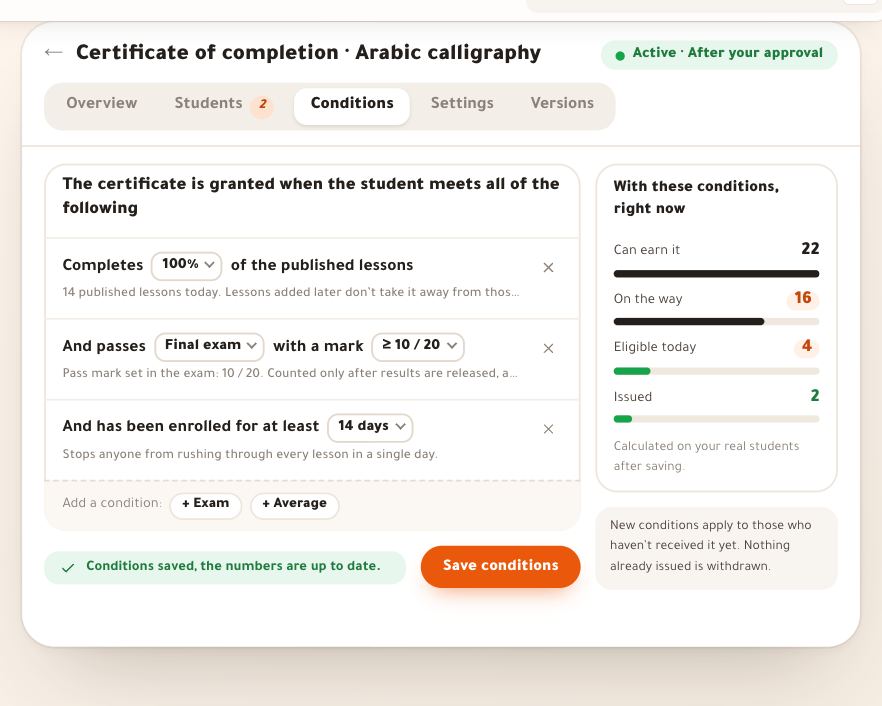
- Sentences, not boxes“Completes 100% of the published lessons, and passes “The final exam” with ≥ 10 / 20”.
- Suggested by NoqtaAn exam to require, or a weighted average when the course has several papers.
- Three waysAutomatically, after your approval, manually.
TipFirst certificate? Choose “After your approval” for a week: you see every request before it goes out, then switch to “Automatically” once you trust it.
All the details
The second step, with the source everything is read from above it: “Course · Arabic calligraphy: Ruqaa and Naskh” and “Change”, which takes you back to the list. “When is it granted?”: each condition is a readable line with values from the source. For a course: complete the published lessons, and pass the exam with a minimum mark out of 20 if there is one; under “Add a condition:” the rest: an exam, the average, a minimum duration. When the course has two papers or more, Noqta offers “Use the average” instead of one paper; if it has a single paper not yet required, she asks whether you want to require it. Then “How is it granted?”: “Automatically” (the moment the conditions are met), “After your approval” (requests reach you in “Students” with the evidence: you approve or decline) or “Manually”. Alongside: ask the student to confirm their name before issuing (“Recommended”), a notice to the student, and an expiry. Below: “Calculated on your real students after saving.”. Then “Next: Name and look”, which stays shut while the certificate has no condition. Every condition and option is explained in the lesson “When the certificate is granted”.
On screenChangeWhen is it granted?Add a condition:Use the averageHow is it granted?AutomaticallyAfter your approvalManuallyRecommendedNext: Name and look - Step 5 of 6
Name it, choose its look
The last step: the name is suggested from the source, the suggested template and three more are drawn with your course’s words, and all twenty-four are in a popup.
- A suggested name“Certificate of completion · Arabic calligraphy: Ruqaa and Naskh”: change it as you like, in any language.
- “All templates (24)”A popup with every template, those that suit your course first, and a filter by style.
- Colours by name“Template colours”, your academy’s colour, or gold, green, navy, maroon.
TipNeither the template nor the colour is final: in the editor you change them and keep everything you wrote.
All the details
“Name and look”: “A draft is saved and its page opens: you see who earns it today, then you activate it. No certificate is issued before activation.” First the “Certificate name”, suggested from the source: “Certificate of completion · Arabic calligraphy: Ruqaa and Naskh” (“Certificate of achievement · …” for a group or a paper, “Certificate of attendance · …” for a live course); “It shows in your dashboard, and on the certificate wherever you place its field.”. Then the “Look”: four templates drawn in a student’s name with your course title (with the signers’ names, without the signature or seal images), the first the one that suits your course, with the “Suggested” badge, and under them its reason: “Suggested · Arts course: the name in Ruqaa calligraphy shows what the student learned.”. “All templates (24)” opens the “All templates” popup with all twenty-four, the best suited first, and above them the “All styles” filter: formal, modern, warm, playful, bilingual, portrait, dark. Pick a template, then “Choose “…””, and it takes the last place in the row. Under the templates, the colour: “Template colours” as drawn, “Your academy’s colour”, or a classic colour by name: “Gold”, “Green”, “Navy”, “Maroon”; and “A dark template keeps its own colours.”. Beside you, the “Live preview” of the certificate as it will be issued, in a sample student’s name and never one of yours: “Made out to: أمينة بن عيسى” switches the name (“Try another name”), so you see how a long name fits and how the wording turns feminine, and under it where the words came from: “The title comes from “Arabic calligraphy: Ruqaa and Naskh”, and 36 h is the total length of its published lessons.”. On a narrower screen the preview opens from “Certificate preview” at the top of the page, and on a phone the head says “3 of 3”.
On screenName and lookCertificate nameLookSuggestedAll templates (24)All templatesAll stylesTemplate coloursYour academy’s colourGoldGreenNavyMaroonLive previewMade out to: أمينة بن عيسىTry another nameCertificate preview - Step 6 of 6
Create it, then activate it from its page
It’s saved as a draft and its page replaces “New certificate”; no certificate goes out before you activate it, and the activation popup says what will happen before it happens.
- Draft first“Create certificate” issues nothing: “Draft “…” created. Activate it when it’s ready.”
- “Before activating”The design, the conditions, the signature, a deleted course or another certificate on the same course: all checked first.
- Those who earned it alreadyOne sentence per mode: it goes to them, their requests reach you, or “And grant it now”.
TipBefore activating, press “Edit design” at the head of its page and read the editor’s “Before activating” list: Noqta checks long names, the verification code and the signatures there.
All the details
Under the look, “What will be created”: the “Source” (“Course · Arabic calligraphy: Ruqaa and Naskh”), “When it’s granted” as chips (“All lessons”, ““The final exam” ≥ 50%”) and “How it’s granted” (“After your approval”), each line with “Change”, which takes you back to its step; below them, what you should know before creating, such as a course with no published lessons. Then “Create certificate”: the draft is saved once, even if you press twice or the connection drops, and its page replaces “New certificate” (so “Back” never returns to empty steps), with the notice “Draft “Certificate of completion · Arabic calligraphy: Ruqaa and Naskh” created. Activate it when it’s ready.”. The editor doesn’t open: “Edit design”, at the head of its page, whenever you want it. Its badge reads “Not activated yet”, and the line under the tabs says “Ready to activate · 3 students earn it today” with “Activate it”. The “Activate “…”” popup opens with “Before activating”: “The design is ready to print.”, and “It’s granted when:” with its conditions; what deserves your attention without blocking: “No signature yet: what’s issued now takes the first signature you save.” with “Add the signature”, or a course with no published lesson with “Open the course”. Whatever blocks activation says so and gives the way out: a deleted course, with “Delete this draft”; or another active certificate on the same course (“One source can’t have two.”) with “Open it”. Then one sentence says what will happen: “It’s issued right away to those who meet its conditions today (3), then to everyone who meets them later.” (automatically), “You get a request for everyone who meets them (3 today), and nothing is issued without your approval.” (after your approval), or “Nothing is issued by itself: you grant it from “Students”.” (manually), with the switch “And grant it now to the 3 students who earn it”; if no one earns it yet: “No student meets its conditions today. Activate it now and it’s issued as soon as someone does.”. Then “Activate it”: “Certificate activated.”, and it turns “Active”; when hundreds earn it, granting runs in the background with its progress under the tabs. With name confirmation, eligible students wait for their name. You can also activate it from the editor with “Activate the certificate”. Afterwards, ⋯ at the top of its page offers “Pause granting” and “Archive”, and “Resume granting” while it’s paused.
On screenWhat will be createdSourceWhen it’s grantedHow it’s grantedChangeCreate certificateDraft “Certificate of completion · Arabic calligraphy: Ruqaa and Naskh” created. Activate it when it’s ready.Edit designNot activated yetReady to activate · 3 students earn it todayActivate itBefore activatingAdd the signatureDelete this draftOpen itAnd grant it now to the 3 students who earn itActiveActivate the certificatePause grantingResume grantingArchiveHeads-upThe certificate comes from your academy; it isn’t a state diploma. Don’t call it “accredited” or “official”. While your academy is being prepared you create the draft, design it and approve its design as usual; activating it and granting it to your students wait for the academy to open: “Your academy isn’t open right now: no certificate reaches your students until you open it or renew its subscription.” The same goes while it is frozen.
After activating
- Fine-tune the conditionsWeighted average, “excellence” and “pass” tiers, rank: the lesson “When the certificate is granted”.
- Make it yoursFields, seal, signature and Noqta in the editor: the lesson “The certificate editor”.
- Follow what goes outApprovals, register and verification: the lesson “Issuing and following up”.
Questions
Does it go to students who finished before I created it?
Yes. The activation popup says how many earn it today and what happens to them: it goes to them right away (“Automatically”), their requests reach you (“After your approval”), or you grant it to them with “And grant it now” (“Manually”). Those who meet the conditions later are checked by themselves.
“Activate it” doesn’t activate it: why?
The activation popup gives the reason and the way out: a deleted course (“Delete this draft”), another active certificate on the same course (“Open it”), no condition yet (“Open the conditions”), or something in the design that blocks it (“Edit design”). If your academy is being prepared or is frozen, the draft is kept and its design can be approved, but activating and granting wait for it to open: “Your academy isn’t open right now: no certificate reaches your students until you open it or renew its subscription.”
Can a course have more than one certificate?
No: a course has one certificate while it isn’t archived. If you pick in “New certificate” a course that already has one, the line under it says so and the button becomes “Open its certificate”; the course’s “Certificate” tab shows it and no longer offers “Create this course’s certificate”. To tell excellence apart from plain completion, use the “Certificate tiers” in its conditions: “Certificate of excellence” from 16, “Certificate of achievement” from 10. One of its groups or one of its papers can have its own certificate, with a “Group” or “Exam” source.
My list says “A second draft for the same course”: what is it?
Another draft for the same course, usually created by mistake. Beside it, “Delete”: press it, then press again to confirm. If the second one is the one you want, delete the first, then activate it from its page: two certificates can’t be active on one source.
I left “New certificate” before creating it: was anything saved?
Nothing is saved before “Create certificate”. That’s why, if you close it after making a choice, a popup asks “The certificate isn’t created yet”: “Stay here” or “Leave without creating”.
What if I change the design after certificates went out?
What went out doesn’t change: each certificate keeps the design version it was issued with. If you wish, you reissue the old ones with the new version from its page’s “Design” tab, under “Versions”.
Can a certificate have no conditions?
For a course, group, sessions or exam, no: at least one condition, or it would go to every enrolled student, and “Next: Name and look” stays shut until then. An “Event or workshop” has none: you paste the list of names and it goes out.
Is the certificate officially accredited?
It’s a certificate from your academy, with a unique number and a verification link on your domain; it isn’t a state diploma.
Who sees the certificate?
The student in “My certificates”, and anyone who opens the verification link or scans the code. The student can make it private.