
The “Organization” section: your tasks, appointments and team plans in one place
“Organization” is a section of its own, next to “Academy” and “Community”, for your work rather than your students: what you have to do today, your appointments, live classes and bookings in one calendar, work plans that break a big goal into dated tasks, and who is working on what in your team. Students see none of it. In this lesson: how to open it on a computer and a phone, what “My day” holds, its seven pages and what each is for, and who can do what. The example: Amine Belkacem’s “En-Nadjah Academy” and his team — Sara Makhloufi, video-editing trainer, Nour El Houda, photography trainer, and Karim Haddad, who follows up students and receipts — preparing the launch of the “Video colour grading” course. The same logic fits a marketing coach planning a campaign, or a teacher organising exam revision with colleagues.
- About 5 minutes to read
- 4 steps
Who can do it: Anyone with the “Tasks” permission enters the section: the owner, “Admin”, “Teacher” and “Assistant” by default. “Team & workload” and “Reports” need two more permissions.
 Let Noqta show you
In 4 steps
- 1Open it from the dark column at the edge of the screen: “Organization” on a computer, or “Menu” then “Organization” on a phone.
- 2The “My day” page comes first: four numbers, three priorities, today’s tasks and upcoming appointments.
- 3Seven pages: My day, Calendar, Tasks, Work plans, Team & workload, Reports, Organization settings.
- 4Seven permissions decide who sees shared tasks, who assigns, who creates shared plans, and who sees the team and the reports.
Before you start
- An account in the workspace team with the “Tasks” permission: the owner, “Admin”, “Teacher” and “Assistant” have it out of the box.
- Nothing to prepare: the section works from your first visit, on Algiers time by default.
- If you have a team: decide who will assign tasks to others and who will see everyone’s work (the owner and “Admin” by default).
- Step 1 of 4
Open “Organization”
On a computer, the narrow dark column at the edge of the screen holds your sections by name: the organization’s logo at the top, then each section you can reach — “Academy”, “Community”, “Studio” and “Organization” — each with the number of what waits in it. Press “Organization”: “My day” opens and the panel beside the column lists all the section’s pages. On a phone: “Menu” in the bottom bar, then “Organization” in the column, then the page in the panel beside it. While you are in the section, the bottom bar keeps its five places: “Home” (here, “My day”), “Tasks”, “+” (a task, an appointment or a plan), “Inbox” and “Menu”, which keeps the other pages. The section also has side doors: the “Linked task” button, above a course’s curriculum and in every space’s header, opens a new task linked to that course or space; in Dirassa Studio, “Plan content production” opens a work plan with a ready template.
On screenOrganizationMy dayMenuHomeTasksInboxLinked taskPlan content productionTipAmine starts his day from “My day” instead of the academy dashboard: everything waiting for him fits on one screen, and he goes back to “Academy” with one press in the same column.
Heads-upWithout the “Tasks” permission, “Organization” doesn’t appear in the column and its pages don’t open, even from a link.
- Step 2 of 4
“My day”: where the day starts
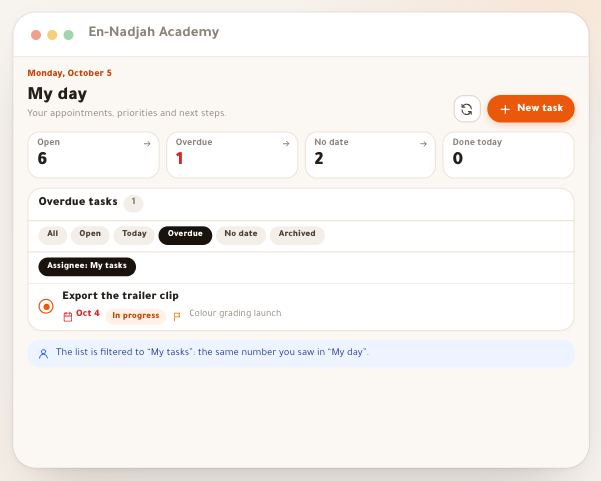
Under today’s date (for example “Monday, October 5”) and the title “My day”: four numbers about your own tasks — “Open”, “Overdue”, “No date” and “Done today” — then a quick field “What do you want to accomplish?”, then “Today’s priorities”: three slots for the three tasks that matter most, then “Today’s tasks”: what is assigned to you for today and what is overdue. On the side, “Upcoming appointments”: the next five appointments, bookings and live classes within seven days. At the top, “Refresh” and “New task”. On Monday morning Sara sees: 6 open, 1 overdue, a booking with Rania at 16:30 and the “Video colour grading” live class on Thursday at 18:00. Every part of the page is covered in the “My day” lesson.
On screenMy dayOpenOverdueNo dateDone todayWhat do you want to accomplish?Today’s prioritiesToday’s tasksUpcoming appointmentsRefreshNew taskTipThe numbers and the list count only what is assigned to you, even if you are the owner and see everyone’s tasks in “Tasks”. That keeps “My day” short and your day clear.
Heads-upThe page doesn’t update by itself: what a colleague changes shows after “Refresh” or after any save of yours.
- Step 3 of 4
The section’s seven pages
“My day”: your day. “Calendar”: “Bookings, classes and work appointments together.” — your organization appointments, your dated tasks, and the “One-to-one booking” and “Live class” items that arrive on their own from their pages, in “Agenda”, “Day”, “Week” or “Month” view. “Tasks”: every task you can see, with search, filters, saved views and “Board”. “Work plans”: “Turn goals into tasks with suggested dates.” — the “Video colour grading launch” plan with its stages, tasks and members. “Team & workload”: each member’s open and overdue tasks and commitment time, without revealing private details. “Reports”: “Completed tasks”, “Completed on time” and “Recorded time” for the period you choose. “Organization settings”: your own preferences — “Time zone”, “Week starts on”, “Default reminder”, “Quiet hours” — changing nothing for anyone else.
On screenMy dayCalendarTasksWork plansTeam & workloadReportsOrganization settingsBoardTipSplit the work like this: the launch is a plan in “Work plans”, “Answer community questions” every Sunday is a recurring task in “Tasks”, and the class scheduled in “Live” shows on “Calendar” by itself, with nothing to copy.
Heads-up“Team & workload” appears only with “See team & workload”, and “Reports” only with “View organization reports”. The section doesn’t sync with Google or Apple Calendar, has no invitations to appointments and sends no email reminders.
- Step 4 of 4
Who can do what
In the permission grid (“Settings” → “Team”), the “Organization” group holds seven permissions: “Tasks” — enter the section, one’s own tasks, appointments and private plans, personal settings, commenting on what one sees. “See all shared tasks” — sees and comments on every “Shared” task in the workspace, without editing it. “Assign tasks and manage plan members” — assigns tasks to others, manages the shared tasks they can see, adds plan members and changes their role. “Create and manage shared plans” — creates “Shared” plans and edits shared plans. “See team & workload” — the “Team & workload” page, and colleagues’ shared appointments, which they see and manage. “View organization reports” — the “Reports” page, and everyone’s recorded time on a task. “Manage others’ recurrences” — edits shared recurring series created by others. By default: the owner and “Admin” hold all seven, “Teacher” and “Assistant” only “Tasks”. Example: Amine wants Karim to see the team’s shared tasks; in “Team” he presses “Manage” next to Karim, turns on “See all shared tasks” in “Permissions specific to this member”, which shows “Added for this member”, then “Save”.
On screenTasksSee all shared tasksAssign tasks and manage plan membersCreate and manage shared plansSee team & workloadView organization reportsManage others’ recurrencesManagePermissions specific to this memberAdded for this memberTip“Private” or “Shared” on each task decides who sees it: a private task is visible only to its creator and assignee, a shared one to holders of “See all shared tasks” and to the members of its plan. Keep the launch tasks inside their plan and its team sees them.
Heads-up“Tasks” alone covers a trainer’s daily work, but their plans stay “Private” and they assign nothing to others: Sara can’t give Karim a task until Amine grants her “Assign tasks and manage plan members”.
After this tour
- Organize your dayThe “My day” lesson: the four numbers, the three priorities and quick add.
- Create a first task“New task” with a deadline and a reminder, or “Linked task” from a course or a space.
- Gather your appointments“Calendar” brings your live classes, bookings and appointments together.
- Plan a launch“Work plans” turns a goal such as a course launch into stages and dated tasks.
Questions
Do my students see anything of “Organization”?
No. The section belongs to your team, inside the dashboard. Even a task linked to a course or a space doesn’t show in that course or space: the link helps you get back to the source.
Can I connect the calendar to Google or Apple Calendar?
Not today: no export, import or subscription to an outside calendar. Your live classes and bookings do appear on “Calendar” by themselves, with nothing to copy.
Can I invite a student or a colleague to an appointment?
Organization appointments have no attendees or invitations: an appointment belongs to its creator, and a “Shared” one is visible to holders of “See team & workload” and to members of the linked plan. For a class with your students, use “Live” or “Bookings”.
Do reminders reach my phone?
They always appear in “Notifications”, inside the platform’s “Inbox”. To get them on your phone too, open “My account” → “Phone app” → “Turn on for this device”: you then receive tasks assigned to you, reminders for your tasks and appointments, and changes to your appointments (the “Tasks and school” group). On iPhone, press “Install the app” first and open Dirassa+ from the Home Screen. No reminder is sent by email.
Why can’t a trainer see “Team & workload” or “Reports”?
The “Teacher” role holds only “Tasks”. Grant “See team & workload” or “View organization reports” in “Permissions specific to this member”, or create a custom role that includes them.
Is there a board where I drag cards between columns?
The “Board” in “Tasks” lays tasks out in five columns by status, but there is no drag-and-drop: open the task and change its “Status”, or tap its circle to complete it.
I work in two workspaces — do my tasks mix?
No. Each workspace has its own organization: its tasks, appointments, plans and your personal settings there. You move between them as you do in the rest of the dashboard.
Can I delete a task?
Tasks can’t be deleted: “Archive” takes one out of every list into the archive, and “Restore” brings it back as it was.