
“Comes with it” and “One-tap add-on”: a gift with the purchase and a suggestion at checkout
A fitness coach sells a 12-week programme for 4,900 DZD, with a “nutrition guide” that comes with it at no charge, and offers an “individual assessment session” for 2,100 DZD at checkout that anyone can add with one tap. The first is a gift inside the offer, the second a suggestion inside the order sheet; both are written from “The offer sentence”, each with its rules so the offer isn’t padded and the buyer isn’t pushed.
- About 6 minutes
- 6 steps
Who can do it: People with the “Offers” permission. People who only edit showcases add the “Comes with” section to their page.
 Let Noqta show you
In 6 steps
- 1“Comes with it” is given to every buyer and does not count in the offer’s value; “One-tap add-on” is one paid suggestion at checkout.
- 2In “What you sell”, give the item the “Comes with it” role; six items at most.
- 3When a cheap item or too many items weaken the offer, the “Honesty notes” suggest: “Move it to “Comes with it””.
- 4“One-tap add-on”: pick one item and adjust the “Add-on price” suggested at 70% of its separate price.
Before you start
- An offer you may edit from “Offers”, and another published item in your workspace that makes a good add-on or gift.
- The one-tap add-on shows only in the order sheet, so only where the offer engine sells: “The add-on shows only where the offer engine sells.”.
- An offer created by a showcase stays on its item: to add gifts, create a “New offer” from “Offers” and tick the items in it.
- You write the add-on’s price yourself; it does not touch the item’s own price in your workspace.
- Step 1 of 6
Two different things
A gift every buyer gets, or a paid suggestion whoever wants picks at checkout: know which one you need.
- “Comes with it”Given to every buyer at no price; it counts neither in “Worth … separately” nor in the saving. Six at most.
- “One-tap add-on”One item with its own price, in the order sheet above the total, unticked; the buyer adds it if they want.
- Which one?Should every buyer get it? A gift. Do some want it and pay for it? An add-on.
TipAsk yourself: do I want every buyer to get it? A gift. Is it something some want and will pay for? An add-on.
All the details
“Comes with it” is an item given to everyone who buys the offer: with no price, it counts neither in the “Worth … separately” value nor in the offer’s saving, and you put six at most. “One-tap add-on” is one item shown to the buyer in the order sheet above the total, unticked, with its own price, which they add with one tap if they want. The first is part of the offer, the second a suggestion at checkout. For example a 12-week programme for 4,900 DZD comes with a “nutrition guide”, and an “individual assessment session” for 2,100 DZD is offered at checkout. Both show in the sentence: the add-on after a dot, “with the add-on individual assessment session for 2,100 DZD”, and the gifts in the “What a buyer sees” card under “Comes with it”.
On screenComes with itOne-tap add-onWhat a buyer seesThe offer sentence - Step 2 of 6
The “Comes with it” role in “What you sell”
Make the “nutrition guide” a gift with the programme: every buyer gets it, and it stays out of the arithmetic.
- How?In “What you sell”, tick the item, then pick its role under the row: “Core” or “Comes with it”.
- How many gifts?Six at most, and the offer keeps at least one core item.
- Offer made by a showcase?It stays on its item. Create a “New offer”, tick both items, then switch one to “Comes with it”.
TipA gift counts in honesty, not in the arithmetic: no price to subtract to manufacture a saving, so the saving line only comes from items sold alone.
All the details
Open “What you sell” from the sentence and tick what you want to give with the offer: the role choice opens under the row, “Core” or “Comes with it”. Whatever is “Comes with it” has no price in the offer, and the “What a buyer sees” card carries a “Comes with it” line. The limit is six: “Six items at most in “Comes with it”.”, and when reached the role choice disappears from the other items. You cannot make the last core item a gift: the offer keeps at least one core item. To start from a one-item offer: the one a showcase created stays on its item, so create a “New offer”, tick two items, then switch one to “Comes with it”: the type goes back to “One item”, with its gift. And the type follows the items while the offer is not published.
On screenWhat you sellCoreComes with itNew offerSix items at most in “Comes with it”. - Step 3 of 6
The hint: “Move it to “Comes with it””
When a cheap item or a long bundle lowers your offer’s value in the buyer’s eyes, the “Honesty notes” say so and suggest the fix.
- When does it show?For an item worth under 10% of the price alone, or a bundle with more than five core items.
- What does the button do?It moves the item to “Comes with it” and takes it out of the tiers it was in. With all six taken, it moves nothing.
- After the moveThe card is recomputed: review “Worth … separately” and the saving, which may change.
TipAfter the move the card is recomputed: review “Worth … separately” and the saving, which may change because the gift leaves the arithmetic.
All the details
Under the card, two warnings in the “Honesty notes” concern roles. The first: “More than five core items: long bundles look worth less. Move the small ones to “Comes with it”.”, for a bundle of more than five. The second targets an item whose price alone is under a tenth of the price: “is under 10% of the price; a cheap item can lower the offer’s perceived value.”, with the button “Move it to “Comes with it”” beside it: it moves the item to “Comes with it” with one tap and takes it out of the tiers it was in. This way your offer isn’t padded with trivial items that raise the count and lower the value a buyer imagines; the item stays for whoever buys, but becomes a gift rather than a line in the sum. If “Comes with it” is full (six), the button moves nothing.
On screenHonesty notesMove it to “Comes with it”Move the small ones to “Comes with it”. - Step 4 of 6
“One-tap add-on”
Offer an “individual assessment session” for 2,100 DZD at checkout: whoever wants it adds it with one tap, no separate step.
- What to choose?One item published in your workspace that the offer doesn’t hold. One add-on only, and “No add-on” removes it.
- What price?70% of its separate price is suggested, rounded down: 3,000 DZD becomes 2,100 DZD. Adjust it freely.
- Where does it work?In the order sheet. A one-item offer left on the current checkout page doesn’t show it until the engine sells it.
All the details
Tap “One-tap add-on” in the “Add to the sentence” row; you read: “One item shown in the order sheet just above the total, unticked, that buyers add with one tap.”. Under “Choose the add-on”, everything published in your workspace that your offer does not hold (otherwise “No other item can serve as an add-on.”; the add-on cannot be an item of the offer itself). When you pick an item, the system suggests an “Add-on price” of 70% of its separate price, rounded down to 10 DZD if under 1,000 DZD and to 100 DZD above: an item at 3,000 DZD becomes 2,100 DZD, with “Separate price: 3,000 DZD” beneath. Adjust the price as you like; if the item has no separate price, type it yourself. The sentence reads “with the add-on individual assessment session for 2,100 DZD”. One add-on only, and “No add-on” removes it. Its rule is written: “Never a separate step, and hidden from those who own it. Other offers go on the thank-you page only.”.
On screenOne-tap add-onChoose the add-onAdd-on priceSeparate priceNo add-onNo other item can serve as an add-on.Heads-upThe add-on does not work on a one-item offer’s current checkout page. A “One item” offer normally sells through the order sheet, so its add-on works; but if it stays on the current page (because its item relies on something the engine doesn’t cover, or because the Dirassa+ team paused your workspace) you read: “The launch price, the add-on and the chosen methods do not work on this item’s current checkout page; they work once the offer engine sells it.”. Prepare it; it starts when the engine sells the item.
- Step 5 of 6
Where a buyer sees it
The buyer sees the add-on as a quiet card above the total and the gifts in the order summary, with no pressure.
- Where?Under “Add to my order”, above the total, unticked, with “Sold alone for …” when the item sells alone.
- When is it hidden?From whoever already owns the item, and with installments: “Not available when paying in installments”.
- And the gifts?In the summary, under “Also included”. Other offers go on the thank-you page, never as a step before paying.
TipOffer an add-on that completes what they bought, not a substitute: a one-to-one session after a course, or templates after a design course. What doesn’t fit the order is ignored and costs you trust.
All the details
In the order sheet, the add-on appears as a card above the total, unticked, under the heading “Add to my order”, with the item’s name and price, and “Sold alone for …” when the item sells alone (this line is not written to a buyer abroad). If they tick it, its price enters the total and shows in the summary as “+ its name”. It is not offered to someone who already owns the item, nor with installments: “Not available when paying in installments”. The gifts they read in the sheet’s summary: “Also included” then their names, or as items after the bundle’s. In your “What a buyer sees” card, the line: “One-tap add-on in the order sheet: … for …”. A buyer sees no other offer as a step before paying: other offers go on the thank-you page.
On screenAdd to my orderSold alone forNot available when paying in installmentsAlso includedWhat a buyer sees - Step 6 of 6
The “Comes with” section on the page
A section that shows visitors what they get with the offer, with real titles from your course or your own words.
- How many extras?Three at most. The section shows what your page gives and doesn’t need the order sheet.
- Linked or written?Linked to a file, live, course or item, it shows its real title; written, it carries “sent by the seller after purchase”.
- When is it hidden?If what you linked disappears, the extra is hidden and the readiness check warns you. “Standalone value” shows only a real price.
The 6 layouts
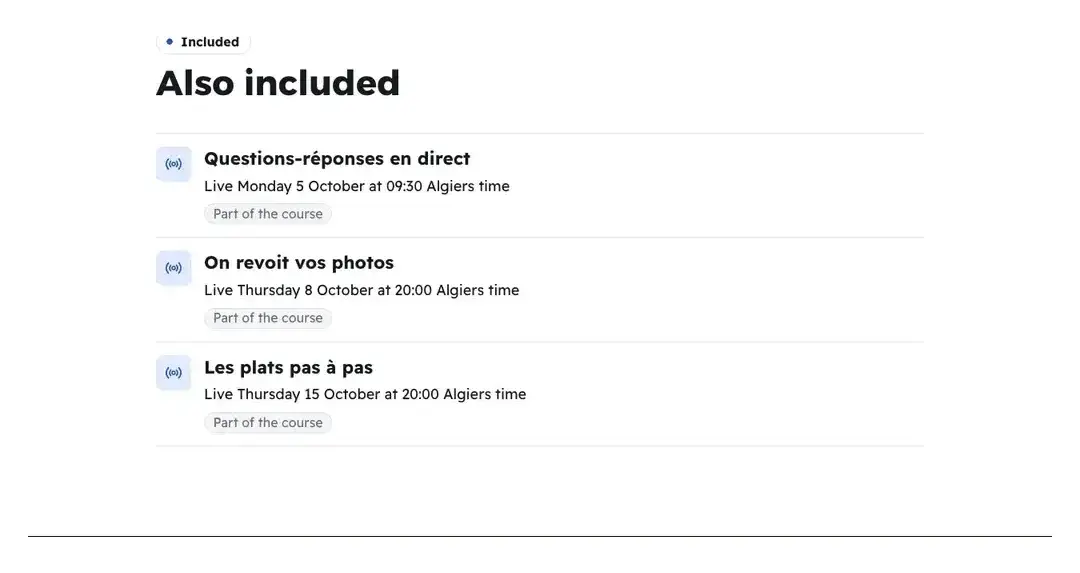
ListRows with an icon, in one column. TipThe name in the section library is “Comes with”, and in the sentence “Comes with it”: both mean the same thing.
All the details
In the editor, add the “Comes with” section: three extras at most, in six variants, “List”, “Cards”, “Slab”, “Gift tags”, “Plus” and “Folders”. Each extra is either linked to something the buyer really gets (a file lesson or a live of the course, a course inside the space, or an item of your offer), and its real title shows; or written by you (“Title” and “Short line”), and then shows with the words “sent by the seller after purchase”. Linked is more honest: if what you linked disappears, the extra is hidden and the readiness check warns you: “An extra points to something that no longer exists, so it is hidden.”. “Standalone value” writes an extra’s value only if it has a real separate price. With no valid extra, the editor says: “Add what the buyer gets with the offer: a file or live from the course, or an extra you write.”. This section shows what your page gives, and does not need the order sheet.
On screenComes withListCardsSlabGift tagsPlusFoldersTitleShort lineStandalone value
Once what comes with the offer is set
Questions
What’s the difference between “Comes with it” and “One-tap add-on”?
“Comes with it” is received by every buyer at no charge and is part of the offer (six items at most). “One-tap add-on” is one paid item at its own price, shown unticked in the order sheet and chosen by whoever wants it.
How many one-tap add-ons can I put in one offer?
One only. “Comes with it” takes up to six items.
How is the suggested add-on price calculated?
70% of the item’s separate price, rounded down to 10 DZD if under 1,000 DZD and to 100 DZD above. You adjust it as you like; if the item has no separate price, you type the price yourself.
Why doesn’t the add-on show on my page?
Because it shows only in the order sheet, where the offer engine sells, isn’t offered to someone who owns the item, nor with installments. And a draft or archived item cannot serve as an add-on.
Can I make an item of the offer itself an add-on?
No: “The add-on must be something the offer does not include.”. Pick another item, or make the item “Comes with it”.
Why can’t I find the “Comes with it” choice in my offer?
Either your offer was created by a showcase, so it stays on its item: create a “New offer”; or “Comes with it” has reached six items; or the item is the only core item in the offer.
Do I need the order sheet to show the gifts on the page?
No: the “Comes with” section shows what you linked to a lesson, a live or a course, or wrote yourself, and does not need the order sheet. But “Comes with it” as part of a several-item offer, and the one-tap add-on, go through the order sheet.