All parts
Showcases
Sales pages you build, publish and follow up on.
Getting started4 lessons
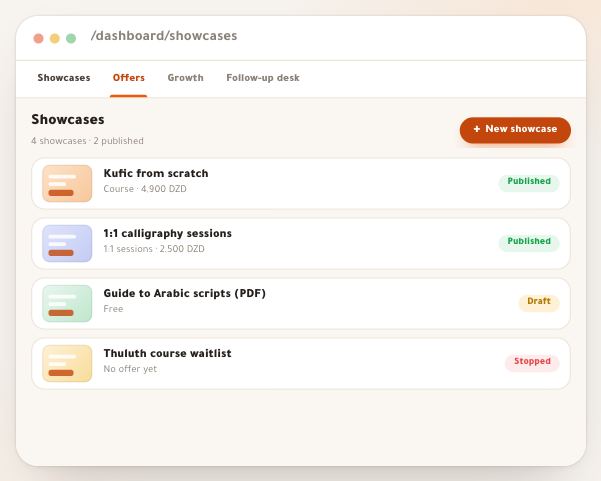
- The showcases list“Showcases” gathers every sales page you created: its real opening, what it sells and for how much, where it stands, and its week in numbers. In the menu you now find this list as “Campaigns”, inside the “Designer”; the old page still opens from its link. From there you open, share, duplicate, unpublish or archive any showcase. The example: Nour, an Arabic calligraphy teacher with four showcases — a course, 1:1 sessions, a free file and a waitlist.6 steps · 3 minutes
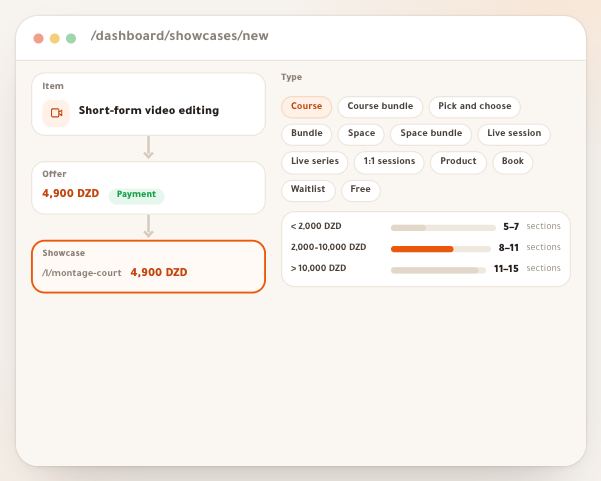
- Create a showcaseA showcase is a public page that sells something already on your platform: a course, a space, 1:1 sessions, a product, a book, or a free file in exchange for a name and phone. You type no price and no lesson count: everything is read from your data and updates on its own. Here is the whole journey, with Karim, a video-editing trainer, selling “Short-form video editing” for 4,900 DZD and “Video colour grading” for 3,500 DZD.9 steps · 5 minutes to the editor
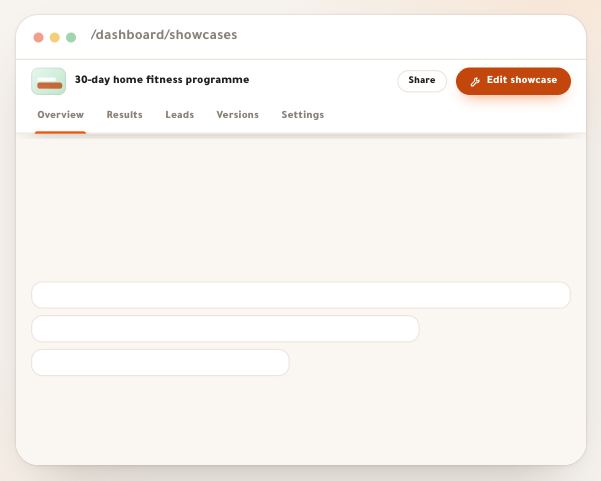
- A showcase’s pageTap any showcase’s name in the list to open its page: its status and what it sells in the header, then five tabs. “Overview” gathers on one screen its week in one sentence, its latest orders and leads, whether it’s ready to publish, what it sells with prices and payments, and its link. The example: Yacine, a fitness coach, sells “30-day home fitness programme” for 2,900 DZD.6 steps · 3 minutes
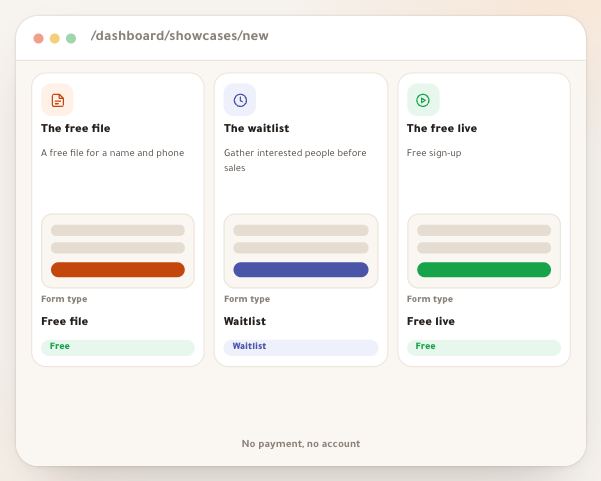
- Pages that gather leadsNot every showcase sells right away. Some give a file in exchange for a name and phone, others gather people waiting for your next course so they hear on launch day. These pages never lead to a payment, visitors need no account, and everyone who signs up lands in “Leads” and at the follow-up desk. The examples: Amina, a marketing coach, gives a PDF guide; Sami, a programmer, opens a waitlist for his next course.5 steps · 5 minutes
The editor10 lessons
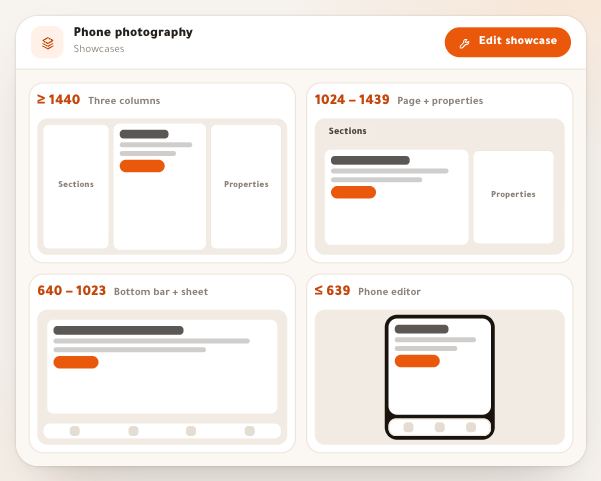
- The showcase editor on a computerOn a computer the editor opens your real page in the middle, with the sections panel, the properties panel and one top bar around it. This lesson covers all of it: how it changes with the screen width, every button in the top bar, selecting and writing on the page, the section’s floating toolbar, the two panels, the command palette and its shortcuts, and what keeps your work safe. The example: Sara, a photographer selling her course “Phone photography”.8 steps · 10 minutes to get to know it
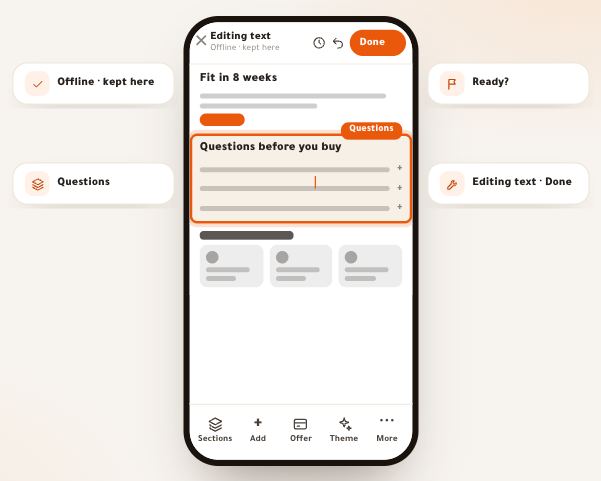
- Edit from your phoneOn a phone the editor opens your page at your screen’s real width, with the tools under your thumb: a bar at the top, a bar at the bottom that changes with what you select, and one sheet every tool opens in. This lesson covers them all, with Amine, a fitness coach who sells 1:1 sessions and edits his page between two of them.7 steps · A few minutes per edit
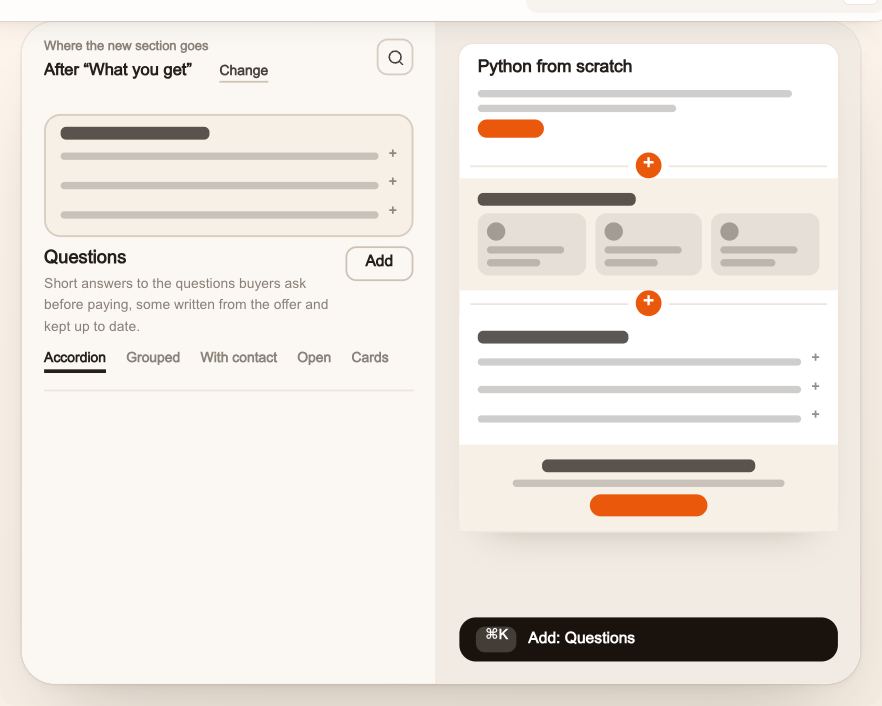
- Add a section and change its orderYour page is built one section on top of another. This lesson goes through the “Add a section” panel: where the new section lands and how to change that place, how to search and browse with the tabs, how to see every section at real size with your own page’s content, how to try it in its place on the page before adding it, and why some sections wait for their data. Then how to order sections by drag, arrows or “Move to…”, and the limits the editor keeps. Example: Karim, a programming trainer, builds the page for his course “Python from Zero”.9 steps · 10 minutes
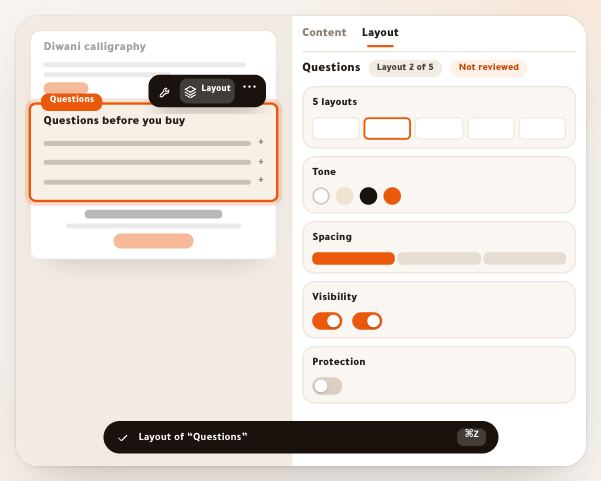
- A section’s layoutEvery section of your page comes in several layouts of one idea, and the “Look” tab is where you choose how this one section looks: its tone (its background), its layout, its parts and its spacing. Where it shows and its lock are in ⋯ beside its name. Colours, fonts and the page’s density are in “Identity”, for every section at once. The example: Lina, a calligrapher, sets up the page of her workshop “Diwani script”.8 steps · 8 minutes
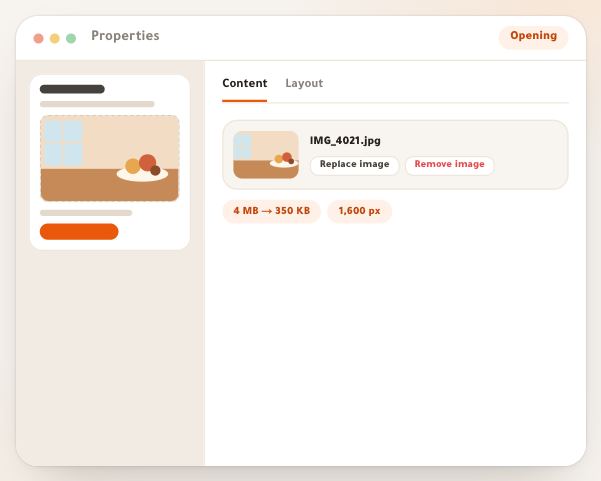
- Images, video and motionA good photo says in one second what a whole section explains. In a showcase you upload your images as they are and we shrink them so they open fast on phones; you pick their most important part, which is never cropped away; you add a YouTube or Vimeo video, or a short silent clip that moves when the visitor reaches it. Our example: Amine, who teaches phone photography, prepares his course page.6 steps · 5 minutes
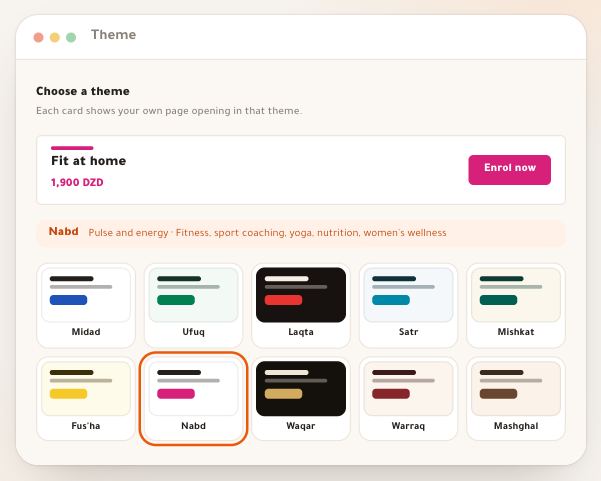
- Themes and coloursA theme is more than a colour: fonts, colours, corners, buttons, motion and section layouts designed to work together, in Arabic, French and English. You pick one of ten, then make it yours with your colour and fonts, and you cannot break it: every option in the panel is safe, and colours are adjusted so text stays readable. Our example: Meriem, a home-fitness coach, moves her page from “Midad” to “Nabd” and keeps her teal.8 steps · Two to five minutes
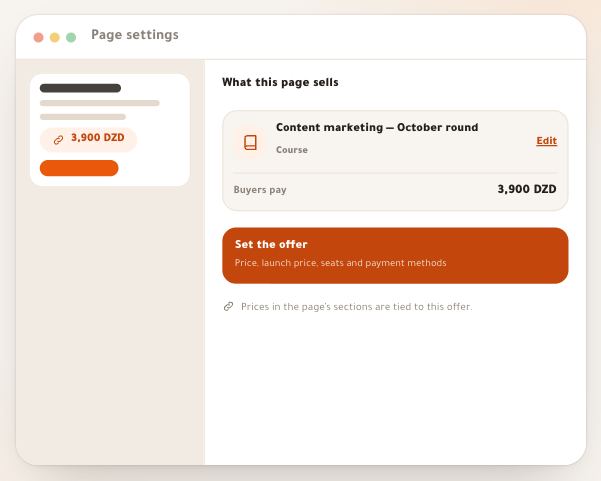
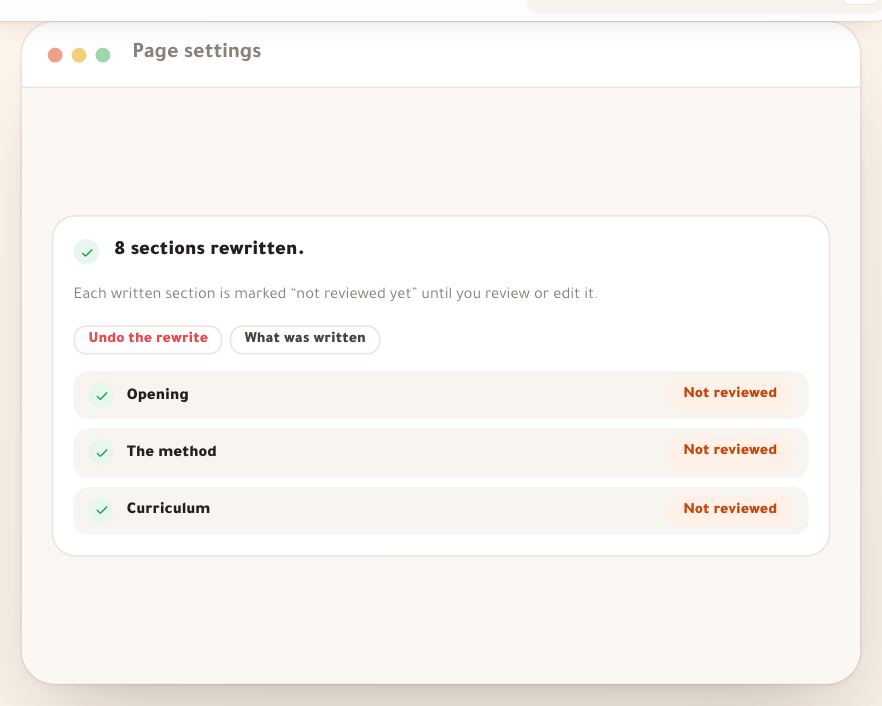
- Page settingsAfter the text and images come the questions about the page itself: which link to share, how it looks when the link is sent on WhatsApp, which languages it reads in, and when it stops. They are all in one panel, and every number in it is read from your data. Our example: Karim, a content-marketing coach, sells his course in Arabic and French.8 steps · 5 minutes
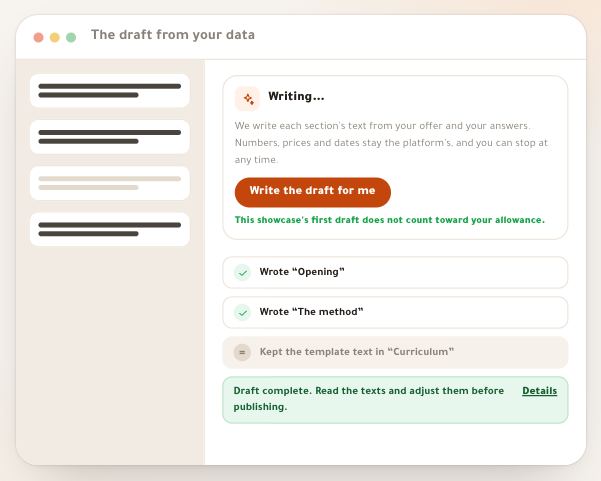
- Writing with NoqtaNoqta doesn’t write in your place, she writes from your course: she reads its description, every chapter and every lesson, and what you told her about your students, then proposes the text right where it goes on the page. Nothing enters your page until you accept it; she never touches numbers, prices, dates or buttons, and refuses on her own any made-up promise or review. Our example: Sofiane, who teaches spoken English, writes his course page in two languages.7 steps · Two to ten minutes
- Noqta designs and reviewsHere Noqta doesn’t write, she arranges. She reads what your offer really holds (lessons, cover, verified reviews, dates, WhatsApp number, guarantee), suggests the sections that have something true to show now, picks for each the layout its data calls for, with the reason, then reads the page the way a buyer does before paying. You choose the sections, nothing changes until you apply, and every apply is one undoable step. Our example: Amina, a digital-marketing trainer, designs the page of her course “Facebook ads for small shops”: 24 lessons in 5 chapters, a cover, a WhatsApp number, one upcoming live session, a guarantee on the offer, and no reviews yet, because her first cohort hasn’t started.8 steps · Three to ten minutes
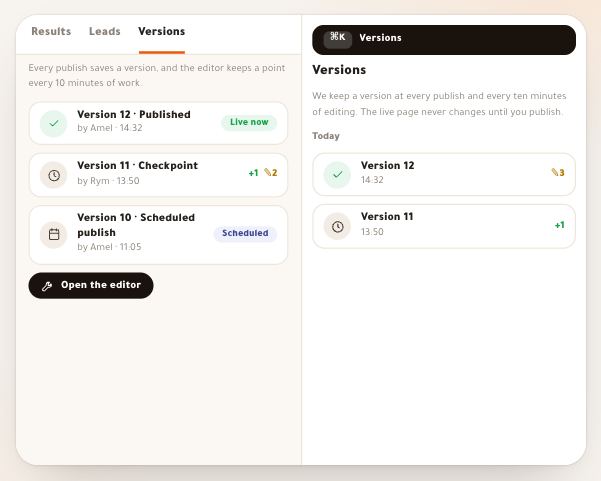
- Showcase versions and teamworkYou never need to “save”: the editor saves your draft on its own, keeps versions of it to go back to, and protects your work when a teammate opens the same showcase. This lesson explains when versions are kept and for how long, how to preview an old version and restore it, what happens when the connection drops, then working as two: the edit lock, “Take over” and resolving conflicts. Example: Amel, a marketing coach, and her assistant Rym edit the page of the “Facebook Ads Workshop”.7 steps · 8 minutes
Page sections6 lessons
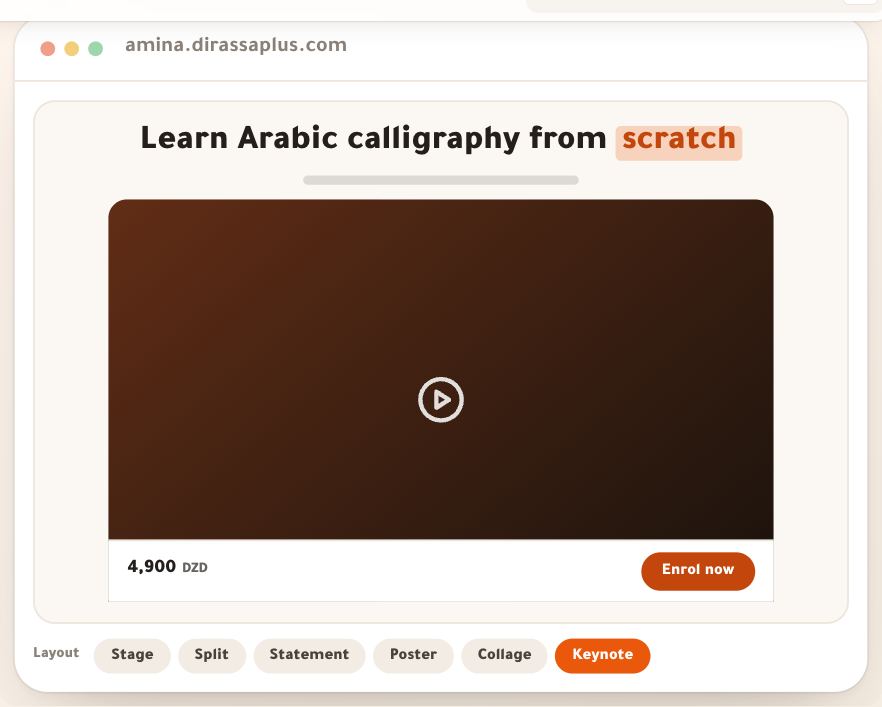
- Opening and price sectionsThese sections carry what the visitor pays for: the promise on the first screen, the price and the buy button. You never type a price or a number in them: everything is read from the offer linked to the showcase and updates itself, and each page has one price section that carries its button. Here is every section and every layout, by its name in the “Layout” tab, and when to choose it, with Amina, a calligraphy trainer who sells “Arabic calligraphy from scratch” for 4,900 DZD.8 steps · 3 minutes per section
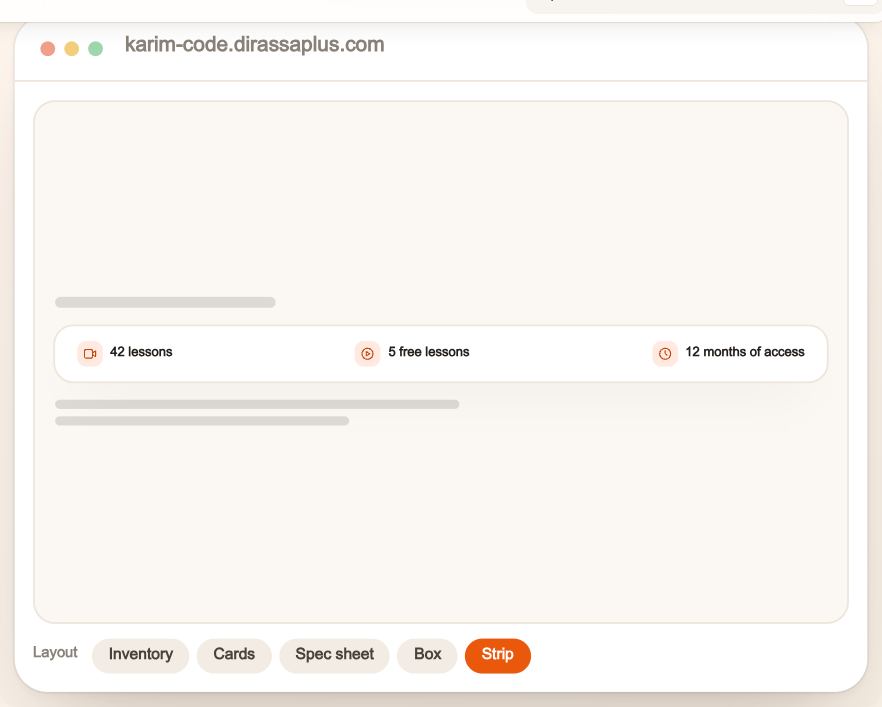
- Explaining sectionsAfter the Opening, visitors ask: what exactly do I get? who is this for? how will I get there? These sections answer, and most of what they show is read from your course or space itself: lesson count, length, chapters, dates. You type no numbers and nothing falls behind the truth. They all work for every workspace. The example: Karim, a developer, teaches “Python from scratch” in 24 lessons and six chapters.9 steps · 3 minutes per section
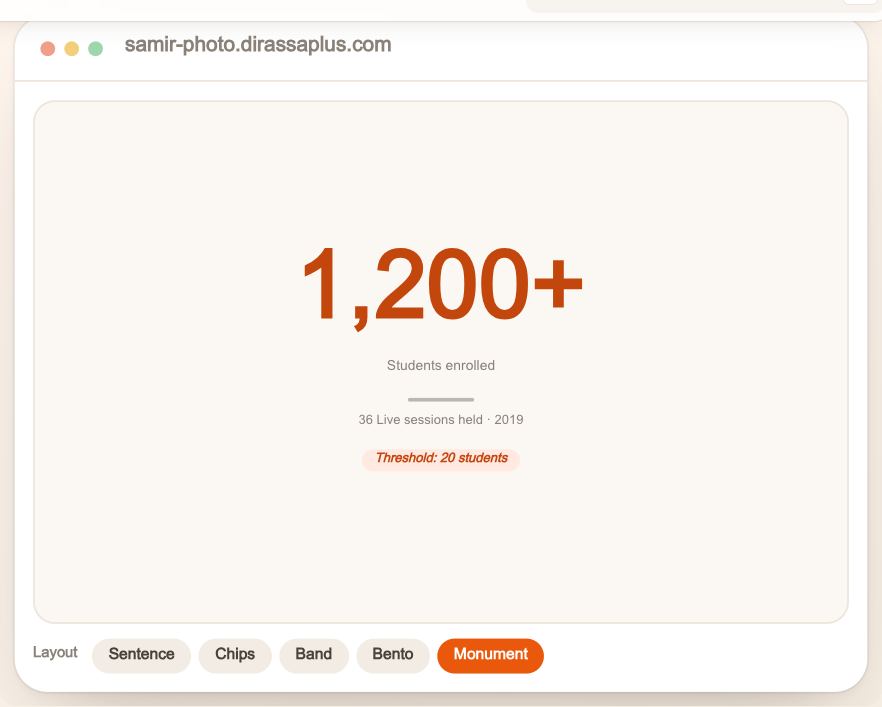
- Proof sectionsOnce visitors understand what they are buying, they ask: is this real? These sections answer with what can be checked: numbers the platform computes and you do not type, reviews your students wrote themselves, and work and clips that only appear with their makers’ consent. That is why you will find no “write a quote” field and no number to type. All of it works for every workspace. Our examples: Samir, a wedding photographer who teaches photography, Lamia, a fitness coach, and Yacine, a video editor.7 steps · 3 minutes per section
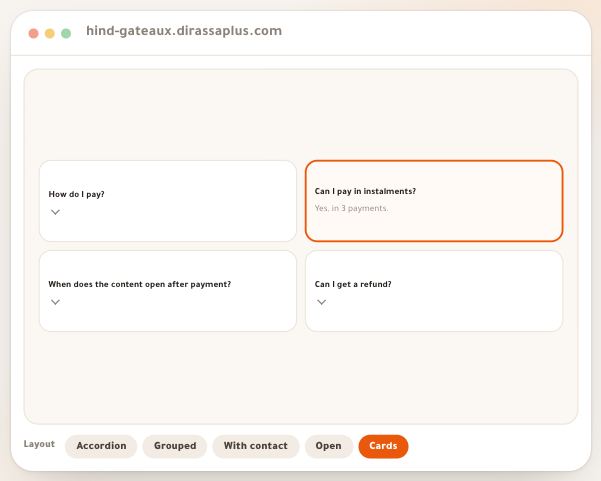
- Reassuring sectionsBefore paying, buyers carry small questions: how do I pay? when does my access open? what if it is not for me? These sections answer with what the system really does: answers, steps and guarantee are read from your offer’s settings and update by themselves, and the deadline is only ever a date when the server really closes sales. Everything works for every workspace, and the launch price and the seats in “Deadline and seats” come from your offer. Our examples: Hind, an English tutor, Walid, a web development trainer, and Rym, a photographer selling a presets pack.7 steps · 3 minutes per section
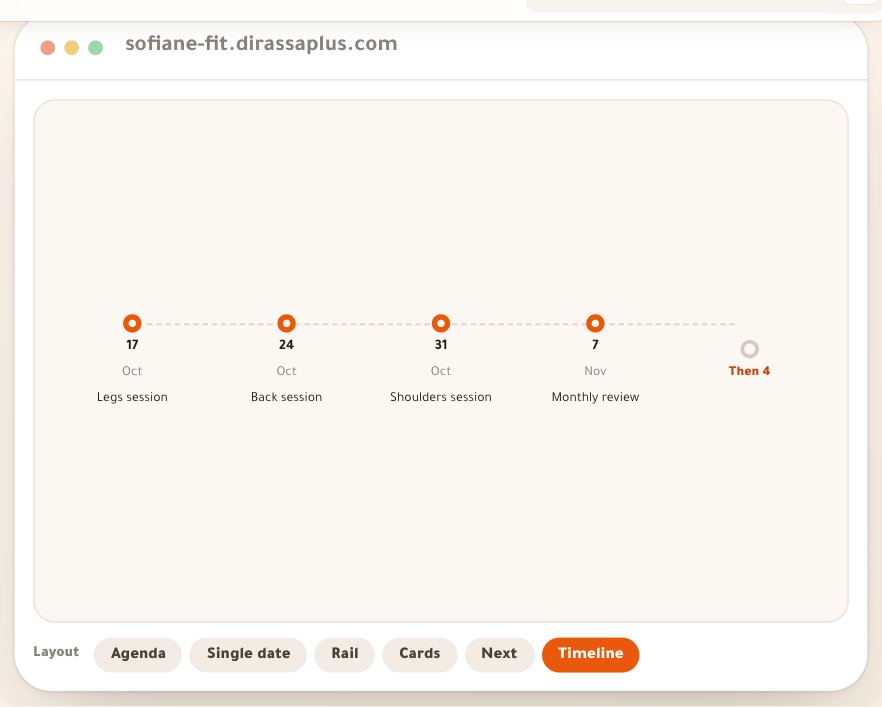
- Time sectionsWhat you sell sometimes has a time: a live session on Friday, a one-to-one session people book, a space humming with members. These three sections show visitors the real time, not a typed one: dates are read from your live sessions and your sessions calendar and update by themselves, and the space is shown without naming a single member. All of it works for every workspace, and a “Session times” time is booked on the service’s booking page. Our examples: Sofiane, a fitness coach with live Friday sessions, Amel, a career coach selling one-to-one sessions, and Tarek, who runs a photographers’ space.3 steps · 3 minutes per section
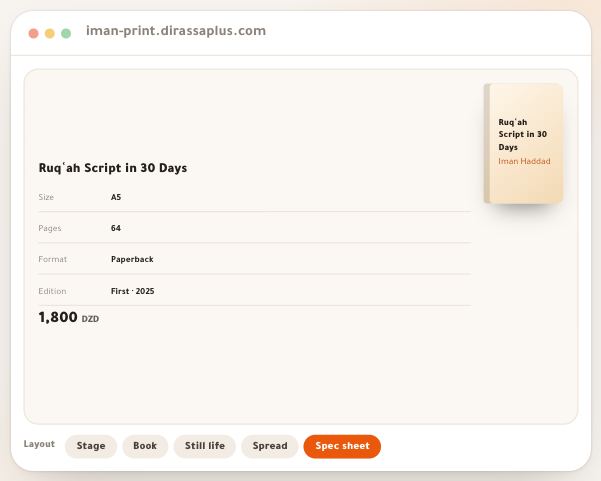
- Product and bookYour product is a parcel that arrives at the buyer’s door, a file to download, or a book whose sample is read before buying. These sections show it as it is with real photos, take the order without an account, and show the buyer the full total (delivery included) before they confirm. All of it works for every workspace with a “single item” offer. Quantity steps, bundles and tiers are sold through the order sheet. Our examples: Imane, a calligrapher selling a practice book, Bilal, a programmer selling a PDF pack, and Nour, a photographer selling prints.5 steps · 15 minutes
Offers6 lessons
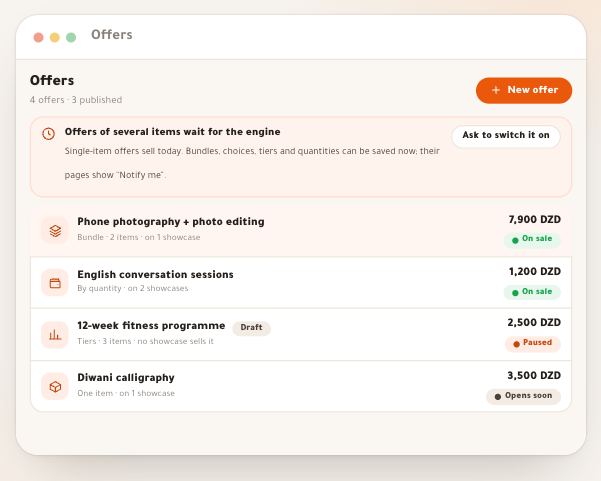
- Offers and the offer sentenceAn offer is what actually gets bought: its items, price, dates and seats; a showcase is the page that sells it. You write it as one sentence that reads the way you would say it, “I sell Phone video editing + Creators space together for 7,900 DZD”, and every part is a button to its setting. Under it, a card shows with the server’s own figures what a buyer will see, before anything reaches a page. A one-item offer sells through the current checkout page; bundles, choices, tiers and quantities sell through the “order sheet”.6 steps · 8 minutes
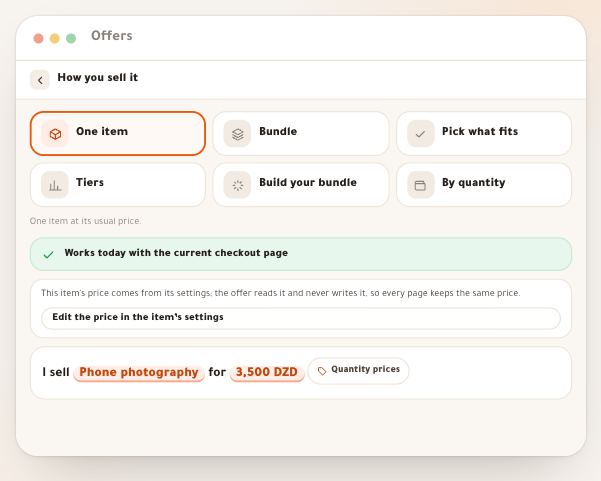
- Offer typesThe same items sell in different ways: a fitness coach sells her programme in three tiers, a photographer gathers his courses in a bundle, a calligrapher lets buyers pick three courses out of six. You choose the type in “How you sell it”, and each type has its own price page, with suggested prices drawn from your current prices.6 steps · 10 minutes
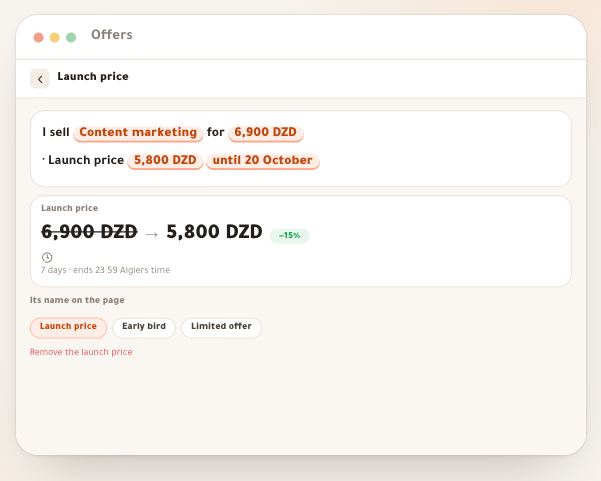
- Launch prices and seatsA marketing coach opens his course cheaper for one week; a yoga teacher takes only thirty people into her cohort. Launch prices and seats tell buyers the truth: the date or the “N left” they see is computed by the server from real orders, and the rules stop anyone playing with a price buyers have already seen. Once the offer is full, the button turns into a waiting list on its own.6 steps · 7 minutes
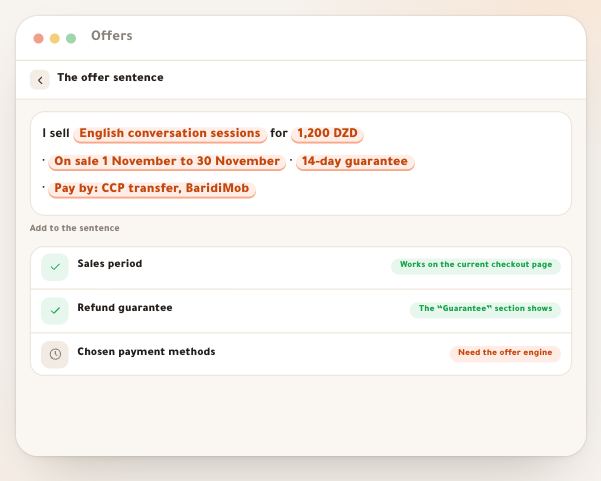
- Sales period, guarantee and payment methodsA product photographer opens her course at the start of November and closes it at month’s end; a coding trainer promises a refund within 14 days; a calligrapher sells his paper workbook with cash on delivery and his course by CCP transfer only. These are three parts you add to “The offer sentence”: “Sales period”, “Guarantee” and “Payment methods”. The sales period and the guarantee work on every offer and with every checkout page; choosing payment methods works through the “order sheet”, which sells offers by default in every workspace.6 steps · 7 minutes
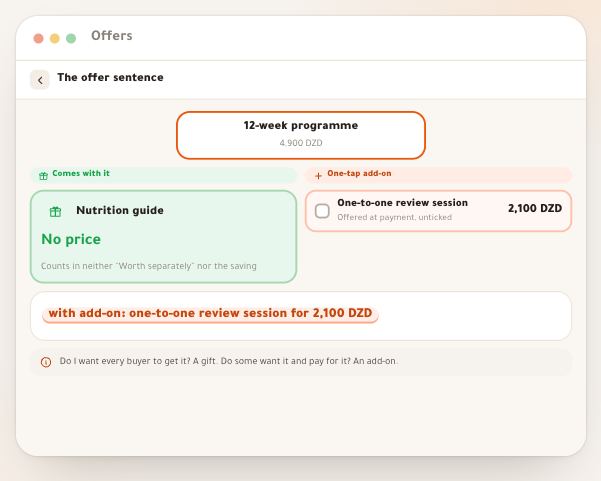
- Comes with it and one-tap add-onA fitness coach sells a 12-week programme for 4,900 DZD, with a “nutrition guide” that comes with it at no charge, and offers an “individual assessment session” for 2,100 DZD at checkout that anyone can add with one tap. The first is a gift inside the offer, the second a suggestion inside the order sheet; both are written from “The offer sentence”, each with its rules so the offer isn’t padded and the buyer isn’t pushed.6 steps · 6 minutes
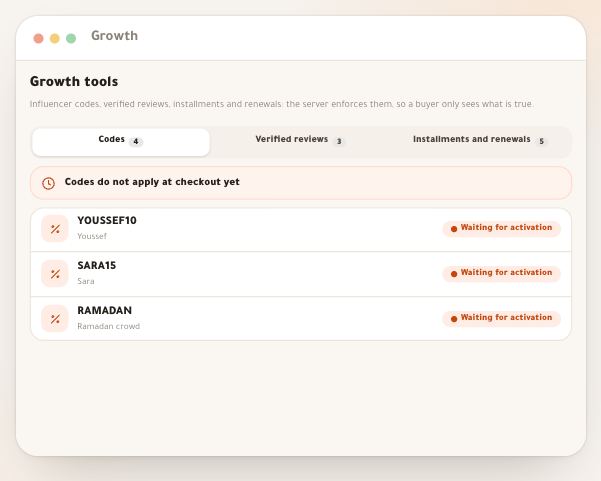
- Growth toolsA marketing trainer gives an influencer a code of their own and knows how many orders it brought; a coding trainer asks students for their reviews, which show on the page with a “Verified student” badge without the trainer being able to change a letter; a language tutor lets a buyer pay in three installments or renew a bundle from their account. These are the “Growth tools”, and the server enforces all of them: buyers only see what is true. Codes, installments, the fingerprint and renewal work on showcase offers sold through the “order sheet”, not on a course’s checkout page (/checkout). Verified reviews don’t go through offers.10 steps · 12 minutes
Selling and payment6 lessons
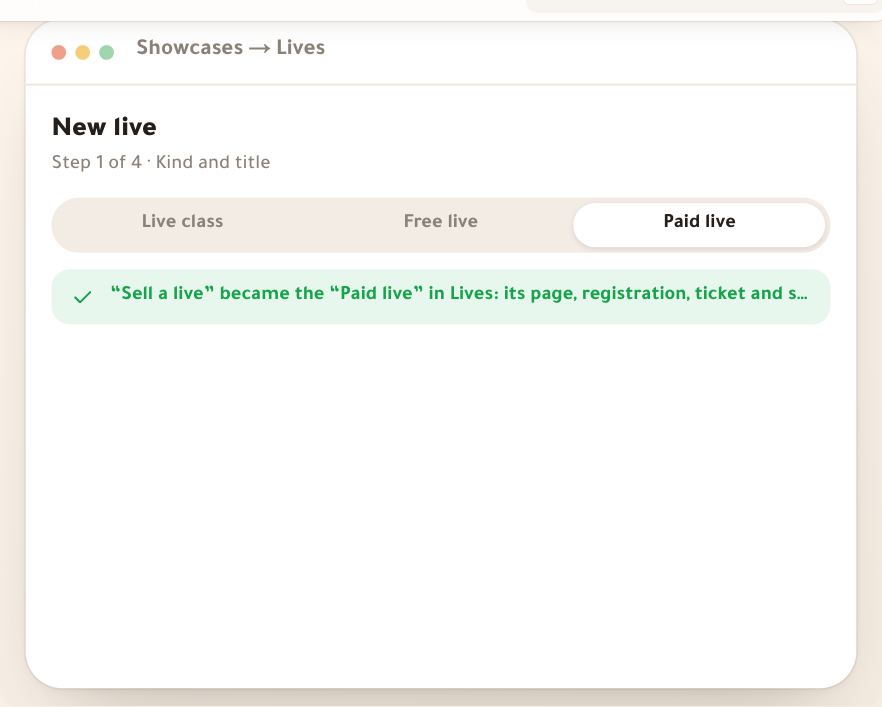
- Sell a ticketed liveA product-photography workshop on Thursday night, a live editing session, a Q&A with your followers: you sell it on its own, without building a course. That used to go through the showcases’ “Sell a live session” wizard; now a live you sell is a **Paid live** in Lives: you set its price and number of tickets, its page on your site becomes a sales page, buyers pay through your store, get registered by themselves and receive the reminders. Today the workshop runs on your Google Meet or Zoom link, with no replay from us: the replay comes with the Dirassa+ room, “Soon”. Nesrine Haddad, a marketing and content coach, sells the “Reels in an hour” workshop at 1,200 DZD.6 steps · 3 minutes
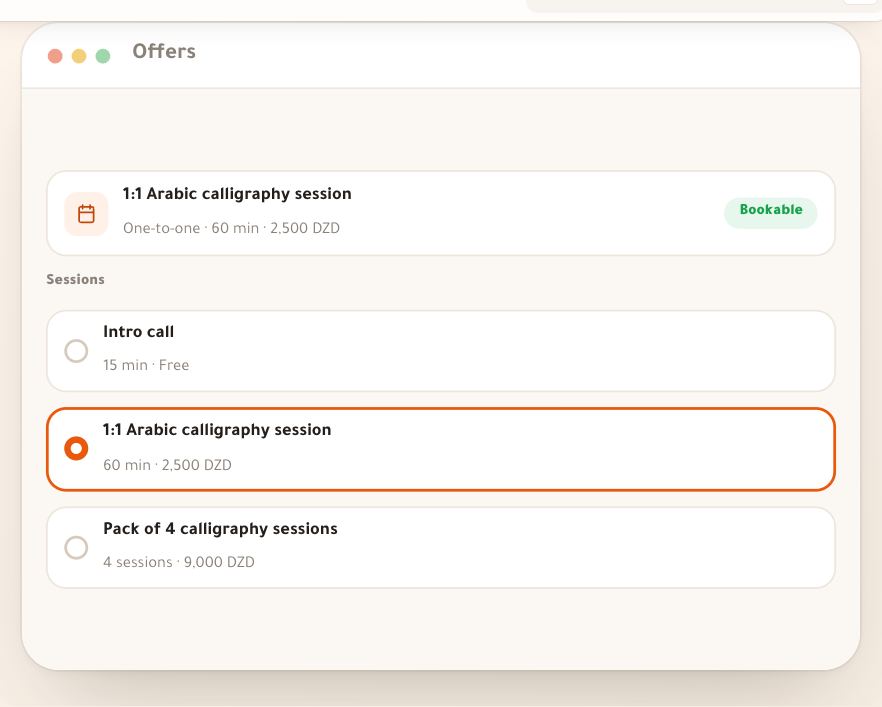
- Sell sessionsA fitness coach sells an assessment, a designer a brand-identity review, a language tutor an hour of conversation: the visitor sees your next free time on the page, taps it, and the service’s booking page opens with that time chosen, held for them until they pay. The booking lands in your “Bookings” calendar like any other.6 steps · 5 minutes
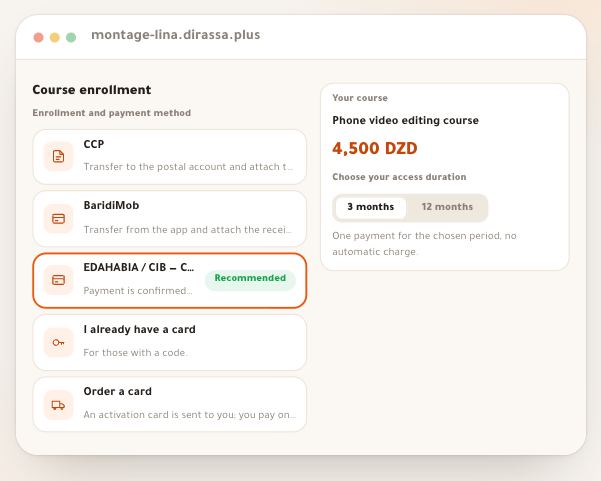
- Receipts and activation cardsEvery showcase that sells one course at its price leads to the same checkout page, in every workspace: one page whose card changes at each stage. The buyer transfers to your postal account and attaches a photo of the receipt, pays by EDAHABIA card, or orders an activation card delivered by courier and paid on delivery. Here is what they see step by step — say a learner buying “Phone video editing basics” — and what you do at each step.7 steps · 5 minutes
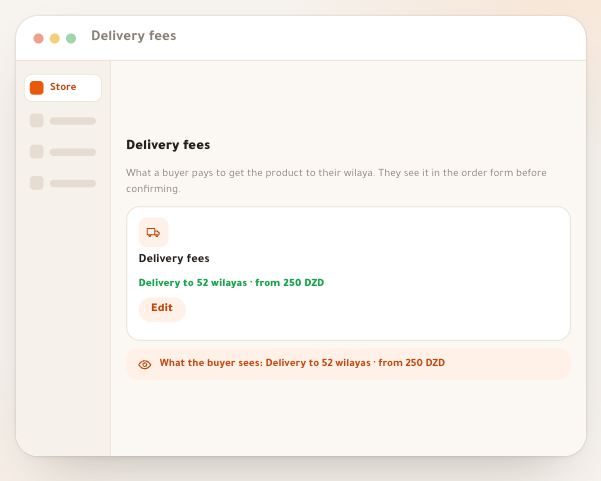
- Delivery feesA photographer in Oran sells framed prints, a fitness coach a workbook, a calligrapher a pen set: all of them ship parcels, and buyers hate finding the delivery price at the door. You set one table: for each wilaya a “To the door” price and a “Pickup desk” price, which buyers see on the product page and in their order before confirming.6 steps · 8 minutes
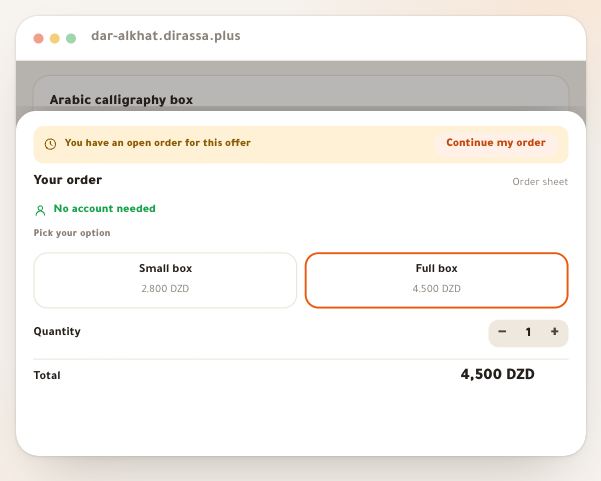
- Order sheetA video editor sells a template pack with a review session, a programming coach a course with a printed workbook: the visitor taps the buy button, an order sheet opens in place, they type their number and name, pick a payment method and confirm, with no account. They then have an order page that tells them where it stands, and through it they get into what they bought from any device. This lesson covers everything they fill, everything that is refused and everything they see.8 steps · 12 minutes
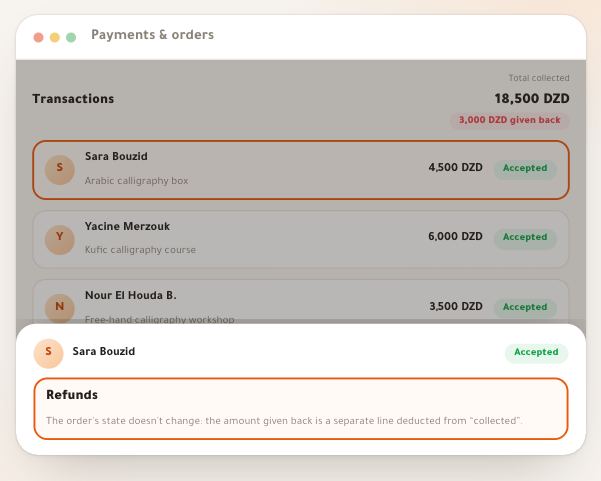
- Record a refundA fitness coach sold a printed workbook and the parcel came back, a photographer sold a print that arrived broken, a calligrapher has a buyer who paid twice: you open the order in your ledger and record what you gave back, from which items, by which method and why, you revoke access if you wish after seeing its effect, and you put the parcel back in stock. The key point: this section records what you did, it moves no money; the refund itself happens outside the platform, by the method you choose.6 steps · 6 minutes
Publishing and results4 lessons
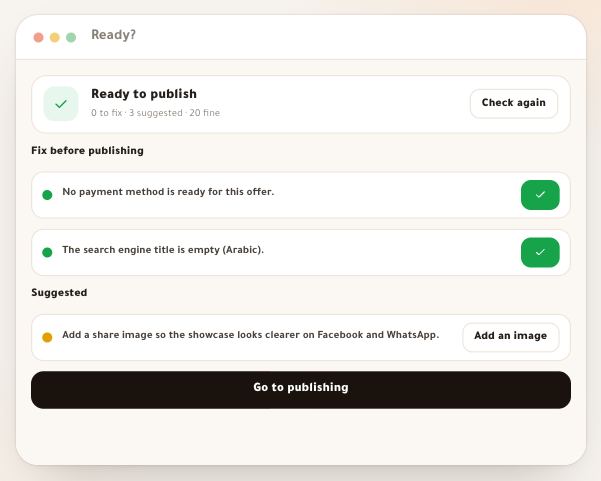
- “Ready?” and publishingBefore anyone sees your showcase, “Ready?” checks it item by item: what blocks publishing in red, what would improve it in yellow, and for each item a button that takes you where to fix it. Then you put it live now or on a date in Algiers time, and decide when it stops and what visitors see afterwards. Our example: Nour, a product photographer, publishes the page of her live workshop “Product photography on your phone”.6 steps · 5 minutes
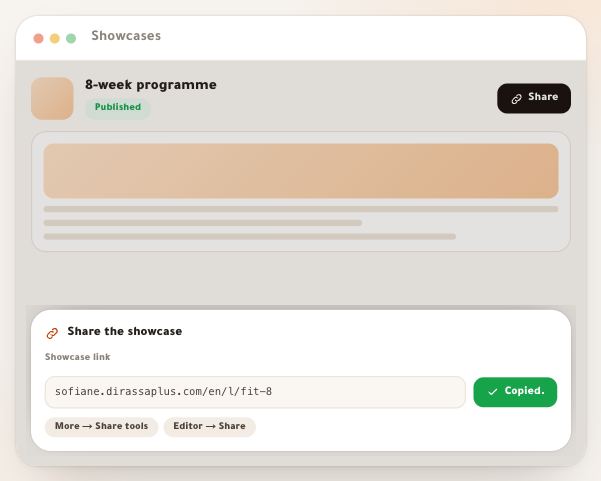
- Sharing a showcaseA live showcase does not sell by itself: it has to reach the places your audience passes through. The sharing tools give you the link, a ready WhatsApp message, a different link for every place you post, so you later know which one brought the orders, parameters to paste into your ad, and a QR code for a poster. Our example: Sofiane, a fitness coach, shares his “8-week fitness programme”.6 steps · 3 minutes
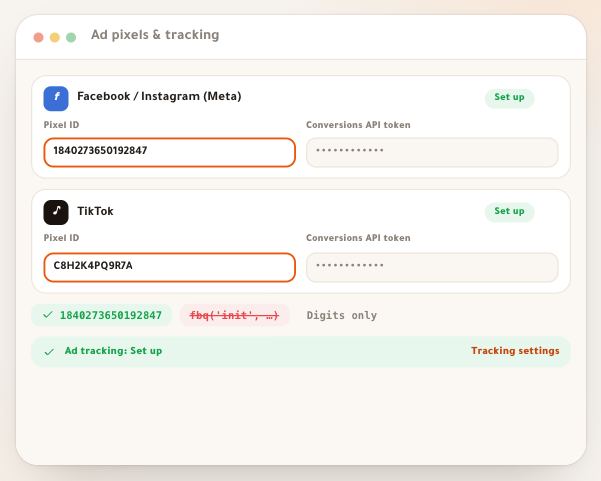
- Measurement, pixel and Conversions APIYou connect the pixel once for your whole workspace; after that every published showcase reports to the ad platforms what happens on it, without starting any tool before the visitor agrees. The one thing to remember: “Purchase” is only sent once the money has really arrived. Our example: Yacine, a digital-marketing trainer, runs a Facebook ad and wants the platform to learn from his real sales.8 steps · 10 minutes
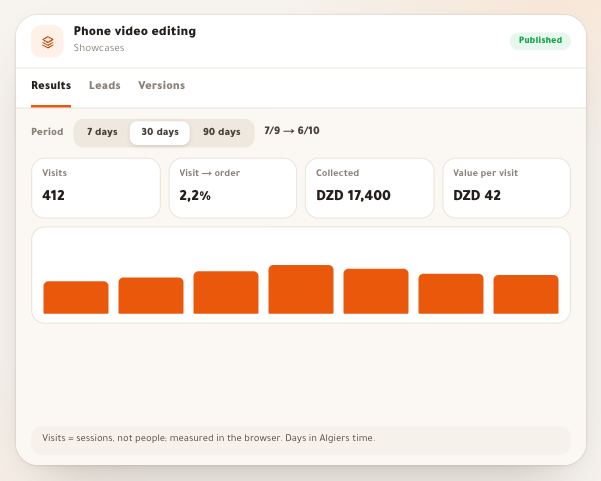
- Showcase results and leadsOnce your showcase is published, the “Results” tab answers a single question: is the page producing orders? First with a sentence, then numbers, then the funnel that shows where visitors stop, the days, and where they came from. And the “Leads” tab gathers those who left a name and a number without buying yet, with call and WhatsApp in one tap, a CSV and a door to the follow-up desk. Example: Nour, a video editor, sells her course “Phone Editing” at 2,900 DZD and collects leads with a free file.8 steps · 9 minutes
The follow-up desk4 lessons
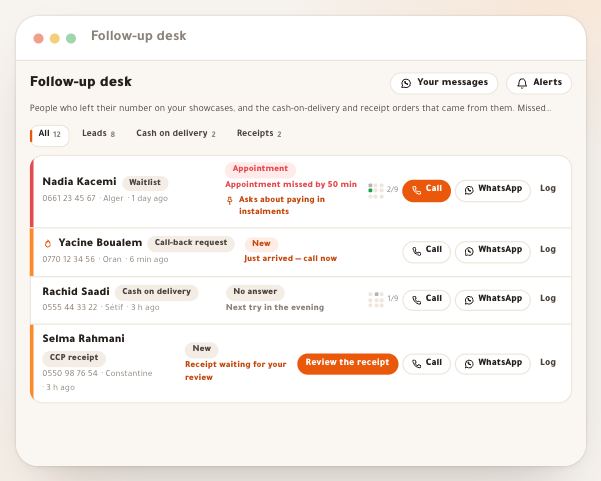
- The desk and the roundWhoever leaves a number on your showcase, orders cash on delivery or sends a receipt needs a person to call them at the right time. The “Follow-up desk” lines them up in one queue: who to call first, what was said last time, where the person came from. This lesson explains the whole desk: what reaches it, how to walk the round, how to log each try. Our example: Lina, a photographer selling her printed book by cash on delivery and keeping a waitlist for her next editing course.8 steps · Short rounds every day
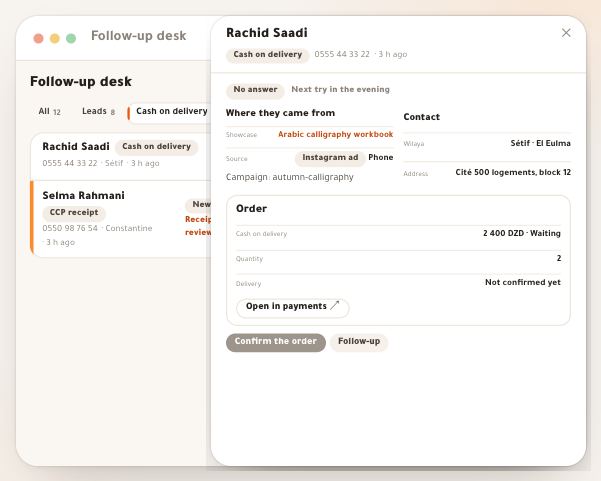
- Cash on delivery and receiptsA cash-on-delivery order needs a call to check the address and quantity before the parcel leaves; an order paid by CCP or BaridiMob receipt waits for money to arrive. The desk puts them in two lanes with tools of their own, but it neither accepts nor refuses money. This lesson says precisely what each button does, when an order turns “Confirmed” or “Paid”, how to spot numbers that already sent parcels back, and how to switch off cash on delivery in a wilaya that returns a lot. Our example: Samir, a calligrapher selling ink sets by cash on delivery and a few orders by CCP.6 steps · 10 minutes to set up, then a few minutes a day
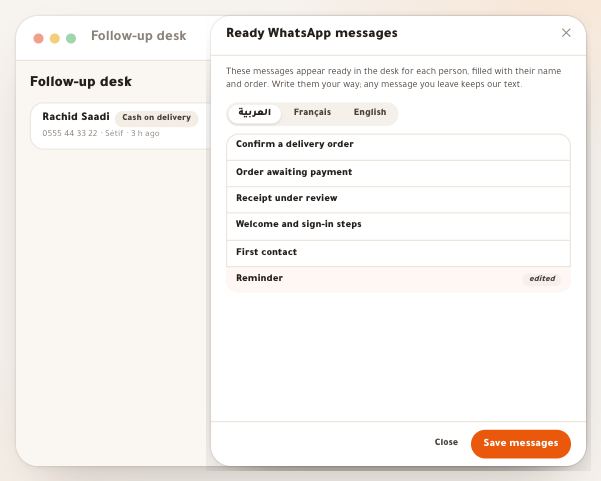
- Your ready messagesFor every person at the desk you can open WhatsApp with a ready message in their language, completed by the desk with their name and order. The six messages start as our text; you adapt them your way, in three languages, with a preview before saving. Then what comes after the purchase: a personal sign-in link that works once, within 24 hours, a card that says how many buyers actually got into what they bought, and a panel that resets the devices of someone who changed phone. Our example: Nour, a French tutor selling a conversation pack.6 steps · 10 minutes, once
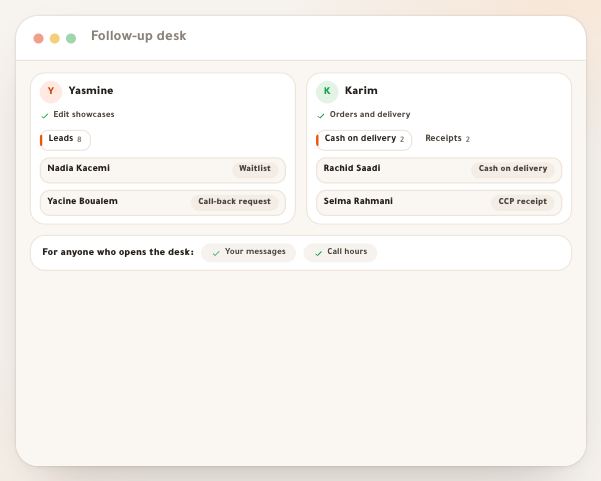
- The team and alertsWhen more than one person works the desk, three questions come up: who sees what? who follows this person? and how do I know an order arrived when I am away from the screen? This lesson answers them all: what each permission opens, how “who follows” is decided without a lock or an assignment, and phone alerts with their limits, quiet hours and recipients. Our example: Yasmine, a marketing coach, and her assistant Karim.5 steps · 10 minutes, once